Key Takeaways:
VLOOKUPis limited to single-criterion searches and requires the lookup column to be the first column, whileXLOOKUPoffers more flexibility but still demands technical formula knowledge- Excelmatic eliminates the need for complex formula syntax by allowing you to perform lookups using simple language commands, making it accessible to business professionals without Excel expertise
- Unlike traditional functions, Excelmatic can handle multiple criteria, search in any direction, and return multiple values simultaneously without complex formula combinations
- For marketing, sales, and operations professionals who need quick data insights, adopting an AI tool like Excelmatic is the most efficient way to get answers from complex datasets
For decades, VLOOKUP() was the undisputed king of data lookups in Excel. It's a reliable tool, but its limitations are well-known. In 2019, Microsoft introduced XLOOKUP(), a modern and far more flexible successor. This article compares VLOOKUP() versus XLOOKUP(), but it also introduces a third, game-changing approach: using an AI agent.
The shift from manual formulas to AI-driven analysis represents the next evolution in productivity. While mastering functions like XLOOKUP() is a valuable skill, tools like Excelmatic are changing the game by allowing you to get answers from your data by simply asking questions in plain language. Let's explore all three methods to see which is right for you.
Three Approaches to Data Lookup
To find data in Excel, you can use traditional formulas, modern formulas, or an AI agent. Each has its own method.
The Traditional Formula: VLOOKUP() Syntax
Let’s first look at the VLOOKUP() syntax, the classic workhorse of Excel.
=VLOOKUP(lookup_value, table_array, col_index_num, [range_lookup])
In this formula:
lookup_value: The value you want to search for.table_array: The range of cells containing the data. Crucially, the lookup value must be in the first column of this range.col_index_num: The column number in the range from which to retrieve a value.range_lookup: A logical value (TRUEfor an approximate match,FALSEfor an exact match).
The Modern Formula: XLOOKUP() Syntax
Now, let's examine the XLOOKUP() syntax. It offers more arguments and much more flexibility.
=XLOOKUP(lookup_value, lookup_array, return_array, [if_not_found], [match_mode], [search_mode])
In this formula:
lookup_value: The value you want to search for.lookup_array: The specific range or column where the lookup value is searched.return_array: The specific range or column that contains the value you want to return.if_not_found(optional): A custom value or message to return if no match is found.match_mode(optional): Defines the type of match (e.g., exact, next smaller, next larger).search_mode(optional): Defines the search direction (e.g., first-to-last, last-to-first).
The AI-Powered Way: The Excelmatic Approach

Excelmatic is an Excel AI Agent that eliminates the need for formulas. The process is simple:
- Upload your Excel file(s).
- Ask your question in plain language. For example, "Find the grade for the student named Robin."
- Get an instant answer. Excelmatic analyzes the data and provides the result, a chart, or a full report.

There is no syntax to learn. You just state your objective.
Main Differences: VLOOKUP() vs. XLOOKUP() vs. Excelmatic
Let’s explore the key differences between these three approaches.
Exact Match Mode
XLOOKUP() defaults to an exact match, which is what users want most of the time. VLOOKUP() defaults to an approximate match, requiring you to specify FALSE for an exact match, a common source of errors for beginners.
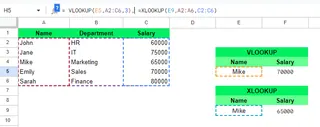
The Excelmatic Advantage: This distinction is irrelevant in Excelmatic. The AI understands the user's intent to find an exact match from the context of the question. You don't need to specify a match mode at all.
Lookup Direction
VLOOKUP() is famously restricted; it can only search in the first column of the table_array and look up values to the right. XLOOKUP() can look to the left or right, as the lookup and return arrays are independent.
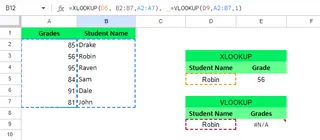
The Excelmatic Advantage: With Excelmatic, column order doesn't matter. You can simply ask, "What are the grades for Robin?" The AI automatically identifies the 'Student Name' and 'Grades' columns and finds the correct data, regardless of their position.
Array References
VLOOKUP() requires you to define the entire table and then count columns to specify the col_index_num. XLOOKUP() is more robust because you select the lookup and return columns separately.
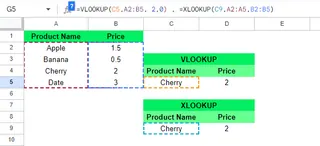
The Excelmatic Advantage: Excelmatic abstracts this away entirely. You refer to data by its header name (e.g., "Grades," "Student Name"), not cell ranges like A2:A5. This is more intuitive and completely eliminates errors from selecting the wrong range.
Horizontal Lookup
To perform a horizontal search with traditional functions, you need to switch from VLOOKUP() to HLOOKUP(). XLOOKUP() handles both vertical and horizontal lookups seamlessly.
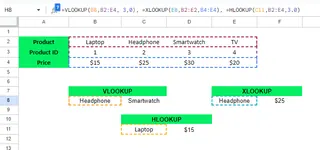
The Excelmatic Advantage: Whether your data is arranged in rows or columns is irrelevant to Excelmatic. It analyzes the structure of your table and understands the relationships, providing the correct answer without you needing to specify the orientation.
Handling Column Insertions/Deletions
If you insert or delete a column in your table, a VLOOKUP() formula will likely break because its col_index_num is hardcoded. XLOOKUP() is dynamic and adapts to such changes because it references the return array directly.
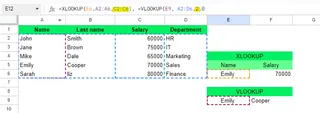
The Excelmatic Advantage: This is a non-issue. Since you ask questions using column headers, Excelmatic will find the data as long as the columns "Student Name" and "Grades" still exist, no matter where they are or what's between them. Your query remains valid.
Custom Error Messages
When VLOOKUP() doesn't find a value, it returns a harsh #N/A error. To customize this, you need to wrap it in an IFERROR() function. XLOOKUP() has a built-in if_not_found argument, making this much cleaner.
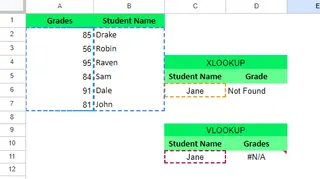
The Excelmatic Advantage: Excelmatic provides user-friendly responses by default. If a value isn't found, it will tell you in plain language, such as "I could not find a student with that ID." You can also instruct it on how to respond, e.g., "If the student is not found, reply with 'Student not on list'."
Return Multiple Values
VLOOKUP() can only return a single value from one column. To get multiple values (e.g., a student's score and grade), you need to write multiple VLOOKUP formulas. XLOOKUP() can return an entire row or multiple columns with a single formula.
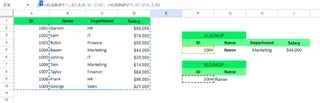
The Excelmatic Advantage: This is a core strength of AI. Just ask, "For the student Robin, what are her grades and scores?" Excelmatic will understand you want information from multiple columns and will return both values at once.
Search Mode
VLOOKUP() always searches from top-to-bottom and returns the first match it finds. XLOOKUP() introduces a search_mode argument, allowing you to search from bottom-to-top, which is perfect for finding the most recent entry.
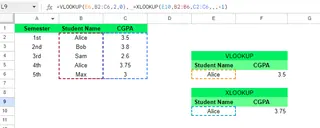
The Excelmatic Advantage: You can specify this with natural language. Simply ask, "What is Sarah's most recent salary?" The AI understands the temporal context of "most recent" and will perform a last-to-first search for you automatically.
Practical Examples and Use Cases
Let’s see these three methods in action.
Example 1: Looking Up Data to the Left
I want to find a student's score based on their name. The "Scores" column is to the left of the "Student Name" column, which breaks VLOOKUP().
VLOOKUP() Formula:
=VLOOKUP(D4,A1:B5,1,0)
This returns an #N/A error because the lookup column is not the first column in the table_array.
XLOOKUP() Formula:
=XLOOKUP(D8,B2:B5,A2:A5)
This works perfectly.
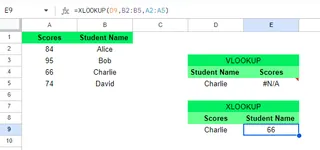
The Excelmatic Solution: You simply upload the file and ask: "What is the score for the student named Charlie?" Excelmatic finds the answer instantly, ignoring column order.
Example 2: Creating a Custom Output When a Value is Not Found
I search for a student ID that is not on the list and want a custom message instead of an error.
VLOOKUP() Formula:
=VLOOKUP(E6, A2:C5,2,0)
This returns #N/A. You would need =IFERROR(VLOOKUP(...), "Student not Found") to customize it.
XLOOKUP() Formula:
=XLOOKUP(E9, A2:A5, B2:B5, "Student not Found")
This cleanly returns the custom message.
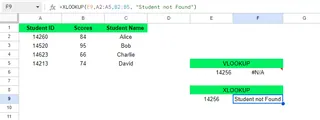
The Excelmatic Solution: Ask: "Find the name for student ID 14256. If they are not on the list, say 'Student not Found'." The AI follows the instruction and provides the custom message.
Example 3: Searching from the Bottom-Up
I want to find Sarah's salary from the most recent year, which is the last entry for her in the list.
VLOOKUP() Formula:
=VLOOKUP(F4, B2:C10,2,0)
This returns the first match from the top: $50,000.
XLOOKUP() Formula:
=XLOOKUP(F8,B2:B10,C2:C10,,,-1)
By setting search_mode to -1, this correctly finds the last entry: $65,000.
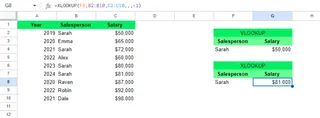
The Excelmatic Solution: Ask: "What is Sarah's most recent salary?" The AI interprets "most recent" and automatically performs a bottom-up search to give you the correct answer, $65,000.
Performance and Compatibility
Choosing the right tool also depends on performance with large datasets and compatibility with different Excel versions.
- VLOOKUP(): Compatible with all versions of Excel, making it reliable for sharing files with anyone. However, it can be slow on large, unsorted datasets when using exact match (
FALSE). - XLOOKUP(): Significantly faster and more efficient than
VLOOKUPon large datasets. Its main limitation is compatibility—it is only available in Excel 2021 and Microsoft 365. If you collaborate with users on older versions, they won't be able to use yourXLOOKUPformulas. - Excelmatic: As a web-based AI agent, it is completely version-agnostic. Anyone with a web browser can use it. Performance is handled by powerful cloud servers, making it extremely fast even with very large datasets that might slow down a local instance of Excel.
Summary Table
Let's summarize the comparison for easy reference.
| Feature | VLOOKUP() | XLOOKUP() | Excelmatic |
|---|---|---|---|
| Default Match Mode | Approximate (requires FALSE for exact) |
Exact | Not Applicable (AI understands intent) |
| Lookup Direction | Right only | Any direction (left, right, top, bottom) | Any direction, automatically |
| Ease of Use | Moderate (requires counting columns) | Easy (direct column references) | Easiest (natural language questions) |
| Horizontal Lookup | Requires HLOOKUP() |
Built-in | Handles automatically |
| Handling Column Changes | Breaks formula (hardcoded index) | Robust (dynamic references) | Unaffected (references column names) |
| Custom Error Messages | Requires IFERROR() wrapper |
Built-in argument | Natural language response |
| Return Multiple Values | No (one value at a time) | Yes (dynamic arrays) | Yes, just ask for what you need |
| Search Direction | Top-to-bottom only | Top-to-bottom or bottom-to-top | Interprets from context (e.g., "latest") |
| Performance | Can be slow on large datasets | Fast and efficient | Very fast, processed on the cloud |
| Compatibility | All Excel versions | Excel 2021 & Microsoft 365 | Universal (web-based) |
Final Thoughts
XLOOKUP() is a clear and powerful upgrade over VLOOKUP(), offering the flexibility and robustness needed for modern data analysis. For anyone working within newer versions of Excel, it should be your default formula for lookups.
However, the landscape of data interaction is changing. AI agents like Excelmatic represent a fundamental shift from building solutions with formulas to simply asking for them. This approach eliminates the learning curve of complex functions, prevents common errors, and provides answers with conversational speed.
The best choice depends on your needs:
- Use
VLOOKUP()when you need maximum compatibility with older Excel versions. - Master
XLOOKUP()for powerful, flexible, and efficient lookups within the modern Excel ecosystem. - Adopt Excelmatic when you want the fastest, most intuitive path from data to insight, without writing a single formula.
Ready to skip the formulas and get instant answers from your Excel data? Try Excelmatic for free today and experience how AI-powered data analysis can transform your workflow.