Creating dynamic summaries (e.g., filtered totals) in Excel traditionally requires mastering complex formulas like SUBTOTAL() with its numeric function codes, which is a barrier for non-technical users.
Excelmatic bypasses formula complexity entirely, allowing you to get filtered totals and averages by simply asking questions in plain language.
Unlike SUBTOTAL() which has limitations (e.g., no cross-sheet analysis, error-prone), Excelmatic handles complex scenarios effortlessly, offering a more intuitive and powerful way to perform dynamic data analysis.
For professionals who need quick, accurate insights from filtered or segmented data without learning formula syntax, Excelmatic is the most efficient solution.
Excel users often need flexible ways to summarize data that respond to filters or groupings. Traditional functions like SUM(), AVERAGE(), or COUNT() calculate results based on all cells in a range, regardless of whether some rows are hidden or filtered out.
For decades, the SUBTOTAL() function has been the go-to solution, offering a dynamic alternative that automatically adjusts its calculations based on what's currently visible. However, mastering it requires understanding complex syntax and function codes. Today, modern AI tools provide a much simpler path to the same result, letting you use plain language instead of formulas.
In this guide, we'll cover both methods. We'll provide a full breakdown of the powerful SUBTOTAL() function and then show you how an AI agent like Excelmatic can achieve the same dynamic calculations in a fraction of the time.
What Is the SUBTOTAL() Function in Excel?
The SUBTOTAL() function calculates aggregate values such as sum, average, count, and other statistical operations on a dataset. What makes it different from standard Excel functions is how it works dynamically—changing its result based on what's visible or filtered. The function can ignore both manually hidden rows and rows hidden through filters, depending on which function number you specify.
When you apply a filter to your data or manually hide certain rows, SUBTOTAL() automatically adjusts its calculation to include only the visible cells. This behavior makes it an excellent choice for creating summary rows in filtered datasets, building interactive dashboards, or generating reports that need to update based on user selections.
The function supports the same statistical operations as Excel's standard functions—including sum, average, count, maximum, minimum, and several others—but packages them into a single, context-aware function that adapts to your data's current state.
Syntax and Supported Operations
The SUBTOTAL() function follows a straightforward syntax structure:
=SUBTOTAL(function_num, ref1, [ref2], ...)
The first parameter, function_num determines both the type of calculation and how the function handles hidden rows. The remaining parameters (ref1, ref2, etc.) are the cell ranges you want to include in the calculation. You can specify up to 254 different ranges.
The function numbers fall into two distinct categories based on how they treat manually hidden rows:
Function Number
Operation
Includes Manually Hidden Rows
Excludes Manually Hidden Rows
1 / 101
AVERAGE
1
101
2 / 102
COUNT
2
102
3 / 103
COUNTA
3
103
4 / 104
MAX
4
104
5 / 105
MIN
5
105
6 / 106
PRODUCT
6
106
7 / 107
STDEV
7
107
8 / 108
STDEVP
8
108
9 / 109
SUM
9
109
10 / 110
VAR
10
110
11 / 111
VARP
11
111
Function numbers 1-11 include cells from manually hidden rows in their calculations, while function numbers 101-111 exclude them. However, both ranges always ignore rows hidden by filters.
For example, SUBTOTAL(9, A2:A10) calculates the sum of A2:A10 including any manually hidden rows, while SUBTOTAL(109, A2:A10) excludes manually hidden rows from the sum calculation. In both cases, filtered rows are automatically excluded from the result.
Dynamic Calculations in Action: Two Methods
Let's see how to calculate a summary on filtered data using a practical example with sales data from an electronics and furniture store.
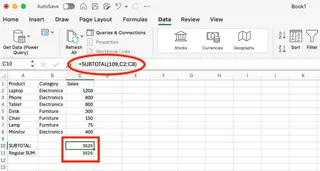
Our sample data contains seven products across two categories. With no filters applied, both the SUBTOTAL(109,C2:C8) formula and a regular SUM(C2:C8) formula show the same result: 3525 (the total of all sales).
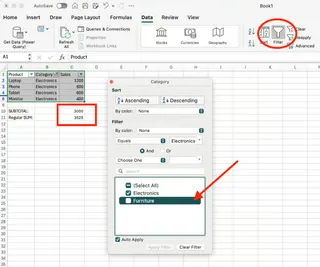
Now, let's filter the data to show only "Electronics" products.
Method 1: The Traditional SUBTOTAL() Formula
After applying the filter, notice the key difference in our calculation results:
SUBTOTAL formula shows 3000 - automatically adjusting to sum only the visible "Electronics" rows.
Regular SUM formula still shows 3525 - continuing to include the hidden "Furniture" items.
This side-by-side comparison demonstrates SUBTOTAL()'s core advantage: it responds dynamically to filters, making it essential for responsive reports.
Method 2: The AI-Powered Excelmatic Approach
Instead of writing and debugging formulas, you can get the same result by simply asking. With an AI agent like Excelmatic, the process is much simpler:
Upload your Excel file.
Ask your question in plain language. For this example, after filtering, you could ask:
What is the sum of the 'Sales' column for the visible data?
Excelmatic instantly analyzes the visible data and gives you the answer: 3000.
The contrast is clear: SUBTOTAL() requires you to know the correct syntax and function number (is it 9 or 109?). Excelmatic understands your intent from natural language, delivering the same accurate, dynamic result without any formula knowledge.
How SUBTOTAL() Works with Hidden and Filtered Data
The SUBTOTAL() function handles different types of hidden data in specific ways, making it essential to understand these behaviors when building your formulas.
SUBTOTAL() with filtered rows
When you apply a filter to your dataset, SUBTOTAL()always excludes the filtered-out rows from its calculations, regardless of which function number you use. This behavior is automatic and consistent across all function numbers (both 1-11 and 101-111 ranges).
SUBTOTAL() with manually hidden rows
Manually hidden rows are handled differently depending on your function number choice. When you right-click on row numbers and select "Hide," you're manually hiding those rows.
Using function numbers 1-11 includes these manually hidden rows in calculations.
Using function numbers 101-111 excludes them.
This gives you granular control, but it's another layer of complexity to remember. In contrast, an AI tool typically calculates based on what is visibly presented, or you can specify in your prompt, "include manually hidden rows," for more direct control.
SUBTOTAL() with horizontal and vertical ranges
The SUBTOTAL() function works best with vertical data ranges (columns of data). While it can handle horizontal ranges, its hiding behavior is optimized for row-based operations since Excel's filtering and row hiding features work vertically.
When you nest SUBTOTAL() formulas within the same range, the function automatically skips other SUBTOTAL() results to avoid double counting. This is useful for hierarchical summaries.
Advanced Uses of the SUBTOTAL() Function
Creating a dynamic dropdown summary with SUBTOTAL()
You can combine SUBTOTAL() with the IF() function to create interactive summaries. To do this, you would first set up a dropdown list (e.g., in cell D1) with options like "Sum", "Average", "Count", etc.
Then, you'd write a complex nested IF formula to change the calculation:
The AI Alternative: With Excelmatic, you skip the formula entirely. You simply ask a new question for each calculation:
"What is the sum of sales for visible rows?"
"What is the average sale price for visible rows?"
"Count the visible products."
This conversational approach is far more intuitive and requires zero setup.
SUBTOTAL() in Excel tables and outlines
Excel Tables automatically use SUBTOTAL() in the Total Row feature. When you convert your data to a Table (Ctrl+T) and enable the Total Row, Excel inserts SUBTOTAL(109, …) by default, which dynamically updates when you filter. The Outline feature (Data > Subtotal) also relies on SUBTOTAL() to create hierarchical summaries. These are powerful built-in features that leverage the function's capabilities.
Common Pitfalls and Limitations of SUBTOTAL()
Understanding the limitations of SUBTOTAL() helps you avoid errors and highlights where modern tools offer a better experience.
#VALUE! error with invalid function numbers: Using a function number outside the 1-11 or 101-111 range returns a #VALUE! error. This is a common typo that can break your report.
Hidden columns versus hidden rows behavior:SUBTOTAL() always includes data from hidden columns. This can lead to unexpected results if you expect it to behave like it does with rows.
3D references not supported:SUBTOTAL() cannot reference ranges across multiple worksheets (Sheet1:Sheet3!A1:A10). This is a major limitation for consolidated reporting. Excelmatic, however, can analyze data from multiple uploaded files or sheets simultaneously, making cross-sheet analysis straightforward.
Error values remain in calculations:SUBTOTAL() doesn't ignore cells with errors like #N/A or #DIV/0!, which can invalidate your entire result. You must either clean the data first or use the more complex AGGREGATE() function.
Vertical data orientation works best: The function is designed for standard, column-based data and can behave unpredictably with horizontal layouts.
Subtotal() vs. AGGREGATE() vs. AI Agents
For years, the AGGREGATE() function was the answer to SUBTOTAL()'s limitations. AGGREGATE() offers more functions (19 total) and, crucially, can be configured to ignore error values.
SUBTOTAL(): Good for basic dynamic calculations on clean, filtered data.
AGGREGATE(): Better for datasets with errors or when you need more advanced statistical functions (like MEDIAN or PERCENTILE).
AI Agents (like Excelmatic): The simplest and most powerful option. They handle filtered data, can often ignore errors automatically, work across multiple sheets, and require no formula syntax—just plain English questions.
Pro Tips When Using SUBTOTAL()
If you choose the formula path, these tips will help you succeed:
Always sort first
When using Excel's built-in Data > Subtotal feature, sort your data by the grouping column first to ensure clean group breaks.
Use labels in the first row of columns
Descriptive headers make your reports easier to interpret and help Excel's automated tools work correctly.
Be aware of summary placement (above or below)
Excel's Subtotal tool can place summaries above or below each group. Choose the format that best suits your report's audience.
Hide vs. filter rows for precise control
Understand the difference between filtering (temporary) and manually hiding (semi-permanent) to get the results you expect, and choose your function number (e.g., 109) accordingly.
Conclusion
Learning to use SUBTOTAL() is a valuable Excel skill that enables you to build resilient, dynamic reports. It represents a significant step up from static functions like SUM().
However, the landscape of data analysis is evolving. For professionals who need fast, accurate answers without getting bogged down in syntax, function codes, and error handling, AI agents like Excelmatic offer a compelling alternative. By translating plain language questions into powerful data analysis, these tools democratize the ability to get insights from your data, allowing you to focus on the results, not the formulas. The ability to ask, "What's the total for just the visible rows?" and get an immediate, correct answer is a game-changer for efficiency.
Whether you choose to master the intricacies of SUBTOTAL() or embrace the simplicity of AI, the ability to perform dynamic calculations is a cornerstone of effective data analysis in Excel.
Why should I use function number 109 instead of 9 in SUBTOTAL()?
Function number 9 includes manually hidden rows in calculations, while 109 excludes them. Choose 109 when you want both filtered and manually hidden rows to be ignored.
What's the difference between SUBTOTAL() and SUM() in Excel?
SUBTOTAL() automatically excludes filtered rows from calculations, while SUM() includes all cells regardless of filtering. SUBTOTAL() also ignores other subtotal formulas to prevent double-counting.
When should I use a formula like SUBTOTAL() vs. an AI tool?
Use SUBTOTAL() when you need to build a permanent, structured report where the calculation logic must be embedded in a cell. Use an AI tool for quick, ad-hoc analysis, exploring data, or when you want to avoid complex formulas and get immediate answers.
Can SUBTOTAL() work with data across multiple worksheets?
No,SUBTOTAL() only works with ranges within the same worksheet. For multi-sheet analysis, you'd need to use workarounds or an AI tool that can process multiple files/sheets.
How many ranges can I include in a single SUBTOTAL() formula?
You can specify up to 254 different ranges in oneSUBTOTAL() formula. Each range is added as a separate parameter after the function number.
When should I choose AGGREGATE() over SUBTOTAL()?
UseAGGREGATE() when your data contains error values that need to be excluded or when you need statistical functions beyond the 11 basic operations that SUBTOTAL() offers.
Share with friends
Ditch Complex Formulas – Get Insights Instantly
No VBA or function memorization needed. Tell Excelmatic what you need in plain English, and let AI handle data processing, analysis, and chart creation