
User Interface Guide
Excelmatic is designed with a "Minimalist-Yet-Powerful" layout, putting the most critical tools at your fingertips. Here is a guide to the four primary zones of the interface.
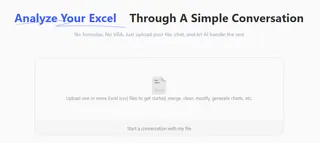
1. Central Work Area (Drop Zone)
This is the heart of the application.
- Quick Upload: Drag and drop supported file types directly onto the screen.
- AI Assistant Activation: The chat interface is context-aware and activates only after a file is uploaded. This ensures the AI is perfectly synced with your specific data before the conversation begins.
2. Global Navigation Sidebar
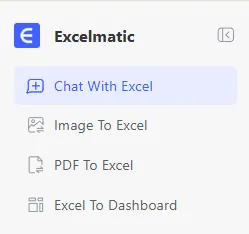
The left sidebar allows you to switch between specialized AI engines. Each tool is tuned for a specific data format:
- Chat With Excel: Your main workspace for analyzing uploaded spreadsheets.
- Image To Excel: Upload photos of tables or screenshots.
- PDF To Excel: Extract structured data from complex PDF documents.
- Excel To Dashboard: Automatically turn raw numbers into visual charts and KPI cards.
3. The AI Assistant (Chat & Command)
Located at the bottom, the chat bar is where you input your Natural Language Commands.
- Multi-modal: Attach files or type text instructions here.
- Live Preview: As you type commands (like "Clean this data"), a live preview of the resulting table will appear in the chat stream before you export.
4. History & Workspace Management
Your previous sessions are saved on the left.
- Session Recall: Click any previous task to see your conversation, file, and the AI's analysis.
- Manual Purge: Hover over a history item to delete it permanently from our servers (as detailed in our Security Policy).
Workspace Tips
- Toggle Sidebar: You can collapse the sidebar to maximize your work area when dealing with wide tables.
- Dark/Light Mode: Switch themes in your profile settings to suit your working environment.
Next Step: Check the technical specifications for your files in Supported Files & Limits.