
Desktop App (PWA)
Installing Excelmatic as a desktop app (PWA) removes browser clutter and unlocks professional productivity shortcuts designed for high-speed data handling.
1. Quick Installation
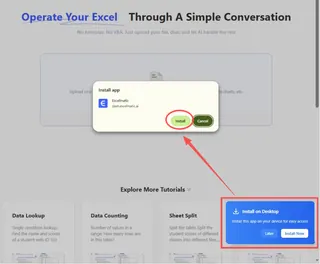
- Open Excelmatic in Chrome or Edge.
- Click the Install Icon (small monitor icon) on the right side of the address bar.
- Select Install.
2. Pro Shortcuts: Skip the "Drag & Drop"
Once installed, you have two faster ways to get your data into Excelmatic:
A. The "Ctrl + V" Paste (Fastest)
The Goal: Move files from your folder to the AI Assistant instantly.
- Locate your file in any folder.
- Select the file and press Ctrl+C (Copy).
- Switch to Excelmatic and press Ctrl+V (Paste) anywhere on the interface.
💡Tip: This works on both the web version and the installed Desktop App. It is the most convenient way to handle files without opening file explorers.
B. Right-Click "Open With"
The Goal: Launch the app and load the file in one click.
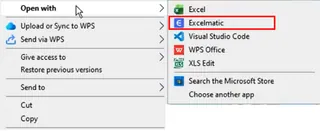
- Right-click a spreadsheet on your computer.
- Select Open with... > Excelmatic.
3. Why Use the Desktop App?
- Always Ready: Pin Excelmatic to your Taskbar (Windows) or Dock (Mac) for instant access.
- Native Experience: A dedicated window helps you stay focused on data analysis without browser tab distractions.
- Smart Integration: Full support for OS-level clipboard and file associations.
Next Step: Learn how we protect your business data in Security & Privacy.