
Executive Quickstart
When you have a meeting in 10 minutes and only a messy data export, Excelmatic is your fastest path to a professional deliverable. This guide shows you how to transform raw rows into a high-level summary instantly.
The 10-Minute Workflow
1. Uploading your Spreadsheet
The Goal: Get your primary data into the AI workspace.
Excelmatic's central upload zone supports a wide range of spreadsheet file formats, including .xlsx, .xls, .xlsm, .xlsb, .xla, .xlam, .csv, and .ods. Simply drag and drop your file into the upload box to get started.

Note: If your data is currently in a PDF or an image, use the Image/PDF to Excel tool first to convert it.
2. Executing the "Master Prompt"
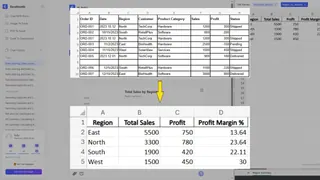
The Problem: Your raw export (shown below) has inconsistent dates, duplicate entries, and empty rows.
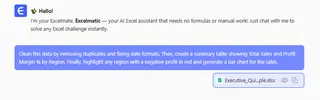
The One-Step Master Prompt: Copy and paste this into the chat box to handle cleaning and analysis at once:
Clean this data by removing duplicates and fixing date formats. Then, create a summary table showing Total Sales and Profit Margin % by Region. Finally, highlight any region with a negative profit in red and generate a bar chart for the sales.
3. Reviewing & Exporting
The Outcome: A professionally formatted report.
Review the live preview in the chat. Excelmatic doesn't just give you a table; it understands the business context, calculates margins, applies conditional formatting (red for negative profit), and prepares the file for immediate sharing.
Quickstart Command Reference
| Objective | Recommended Command |
|---|---|
| All-in-One | "Clean, summarize by [Category], and add a [Type] chart." |
| Trend Find | "Show me the month-over-month growth rate for [Product]." |
| Data Repair | "Fix dates and fill missing status values as 'Pending'." |
Practice Lab
Test the Master Prompt yourself using the same dataset from the example:📂 Download Executive_Quickstart_Sample.xlsx
Next Step: Learn how to process files even faster by integrating Excelmatic directly into your desktop in Desktop App (PWA).