
Split / Merge / Reshape
In the real world, data is rarely in the right format. Whether you need to combine sales from two different months or split names into first and last, Excelmatic does the heavy lifting so you don't have to struggle with VLOOKUP or Text-to-Columns.
Common Transformation Workflows
1. Merging Files (The VLOOKUP Killer)
The Problem:
You have two separate files (e.g., Sales and Customer Info) and need to match them using a common ID.
The Command:
Merge these two files based on the 'Lead ID' column and show me the combined table.
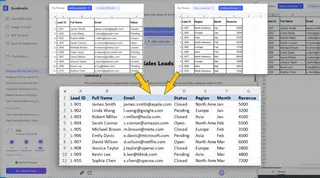
2. Splitting and Extracting Data
The Problem:
A single cell contains too much information, like "Full Name" or a complete address.
The Command:
Split the 'Full Name' column into 'First Name' and 'Last Name', and extract the 'Domain' from the email column.
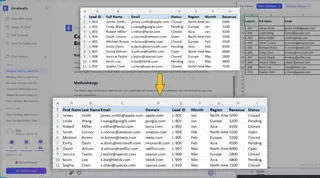
3. Reshaping for Reports (Pivoting)
The Problem:
Your data is in a long list, but you need it organized by "Month" and "Region" for a presentation.
The Command:
Pivot this data to show 'Total Revenue' by 'Region' as columns and 'Month' as rows.

Command Reference Table
| Objective | Recommended Command |
|---|---|
| Merge Files | "Join these files based on [ID/Email]" |
| Split Text | "Split [Column] by [Delimiter/Space]" |
| Extract Value | "Extract [Zip Code/Domain] from [Column]" |
| Transpose/Pivot | "Reshape data to show [Metric] by [Category]" |
Practice Lab
Master these transformations using our practice files: 📂 Download Sales_Leads.xlsx | 📂 Download Contact_Info.xlsx
Next Step: Unlock deep business insights by exploring our Analytics & BIguide.