
Data Cleaning
Data preparation is often the most time-consuming part of any spreadsheet task. Excelmatic’s AI Assistant simplifies this by allowing you to clean datasets using natural language commands, replacing manual filtering and complex formula writing.
Why Use AI for Data Cleaning?
Traditional Excel tools require navigating multiple menus. With Excelmatic, you simply describe the desired outcome to:
- Fix Inconsistency: Standardize mixed date formats or text casing.
- Remove Noise: Instantly strip away duplicates or irrelevant blank rows.
- Handle Missing Data: Use smart logic to fill empty cells based on column averages or specific rules.
Common Cleaning Workflows
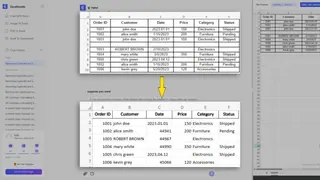
1. Removing Duplicates and Blank Rows
The Problem:
Your dataset contains multiple entries for the same transaction or empty rows that interfere with analysis.
The Command:
Remove all duplicate rows based on the 'Order ID' column and delete any completely empty rows.
2. Standardizing Formats
The Problem:
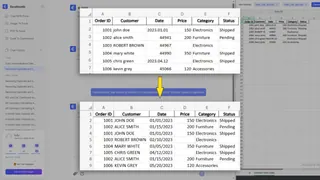
Dates are recorded in various styles (e.g., 2023.01.01 and 1/1/23) or phone numbers have inconsistent separators.
The Command:
Standardize the 'Date' column to MM/DD/YYYY and ensure all text in the 'Customer' column is capitalized.
3. Filling Missing Values
The Problem:
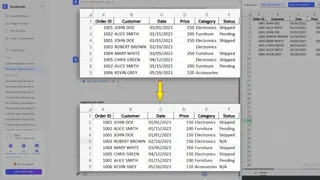
Empty cells in critical columns like 'Price' or 'Status'.
The Command:
Fill missing values in the 'Price' column with the average of that category, and mark empty 'Status' cells as 'N/A'.
Command Reference Table
| Objective | Recommended Command |
|---|---|
| Deduplication | "Remove duplicates based on [Column Name]" |
| Data Repair | "Fill missing values with [Value/Mean]" |
| Formatting | "Convert [Column] to [Currency/Date]" |
| Trimming | "Remove extra spaces from all cells" |
Practice Lab
Test these cleaning commands yourself using our sample dataset: 📂 Download Messy_Sales_Data.xlsx
Next Step: Now that your data is clean, learn how to merge, split, and reshape your files in Data Transformations.