
Excelmatic Command Writing Guide
Purpose
Teach you how to craft effective commands so Excelmatic produces exactly the result you want—quickly, consistently, and with minimal rework.
Why This Matters
Excelmatic relies on your natural language instructions. Vague or underspecified commands force the AI to guess, increasing chances of incomplete, incorrect, or overly generic outputs. Clear intent = better spreadsheets, faster.
1. Command Writing Basics
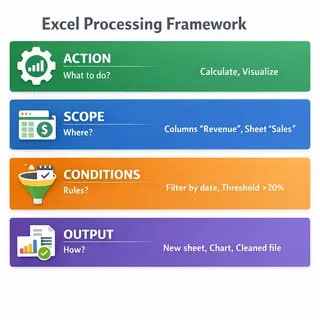
Focus on 4 pillars:
- ACTION: What should be done? (remove duplicates, calculate, group, forecast, visualize, extract, format)
- SCOPE: Which columns / rows / sheets / files? Use exact column names in single quotes.
- CONDITION(S): Filters, thresholds, date ranges, business rules.
- OUTPUT FORM: New sheet, overwrite, summary only, chart, cleaned file, add column, etc.
Good vs Bad (Core Examples)
| Goal | Bad (Vague) | Good (Specific) | Why Good |
|---|---|---|---|
| Remove dups | Fix my file | Remove duplicates based on 'Customer ID'; keep first occurrence; output as new sheet 'Cleaned'. | Specifies key column + rule + output target |
| Summarize sales | Analyze data | Sum 'Sales' by 'Region' and 'Quarter'; include total row and descending order by Sales. | Clear aggregation + grouping + sort |
| Sort data | Make it nicer | Sort by 'Date' ascending, then by 'Revenue' descending; keep headers. | Explicit multi-level sort |
| Add metric | Improve file | Add column 'Profit Margin' = (Revenue - Cost)/Revenue * 100; format as percentage 2 decimals. | Explicit formula + formatting |
| Filter | Clean it | Filter rows where 'Revenue' > 1000 AND 'Region' = 'West'; output filtered rows only. | Precise conditions |
| Chart | Make a chart | Create bar chart: x='Product', y='Sales', sort descending, title 'Top Product Sales', place in new sheet 'Charts'. | Defines axes + sorting + metadata |
Simple Pattern
ACTION + TARGET COLUMNS + CONDITIONS + TRANSFORMATION + OUTPUT FORMAT
Example:
Calculate average 'Order Value' by 'Channel' for last 90 days (where 'Order Date' >= 2025-05-28); output summary table + bar chart.
2. Expanding Precision
Use these wording techniques for clearer commands:
| Technique | Bad Example | Good Example | Why It Works |
|---|---|---|---|
| Column Specificity | "customer id" or "ID" | 'Customer ID' |
Exact column names in quotes ensure accurate matching. |
| Aggregations | "do the math" | sum, average, count unique, median, min, max, std dev |
Specific functions produce precise results. |
| Calculations | "calculate net" | Add column 'Net' = Revenue - Cost - Tax |
Explicit formulas eliminate ambiguity. |
| Time Windows | "recent data" | last 30 days, between 2024-01-01 and 2024-12-31, current month |
Clear time boundaries enable accurate filtering. |
| Sorting | "organize it" | sort by 'Date' ascending then 'Sales' descending |
Multi-level sort instructions create predictable order. |
| Formatting | "make it look nice" | format 'Date' as YYYY-MM, format 'Profit Margin' percent 1 decimal |
Specific format rules ensure consistency. |
| Output Placement | "put it somewhere" | overwrite current sheet, create new sheet 'Summary', keep both |
Clear destination instructions prevent data loss. |
| Preservation | (not specified) | keep original sheet unchanged |
Explicit preservation protects source data. |
| Row Limits | "show some results" | show top 20 by 'Sales' |
Quantified limits focus on relevant data. |
3. Advanced Command Techniques
A. Conditional Logic
Examples:
Filter rows where 'Revenue' > 1000 AND 'Region' IN ("West","North").
Replace nulls in 'Price' with median where 'Category' = 'Accessories'.
Flag outliers: Add column 'Is Outlier' = 1 if 'ZScore' > 3 else 0.
B. Combining Tasks in One Pass
Chain related operations when order is clear. Example:
Clean 'Orders' by removing duplicates on 'Order ID', fill missing 'Cost' with median, add 'Margin'=(Revenue-Cost)/Revenue*100, then create bar chart of average 'Margin' by 'Region'.
C. Large Datasets Strategy
- Start with:
Provide structure summary (columns, types, row count).
- Then:
Generate sample 10 rows (random or head) to confirm assumptions.
- After validation: Execute full transformation.
- Use incremental commands for heavy tasks: (1) clean, (2) add metrics, (3) visualize.
D. Output Management
Specify:
Create new sheet 'Cleaned'.
Replace existing 'Sheet1'.
Add chart to new sheet 'Charts'.
Return only summary (no row-level export).
E. Asking for Explanations
Add: Explain each step or Provide formula rationale to audit transformations.
F. Complex Formulas
Example:
Add column 'LTV' = (AverageOrderValue * PurchaseFrequency * GrossMargin %) over past 12 months by 'Customer ID'; output customer-level table sorted descending.
G. Iterative Refinement
- First:
High-level summary. - Next:
Narrow scope (e.g., only Region='West'). - Then:
Add metrics/visuals.
H. Combining Files
Merge uploaded monthly files; add 'Month' from filename (YYYY-MM); concatenate all into one table; ensure consistent column order; add total row.
I. Data Quality Checks
List columns with >10% missing values; suggest fill method; do not modify yet.
4. Common Command Templates
Copy, adapt, and run. Replace bracketed items.
Cleaning & Preparation
Remove duplicates on '[Primary Key]' keep first.
Standardize date format in '[Date Column]' to YYYY-MM-DD.
Fill missing '[Column]' with median.
Split '[Full Name]' into 'First Name' and 'Last Name'.
Trim whitespace across all text columns.
Detect outliers in '[Metric]' using z-score > 3 and list affected rows.
Transformation
Add column '[New Metric]' = ([Numerator] - [Denominator]) / [Numerator] * 100 formatted percent.
Pivot: Sum '[Value]' by '[Row Dim]' and '[Column Dim]'.
Unpivot columns '[Jan]'..'[Dec]' into 'Month','Value'.
Analysis
Descriptive stats: mean, median, min, max, std for ['Col1','Col2'].
Correlation between '[Var A]' and '[Var B]' with interpretation.
Trend: Plot '[Metric]' over '[Date]' and compute period-over-period growth.
Forecast '[Metric]' next 6 periods using linear regression; include confidence bands.
Visualization
Bar chart: x='[Category]', y='[Value]' sorted descending.
Line chart: x='[Date]', y='[Metric]' with moving average window 7.
Pie chart: share of '[Category]' by '[Value]'.
Scatter: '[X]' vs '[Y]' add regression line + correlation.
Business Intelligence
KPI summary: compute Revenue, Cost, Profit = Revenue - Cost, Margin %.
Cohort analysis by 'Signup Month' showing retention across months 0-6.
What-if: increase '[Price]' by 10% and recompute 'Profit'; summarize delta.
Multi-File Operations
Merge all uploaded files; add 'Source File' column; align columns by header name.
Append files then remove duplicates on '[ID]'.
Formatting & Output
Format '[Currency Column]' as USD currency 2 decimals.
Sort by '[Date]' ascending then '[Revenue]' descending.
Create new sheet 'Summary' only with aggregated table.
Keep original sheet; place transformed data in 'Cleaned'.
Audit & QA
Show 10 random rows after cleaning for review.
List columns with >5% missing values; propose fill strategies.
5. Good vs Bad Command Gallery (By Scenario)
| Scenario | Bad | Improved | Best |
|---|---|---|---|
| Cleaning | Fix this | Remove duplicates | Remove duplicates on 'Order ID', fill null 'Cost' with median, standardize 'Date' to YYYY-MM-DD, output new sheet 'Cleaned'. |
| Analysis | Analyze sales | Sum sales | Sum 'Sales' by 'Region' and 'Quarter'; include growth vs prior quarter and sort by 'Sales' desc. |
| Visualization | Make chart | Bar chart products | Bar chart: x='Product', y='Sales', top 15 only, sorted desc, title 'Top 15 Products', new sheet 'Charts'. |
| BI | Forecast | Forecast revenue | Forecast 'Revenue' next 6 months using linear regression; include table + line chart + 95% confidence interval. |
6. Troubleshooting & Refinement
| Symptom | Action |
|---|---|
| Output too generic | Add specific columns, metrics, and grouping levels. |
| Wrong column chosen | Use exact quoted column names (e.g., 'Customer ID'). Optionally start with: "List all column names first." |
| Missing rows after filtering | Re-state filter logic explicitly and mention inclusive/exclusive boundaries (e.g., Revenue >= 1000). |
| Wrong date parsing | Specify target format (e.g., YYYY-MM-DD) and timezone if relevant. |
| Unexpected aggregation | State desired function explicitly (sum vs average vs count distinct). |
| Slow on large files | Ask for schema summary first; then run transformations in steps. |
| Formula miscalculated | Provide explicit formula with parentheses and desired formatting. |
| Chart not as expected | Define chart type, axes, sorting, limits (top N), titles, and whether to include legend. |
| Need to undo | Re-run with: "Use original data (ignore prior modifications)." |
Refinement Loop Template
- Initial broad:
Provide column list and row count; no changes yet.
- Focus:
Remove duplicates on 'Customer ID'; show count removed.
- Extend:
Add 'Profit Margin' column.
- Visualize:
Create bar chart of average 'Profit Margin' by 'Region'.
- Polish:
Format 'Profit Margin' percentage 1 decimal; sort descending.
Asking for Explanations
Add: Explain steps or Show formulas used to validate logic.
7. Quick Reference Cheat Sheet
| Goal | Template |
|---|---|
| Remove duplicates | Remove duplicates based on '[Key]' keep first occurrence; output new sheet '[Name]'. |
| Filter | Filter rows where '[Column]' > / < / = / IN (...) and ... ; output filtered sheet. |
| Aggregate | Sum '[Value]' by '[Group1]' and '[Group2]' sorted by Sum descending. |
| Add metric | Add column '[New]' = ([A]-[B])/[A]*100 formatted percent 1 decimal. |
| Clean dates | Standardize '[Date]' to YYYY-MM-DD. |
| Pivot | Pivot: Sum '[Value]' by rows '[RowDim]' columns '[ColDim]'. |
| Forecast | Forecast '[Metric]' next N periods using linear regression + confidence. |
| Chart | Create [bar/line/pie/scatter] chart x='[X]' y='[Y]' sorted descending top N=10 new sheet 'Charts'. |
| Outliers | Detect outliers in '[Metric]' using z-score > 3 list rows only. |
| Merge files | Merge all uploaded files; add '[Source]' column from filename; align columns. |
8. Final Tips
- Be explicit first; brevity comes later once patterns are learned.
- Quote column names to avoid ambiguity.
- Combine only logically sequential steps.
- Request explanations when auditing critical financial or compliance-related data.
- Iterate: broad summary -> targeted transformation -> enrichment -> visualization -> formatting.
Need inspiration? Revisit the Getting Started guide for domain use cases. Ready to practice—try a 3-step chain on your next dataset.
Have feedback or a stubborn command? Reach out at [email protected]. Your refinements help improve the AI.
9. Your First Practice Command
To see the power of multi-step chains, upload a recent sales export first to activate the Assistant, then run:
Remove duplicates on 'Order ID'; fill missing 'Unit Cost' with median; add 'Gross Margin %'=(Revenue-Cost)/Revenue*100 formatted percent 1 decimal; create bar chart average 'Gross Margin %' by 'Region' sorted descending; place chart in new sheet 'Charts'.
Refine from there—you're now writing like a power user.
Put your writing skills to the test
Got a complex request? Upload your data and try a multi-step chain command to see how precisely Excelmatic follows your lead.
✍️ Try a Master Command