Key Takeaways:
- Excel's XMATCH function is powerful but complex, requiring memorization of syntax, match modes (0, -1, 1, 2), and search modes (1, -1, 2, -2) that can be confusing for non-technical users
- Excelmatic eliminates formula complexity by allowing you to perform advanced lookups using simple language commands, making it accessible to business professionals without Excel expertise
- Unlike XMATCH which is only available in newer Excel versions, Excelmatic works universally as a web-based tool, ensuring compatibility across all teams and systems
- For marketing, sales, and operations teams who need quick data insights, adopting an AI tool like Excelmatic is the fastest way to find information without technical barriers
During data analysis, you'll often need to find the relative position of an item in a list or range of cells. For years, this meant relying on a combination of complex Excel functions.
The most effective native way to conduct pattern-matching operations in Excel is the XMATCH function. Simple yet powerful, XMATCH has several features that enable precise and flexible matching. However, what if you could bypass formulas altogether?
In this tutorial, we will cover the basics of the Excel XMATCH function, analyze its syntax, and provide practical examples. We will also introduce Excelmatic, an AI-powered tool that accomplishes the same tasks with simple language prompts, offering a faster and more intuitive alternative. Finally, we will compare XMATCH with MATCH and cover best practices for both methods.
What is XMATCH?
XMATCH is a flexible and robust function for matching operations in Excel. It allows you to perform all kinds of lookups, from vertical and horizontal searches to exact, approximate, and even partial (wildcard) matches.
If you've been using Excel for a while, you're likely familiar with the MATCH function. Before XMATCH was introduced, MATCH was the go-to function for these tasks. However, MATCH has its limitations. XMATCH is a long-awaited upgrade, providing search in any direction and multiple match types, making it suitable for a wider range of use cases.
While XMATCH is a significant step up, the next evolution in data lookups involves artificial intelligence. Tools like Excelmatic eliminate the need to memorize function syntax, allowing you to simply state your goal.
Note that XMATCH is only available in Excel for Microsoft 365 and Excel 2021. For users with previous versions, MATCH is the only built-in option.
Let’s now have a look at the XMATCH syntax and parameters.
XMATCH Syntax and Parameters
Here is the basic syntax of the XMATCH function:
=XMATCH(lookup_value, lookup_array, [match_mode], [search_mode])
The function has two required arguments (lookup_value and lookup_array) and two optional ones (match_mode and search_mode) for more precise and flexible operations.
Lookup_value: The value you are looking for.Lookup_array: The array or list where you want to search.Match_mode: Specifies the match type.0: Exact match (default).-1: Exact match or the next smallest item.1: Exact match or the next largest item.2: A wildcard match, using characters like*and?.
Search_mode: Specifies the search direction and algorithm.1: Search from first to last (default).-1: Search from last to first (reverse search).2: Binary search on data sorted in ascending order.-2: Binary search on data sorted in descending order.
While powerful, remembering these parameters and their corresponding numbers can be cumbersome. This is where an AI approach offers a clear advantage.
Match Modes: Precision and Flexibility
XMATCH's optional match_mode parameter allows you to conduct both precise and approximate matching. Let’s see how it works and compare it to a more modern method.
Exact Match
An exact match (match_mode = 0) is the default. Excel will find an exact match for the lookup value; otherwise, it returns a #N/A error. This is essential when accuracy is key.
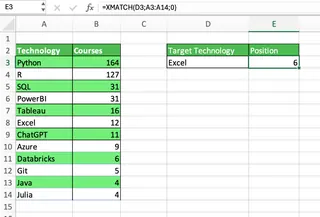
For example, to find the exact position of “Excel” in a list of technologies from the DataCamp Course Catalog, you would use the formula =XMATCH(D3, A3:A14, 0). Excel correctly returns the position 6.
The Excelmatic Method: Just Ask

With Excelmatic, you don't need a formula. Simply upload your file and ask a question in plain language:
What is the position of 'Excel' in the technology list?
Excelmatic understands your request and instantly provides the answer, saving you the time and effort of writing and debugging a formula.
Approximate Match
Sometimes you need a flexible match. XMATCH allows you to find the next-smallest (match_mode = -1) or next-largest (match_mode = 1) value.
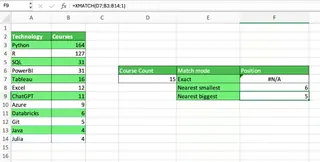
In the example below, we look for the course count closest to 15.
- With
match_mode = -1, the formula returns position 6 (for 12 courses, the nearest smallest number). - With
match_mode = 1, it returns position 5 (for 16 courses, the nearest largest number).
The Excelmatic Method: Simple and Direct
Instead of remembering which number (-1 or 1) does what, you can ask Excelmatic directly:
Find the position of the course count closest to 15, but not over.
Or:
Find the position of the course count that is 15 or the next one higher.
Excelmatic interprets your intent and delivers the correct result without you needing to consult a function's documentation.
Wildcard Matches
A great feature in XMATCH is the ability to use wildcards when match_mode is set to 2. This works for text data.
?: Matches any single character.*: Matches any sequence of characters.
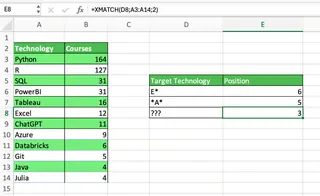
In the example below, we use the formula =XMATCH("E*", A3:A14, 2) to find the first technology that starts with an "E".
The Excelmatic Method: Natural Language Patterns
With Excelmatic, you can describe the pattern naturally:
What is the position of the first technology that starts with 'E'?
Or for a more complex pattern:
Find the position of the first technology with three letters.
This is far more intuitive than constructing a formula with wildcards and a specific match mode.
XMATCH Search Modes: Direction and Efficiency
XMATCH also lets you control the search direction, which is useful for tasks like finding the most recent entry in a time series.
Reverse Search
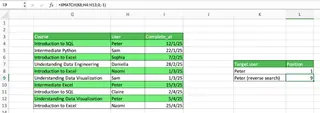
To perform a reverse search (from last to first), set the search_mode parameter to -1. In the example below, we find the last course completed by the user "Peter" with the formula =XMATCH("Peter", B3:B14, 0, -1).
The Excelmatic Method: Clarity is Key
Why memorize that -1 means reverse search? With Excelmatic, your intent is clear:
Find the position of the last course completed by Peter.
Excelmatic handles the logic, whether it's finding the first, last, or Nth occurrence, based on your simple language command.
Binary Search
For very large, sorted datasets, XMATCH can use a binary search algorithm (search_mode = 2 for ascending, -2 for descending) for incredible speed. However, this requires the data to be pre-sorted. Excelmatic automatically optimizes its search process without requiring you to specify algorithms or pre-sort your data.
Practical Applications and Examples of XMATCH
XMATCH is powerful, but combining it with other functions can lead to complex, nested formulas. Let's see how an AI approach simplifies these advanced tasks.
Two-Dimensional Lookups with INDEX/XMATCH
A common task is to look up a value at the intersection of a specific row and column. With traditional Excel, this requires combining INDEX with two XMATCH functions.
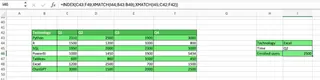
In the example below, the formula =INDEX(C3:F14, XMATCH(I2, A3:A14, 0), XMATCH(I3, C2:F2, 0)) finds the number of enrolled users for "Excel" courses in "Q2".
The Excelmatic Method: Get the Answer, Not the Coordinates
With Excelmatic, you skip the intermediate steps of finding row and column numbers and ask for the final answer directly:
What was the number of enrolled users for Excel courses in Q2?
Excelmatic understands the relationship between your data, performs the two-dimensional lookup, and gives you the value you need. It's the difference between asking for directions and being instantly teleported to your destination.
Multi-Column Lookups
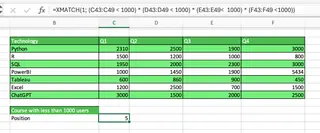
What if you need to find a row that meets multiple criteria? With XMATCH, this involves a complex array formula using Boolean logic, like =XMATCH(1, (C3:C14<1000)*(D3:D14<1000)*(E3:E14<1000)*(F3:F14<1000), 0). This formula is hard to write and even harder to debug.
The Excelmatic Method: Describe What You Want
Forget Boolean arrays. Just describe the conditions to Excelmatic:
Find the first technology that has fewer than 1000 enrolled users in every quarter.
This is not only simpler but also more readable and less prone to error.
Dynamic Array Filtering
You can combine XMATCH, ISNUMBER, and FILTER to create a dynamic filter. The process involves creating helper columns or complex nested formulas to determine which rows to keep.
The Excelmatic Method: Filtering Made Easy
Filtering is a core strength of Excelmatic. Just state your criteria:
Filter the table to show only the courses completed by Sam and Peter.
Excelmatic will instantly generate the filtered table for you, without any helper columns or multi-step formula constructions.
XMATCH vs MATCH: Key Differences
XMATCH was designed to supersede MATCH. Here’s a quick comparison for those familiar with the older function:
| Feature | XMATCH | MATCH |
|---|---|---|
| Default behavior | Exact match | Approximate match (next smallest/largest) |
| Reverse search | Yes | No |
| Wildcard matching | Yes | No (requires other functions) |
| Binary search | Yes | No |
| Lookup array | Works with horizontal and vertical arrays | Works with horizontal and vertical arrays |
| Versions | Excel 365, Excel 2021 | All Excel versions |
Common Pitfalls and Solutions
Whether using XMATCH or Excelmatic, here are some tips:
- Check Data Types:
XMATCHis sensitive to data types (e.g., text vs. numbers). Ensure your data is clean. Excelmatic is often more forgiving but good data hygiene is always best. - Handling #N/A Errors:
XMATCHreturns a#N/Aerror if no match is found. You can wrap it in anIFNAorIFERRORfunction to display a custom message. With Excelmatic, you get a clear, human-readable response like "No match was found." - Leverage Match Modes: If you stick with formulas, understand the different
match_modeandsearch_modeoptions to unlock the full power ofXMATCH. If you use Excelmatic, focus on phrasing your question as clearly as possible.
Performance Considerations
When it comes to raw calculation speed on massive, sorted datasets, a well-crafted XMATCH binary search is incredibly fast. However, for the vast majority of real-world business scenarios, the bottleneck isn't the function's execution speed—it's the time it takes for a human to write, test, and debug the formula.
This is where Excelmatic provides a massive performance boost. The time saved by using a simple language prompt instead of building a complex formula can be measured in minutes, or even hours, especially for multi-step tasks.
Conclusion
XMATCH is a powerful and essential function for any serious Excel user. It offers significant improvements over the legacy MATCH function and can handle a wide array of lookup scenarios.
However, the world of data analysis is evolving. AI-powered tools like Excelmatic represent the next leap forward. By allowing you to use natural language to ask questions, they remove the steep learning curve of functions and formulas, reduce errors, and dramatically accelerate your workflow.
For those who love crafting the perfect formula, XMATCH is a fantastic tool to master. For those who want to get from data to insight as quickly as possible, an AI agent like Excelmatic is the clear choice.
Ready to simplify your data lookups and skip the complex formulas? Try Excelmatic for free today and experience how AI-powered data analysis can transform your workflow.
Excel XMATCH FAQs
What is XMATCH used for?
XMATCH is an Excel function used to find the relative position of an item in an array or range. It's used for various lookup tasks, from simple searches to forming the backbone of more complex formulas.
What is the difference between XMATCH and MATCH?
XMATCH is the modern successor to MATCH. Its key advantages include a safer default to an exact match, built-in reverse and binary search modes, and support for wildcard matching.
Can I use XMATCH in all versions of Excel?
No, XMATCH is only available in Excel for Microsoft 365 and Excel 2021. Older versions do not support it.
Is there an easier way to do lookups than using XMATCH?
Yes. AI tools like Excelmatic allow you to perform the same lookup tasks by typing your request in plain language. This eliminates the need to remember function syntax, parameters, and complex nesting, making it much faster and more intuitive for most users.