Key takeaways:
- While proficiency in Excel is a highly sought-after skill in today's job market, mastering its complex functions and manual workflows is a significant time investment and a source of frustration for many professionals.
- Excel AI tools like Excelmatic bridge this gap by allowing you to perform complex data analysis, generate formulas, and create charts simply by describing your needs in plain language, no advanced functions required.
- By leveraging an Excel AI agent, you can dramatically reduce the time spent on repetitive reporting tasks, improve accuracy, and gain the ability to ask ad-hoc questions of your data, making you more efficient and valuable in any role.
The Paradox of Excel: Essential but Overwhelming
It's a truth universally acknowledged in the professional world: you need to know how to use Excel. From teachers analyzing student performance to entrepreneurs evaluating product lines and scientists examining datasets, spreadsheet proficiency is no longer optional. Studies consistently show that a vast majority of middle-skill jobs require it.
Knowing you should be good at Excel and actually being good at it are two very different things. For many, the program feels like an intimidating wall of cells, ribbons, and cryptic formulas. You might have learned to sum a column or create a simple table in a college course, but the reality of a modern workplace demands much more.
The real challenge isn't just making tables; it's about turning raw data into actionable insights, quickly and accurately. You have sales figures, project timelines, or marketing campaign results sitting in a spreadsheet. The pressure is on you to organize it, find the trends, and present a clear story. This is where the struggle begins.
The Traditional Excel Grind: A Path Paved with Formulas and Frustration
Let's imagine a common scenario. You're a marketing manager, and you've just downloaded the raw sales data for the last quarter. Your director wants a report by the end of the day summarizing performance by region and product category.
With the traditional approach, your afternoon looks something like this.
The Manual Workflow: Steps and Limitations
Data Cleaning: You open the CSV file and immediately spot issues. There are blank rows, inconsistent region names ("N. America" vs. "North America"), and dates formatted as text. You spend the first hour manually cleaning and standardizing the data.
Complex Formulas: To get the total sales by region, you start building
SUMIFSformulas. The formula looks something like this:=SUMIFS(SalesData[Sale Amount], SalesData[Region], "North America", SalesData[Product Category], "Gadgets"). You have to create a separate summary table and carefully write and drag this formula for every combination of region and category, double-checking your cell references to avoid errors.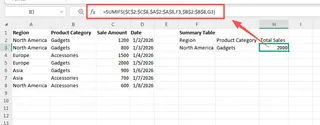
Building a PivotTable: A more advanced approach is to use a PivotTable. You select your data, insert a PivotTable, and then drag
RegionandProduct Categoryinto the Rows/Columns fields andSale Amountinto the Values field. This is faster, but it has its own set of frustrations. If new data is added, you have to remember to refresh the PivotTable. Customizing the layout or adding a calculated field can feel like navigating a maze of settings.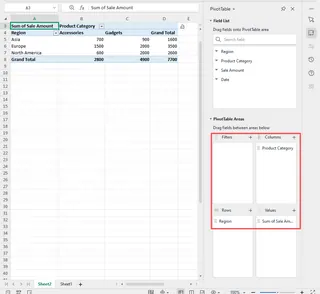
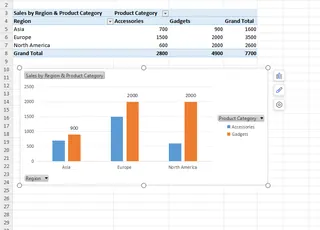
Creating Charts: Finally, you create a chart from your PivotTable. You spend another 20 minutes formatting it—adjusting colors, adding data labels, and writing a descriptive title—to make it presentation-ready.
By the time you're done, hours have passed. And what happens when your director replies with, "Great, now can you show me the month-over-month growth for just the top three products in Europe?" You groan, because that means starting the whole process over again with new filters and formulas.
The limitations of the traditional way are clear:
- Steep Learning Curve: You need to master functions like
SUMIFS,VLOOKUP,INDEX/MATCH, and the intricacies of PivotTables. - Time-Consuming & Repetitive: The same reporting tasks need to be done manually every week or month.
- Prone to Errors: A single mistake in a formula or a cell reference can throw off your entire analysis.
- Inflexible: Reports are static. Answering follow-up questions requires significant rework.
The New Solution: Using Excel AI with Excelmatic
What if you could skip the manual grind entirely? What if you could treat your spreadsheet less like a rigid calculator and more like a data assistant you can talk to? That's the promise of Excel AI agents like Excelmatic.

Excelmatic is a tool that connects to your data files (Excel, CSV, etc.) and lets you use natural language to get the analysis, charts, and reports you need. Instead of telling Excel how to do something with formulas, you simply tell Excelmatic what you want to achieve.
Step-by-Step: From Raw Data to Insight in Minutes
Let's revisit that sales report scenario, but this time with Excelmatic.
1. Upload Your Data
You start by uploading your raw sales data file directly to the Excelmatic platform. No pre-cleaning is necessary. Excelmatic is designed to understand typical data structures, even if they're a bit messy.

2. Ask Your Question in Plain Language
Instead of writing formulas, you type your request into the chat interface. You can start broad and then get more specific.
Here are a few examples of what you could ask:
- "Summarize the total sales by region and product category."
- "Create a pivot table showing monthly sales for each region."
- "Which were the top 5 performing products by revenue in Q3?"
- "Show me the month-over-month sales growth rate for the 'Gadgets' category."
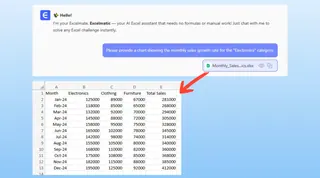
3. Review and Iterate on the Results
Excelmatic instantly processes your request and generates the result—it could be a summary table, a fully configured PivotTable, or a formula. The key difference is the ability to iterate. The analysis is now a conversation.
You can ask follow-up questions to refine the results:
- "Okay, now filter this for the North America region only."
- "Change the chart to a bar chart and sort it from highest to lowest sales."
- "Add a new column that calculates the average sale price for each product."
4. Export Your Work
Once you're happy with the analysis, chart, or report, you can download the results as a new, clean Excel file. You can also copy the exact formula or PivotTable configuration that Excelmatic generated and paste it into your own workbook.
A Sample Conversation with Excelmatic
Here’s how that "end-of-day report" request might look in Excelmatic:
User: I've uploaded my quarterly sales data. Can you create a summary table showing total sales for each region and product category?
Excelmatic: Done. I've created a table summarizing the sales. The top-performing combination is "North America - Gadgets" with $250,000 in sales. Would you like to visualize this?
User: Yes, create a stacked bar chart where each bar is a region, and the stacks represent the product categories.
Excelmatic: Here is the stacked bar chart. I've also sorted the regions by total sales in descending order.
User: Perfect. Now, my director is asking for the month-over-month growth for just the top 3 products in Europe. Can you calculate that?
Excelmatic: Of course. I have identified the top 3 products in Europe based on total sales. Here is a new table showing their sales for each month and the month-over-month growth percentage.
Traditional Excel vs. Excelmatic: A Quick Comparison
| Aspect | Traditional Excel | Excelmatic (Excel AI) |
|---|---|---|
| Time to Result | Hours | Minutes |
| Required Skill | High (Formulas, PivotTables) | Low (Plain language) |
| Flexibility | Low (Static reports) | High (Conversational, iterative) |
| Error Rate | High (Manual errors) | Low (Automated & consistent) |
| Onboarding | Weeks or months to master | Seconds to start |
FAQ
1. Do I need to be an Excel expert to use Excelmatic? Not at all. The entire purpose of Excelmatic is to empower users who don't know—or don't want to spend time on—complex formulas and procedures. If you can describe the business question you're trying to answer, you can use Excelmatic.
2. Is my data secure when I upload it to Excelmatic? Yes. Excelmatic is built with data security as a top priority. Your files are processed in a secure environment and are not shared or used for any other purpose. For specific details, always refer to the official privacy policy.
3. What if my data is messy? Excelmatic includes data cleaning capabilities. You can ask it to "remove duplicate rows," "fill in the blank cells in the 'Region' column with 'Unknown'," or "convert the 'Date' column from text to a date format." It can handle many common data quality issues.
4. Can I use the formulas Excelmatic generates in my own spreadsheets? Absolutely. When Excelmatic generates a formula to solve your problem, you can simply copy and paste it into your own Excel file. This is a great way to learn how advanced formulas work without having to build them from scratch.
5. Is this tool only for data analysts? No, it's designed for anyone who uses data. This includes sales managers tracking team performance, marketers analyzing campaign ROI, HR professionals managing employee data, and small business owners overseeing their finances.
Get Started: Upgrade Your Excel Workflow Today
The demand for data skills isn't going away. But the way we acquire and apply those skills is undergoing a massive transformation. You no longer need to spend countless hours memorizing formulas or wrestling with PivotTable settings to be effective.
By embracing an Excel AI agent, you can shift your focus from the tedious how to the strategic what. Spend your time interpreting insights and making decisions, not debugging formulas. This not only makes you better at your job but also frees up valuable time and mental energy.
Ready to see the difference for yourself? Try Excelmatic today. Upload a spreadsheet you're currently working on and ask it one of the questions you've been struggling to answer. The future of spreadsheet productivity is here, and it speaks your language.