Key takeaways:
A dashboard is a consolidated visual interface that displays the most important KPIs and business metrics from multiple sources on a single screen.
Dashboards are used for real-time monitoring, tracking progress, identifying trends and issues early, and serving as a central source of truth for data-driven discussions and actions across an organization.
Creating an effective dashboard starts with defining key questions, preparing and importing clean data, designing a clear layout, choosing the right visualizations, and optionally connecting to live data for updates.
With Excelmatic, you can create professional dashboards quickly using ready-made templates, a drag-and-drop interface, and automatic data mapping—no design or coding skills required.
In the era of data-driven decision-making, the ability to transform raw numbers into clear, actionable intelligence is what separates leading organizations from the rest. Yet, many professionals find themselves drowning in spreadsheets and fragmented reports, struggling to see the big picture. This widespread challenge is precisely why the data dashboard has become an indispensable tool across industries.
A dashboard does more than just display data; it tells a story about your business's performance, health, and trajectory. It is the nerve center for your key metrics, providing a real-time window into what's working, what's not, and where opportunities lie.
This guide will provide a comprehensive overview of what a dashboard is, why it's a critical asset for modern businesses, the different types you can leverage, and how you can efficiently build one to start making smarter, faster decisions.
Defining the Modern Data Dashboard
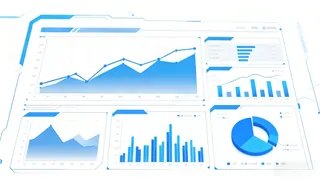
A dashboard is a consolidated visual interface that displays the most important key performance indicators (KPIs) and business metrics from multiple data sources on a single screen.
The analogy to an automobile's dashboard is apt: it doesn't show every intricate detail of the engine, but rather presents a curated, real-time snapshot of speed, fuel level, and engine status, allowing the driver to operate the vehicle safely and efficiently.
In a business context, a dashboard performs a similar function. It is typically connected to live databases, CRM systems, marketing platforms, or ERP software. It then automatically translates this incoming data into intuitive visualizations like line charts, bar graphs, gauges, and tables. This process of continuous data synthesis and visualization enables stakeholders to grasp complex information at a glance, without requiring deep technical analysis.
The Critical Importance of Dashboards
In today's fast-paced business environment, making quick and informed decisions is essential. This is where dashboards prove invaluable. They bridge the gap between raw data and practical understanding, serving as a central hub for monitoring performance and guiding strategy.
The true power of a dashboard lies in its ability to provide immediate clarity. Instead of searching through separate reports or spreadsheets, you get a unified view of your most important metrics. A sales manager can see real-time revenue figures and team performance at a glance. A marketing lead can track campaign results as they happen. This saves time and allows for faster, more confident decisions.
Dashboards also help you stay proactive. By showing live data, they enable you to spot issues early and respond before small problems become big ones. For example, if customer support ticket volume suddenly increases, the team can adjust resources right away. If website traffic drops, marketers can investigate and adapt their strategy without delay.
Another key benefit is alignment. When everyone in the organization uses the same dashboard, there's no confusion over which numbers to trust. Teams across departments can work toward shared goals with a clear and common understanding of progress.
Finally, dashboards make data accessible to everyone, not just data experts. With clear visuals and straightforward layouts, anyone can understand what the data means and how it relates to their role. This empowers more people to contribute to data-driven discussions and actions.
How to Build a Dashboard with Excelmatic
Creating a dashboard that drives decisions isn't just about putting data on a screen — it's about telling a clear story that leads to action. With Excelmatic, you can build professional dashboards quickly, even without design or coding skills.
Here's a straightforward process to help you get started:
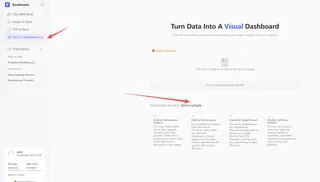
Step 1: Start with your key questions
Before you design anything, ask: What do I need to know? Is it monthly sales performance, project progress, or marketing ROI? Define the main purpose of your dashboard. In Excelmatic, you can choose from ready-to-use templates that are already organized around common business questions.
Step 2: Prepare and import your data
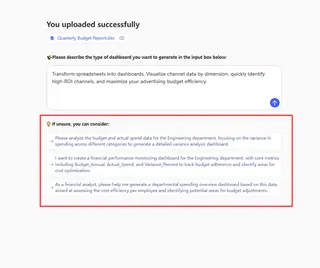
Gather your data in Excel, clean it if needed, and ensure it's well-structured. With Excelmatic, you can easily import your spreadsheet and automatically map your data to visual elements — no manual setup required.
If you don't know what to ask, Excelmatic will provide you with direction.
Step 3: Keep it clear and focused
A clean layout helps viewers understand the story quickly. Use Excelmatic's drag-and-drop interface to arrange charts, graphs, and KPIs logically. Stick to a few key visuals rather than overcrowding the screen.
Step 4: Choose the right visuals
A clean layout helps viewers understand the story quickly. Use Excelmatic's drag-and-drop interface to arrange charts, graphs, and KPIs logically. Stick to a few key visuals rather than overcrowding the screen.
Step 5: Connect to live data
If you want to keep the dashboard up-to-date, simply click on the module you want to update and update the file in the interactive window. Excelmatic supports data refresh, so your dashboard always reflects the latest data without the need for manual reimport.
Step 6: Make it easy to share and use
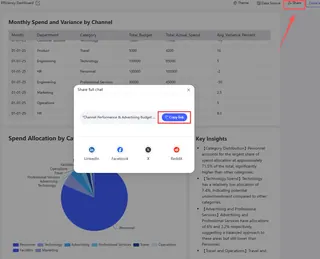
Once your dashboard is ready, export it as an image, PDF, or interactive file. You can share it via email, embed it in presentations, or use it in reports. Excelmatic keeps the design intact so it always looks professional.
Conclusion:Let's Start Building Your Dashboard Today
A dashboard is far more than a data display — it's a strategic tool that turns information into insight, and insight into action. Whether you're tracking sales, monitoring campaigns, or overseeing operations, a well-designed dashboard gives you the clarity and agility needed to make smarter decisions in real time.
If you're ready to move from spreadsheets to stories, from reports to results, Excelmatic offers a simple yet powerful way to get started. With its intuitive interface, ready-made templates, and easy data integration, you can create professional dashboards in minutes — no design skills or coding required.
Stop wondering what your data means. Start showing it.
Ready to build your own dashboard? Try Excelmatic today.
Frequently Asked Questions (FAQ)
Q: What's the difference between a dashboard and a report?
A: Reports are great for deep, periodic analysis (like a monthly sales summary). Dashboards are built for live monitoring. A report is a static look back; a dashboard gives you a dynamic, real-time view of what's happening now, so you can act quickly.
Q: Aren't dashboards the same as data visualizations?
A: They're related, but different. A data visualization is a single chart or graph. A dashboard is a curated collection of these visuals on one screen, designed to answer a specific business question. It's the difference between looking at one map and having a full navigation system.
Q: What is a dashboard, in simple terms?
A: Think of it like your car's dashboard. You don't need to see every engine part to drive. You just need the speed, fuel, and warning lights. A data dashboard does the same for your business: it shows you the key metrics you need to steer your projects and performance, all at a glance.