Key Takeaways:
- Manually matching or merging data across Excel sheets is error-prone and time-consuming, and traditional VLOOKUP formulas require precise syntax, debugging, and constant maintenance.
- Excelmatic provides a revolutionary alternative by enabling you to pull and merge data from different sheets using simple language instructions—no complex formulas, error handling, or syntax memorization needed.
- For professionals who need accurate, consolidated reports quickly, Excelmatic eliminates the technical barriers of cross-sheet lookups, delivering results in seconds instead of minutes.
- While VLOOKUP remains a valuable foundational skill, adopting an AI-powered workflow like Excelmatic is the most efficient way to handle real-world, multi-sheet data consolidation tasks.
Have you ever spent hours manually searching through spreadsheets to find and merge matching data? It's a frustrating, time-consuming task that's prone to error. For years, the go-to solution has been Excel's powerful VLOOKUP() function. It’s a classic for a reason.
But what if there was a faster, more intuitive way?
In this guide, we'll explore two powerful methods to pull data from another sheet. First, we'll walk through the traditional VLOOKUP() formula, a fundamental skill for any Excel user. Then, we'll introduce a modern AI-powered approach using Excelmatic that accomplishes the same goal with simple language commands. You can then decide which method best fits your needs.
Method 1: The Traditional Way - Mastering VLOOKUP() From Another Sheet
VLOOKUP() lets you search for a value in a table and retrieve a related value from a different column. The 'V' stands for 'vertical', as it scans down the first column of your data range. It's fantastic for automating updates; change the source data, and every VLOOKUP() linked to it updates automatically.
Using VLOOKUP() across different sheets is essential for good data management. It allows you to keep related datasets (like employee records and payroll) separate and clean, reducing redundancy and minimizing data entry errors.
The Quick VLOOKUP() Formula
Here's the basic syntax to pull data from another sheet:
=VLOOKUP(lookup_value, SheetName!range, col_index, [range_lookup])
The key is the table_array argument (SheetName!range), where you specify the sheet name followed by an exclamation mark before the cell range.
For example, to look up a customer ID (in cell A2) from a sheet named "Customers":
=VLOOKUP(A2, Customers!A2:D100, 2, FALSE)
If your sheet name contains spaces, enclose it in single quotes:
=VLOOKUP(A2, 'Customer Data'!A2:D100, 2, FALSE)
A Step-by-Step Example
Let's say you have two sheets: Employee Data (containing salaries) and Salary Data (where you want to display those salaries).
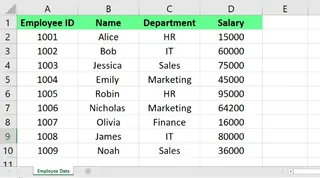
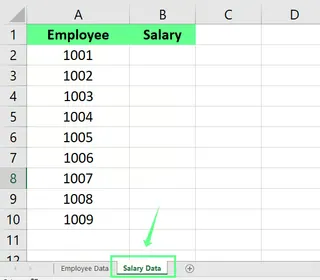
To pull the salaries from Employee Data into the Salary Data sheet:
- Select the cell where you want the result (e.g., B2 in the
Salary Datasheet). - Start the formula:
=VLOOKUP( - Select your
lookup_value(the unique ID in both sheets):=VLOOKUP(A2, - Switch to the Employee Data sheet and select the entire data range. Excel will automatically add the sheet reference:
=VLOOKUP(A2, 'Employee Data'!A2:D4, - Enter the column index number (
col_index_num) of the data you want to retrieve. 'Salary' is the 4th column in our range:4 - Specify the match type.
FALSEensures an exact match. - Close the formula:
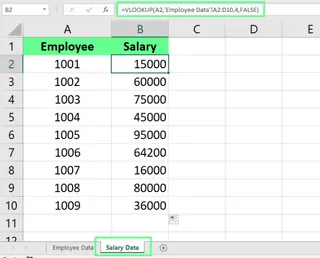
=VLOOKUP(A2, 'Employee Data'!A2:D4, 4, FALSE)
Press Enter, and the correct salary will appear. You can then drag this formula down to populate the rest of the column.
Method 2: The AI-Powered Way - Using Excelmatic
While VLOOKUP() is effective, it has a learning curve. You have to remember the strict syntax, column numbers, and how to troubleshoot errors like #N/A. This is where AI tools like Excelmatic are changing the game.

Excelmatic is an Excel AI Agent that understands plain language. Instead of writing formulas, you simply upload your file and describe what you want to achieve.
Let's solve the same problem using Excelmatic.
With your Excel file containing the Employee Data and Salary Data sheets, you would:
- Upload the workbook to Excelmatic.
- Type a simple instruction in the chat box, such as:
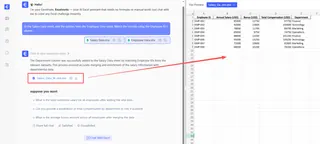
In the Salary Data sheet, add the salaries from the Employee Data sheet. Match the records using the Employee ID column.
Excelmatic analyzes both sheets, understands the relationship between them, and performs the lookup, populating the Salary column in your Salary Data sheet instantly. No formulas, no column counting, and no syntax errors.
VLOOKUP vs. Excelmatic: A Quick Comparison
| Feature | Traditional VLOOKUP() |
Excelmatic (AI Agent) |
|---|---|---|
| How it Works | Manual formula entry with specific syntax. | Natural language prompts (plain language). |
| Learning Curve | Moderate to high. Requires understanding of all four arguments. | Almost zero. If you can describe it, you can do it. |
| Speed | Fast once the formula is written, but writing and debugging take time. | Instant. Just type the command and get the result. |
| Error Handling | Returns errors like #N/A that require manual fixing with IFERROR. |
Handles mismatches intelligently and avoids formula errors. |
| Flexibility | Limited. Can only look up values to the right of the lookup column. | Highly flexible. Can merge, analyze, and chart data without limitations. |
Troubleshooting Common VLOOKUP() Errors
If you choose the manual path, you'll inevitably encounter errors. Here’s how to fix the most common one, #N/A.
The dreaded #N/A error usually means VLOOKUP() couldn't find a match. Here’s why:
- Mismatched Data Types: "123" (text) is not the same as 123 (number). Ensure your lookup columns have a consistent format.
- Hidden Spaces: Use the
TRIM()function (=TRIM(A2)) to remove leading or trailing spaces from your lookup values. - Incorrect Range: The
lookup_valuemust be in the first column of your selectedtable_array. - Wrong Sheet Name: Double-check that
SheetName!is spelled correctly. - Lookup Value Doesn't Exist: The value you're searching for truly isn't in the source data.
To provide a cleaner user experience, you can wrap your VLOOKUP() in an IFERROR() function to display a custom message instead of #N/A:
=IFERROR(VLOOKUP(A2, 'Employee Data'!A2:D4, 4, FALSE), "Employee Not Found")
Notice that these are the exact kinds of tedious issues that an AI tool like Excelmatic is designed to eliminate.
Final Thoughts: Which Method Is Right for You?
Mastering VLOOKUP() across sheets is a powerful Excel skill that gives you deep control over your data. It's a fundamental building block for complex spreadsheets and a great tool to have in your arsenal.
However, for speed, simplicity, and accuracy, the AI-powered approach is undeniable. Excelmatic turns a multi-step, error-prone formula-writing process into a single, simple language command. It empowers beginners to perform advanced tasks instantly and saves experts valuable time they'd otherwise spend writing and debugging formulas.
Ready to streamline your cross-sheet data lookups? Try Excelmatic today and experience the power of AI-driven data consolidation.
The best way to learn is by doing. Try building a cross-sheet lookup with VLOOKUP() yourself. Then, see how quickly you can get the same result with an AI tool. The future of data analysis is about working smarter, not harder, and having both methods at your disposal makes you a more versatile and efficient Excel user.
VLOOKUP FAQs
What is the difference between VLOOKUP() and HLOOKUP()?
VLOOKUP() searches for values in a vertical column, while HLOOKUP() searches horizontally across a row.
Can I nest VLOOKUP() functions?
Yes, you can nest VLOOKUP() functions within other functions, like IF() or MATCH(), to create more complex formulas.
Is VLOOKUP() case-sensitive?
No, VLOOKUP() is not case-sensitive. It will treat abc and ABC as the same value.
Can I perform a VLOOKUP() on a closed workbook?
No, VLOOKUP() requires both the source and destination workbooks to be open to pull data.