Key takeaways:
- Manual reporting in Excel is a major career bottleneck for many professionals, consuming hours in tedious tasks like data aggregation and formula writing that could be spent on high-value analysis.
- Excel AI tools like Excelmatic automate report generation, formula writing, and data visualization, allowing you to get complex insights simply by asking questions in plain language.
- By shifting from manual Excel tasks to strategic analysis with Excelmatic, professionals can significantly boost their efficiency, impress management with quick insights, and accelerate their career progression.
The Problem: Trapped in the "Excel Hamster Wheel"
Meet Alex. Alex is a sharp, ambitious sales operations analyst. He knows his company's products inside and out and has great ideas for improving sales strategy. There's just one problem: he spends most of his time wrestling with Excel.
Every Monday morning, his calendar is blocked for three hours to create the "Weekly Sales Performance Report." This involves downloading raw sales data as a CSV file, cleaning it up, and then manually building a summary that shows:
- Total sales revenue by region.
- Top 5 performing products for the week.
- A comparison of each sales representative's performance against their target.
The process is a predictable, mind-numbing cycle. He feels like he's on a hamster wheel, running hard but not moving his career forward. His manager appreciates the report, but it's seen as just "doing the job." Alex knows that if he could free up those hours, he could be analyzing why certain regions are underperforming or identifying new market opportunities—the kind of strategic work that gets you promoted.
This scenario is a classic career roadblock. Your value isn't in your ability to manually manipulate spreadsheets; it's in your ability to derive and communicate insights from the data. The tool, in this case, traditional Excel, is becoming a barrier to growth.
The Traditional Solution: Mastering Formulas and Pivot Tables
To speed up the process, Alex invested time in learning more advanced Excel functions. The "traditional" path to becoming an Excel power user usually involves mastering a few key tools.
The Manual Approach: A Step-by-Step Breakdown
- Data Cleaning: First, Alex has to open the raw CSV and manually check for inconsistencies—extra spaces, incorrect data formats, or blank rows.
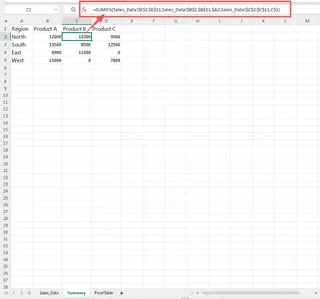
- Creating a Summary Table: He sets up a new sheet with a clean table structure, listing all the regions and product categories.
- Using
SUMIFSfor Conditional Sums: To calculate sales by region, he writes complexSUMIFSformulas. For a single region like "North," the formula might look something like this:=SUMIFS(SalesData[Revenue], SalesData[Region], "North")He has to repeat this for every region and every product, carefully adjusting the criteria each time. It's easy to make a copy-paste error.
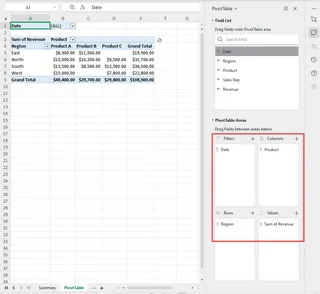
- Building a Pivot Table: Alternatively, he could use a Pivot Table. This is faster than writing formulas but has its own frustrations. He has to drag and drop fields (
Region,Product,Sales Rep) into the correct boxes (Rows, Columns, Values), apply filters for the correct date range, and then format the output.
- Handling Ad-Hoc Requests: The real pain comes when his manager reviews the report and asks a follow-up question: "This is great, but can you quickly show me the top 2 reps in the West region just for Product X?" This simple question sends Alex back to the drawing board. He has to re-filter his data, adjust his Pivot Table, or rewrite his
SUMIFSformulas. A "quick" question turns into another 30-minute task.
The Limitations of the Old Way
While knowing these functions is a valuable skill, relying on them for recurring reports creates several problems that hinder career growth:
- Time-Consuming: The entire process, even for an experienced user, takes hours of focused, low-value work.
- Error-Prone: A single mistake in a formula range or a filter setting can lead to inaccurate reports, damaging credibility.
- Inflexible: The report is static. Answering new questions requires a significant manual rebuild, discouraging spontaneous data exploration.
- High Maintenance: If new products or regions are added, all the summary tables and formula ranges need to be updated manually.
- Not Scalable: As the business grows, the data volume increases, and the reports become even more complex and time-consuming to produce.
Alex isn't being paid to be a formula-writer; he's paid to be an analyst. The traditional method forces him to spend 90% of his time on the former and only 10% on the latter.
The New Solution: Using Excel AI with Excelmatic
What if Alex could skip the manual steps entirely? What if he could produce the report and answer follow-up questions in minutes, not hours? This is where an Excel AI Agent like Excelmatic changes the game. It flips the 90/10 ratio, allowing you to spend 90% of your time on analysis and 10% on generating the data.

Here’s how Alex can solve the exact same problem using Excelmatic.
Step 1: Upload the Data
Instead of opening the file on his desktop, Alex simply drags and drops his weekly sales CSV file directly into the Excelmatic web interface. Excelmatic instantly reads the data and shows a preview, understanding the column headers like Date, Region, Sales Rep, Product, and Revenue.

Step 2: Ask Questions in Plain Language
Now, instead of writing formulas or configuring a Pivot Table, Alex just talks to the AI. He types his requests into the chat box, just like he would ask a human assistant.
He starts with his main requirements for the weekly report:
- "Summarize the total revenue by region and sort it from highest to lowest."
- "Show me the top 5 products by revenue."
- "Create a new column that calculates the commission for each sale, which is 5% of the revenue."
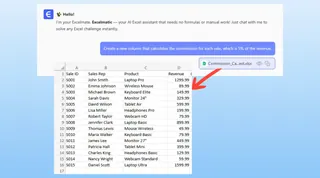
Excelmatic analyzes the request, performs the calculations, and generates a clean, structured table with the results in seconds.
Step 3: Iterate and Explore with Follow-Up Questions
This is where the magic happens. Alex's manager comes over with the same ad-hoc question: "Can you quickly show me the top 2 reps in the West region just for Product X?"
With the traditional method, this would have caused a sigh and a trip back to the spreadsheet. With Excelmatic, it's just another conversation.
User: Great, now can you filter for the West region and show me the sales for the top 2 reps for "Product X" only?
Excelmatic: Of course. I've filtered the data for the "West" region and "Product X". The top two sales representatives are Clara and David, with revenues of $25,400 and $21,800, respectively. Would you like to see this as a bar chart?
User: Yes, create a simple bar chart comparing their sales.
Excelmatic: Done. The bar chart has been generated. You can download the chart as an image or get the full report as a new Excel file.
What used to be a 30-minute scramble is now a 30-second conversation. Alex can provide answers in real-time during the meeting, looking proactive and deeply knowledgeable about the business data.
Step 4: Export the Results
Once Alex is happy with the report, charts, and tables, he can download the entire analysis as a brand new, clean Excel file. The file can contain the raw data, the AI-generated pivot tables, the formulas, and the charts, all perfectly organized. He can also just copy a specific formula or table to paste into an existing workbook.
Traditional vs. Excelmatic: A Quick Comparison
| Aspect | Traditional Excel | Excelmatic (Excel AI) |
|---|---|---|
| Time to Create | 1-3 hours | 5-10 minutes |
| Skill Required | Advanced formulas (SUMIFS, VLOOKUP), Pivot Tables |
Ability to describe your goal in language skills |
| Flexibility | Rigid and hard to change | Highly flexible; iterate with conversational prompts |
| Error Rate | High risk of manual errors in formulas/filters | Low risk; AI handles calculations consistently |
| Focus | 90% on process, 10% on insights | 10% on process, 90% on insights |
FAQ
Q: Do I need to be an Excel expert to use Excelmatic? A: Absolutely not. Excelmatic is designed for everyone, from beginners who don't know any formulas to experts who want to save time. If you can describe what you need in a sentence, you can use Excelmatic.
Q: Is my data safe when I upload it to Excelmatic? A: Data privacy and security are top priorities. Excelmatic uses secure protocols for data transfer and processing. Your files are not shared or used for training other AI models. For specific compliance needs, always refer to the official privacy policy.
Q: Can Excelmatic handle messy data? A: Excelmatic has powerful data cleaning capabilities. You can ask it to "remove duplicate rows," "trim extra spaces from the 'Region' column," or "convert the 'Date' column to a standard date format." It can handle many common data quality issues automatically.
Q: Can I use the formulas and Pivot Tables generated by Excelmatic in my own Excel file? A: Yes. Excelmatic can not only give you the final result but also show you the exact formula or Pivot Table configuration it used. You can copy this and paste it into your own spreadsheet to learn, reuse, or modify it.
Q: What if the AI doesn't understand my request perfectly the first time? A: Just like talking to a person, you can clarify. If the first result isn't quite right, you can rephrase your question or add more detail. For example, you could follow up with, "That's close, but can you group the dates by month instead of by week?" The conversational interface makes iteration fast and easy.
Take Action: Reclaim Your Time and Accelerate Your Career
Continuing to spend hours on manual Excel work is a form of career debt. It costs you time, energy, and opportunities to do the high-impact, strategic work that leaders notice.
By embracing an Excel AI agent, you're not just getting a faster tool; you're fundamentally changing your role from a data processor to a data strategist. You can answer complex business questions on the fly, proactively uncover trends, and spend your valuable time thinking about what the data means.
Stop letting Excel be a bottleneck. It's time to work smarter, not harder.
Ready to see for yourself? Try Excelmatic for free today and upload one of your own recurring reports. Ask it the same questions you ask yourself every week, and see how much time you can get back.