Key Takeaways:
- Forgetting a password or receiving a locked Excel file can halt critical business updates and analysis, and traditional unlock methods are often complex, time-consuming, or unreliable.
- Excelmatic provides a transformative solution by allowing you to bypass the tedious unlock process entirely; simply upload your protected file or its accessible data, and use plain language to edit, analyze, or visualize it instantly.
- For decision-makers who need immediate access to insights, not just to unlocked cells, Excelmatic shifts the focus from breaking in to getting results, delivering analysis-ready data without manual intervention.
- While knowing manual unprotect methods is useful, combining them with an AI agent like Excelmatic represents the future of efficient spreadsheet management.
Excel includes a feature that lets us lock worksheets to prevent unwanted changes. This is designed to protect important data like financial records, reports, or shared files. This keeps things organized and prevents mistakes, especially when multiple people use the same document.
But sometimes, we may have to modify a protected sheet to update information, which can only be done by first unprotecting the sheet. In this guide, I’ll walk you through different methods to unprotect an Excel sheet, whether you have the password or not, and introduce a smarter way to work with your data once it's accessible.
Unprotect an Excel Sheet When You Have a Password
To unprotect an Excel sheet when you have a password:
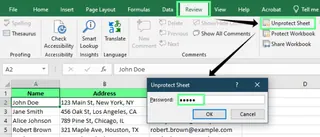
- Go to the Review tab in the ribbon and click on Unprotect Sheet.
- Enter the password in the pop-up and click OK.
This works for both individual sheets and entire workbooks. If the whole workbook is protected, the process is similar. The only difference is that instead of choosing Unprotect Sheet, click Protect Workbook under the Review tab and repeat step 2.
Unprotect an Excel Sheet When You Don’t Have a Password
If you’ve forgotten the password for your sheet or received a locked Excel file, you can try to unprotect it in a couple of ways. Be aware that modern versions of Excel use advanced encryption methods that are not so easy to bypass, but the following methods might help.
Method 1: Using VBA code
If a protected sheet is locked and you don’t have the password, you can try unlocking it using a VBA macro. This is a brute-force approach that attempts to guess the password and might only work with simple ones. Also, don’t be surprised if it takes a long time to work through the possible combinations.
First, save the workbook to an older version of Excel. Go to File > Export > Change File Type > Excel 97-2003.
Open the protected sheet and press
Alt + F11to open the Visual Basic for Applications (VBA) editor.In the left panel, double-click the protected sheet (in my case, it's Employee Data) and paste the following password-breaking macro.
  Sub UnprotectSheet()
      Dim i As Integer, j As Integer, k As Integer
      Dim l As Integer, m As Integer, n As Integer
      Dim password As String

      On Error Resume Next

      For i = 65 To 90
          For j = 65 To 90
              For k = 65 To 90
                  For l = 65 To 90
                      For m = 65 To 90
                          For n = 65 To 90
                              password = Chr(i) & Chr(j) & Chr(k) & Chr(l) & Chr(m) & Chr(n)
                              ActiveSheet.Unprotect password
                              If Err.Number = 0 Then
                                  MsgBox "Sheet Unprotected! Password Found: " & password, vbInformation, "Success"
                                  Exit Sub
                              End If
                          Next n
                      Next m
                  Next l
              Next k
          Next j
      Next i

      MsgBox "Could not unlock the sheet.", vbExclamation, "Failed"
  End Sub
Click Run or press
F5to run the macro and wait for the process to complete. The macro will try to find a password that can unlock the sheet.If successful, a message will appear, and the sheet will be unprotected.
Once done, save the file back to the modern .xlsx format to restore full functionality.
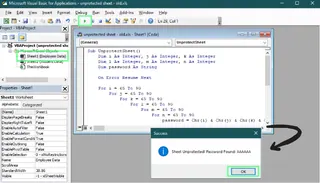
This example macro only attempts six-character alphabetic passwords. You would need a more complex script for different password lengths or characters, which could take a very long time.
Method 2: Changing the file extension to ZIP
If VBA didn’t work, another way to remove sheet protection is by editing the file’s internal structure. Modern Excel files (.xlsx) are essentially compressed folders containing multiple XML files. We can unlock a sheet by modifying the correct one.
- Important: Create a backup/copy of your Excel file before proceeding.
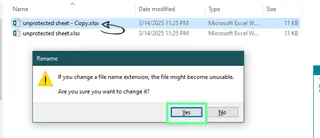
- In File Explorer, right-click the copied Excel file, select Rename, and change the file extension from
.xlsxto.zip. Confirm the change if a warning pop-up appears.
- Open the .zip file and navigate to the
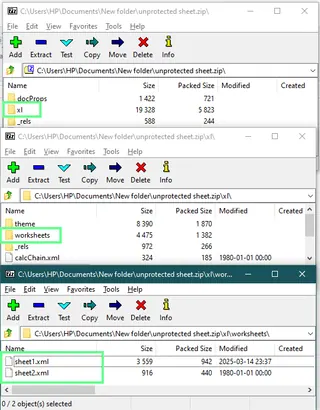
xl\worksheetsfolder. You will see XML files corresponding to your sheets (e.g.,sheet1.xml).
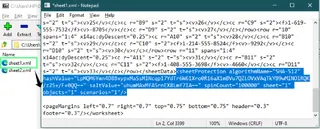
- Open each XML file in a text editor like Notepad. Press
Ctrl+Fand search for the wordprotection. - If you find a tag that starts with
<sheetProtection...>, you've found the protected sheet. Delete the entire tag, from<sheetProtection...to.../>. - Save the modified XML file and update it in the ZIP archive.
- Close the ZIP file and rename its extension back from
.zipto.xlsx.
Your sheet should now be unprotected. This method directly removes the protection setting without needing the password.
Method 3: Using Google Sheets
If you’re looking for an easier way, Google Sheets is a great option. When you upload a protected Excel file, Google Sheets often strips the sheet-level protection, allowing you to edit it freely.
- Go to Google Drive and upload the locked Excel file.
- Right-click the file and select Open with > Google Sheets.
- Google Sheets will open the file, and any worksheet protection will likely be removed.
- Make any necessary edits.
- To save it back as an Excel file, go to File > Download > Microsoft Excel (.xlsx).
Since Google Sheets does not support Excel’s sheet protection feature in the same way, it automatically removes the restrictions when converting the file. This makes it a simple, no-hassle solution.
A Smarter Way to Work with Data: Using an AI Agent
The methods above focus on one thing: unlocking the sheet. But your end goal isn't just to unlock it; it's to update, analyze, or visualize the data within it. This is where traditional manual editing can be slow and error-prone.
An AI agent like Excelmatic offers a much faster and more intelligent workflow. Instead of just gaining access and then doing the work yourself, you can let AI handle the heavy lifting.

Here’s how the process compares:
Traditional Workflow:
- Use a method above (VBA, ZIP, etc.) to unprotect the sheet.
- Manually find the cells to update.
- Manually write formulas, clean data, or create charts.
- Spend time checking for errors.
Excelmatic Workflow:
- Get your data into an accessible format. If the protected sheet allows copying, simply copy the data and paste it into a new, unprotected Excel file. Otherwise, use the Google Sheets or ZIP method to create an unlocked version.
- Upload the new file to Excelmatic.
- Ask for what you want in plain language. For example:
- "Update the sales for the 'West' region to $150,000."
- "Create a bar chart showing total revenue by product category."
- "Remove all duplicate rows and format the 'Date' column as YYYY-MM-DD."
Excelmatic instantly processes your request, delivering accurate results, charts, or a cleaned dataset. It transforms a tedious, multi-step process into a simple conversation, saving you time and ensuring accuracy.
How to Unlock Specific Cells in a Protected Sheet
If you want the sheet to remain protected but allow edits in specific cells, here’s how:
First, ensure the sheet is unprotected using one of the methods above. Then, prepare the sheet for selective locking:
- Select the entire sheet by pressing
Ctrl+A. - Press
Ctrl+1to open the Format Cells dialog, go to the Protection tab, and uncheck the Locked option. Click OK. This unlocks all cells by default.
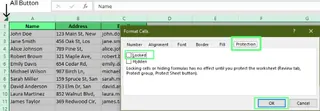
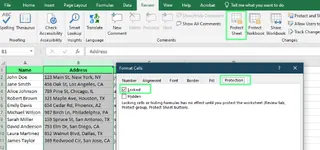
Now, select only the cells or columns you want to protect. Hold the Ctrl key to select non-adjacent cells. Press Ctrl+1 again, and this time, check the Locked option on the Protection tab.
Finally, go to the Review tab, select Protect Sheet, and enter a password. This protects only the cells you marked as "Locked," leaving the others editable.
When You Can’t Unprotect an Excel Sheet
If you cannot unprotect an Excel sheet, there are a few important things to consider:
- Workbook Encryption: If the entire workbook is encrypted with a "password to open," there is no easy way to remove it without knowing the password. The methods described here work for sheet protection, not workbook encryption.
- Complex Passwords: VBA scripts may fail if the password is long or complex. If a script fails, other manual methods are your best bet.
- Backup Files Before Editing: Always save a backup copy of your file before attempting these methods. Editing XML files or running VBA macros can corrupt the file if not done correctly.
A Disclaimer: Use These Methods Responsibly
The methods above are intended for ethical and legal use only. Unlocking an Excel sheet should only be done with proper authorization, such as when you have forgotten a password for your own file or have explicit permission from the file owner.
Bypassing password protection without permission may violate company policies, terms of service, or even legal regulations. If you are working with corporate data, consider reaching out to your IT department or system administrator for assistance.
Final Thoughts
We’ve covered several ways to unprotect an Excel sheet, whether you remember the password or not. If you have the password, use Excel’s built-in Unprotect Sheet option. If you don’t, you can try workarounds like VBA macros, changing the file extension, or using Google Sheets to gain access.
However, simply unlocking a sheet is only half the battle. For the actual task of analyzing, cleaning, or updating your data, consider leveraging an AI tool like Excelmatic.
Stop wrestling with passwords and manual edits. Try Excelmatic today and transform your locked data into actionable insights with a single, simple command. It streamlines the entire process, turning complex manual work into a simple request and helping you get to your insights faster.
While these methods can be lifesavers, it’s always a good idea to keep your passwords in a safe place. And always, always keep a backup of your files before making any changes.
FAQ
Can I copy data from a protected Excel sheet to another worksheet?
Yes, but only if the sheet's protection settings allow for selecting cells.
Here's how:
- Open the protected sheet.
- Click on cell
A1, then pressShift + Ctrl + Endto select all used cells. - Press
Ctrl + Cto copy the data. - Open a new worksheet, click on cell
A1, and pressCtrl + Vto paste.
To maintain column widths, use Paste Special > Column Widths after pasting. Note that external links to other workbooks or sheets may break and need to be manually recreated.
How do I find locked or unlocked cells in an Excel sheet?
You can use the CELL() function to check if a cell is locked or unlocked.
- Enter the formula in any cell:
=CELL("protect", A1) - If it returns
1(TRUE), cell A1 is locked. If it returns0(FALSE), it is unlocked.
How do I highlight locked or unlocked cells in Excel?
You can use Conditional Formatting to highlight locked or unlocked cells:
- First, unprotect your sheet.
- Select the range you want to check.
- Go to Home > Conditional Formatting > New Rule.
- Select "Use a formula to determine which cells to format."
- Use one of these formulas:
- For locked cells:
=CELL("protect", A1)=1 - For unlocked cells:
=CELL("protect", A1)=0
- For locked cells:
- Click Format, choose a fill color, and apply the rule.