Key takeaways:
- Pivot-style reports, with data spread across multiple columns (like months or years), are great for printing but are a major headache for creating new PivotTables, charts, or formulas.
- The traditional solution involves using Power Query's "Unpivot Columns" feature, a powerful but complex tool with a steep learning curve for many Excel users.
- An Excel AI agent like Excelmatic automates this entire data transformation. You can simply upload your messy file and use plain English to ask the AI to reshape your data or create the final report directly.
- By using Excelmatic, you can transform complex, wide data into a clean, analysis-ready format in under a minute, saving significant time and avoiding the technical hurdles of Power Query.
Problem background & pain points
Imagine this scenario: it's the end of the quarter, and your CEO needs a performance report to decide on sales bonuses. You're handed an Excel file that looks something like this:
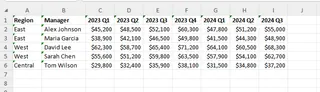
At first glance, it seems organized. You have Regions, Managers, and sales figures laid out neatly. But there's a huge problem. The data is in a "wide" or "crosstab" format. The time periods—Years, Quarters, and Months—are spread across dozens of columns instead of being in a single "Date" or "Period" column.
This format is a nightmare for data analysis. You can't:
- Create a proper PivotTable: Try selecting this data for a PivotTable, and you'll find each quarter and year appears as a separate field, making it impossible to analyze sales trends over time.
- Use standard formulas: Writing a
SUMIFSorAVERAGEIFSfunction to calculate total sales for a specific manager in a given year becomes a convoluted mess. - Filter and sort effectively: There's no single "Year" column to filter by. You have to manually select columns like "2023 Q1", "2023 Q2", etc.
- Generate dynamic charts: Building a chart to track a manager's performance over time is nearly impossible without manually restructuring the entire dataset first.
You have the right data, but it's in the wrong shape. The CEO's request is simple—"show me total sales per manager, by year"—but getting there requires a significant data cleaning effort, often called "unpivoting."
Traditional Excel Solution: The Power of Power Query (and Its Hurdles)
For experienced Excel users, the go-to tool for this kind of data transformation is Power Query (also known as "Get & Transform Data" in recent Excel versions). Power Query is an incredibly powerful data connection and preparation engine built into Excel. It's designed specifically for tasks like this.
The core of the solution in Power Query is a feature called "Unpivot Columns." Here’s a high-level overview of the manual steps involved:
- Load Data into Power Query: First, you select your data range and go to the
Datatab >From Table/Range. This opens the Power Query Editor, a completely separate interface from the Excel grid. - Identify Static and Dynamic Columns: In the editor, you identify the columns that should remain as they are (e.g.,
Region,Manager). These are your "static" columns. All the other columns containing sales data (2023 Q1,2023 Q2,2024 Q1, etc.) are the ones you need to unpivot. - Select and Unpivot: You select the static columns (
Region,Manager) and then navigate to theTransformtab and chooseUnpivot Columns>Unpivot Other Columns. This is the magic step that converts all the other columns into two new ones: "Attribute" (containing the original column headers like "2023 Q1") and "Value" (containing the sales figures). - Clean and Rename: The newly created columns are generically named "Attribute" and "Value". You'll need to rename them to something more descriptive, like "Period" and "Sales." You might also need to perform additional steps, like splitting the "Period" column to separate the year and the quarter.
- Close & Load: Finally, you click
Close & Load To...to load this new, clean, tabular data into a new worksheet in your Excel file.
Only after completing all these steps do you have a clean table that you can finally use to create the PivotTable your CEO asked for.
The Limitations of the Traditional Method
While Power Query is the "correct" manual way to solve this, it comes with significant drawbacks:
- Steep Learning Curve: Power Query is a tool for data professionals. For the average Excel user who lives in the spreadsheet grid, its interface, concepts (like M language), and workflow can be intimidating and non-intuitive.
- Time-Consuming Setup: For a one-off analysis, the process of opening the editor, identifying columns, finding the right command, and cleaning the results can take a considerable amount of time, especially for those not using it daily.
- Rigid and Prone to Breaking: The saved query works perfectly as long as the source data structure doesn't change. But if next month's report has slightly different column names (e.g., "Qtr 1 2025" instead of "2025 Q1"), the query can fail, forcing you to go back and debug the steps.
- Lack of Interactivity: It's a one-way transformation process. You can't easily "ask" the query a follow-up question. If you want to see a slightly different view, you have to go back into the editor and modify the transformation steps.
The New Approach: Using Excel AI (Excelmatic)
What if you could skip the entire Power Query learning process and just tell Excel what you want? That's exactly what an Excel AI agent like Excelmatic is for. It understands your data's structure and your end goal, automating the tedious transformation steps for you.

Here's how you can solve the exact same problem in a fraction of the time.
Step 1: Upload Your Messy Excel File
Simply drag and drop your original, pivot-style Excel or CSV file directly into Excelmatic. The AI will parse the data and show you a preview. You don't need to do any pre-formatting.

Step 2: Describe Your Goal in Plain Language
Instead of navigating menus, you just type your request into the chatbox. You can either describe the transformation you need or, even better, describe the final output you want.
Here are a few example prompts you could use for our scenario:
- Direct Transformation Request: "This data is in a wide format. Unpivot the columns from '2023 Q1' onwards, so I have a clean table with columns for 'Region', 'Manager', 'Period', and 'Sales'."
- Goal-Oriented Request: "Convert this wide report into a tabular format suitable for a pivot table."
- The Ultimate Shortcut (Ask for the Final Result): "Using this data, create a pivot table that shows the total sales for each manager, broken down by year."
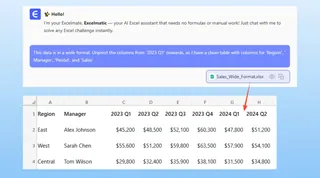
Excelmatic is smart enough to understand that to create the requested pivot table, it must first unpivot the data. It handles the intermediate steps automatically.
Step 3: Review, Iterate, and Analyze
Excelmatic will process your request and present the result. This could be the clean, unpivoted data table or the final PivotTable you asked for.
The real power lies in the conversational interface. You can continue the dialogue to refine your analysis:
- "Great. Now, sort this pivot table to show the top 3 managers by total sales in 2024."
- "Add a column to the clean data that extracts just the year from the 'Period' column."
- "Create a bar chart visualizing the total sales for each manager."
This interactive process of refining your analysis through conversation is something completely missing from the traditional, rigid workflow of Power Query.
Dialogue Example:
Here’s how a typical conversation might look in Excelmatic:
User: I've uploaded my quarterly sales report. It's in a messy pivot format where years and quarters are spread across columns. Can you clean it up for me?
Excelmatic: Certainly. I've detected that your data is in a wide format. I have unpivoted it to create a new, clean table with the columns: 'Region', 'Manager', 'Period', and 'Sales'. Is this the structure you need for your analysis?
User: Yes, that's perfect. Now, from this clean table, create a pivot table showing the total sales for each manager, with years as the columns.
Excelmatic: Done. Here is the pivot table you requested, summarizing sales by manager and year. I've also added a slicer for 'Region' to allow for easy filtering. You can download the new Excel file containing this pivot table and the clean data.
Power Query vs. Excelmatic: A Quick Comparison
| Feature | Traditional (Power Query) | Excel AI (Excelmatic) |
|---|---|---|
| Effort | Multiple clicks, menu navigation, and step configuration in a separate editor. | A single sentence in plain language. |
| Time to Result | 5-20 minutes for an experienced user; 30+ minutes for a new user. | Under 60 seconds. |
| Skill Required | Intermediate to advanced Excel knowledge; understanding of data shaping concepts. | Ability to describe a business question. No technical skill needed. |
| Flexibility | Rigid; changes require editing the query steps. | Highly flexible; refine and iterate through conversational follow-ups. |
| Error Handling | Queries can break if source column names change. | AI can often adapt to minor changes in the source data. |
FAQ
1. Do I need to know what "unpivot" means to use Excelmatic? No, you don't. While using technical terms like "unpivot" works, you can simply describe your problem in business terms, like "My dates are in columns, I need them in one row" or "Fix this report so I can make a pivot table." The AI will infer the necessary technical step.
2. Is it safe to upload my company's sensitive sales data to Excelmatic? Excelmatic is built with enterprise-grade security in mind. All data is encrypted in transit and at rest, and we adhere to strict privacy policies. Your data is processed in a secure, isolated environment and is not used for training models. For specific compliance needs, always refer to the official privacy policy.
3. Will Excelmatic overwrite my original file? Absolutely not. Excelmatic works on a copy of your uploaded data within its secure platform. Your original file remains untouched on your local computer. You can then download the new, transformed results as a separate Excel file.
4. Can Excelmatic handle other data cleaning tasks, like removing blank rows or unmerging cells? Yes. You can ask Excelmatic to perform a wide range of data cleaning tasks. For example: "Remove all rows where 'Sales' is blank," "Unmerge all cells and fill the empty cells with the value from above," or "Split the 'Manager' column into 'First Name' and 'Last Name'."
5. What's the difference between this and using a general-purpose AI like ChatGPT? While you can ask ChatGPT for instructions, it can't directly interact with your file. It provides code or steps for you to execute. Excelmatic is a specialized Excel AI Agent that directly analyzes your data, performs the transformations, and generates tangible outputs like tables, formulas, PivotTables, and charts that you can immediately download and use.
Get Started: Transform Your Excel Workflow Today
Every hour spent manually cleaning and restructuring data is an hour not spent on valuable analysis and insight generation. The traditional methods, while powerful, create a barrier for most team members and slow down the entire reporting process.
Instead of fighting with pivot-style reports or spending hours learning the intricacies of Power Query, you can simply tell an AI what you need. Let the machine do the janitorial work, so you can focus on what matters.
Ready to reclaim your time? Try Excelmatic today. Upload your most frustrating Excel report and see how quickly you can turn it into an analysis-ready masterpiece.