Key Takeaways:
- Hidden columns in Excel can obscure critical data, leading to incomplete analysis and flawed business decisions, especially when the first column is involved.
- Excelmatic solves this by letting you unhide any column—including Column A—instantly with a simple language command, eliminating complex workarounds and menu navigation.
- For professionals who need to ensure report accuracy and data completeness, an AI tool like Excelmatic transforms a tedious, multi-step task into a one-step action, saving time and reducing errors.
- Whether you choose manual control for specific edits or prefer AI for speed and simplicity, this guide ensures you can always reveal the full picture in your spreadsheets.
Hiding columns is a common and essential technique for making Excel spreadsheets more readable. You might want to focus on specific metrics or temporarily remove non-essential information from your view.
While hiding columns is simple, unhiding them can sometimes be surprisingly complex, especially when dealing with the first column or multiple hidden columns at once. Don't worry—this guide covers everything. We'll explore all the traditional methods, from right-clicks to shortcuts, and introduce a modern, AI-powered solution that handles it all with a simple sentence.
The Effortless Way: Unhide Columns Instantly with an AI Assistant

Before diving into the manual clicks and shortcuts, let's look at the most modern and efficient method: using an Excel AI Agent like Excelmatic. This approach eliminates the need to remember complex steps or hunt through menus.
With Excelmatic, the process is incredibly straightforward:
- Upload your Excel file.
- State your request in plain language.
That's it. Excelmatic interprets your command and does the work for you.
For example, instead of navigating menus to unhide columns, you can simply tell Excelmatic:
- "Unhide column C."
- "Show me columns D through F again."
- "Unhide all columns in the sheet."

The real power becomes evident when dealing with tricky situations that require special workarounds in traditional Excel.
- To unhide the first column (Column A): Instead of using the Name Box or Go To command, just say, "Unhide column A."
- To find hidden columns: Instead of using the "Go To Special" feature, just ask, "Are there any hidden columns?"
This AI-driven approach lets you focus on your data analysis rather than the mechanics of spreadsheet manipulation.
| Feature | Manual Excel Methods | AI Assistant (Excelmatic) |
|---|---|---|
| Speed | Slow; requires multiple clicks and navigation. | Instant; requires only one command. |
| Ease of Use | Moderate; requires remembering specific steps and shortcuts. | Extremely easy; uses conversational, plain language. |
| Unhiding Column A | Tricky; involves special workarounds like the Name Box. | Effortless; uses the same command as any other column. |
| Finding Columns | Requires tools like 'Go To Special' or 'Document Inspector'. | Simple question: "Are there any hidden columns?" |
| Learning Curve | Moderate; there are multiple methods to learn and remember. | None. If you can ask a question, you can use it. |
The Manual Methods: Mastering Excel's Built-in Tools
While AI offers a faster path, knowing the traditional methods is still a valuable skill. Let’s explore the manual ways to unhide columns in Excel.
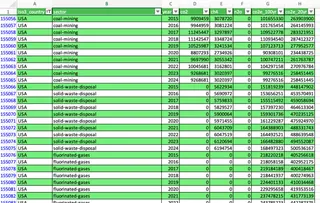
We'll use a sample dataset of greenhouse gas emissions by country, sector, and year from Climate Trace.
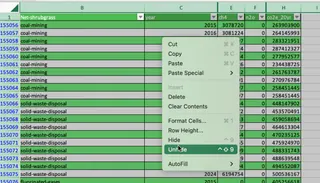
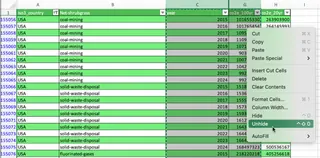
Using the right-click menu
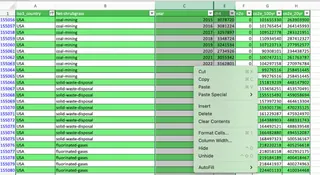
The simplest way to unhide columns is by selecting the columns on either side of the hidden one(s). Then, right-click on the selected column headers and choose Unhide.
In the following image, we unhide the column “co2”.
Using the Format menu
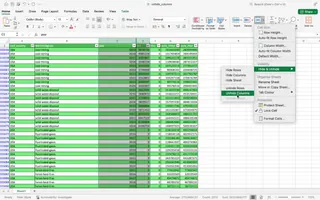
Alternatively, you can use the ribbon menu. Select the adjacent columns, then navigate to the Home tab > Format > Hide & Unhide > Unhide Columns.
Using the drag method
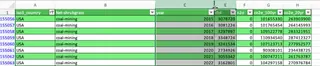
You can also reveal a hidden column by hovering your cursor over the thick line in the column header where the column is hidden. When the cursor changes to a double-sided arrow, double-click or drag to the right to reveal the column.
Using keyboard shortcuts
For those who prefer the keyboard, there are two shortcuts in Windows:
- Alt + H + O + U + L: This sequence navigates the Excel ribbon to the Unhide Columns command.
- Ctrl + Shift + 0: This is the primary (and faster) shortcut for unhiding columns.
Special Case: Unhiding the First Column (Column A)
If Column A is hidden, you can't select columns on both sides of it. This makes the standard methods tricky. Here are the manual workarounds.
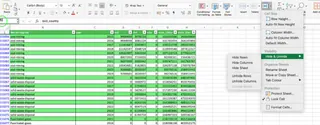
Using the Name Box
The Name Box is located in the upper-left corner, to the left of the formula bar.
- Type A1 into the Name Box and press Enter. This selects cell A1, even though it's hidden.
- Go to Home > Format > Hide & Unhide > Unhide Columns.
Using the Go To command
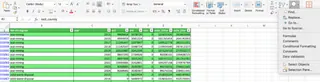
Similarly, you can use the Go To command.
- Press Ctrl + G (or go to Home > Find & Select > Go To).
- In the "Reference" field, type A1 and click OK.
- Proceed as above by using the Format menu to unhide the column.
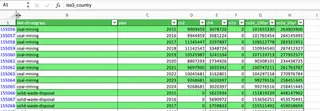
Dragging from column B
You can also unhide column A by carefully positioning your cursor on the left edge of the Column B header until it changes into the double-sided arrow, then click and drag to the right.
How to Unhide All Columns at Once
If your worksheet has multiple, non-consecutive hidden columns, you can unhide them all simultaneously.
- Select the entire sheet by clicking the triangle icon at the top-left corner (where the row and column headers meet) or by pressing Ctrl + A twice.
- Use any of the standard methods: right-click a column header and select Unhide, or go to Home > Format > Hide & Unhide > Unhide Columns.
How to Unhide Specific Multiple Columns
To unhide multiple columns within a specific range, simply select the columns that span across the hidden ones. For example, if columns C and E are hidden, select columns B through F. Then, right-click and choose Unhide.
How to Find Hidden Columns in Excel
In a large worksheet, hidden columns aren't always obvious. Here are two ways to locate them.
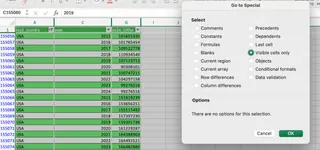
Using Go To Special
- Go to Home > Find & Select > Go To Special.
- Select Visible cells only and click OK.
- Excel will now highlight the borders between columns where other columns are hidden, making them easier to spot.
Using Document Inspector (Windows Only)
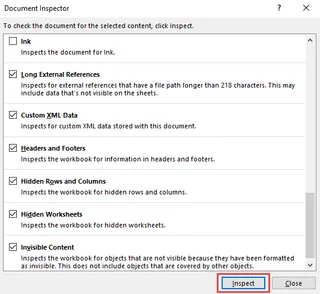
The Document Inspector can check your workbook for hidden elements.
- Go to File > Info > Check for Issues > Inspect Document.
- Ensure Hidden Rows and Columns is checked and click Inspect.
- The inspector will report if it finds any hidden rows or columns.

How to Prevent Others from Unhiding Columns
If you need to share a workbook but keep certain columns hidden and secure, you can protect the sheet.
- Select the entire sheet (Ctrl + A twice).
- Press Ctrl + 1 to open the Format Cells dialog.
- Go to the Protection tab and uncheck the Locked box. Click OK. This unlocks all cells.
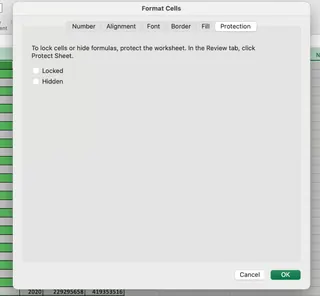
- Now, select only the columns you want to hide and eventually lock. Press Ctrl + 1 again and, on the Protection tab, check the Locked box. Click OK.
- Hide these columns.
- Finally, go to the Review tab and click Protect Sheet. In the dialog, ensure that "Select locked cells" is unchecked and "Select unlocked cells" is checked. You can add a password for extra security.
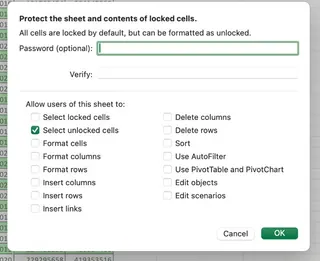
Now, users will not be able to select or unhide your protected columns. Note that this method isn't completely foolproof, as data could still be accessed via formulas.
Conclusion
Unhiding columns in Excel might seem trivial, but knowing how to do it efficiently is key to maintaining readable and well-managed worksheets. We've covered the full spectrum of options, from traditional multi-step methods to the simple, conversational commands of an AI assistant.
While mastering the manual techniques is useful, tools like Excelmatic are changing the game. They allow you to state your goal and get immediate results, saving you time and frustration.
Stop letting hidden data compromise your reports. Try Excelmatic today and reveal your complete dataset with just a simple command. By adopting these smarter workflows, you can focus less on how to do something in Excel and more on the insights your data holds.