Key Takeaways:
- Hidden rows in Excel can corrupt your data analysis, leading to inaccurate reports and missed insights, but the cause can be hard to diagnose manually.
- Excelmatic provides the ultimate solution by instantly revealing all hidden data with a simple command—no need to figure out if it's a filter, zero-height row, or manual formatting issue.
- For business professionals who need to ensure data completeness for critical decisions, using an AI tool like Excelmatic eliminates the risk of oversight and saves valuable troubleshooting time.
- Whether you prefer manual control for simple fixes or need an automated solution for complex files, this guide equips you with the right method to keep your spreadsheets fully transparent and reliable.
You’re working in Excel when something feels off. The data looks fine at first glance, but some numbers aren’t adding up. You check the formulas, double-check the totals, and still can’t find the problem.
The rows aren’t deleted; they’re hidden. And if you don’t know how to spot them, you could miss important information without realizing it.
In this guide, we’ll show you several ways to unhide rows in Excel, from quick clicks and keyboard shortcuts to advanced macros. More importantly, we'll introduce an AI-powered solution that handles this task instantly, saving you from the guesswork. We’ll cover common mistakes, troubleshooting steps, and best practices so you can keep your data clear and ready to work with.
Why Rows May Be Hidden in Excel
Before you unhide rows, let’s understand why they’re hidden. Sometimes it’s intentional, other times it’s by accident, and the reason can change how you fix it—or whether you need to fix it at all.
Common reasons include:
- Manually hidden: You might have right-clicked the row and chosen Hide.
- Filters: Rows that don’t match a filter get hidden automatically.
- Grouping: Collapsed row groups won’t show their contents.
- Row height set to zero: The row is still there, but has no visible height.
- Imported data or formatting issues: Copying from another file can bring in hidden rows or formatting that hides them.
Diagnosing the cause can be time-consuming. While traditional methods require you to investigate, modern AI tools can simply fix the problem directly.
Traditional Methods for Unhiding Rows
Let’s first go through the main manual ways to bring hidden rows back. These are great for quick fixes or when you know exactly what you're dealing with.
Unhiding all rows at once
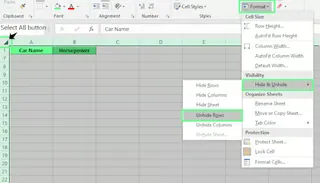
If you’re not sure where the hidden rows are, the quickest fix is to reset the whole sheet so everything is visible again.
- Select the entire sheet by pressing
Ctrl + A(Windows) orCommand + A(Mac). - On Windows: Go to the Home tab > Format > Hide & Unhide > Unhide Rows.
- On Mac: With the sheet selected, go to the Format menu in the top bar > Row > Unhide.
This method works well if your top rows are hidden and you can’t click them directly.
Keyboard shortcuts
Shortcuts are the fastest way to unhide rows if you use Excel on a daily basis.
- Select the rows around the hidden ones or press
Ctrl + A(Windows)/Command + A(Mac) to select the whole sheet. - Then, use the shortcut:
- Windows:
Ctrl + Shift + 9 - Mac:
Command + Shift + 9
- Windows:
This is ideal if you want to avoid using menus altogether.
Ribbon commands (Home tab)
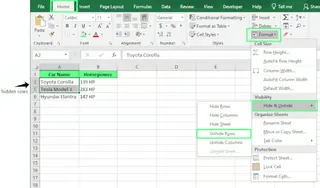
If you prefer using Excel’s ribbon:
- Select the rows around the hidden ones, or the entire sheet.
- Go to the Home tab > Format > Hide & Unhide > Unhide Rows.
Context menu (right-click)
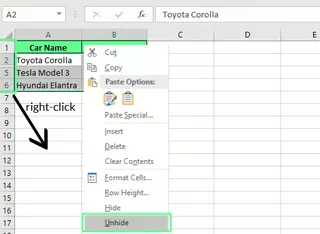
When you know exactly where the hidden rows are, do this:
- Select the rows above and below the hidden ones.
- Right-click the row number (not the cell).
- Choose Unhide from the menu.
This method is perfect for unhiding one or two specific rows.
Double-clicking row headers
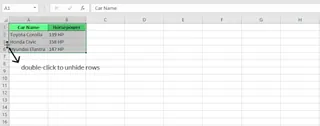
If you see a jump in row numbers (e.g., from 4 to 6), it means the row in between is hidden. To fix this:
- Move your cursor to the line between the two visible row numbers until it turns into a double line with arrows.
- Double-click that border to reveal the hidden row.
Note: This only works if the hidden rows are between visible ones. It won’t help if the first or last row is hidden.
The AI-Powered Way: Unhide Rows Instantly with Excelmatic
While manual methods work, they often require you to first diagnose why rows are hidden. Is it a filter? A zero-height row? A protected sheet? This troubleshooting takes time.
Excelmatic, an Excel AI Agent, offers a smarter, faster alternative. Instead of figuring out the problem, you just state the solution you want.

Here’s how you can unhide all rows with Excelmatic, regardless of the cause:
- Upload your Excel file to the Excelmatic platform.
- Type your request in plain English. For example:
- "Unhide all rows in the sheet."
- "Make sure all data is visible."
- "Remove all filters and unhide any hidden rows."
- Let Excelmatic do the work. The AI agent will analyze your file, identify all hidden rows (whether they are filtered, set to zero height, or manually hidden), and make them visible. It then provides you with the cleaned, ready-to-use file.

Manual Methods vs. Excelmatic: Which to Choose?
| Scenario | Best Method | Why? |
|---|---|---|
| A few specific rows are hidden | Manual (Right-click or double-click) | It's quick and direct when you know exactly where the issue is. |
| Unsure why rows are hidden | Excelmatic | It saves you from troubleshooting. It doesn't matter if it's filters, zero-height, or something else—the AI handles it all. |
| Dealing with a large, complex file | Excelmatic | Manually finding all hidden rows, clearing filters, and checking groups in a large file is tedious. Excelmatic does it in seconds. |
| The sheet is protected | Manual (Unprotect first) or Excelmatic | Manually, you need to find the unprotect option. With Excelmatic, you just state your goal, and it will handle the unhiding process. |
| You need to automate the task | VBA or Excelmatic | VBA requires coding knowledge. Excelmatic lets you achieve the same result with a simple English command. |
Advanced Traditional Techniques
If you prefer to stick with manual methods for complex situations, Excel offers a couple of more powerful options.
VBA macros
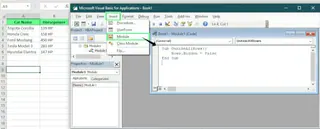
VBA (Visual Basic for Applications) is Excel’s built-in programming tool. With just a few lines of code, you can unhide every row in a sheet.
Here’s how to use it:
- Press
Alt + F11(Windows) orFn + Option + F11(Mac) to open the VBA Editor. - In the menu, click Insert > Module.
- Paste this code:
Sub UnhideAllRows() Rows.Hidden = False End Sub - Press
F5or click Run.
Every hidden row in your active sheet will be visible again.
Grouping and outlines
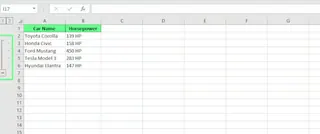
Sometimes rows are hidden because they’re part of a group. This is an Excel feature that lets you collapse and expand sections of data.
Here’s what to check:
- Look along the left edge of your sheet for plus (+) or minus (–) signs.
- Click a plus (+) sign to expand a group and show the rows inside.
- To remove grouping completely, go to the Data tab and click Ungroup.
Troubleshooting Common Issues with Manual Methods
If you're using the traditional methods, you might run into a few issues. Here’s a quick troubleshooting guide.
Rows with zero height
A row can look hidden if its height is set to zero. The "Unhide" command won't work in this case.
Here’s how to fix this:
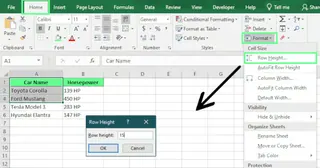
- Select the rows around the missing one.
- Go to Home > Format > Row Height.
- Set the height to
15(Excel’s default) and click OK.
Filtered rows
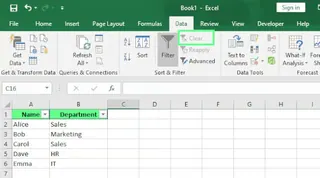
If your data is filtered, Excel will hide any rows that don’t meet the filter’s criteria. Look for blue row numbers, which indicate an active filter.
Here’s how to fix this:
- Go to the Data tab.
- Click the Clear button in the Sort & Filter group.
Protected or locked sheets
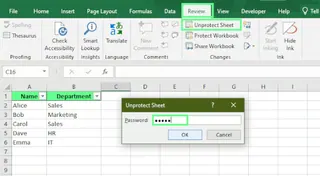
If the Hide & Unhide options are greyed out, the sheet is probably protected.
Here’s how you can fix this:
- Go to the Review tab.
- Click Unprotect Sheet.
- If a password prompt appears, enter the password.
Best Practices For Managing Rows
Here are a few habits that can save you from mistakes and keep your Excel sheets clean and easy to work with.
Select visible cells only
By default, Excel copies everything in your selection, even hidden rows. To avoid this, copy only the visible cells:
- Select the range you want to copy.
- Press
Alt + ;(Windows) orCommand + Shift + Z(Mac) to select only the visible cells. - Press
Ctrl + C(Windows) orCommand + C(Mac) to copy, then paste as usual.
Use Go To Special to find hidden rows
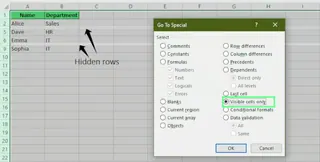
The Go To Special feature makes it easy to find where rows are hidden in a large dataset.
- Go to Home > Find & Select > Go To Special.
- Select Visible cells only and click OK.
Any gaps in the selection border show where rows are hidden.
Final Thoughts
Hidden rows can throw off your data, but now you know exactly how to spot and unhide them. For simple cases, manual shortcuts and menu commands work perfectly.
For more complex files or when you're short on time, an AI tool like Excelmatic is a game-changer. It eliminates the need for troubleshooting and gets the job done with a simple command.
Stop wasting time hunting for hidden data. Try Excelmatic today and ensure your spreadsheets are always complete and analysis-ready with a single instruction.
By mastering both the traditional techniques and leveraging modern AI solutions, you can ensure your data is always complete, accurate, and ready for analysis. The next time rows "disappear," you’ll know they’re not lost—they're just a few clicks or a single command away from being found.
FAQ
Can hidden rows affect Excel formulas like SUM() or AVERAGE()?
Yes. By default, Excel includes hidden rows in formulas like SUM() and AVERAGE(). For example, =SUM(A1:A6) will include values in any hidden rows between 1 and 6. To exclude hidden rows, use the SUBTOTAL() function: =SUBTOTAL(109, A1:A6).
How do I display hidden data in an Excel chart but hide it in the Excel sheet?
If you want your chart to display data from hidden rows while keeping those rows hidden in the sheet, follow these steps:
- Right-click your chart and choose Select Data.
- Click Hidden and Empty Cells.
- Check the box for Show data in hidden rows and columns.
How do I unhide the first row (Row 1) in Excel?
Since you can’t select a row above Row 1, do this:
- Type
A1in the Name Box (to the left of the formula bar) and press Enter. This selects the first cell even if the row is hidden. - Then go to Home > Format > Hide & Unhide > Unhide Rows. Or use the shortcut
Ctrl + Shift + 9.