Key Takeaways:
- Summing data with multiple conditions in Excel traditionally requires mastering the complex syntax of the SUMIFS() function, including precise range definitions and criteria formatting
- Excelmatic provides a simpler solution by performing multi-condition sums instantly using plain language instructions—no formula syntax or range management needed
- Compared to manual formula writing, Excelmatic handles advanced logic like OR conditions, partial matching, and date ranges intuitively, delivering accurate results without technical pitfalls
- For business professionals who need quick, reliable data summaries, using AI tools like Excelmatic means faster insights and more time for strategic analysis rather than technical troubleshooting
When you need to sum data based on multiple conditions, Excel offers powerful tools to give you precise control over your calculations. The classic approach involves mastering the SUMIFS() function, which can handle several criteria at once. However, a new generation of AI tools offers a more intuitive, conversational way to get the same answers.
In this article, we'll explore both methods. We'll provide a deep dive into the SUMIFS() function with advanced examples and troubleshooting tips. We'll also compare it with Excelmatic, an AI Excel Agent that delivers instant answers from plain language questions. By the end, you'll be able to choose the best method for your needs and make your calculations more accurate and efficient than ever.
Two Ways to Sum with Multiple Criteria
There are two primary methods for summing data based on multiple conditions: the traditional formula-based approach and a modern AI-powered solution.
Method 1: The Traditional SUMIFS() Function
To use the SUMIFS() function in Excel:
- Type
=SUMIFS(to begin the function. - Select the range that contains the values to sum (
sum_range). - Select the first range where a condition will be applied (
criteria_range1). - Enter the condition to match (
criteria1). - Repeat for any additional criteria.
- Close the parentheses and press Enter.
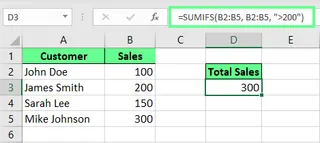
For example, to sum all sales greater than 200 from the range B2:B8:
=SUMIFS(B2:B8, B2:B8, ">200")
Method 2: The AI-Powered Excelmatic Approach

Excelmatic streamlines this process by eliminating formulas. You simply state your request in plain language.
To get the same result:
- Upload your Excel file to Excelmatic.
- Ask your question: “What is the sum of sales greater than 200?”
- Excelmatic instantly provides the answer.
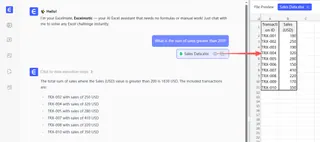
This approach is faster and avoids the syntax complexities and potential errors of manual formulas.
Understanding the SUMIFS() Function
The SUMIFS() function in Excel sums values only when all specified conditions are met. It supports logical operators like greater than >, less than <, equal to =, and not equal to <>, as well as wildcard characters for partial matches. The function works with numbers, text, and dates.
Syntax of SUMIFS()
The SUMIFS() function first defines the range of values to sum, followed by pairs of condition ranges and criteria. Notice that SUMIFS() can handle more than one logical condition.
SUMIFS(sum_range, criteria_range1, criteria1, [criteria_range2, criteria2], …)
Here:
sum_rangeis the range of cells you want to add.criteria_range1is the first range where we check for a condition.criteria1is the condition applied tocriteria_range1.[criteria_range2, criteria2], …are optional. You can add more pairs of ranges and conditions. Each pair adds another condition that must be met.
Note that the criteria_range (the range where conditions are checked) must have the same number of rows and columns as the sum_range (the range being summed).
SUMIFS() example
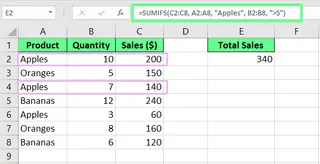
Let’s try a basic example. I have a dataset of fruits with their quantities and sales. And I want to find the total sales of Apples where the Quantity is greater than 5.
Using SUMIFS():
My formula would become:
=SUMIFS(C2:C8, A2:A8, "Apples", B2:B8, ">5")
Here C2:C8 is the range of values to sum (Sales ($)). A2:A8, "Apples" is the condition to include only rows where the product is Apples. And B2:B8, ">5" is the condition to include only rows where the Quantity exceeds 5.
The Excelmatic Alternative:
With Excelmatic, you can skip the formula entirely. Just upload your file and ask:
What are the total sales for Apples where the quantity is greater than 5?
Excelmatic understands the request and delivers the correct sum without you needing to specify cell ranges or syntax.
SUMIF() vs. SUMIFS()
The main difference between SUMIF() and SUMIFS() is the number of conditions they use. SUMIF() handles a single condition, while SUMIFS() can handle multiple conditions.
| Feature | SUMIF() | SUMIFS() |
|---|---|---|
| Number of conditions | Single condition only | Multiple conditions (up to 127) |
| Logic type | Simple filtering | AND logic (all conditions must be met) |
| Syntax | =SUMIF(range, criteria, [sum_range]) |
=SUMIFS(sum_range, criteria_range1, criteria1, …) |
| Argument order | Criteria range first, sum range last | Sum range first, followed by criteria pairs |
| Best used for | Simple filtering tasks | Complex data analysis with multiple criteria |
Another way to think about it is that SUMIFS() is an extension of SUMIF(). SUMIFS() can handle a single condition as well, so if you use SUMIFS() with just one condition, it functions just like SUMIF(). This means you're never technically wrong choosing SUMIFS() over SUMIF().
Use Cases for SUMIFS() vs. Excelmatic
Now that you know how the SUMIFS() function works, let's see some advanced cases and compare the two methods.
Using SUMIFS() with different data types
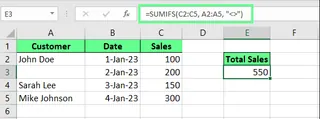
SUMIFS() can work with numbers, text, and dates. Let’s say I have a sales report, but some rows are missing customer names, and I want to sum only those where we have the customer's name.
Using SUMIFS():
I use the <> operator to find non-blank cells:
=SUMIFS(C2:C5, A2:A5, "<>")
This formula looks at the Customer column, checks for non-blank cells, and then sums the corresponding sales.
The Excelmatic Alternative:
This task is more intuitive with a natural language query:
Sum the sales for rows where the customer name is not empty.
Excelmatic interprets this request correctly, saving you from remembering operators like <>.
Applying OR logic
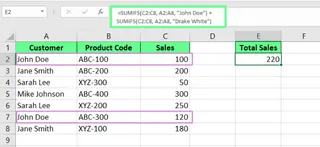
We know that SUMIFS() only uses AND logic. To simulate OR logic (e.g., sum sales for "John Doe" OR "Drake White"), you need to combine multiple SUMIFS() functions.
Using SUMIFS():
=SUMIFS(C2:C8, A2:A8, "John Doe") + SUMIFS(C2:C8, A2:A8, "Drake White")
The Excelmatic Alternative:
Excelmatic handles OR conditions natively. Your question is straightforward:
What are the total sales for John Doe or Drake White?
The AI processes the OR logic automatically, providing a single, clean answer.
Using wildcards for partial matching
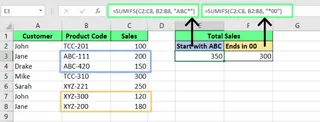
Wildcards (* or ?) in SUMIFS() help you match patterns. For instance, * matches any number of characters. To sum sales for a Product Code starting with "ABC":
Using SUMIFS():
=SUMIFS(D2:D8, C2:C8, "ABC*")
The Excelmatic Alternative:
You don't need to know wildcard syntax with Excelmatic. Just ask naturally:
Sum the sales for product codes that start with ABC.
The AI understands contextual phrases like "start with," "end with," or "contain," making partial matching effortless.
Summing based on date ranges
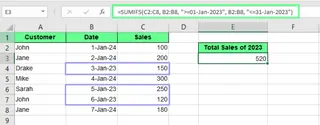
To sum sales from January 2023, you need to set a start and end date.
Using SUMIFS():
=SUMIFS(D2:D8, B2:B8, ">=01-Jan-2023", B2:B8, "<=31-Jan-2023")
This formula checks for dates between January 1 and January 31, 2023, and sums the corresponding sales.
The Excelmatic Alternative:
Date handling is significantly simpler with AI. Just ask:
What were the total sales in January 2023?
Excelmatic parses the date range from your conversational query, avoiding tricky date formatting and operators.
Troubleshooting: SUMIFS() Pitfalls vs. AI Reliability
If your SUMIFS() function isn’t working, it's often due to a few common issues. Let's see how an AI approach helps avoid these problems.
Mismatched range sizes
SUMIFS()Problem: If yoursum_rangeandcriteria_rangedon't have the same dimensions, Excel returns a#VALUE!error. This is a frequent and frustrating mistake.- Excelmatic Solution: This error is impossible with Excelmatic. The AI analyzes your entire dataset and understands the column relationships, so you never have to manually define or align ranges.
Incorrect formatting of criteria
SUMIFS()Problem: Text criteria must be in quotation marks (e.g.,"Apples"). Numerical or date conditions with operators must also be in quotes (e.g.,">100"). Forgetting them leads to errors or a0result.- Excelmatic Solution: Since you use plain English, there's no special syntax to remember. You just write "Apples" or "greater than 100" as part of your question.
Unexpected zero values
SUMIFS()Problem: If a formula returns0unexpectedly, it often means no rows met all theANDconditions, or there's a subtle formatting error in your criteria.- Excelmatic Solution: Excelmatic directly answers your question. If the answer is zero, it's because the data truly reflects that—not because of a technical error in a formula. This builds confidence in your results.
Best Practices and When to Use Each Method
Best Practices for SUMIFS()
To get the most out of the SUMIFS() function, follow these best practices:
- Avoid hardcoding criteria: Instead of typing
"Apples"in your formula, reference a cell (e.g.,E3) that contains the word "Apples". This makes your sheet dynamic. - Use named ranges: Naming ranges (e.g.,
Sales_listinstead ofC2:C5) makes formulas easier to read and manage. - Use absolute references (
$): When copying formulas, use$(e.g.,$C$2:$C$8) to lock ranges and prevent them from shifting.
When to Choose SUMIFS() vs. Excelmatic
- Choose
SUMIFS()when: You are building complex, interconnected dashboards where formula results need to update automatically as source data changes. It's a core skill for anyone who wants to become an advanced Excel user. - Choose Excelmatic when: You need fast, ad-hoc answers without writing formulas. It's ideal for quick data exploration, verifying numbers, or for users who are less comfortable with complex Excel syntax. It empowers anyone to perform powerful data analysis.
Final Thoughts
SUMIFS() is an essential Excel function for anyone serious about data analysis. It provides the power to filter and sum data with a high degree of precision. Mastering it will save you time and help you uncover important trends.
At the same time, tools like Excelmatic are changing the game. By allowing you to simply ask questions, they make data analysis more accessible, faster, and less prone to error. The best approach is to understand both: use SUMIFS() for building robust spreadsheets and leverage AI tools for quick, insightful analysis.
Ready to sum your data the smart way? Try Excelmatic today and get instant, accurate answers to your most complex data questions with a simple request.
FAQs
How can I exclude specific criteria from my sum?
With SUMIFS(), use the <> operator:
=SUMIFS(B2:B8, A2:A8, "<>March")
This will exclude rows where the value is "March" and sum the rest. With Excelmatic, you'd ask, "Sum the values for all months except March."
How do I sum the top or lowest N values?
This is outside the scope of SUMIFS(). You would typically combine SUM with LARGE or SMALL:
=SUM(LARGE(B2:B8, {1,2,3})) /* sums the top 3 values */
With Excelmatic, the query is simple: "What is the sum of the top 3 values in column B?"
Can SUMIFS() handle case-sensitive criteria?
No, SUMIFS() is not case-sensitive. For case-sensitive sums, you need a more complex array formula with SUMPRODUCT() and EXACT():
=SUMPRODUCT(--(EXACT(criteria, range)), sum_range)
Alternatively, with an AI tool like Excelmatic, you can be explicit: "Sum the sales for "apples", matching the case exactly."
Can I use SUMIFS() to sum every 2nd row in Excel?
To sum every 2nd row, you need a helper column or a more advanced formula using SUMPRODUCT():
=SUMPRODUCT((MOD(ROW(B2:B8), 2)=0) * B2:B8)
With Excelmatic, you could simply ask: "Sum the values in column B for all even-numbered rows."