Key Takeaways:
- Subtraction in Excel is essential for financial, sales, and operational reporting, but traditional methods require technical knowledge of formulas, absolute references, and functions
- Excelmatic simplifies complex subtraction tasks by performing calculations instantly using plain language instructions—no formula syntax or technical concepts needed
- Compared to manual methods, Excelmatic handles entire columns, percentage discounts, and date differences effortlessly, eliminating manual setup and formatting steps
- For business professionals who need accurate calculations quickly, using AI tools like Excelmatic means faster insights and more time for analysis rather than spreadsheet mechanics
In this article, I will walk you through different methods to subtract numbers, cells, rows, and columns in Excel. We'll cover everything from basic formulas to advanced functions for handling percentages, dates, and times.
But we won't stop there. We'll also compare these traditional methods with a modern, AI-powered approach using Excelmatic. Whether you’re a beginner or an expert, this guide will show you the fastest and most efficient ways to handle subtraction, transforming your Excel skills.
The Quick Answer: Basic Subtraction
To subtract numbers in Excel, the most direct way is using the minus sign (-) as the subtraction symbol.
The Traditional Method (Using a Formula)
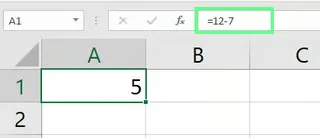
Type an equals sign (=), followed by the number you want to subtract from, a minus sign (-), and the number you wish to subtract.
For example, to subtract 7 from 12, you would type =12-7 in a cell and press Enter. Excel instantly displays the result, 5.
How to Subtract One or Multiple Cells in Excel
Now that you've seen how to subtract two numbers, let’s apply this to Excel cells. This is where things get more interesting, and where we can start comparing methods.
How to Subtract One Cell from Another
The Traditional Method (Using Cell References)
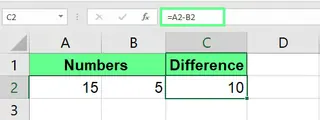
Instead of typing numbers directly, you can use cell references. This makes your calculations dynamic. For instance, if you have 15 in cell A2 and 5 in B2, you can find the difference in C2.
- Type
=in cell C2. - Click on cell A2 (the minuend).
- Type the
-sign. - Click on cell B2 (the subtrahend).
- Press Enter.
The formula =A2-B2 will display the result 10 in cell C2.
The AI Method (Using Excelmatic)

With Excelmatic, you don't need to click on individual cells or type formulas. You simply state your goal in plain language. After uploading your file, you can ask:
In a new column, subtract the value in cell B2 from A2.
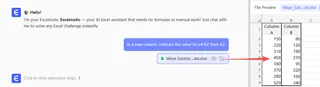
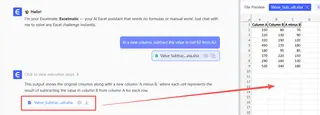
Comparison: While the formula method is simple for a single calculation, Excelmatic describes the action naturally, which can be more intuitive, especially when working with named tables or larger datasets where finding cell references can be cumbersome.
How to Subtract Multiple Cells
The Traditional Method (Extending the Formula)
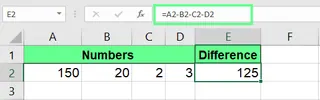
To subtract multiple numbers from a starting value, you extend the formula. If you want to subtract the values in B2, C2, and D2 from A2, your formula would be:
=A2-B2-C2-D2
You can continue adding - and cell references for as many cells as you need.
The AI Method (Using Excelmatic)
Excelmatic simplifies this by understanding ranges and series of operations.
From the value in A2, subtract the values in B2, C2, and D2.
Comparison: The AI method eliminates the repetitive -C2-D2... typing, reducing the chance of typos or missed cells in a long chain of subtractions.
How to Subtract Columns and Rows in Excel
Here’s where we see a significant difference in workflow. Let's look at subtracting entire columns or rows at once.
How to Subtract Columns in Excel
Let's say you have a "Revenue" column (A) and an "Expenses" column (B) and you want to calculate "Profit" in column C.
The Traditional Method (Drag-to-Fill)
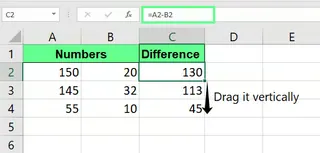
- In cell C2, type the formula to subtract the first-row cells:
=A2-B2. - Press Enter.
- Click on cell C2 again. Drag the small green square (the fill handle) at the bottom-right corner down to the last cell in your data range.
This action copies the formula down the column, automatically adjusting the cell references for each row (A3-B3, A4-B4, etc.).
The AI Method (Using Excelmatic)
With Excelmatic, you describe the operation at a column level.
Create a new column named 'Profit' by subtracting the 'Expenses' column from the 'Revenue' column.
Excelmatic performs the calculation for the entire column instantly.
Comparison: The traditional method requires a three-step process (type, enter, drag) that can be tedious with thousands of rows. The AI method is a single command that accomplishes the same result faster and without manual intervention.
How to Subtract a Column by a Fixed Number
Often, you need to subtract the same number from an entire column (e.g., deducting a $50 fee from every transaction).
The Traditional Method (Absolute Reference)
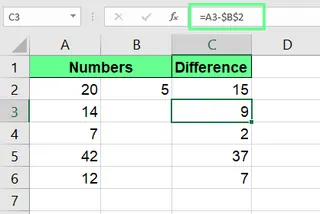
To subtract a fixed value (say, in cell B2) from all values in column A, you need to use an absolute reference. This prevents the reference to B2 from changing as you drag the formula down.
- In cell C2, type the formula
=A2-$B$2. The$signs lock the reference to cell B2. - Press Enter.
- Drag the fill handle down the column.
You can press F4 after clicking on B2 in the formula to automatically add the $ signs.
The AI Method (Using Excelmatic)
Excelmatic handles this contextually, so you don't need to know about absolute references.
Subtract the value in cell B2 from every cell in column A.
Or, even more simply:
Subtract 50 from the 'Transactions' column.
Comparison: The concept of absolute vs. relative references is a common point of confusion for many Excel users. Excelmatic completely removes this complexity. You just say what you want to do, and the AI figures out the logic.
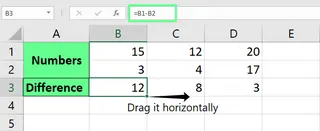
Note: Subtracting rows follows the same logic as columns, but you drag the formula horizontally instead of vertically. The Excelmatic commands would be similar: "For each column, subtract the value in row 2 from row 1."
How to Use Specialized Functions for Subtraction
For more complex scenarios, Excel uses functions. Let's see how they stack up.
Using the SUM() Function for Subtraction
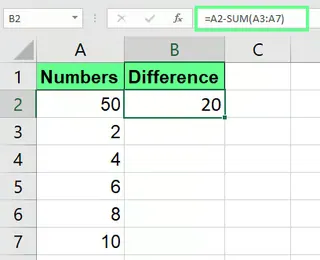
To subtract a total sum of several numbers from a starting value, you can combine the SUM() function with the - operator. For example, to subtract a list of expenses (A3:A7) from a total budget (A2).
The Traditional Method (SUM Function)
The formula would be:
=A2-SUM(A3:A7)
This formula first calculates the sum of cells A3 through A7 and then subtracts that total from A2.
The AI Method (Using Excelmatic)
Again, you can describe the outcome you want in natural language.
Subtract the sum of cells A3 to A7 from the value in cell A2.
Comparison: The benefit here is clarity. While =A2-SUM(A3:A7) is efficient, the Excelmatic prompt reads exactly like a human instruction, making it easy to create and audit.
Other Interesting Subtraction Problems
Let's explore how these two approaches handle practical, real-world subtraction problems.
How to Subtract Percentages in Excel
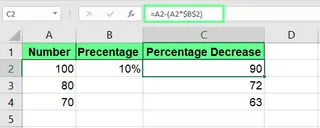
Imagine you need to discount a list of prices by 10%.
The Traditional Method (Formula)
The formula to decrease a number by a percentage is =Number-(Number * percentage). If your original price is in A2 and the percentage (e.g., 10% or 0.1) is in B2, the formula would be:
=A2-(A2*$B$2)
You would use an absolute reference for B2 if you're applying the same percentage to a whole column of prices.
The AI Method (Using Excelmatic)
This task becomes incredibly simple with an AI agent.
Decrease all values in the 'Price' column by 10%.
Comparison: The AI method is not only simpler to write but also conceptually easier. Instead of translating "decrease by 10%" into a mathematical formula, you just say it. This saves time and reduces the risk of calculation errors.
How to Subtract Dates in Excel
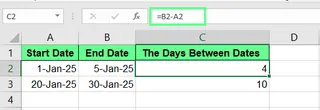
Calculating the duration between two dates is a common task.
The Traditional Method (Direct Subtraction)
Excel stores dates as sequential numbers, so you can subtract them directly. With a start date in A2 and an end date in B2, the formula is:
=B2-A2
The result is the number of days between the two dates. You may need to format the result cell as "General" or "Number" if it defaults to a date format.
How to Subtract Time in Excel
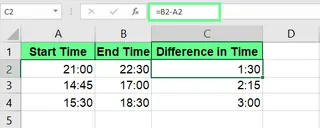
Similarly, you can subtract time values to calculate elapsed time. With a start time in A2 and an end time in B2, the formula is:
=B2-A2
For the result to display correctly (e.g., total hours), you may need to apply a custom cell format like [h]:mm.
The AI Method for Dates and Times (Using Excelmatic)
Excelmatic handles date and time calculations, including the formatting, automatically.
Calculate the number of days between the 'Start Date' and 'End Date' columns.
Or for time:
Find the time difference in hours between the 'End Time' and 'Start Time' columns.
Comparison: The traditional method often requires an extra step of formatting the cell correctly. Excelmatic understands the user's intent—"number of days" or "hours"—and provides the final, properly formatted answer in one go.
Final Thoughts
You now have a comprehensive toolkit for subtraction in Excel. We've seen that traditional methods, from the simple minus sign to functions like SUM, are powerful and essential for any Excel user to know. They give you granular control over your calculations.
However, the landscape of data analysis is changing. AI tools like Excelmatic offer a parallel path that prioritizes speed, ease of use, and natural language. Instead of memorizing formulas, syntax, and concepts like absolute references, you can simply state your objective. This not only accelerates your workflow but also makes complex data manipulation accessible to everyone, regardless of their Excel expertise.
The best approach often depends on the task. For a quick, one-off calculation, a formula might be faster. But for complex, repetitive, or large-scale operations, an AI agent is a clear winner.
Ready to subtract smarter, not harder? Try Excelmatic today and perform all your calculations with a simple, clear request.
Frequently Asked Questions (FAQ)
Is there a dedicated function for subtraction in Excel?
No, Excel does not have a dedicated SUBTRACT() function. The primary method is using the minus (-) operator. For subtracting multiple items in a range, you can use the SUM() function, like =A2 - SUM(B2:B5). Alternatively, AI tools like Excelmatic understand the command "subtract" directly, allowing you to perform subtraction without using a formula.
How do you both add and subtract in a single Excel formula?
You can combine the + and - operators in one formula. For example: =A1 + B1 - C1. Excel follows the standard order of operations to calculate the result. With an AI tool, you can just say, "Add A1 and B1, then subtract C1."
How do I subtract based on a condition?
In traditional Excel, you use the IF() function. For example, =IF(A1>10, A1-B1, 0) subtracts B1 from A1 only if A1 is greater than 10. With Excelmatic, you can state the condition directly: "If A1 is greater than 10, subtract B1 from it, otherwise show 0."
How do I find the difference in months between two dates in Excel?
Use the DATEDIF() function: =DATEDIF(A2, B2, "m"). This function calculates the number of full months between a start date (A2) and an end date (B2).
How do I subtract matrices in Excel?
To subtract two matrices (e.g., A2:B4 and C2:D4):
- Select an empty range of cells that matches the matrix dimensions.
- Type the array formula:
=(A2:B4)-(C2:D4). - Press Ctrl + Shift + Enter to confirm it as an array formula.