Key Takeaways:
- Calculating square roots in Excel is essential for geometry, statistics, and finance, but traditional methods require technical knowledge of formulas like
SQRT()andPOWER() - Excelmatic provides a simpler solution by performing square root calculations instantly using plain language instructions—no formula syntax needed
- Compared to formula-based approaches, Excelmatic handles large datasets and complex multi-step requests effortlessly, eliminating manual setup and error troubleshooting
- For business professionals needing quick calculations, using AI tools like Excelmatic means faster results and more time for analysis rather than technical implementation
Calculating a square root is a fundamental task in data analysis, whether for geometric problems, statistical calculations, or financial modeling. Excel offers powerful tools for this, but the best method depends on your workflow.
Traditionally, this meant using built-in functions like SQRT(). It's quick, reliable, and integrates easily into other formulas. However, modern AI tools now offer a completely different approach—one that uses plain language instead of syntax.
In this guide, we’ll compare two powerful methods for finding a square root in Excel: the classic formula-based approach and the modern, conversational AI method using Excelmatic.
Method 1: The Traditional Formula Approach with SQRT()
The most direct way to calculate a square root in Excel is with the SQRT() function. It’s designed for one purpose: to return the positive square root of a positive number.
How does SQRT() work?
The syntax is simple and straightforward:
=SQRT(number)
Here, number can be a direct value, a cell reference, or even the result of another formula.
When should you use SQRT()?
Anytime you need the positive square root of a positive number, this function is a solid choice. It's common in geometry (like finding the length of a square's side from its area), statistics, and finance.
Basic SQRT() Examples
Let's see how it works in practice.
Finding the square root of a number
To calculate the square root of 25, you would type this into any cell:
=SQRT(25)
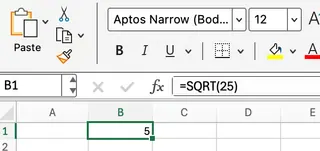
Excel correctly returns 5. This is the foundation for more dynamic calculations.
Using a cell reference
In most spreadsheets, your data won't be hard-coded. If cell A1 contains the number 81, you can use a cell reference:
=SQRT(A1)
This formula returns 9. Using cell references makes your worksheet dynamic—if the value in A1 changes, the result updates automatically.
Combining SQRT() with other formulas
You can also embed calculations directly inside the SQRT() function. For instance, to find the square root of the sum of A1 and B1:
=SQRT(A1 + B1)
This is useful when your input value is derived from other data points.
An Alternative Formula: POWER()
Another way to calculate a square root is with the POWER() function, which raises a number to a given exponent. Since a square root is the same as raising a number to the power of 0.5, you can use:
=POWER(A1, 0.5)

While this works perfectly, SQRT(A1) is more readable and direct if you only need a square root. POWER() becomes more useful when dealing with cube roots or other fractional exponents.
Handling Errors and Limitations with Formulas
The biggest limitation of SQRT() is that it cannot process negative numbers, as their square roots are not real numbers. Trying to calculate =SQRT(-9) will result in a #NUM! error.
To avoid this, you can build a safeguard using the IF() function:
=IF(A1 < 0, "Invalid Number", SQRT(A1))
This formula first checks if the number in A1 is negative. If it is, it returns "Invalid Number"; otherwise, it proceeds with the calculation. This is effective but adds complexity to your formulas.
Method 2: The AI-Powered Approach with Excelmatic

What if you could skip the formulas altogether? Excelmatic is an Excel AI Agent that lets you perform calculations, analyze data, and create charts just by asking in plain language.
Instead of remembering functions and syntax, you simply state your request.
How does Excelmatic work?
The process is refreshingly simple:
- Upload your Excel file(s) to Excelmatic.
- Type your request in the chat box, just like talking to a human analyst.
- Excelmatic processes the request and delivers the answer, updated table, or chart instantly.
For calculating a square root, you could upload a sheet with a list of numbers in Column A and simply ask:
Calculate the square root for all values in column A and put the results in a new column named 'Square Root'.
Excelmatic handles the rest. There's no formula to type, no syntax to remember, and no need to drag-fill cells.
When should you use Excelmatic?
Excelmatic excels where formulas become cumbersome.
- For beginners: It removes the barrier of learning Excel's function library.
- For large datasets: A single command can process thousands of rows, saving you from manual formula entry and dragging.
- For complex requests: You can chain commands together. For example, "Calculate the square root for column A, then find the average of the results."
- For error handling: Excelmatic can interpret context. If you have negative numbers, it might ask for clarification or automatically flag them, avoiding the abrupt
#NUM!errors you get withSQRT().
Comparing the Methods: Formulas vs. AI
| Feature | Traditional Formulas (SQRT()) |
AI Agent (Excelmatic) |
|---|---|---|
| Ease of Use | Requires knowledge of function syntax (=SQRT(A1)). |
Uses plain language. No syntax required. |
| Speed | Fast for single calculations. Can be slow for large datasets (drag-filling). | Instant for both single calculations and large datasets. |
| Error Handling | Returns errors like #NUM!. Requires manual workarounds (e.g., IF statements). |
More intuitive. Can flag issues or ask for clarification. |
| Flexibility | Excellent for integration within complex, nested formulas. | Excellent for multi-step data tasks and quick analysis without setup. |
| Learning Curve | Moderate. You need to learn specific functions and their limitations. | Minimal. If you can ask a question, you can use it. |
Real-World Scenarios: A Head-to-Head Comparison
Let's revisit our real-world examples to see how the two methods stack up.
Geometry: Calculating the Diagonal of a Square
You have a list of side lengths in column A and need to find the diagonal. The mathematical formula is d = side × √2.
SQRT()Method: In cell B1, you'd type=A1 * SQRT(2)and drag the formula down the column.- Excelmatic Method: You'd simply ask, "For the side lengths in column A, multiply each by the square root of 2 and show the result in a new 'Diagonal' column."
Statistics: Calculating Standard Deviation
Standard deviation is the square root of variance. If you have the variance in cell B1:
SQRT()Method: You'd type=SQRT(B1). Of course, you could also use the dedicatedSTDEV.P()orSTDEV.S()functions if you knew them.- Excelmatic Method: You can skip the intermediate steps and ask directly, "Calculate the standard deviation for the data in column B." Excelmatic understands the statistical concept and performs the correct calculation without you needing to know the underlying formula.
Conclusion: Which Method Is Right for You?
Knowing how to use functions like SQRT() and POWER() is a core Excel skill. They give you granular control over your calculations and are essential for building complex, interconnected spreadsheets. For quick, one-off calculations or when building a dynamic financial model, formulas are still the king.
However, the landscape of data analysis is changing. AI agents like Excelmatic introduce a new level of speed and accessibility. By allowing you to use natural language, they eliminate the need to memorize syntax and build complex error-handling formulas. For cleaning data, performing multi-step analyses, or simply getting quick answers from your spreadsheet, the AI approach is often faster and more intuitive.
The best approach is to have both in your toolkit. Master the formulas for control, and leverage AI to make your workflow faster and smarter.
Ready to calculate faster and smarter? Try Excelmatic today and perform complex calculations like square roots with a simple request.