Key takeaways:
- The Problem: Splitting “City, Country” or “First Name Last Name” manually in Excel is repetitive, error-prone, and doesn’t scale.
- The Old Way: You either use the Text to Columns wizard (static and manual) or complex formulas like
LEFT,FIND, andRIGHT(fragile and confusing). - The AI Way: With Excelmatic, you describe what you want in plain English—like “Split the Location column into City and Country”—and it happens instantly. No formulas, no menus, no mistakes.
When One Column Ruins Your Entire Morning
It happens all the time. You download a report, open a shared spreadsheet, or export data from your CRM—and there it is: critical information crammed into a single column.
“Tokyo, JP”
“Smith, John”
“NY-10001-USA”
You can’t sort by country. You can’t filter by last name. You can’t analyze by zip code. That one column blocks everything.
For 10 rows, you might fix it by hand. For 100 or 1,000? That’s hours of copying, pasting, and hoping you don’t make a typo. There has to be a better way—and there is.
The Traditional Ways (And Why They Frustrate Everyone)
1. Text to Columns: The One-Time Fix
How it works:
Select your column → Data tab → Text to Columns → Choose “Delimited” → Check “Comma” → Finish.
Why it fails:
It’s a static, one-off operation. Add new data tomorrow? Do it all over again. Have inconsistent separators? It breaks. It also risks overwriting other columns if you’re not careful.
2. Excel Formulas: The Brain Strain
To extract the city from “Tokyo, JP”, you’d need:
=LEFT(A2, FIND(",", A2) - 1)
To get the country code:
=RIGHT(A2, 2)
Why it fails:
You need to understand LEFT, RIGHT, FIND, and sometimes LEN and TRIM. One missing parenthesis or a space where there shouldn’t be, and everything returns #VALUE!. It’s brittle, hard to maintain, and intimidating for anyone who didn’t take an Excel course.
3. Then You Still Have to Sort
Even after splitting, you’re not done. Now you need to go to Data → Sort → Add Level → Choose columns… More clicks, more time, more room for error.
The New Way: Just Say It. Watch It Happen.
What if you could skip the wizard, ignore the formulas, and just tell Excel what you need?
With Excelmatic, the AI acts as your expert data assistant, turning a "Data Nightmare" into a perfect table in three simple steps.
Step 1: Upload Your File
Drag and drop your messy Excel or CSV file into the central upload zone. The AI instantly analyzes your data structure without modifying your original file.

Step 2: Ask in Plain Language
This is where the magic happens. Instead of building a formula, just type what you want to achieve in the chat box. You can be as specific or as general as you like.
Try these prompts with your data:
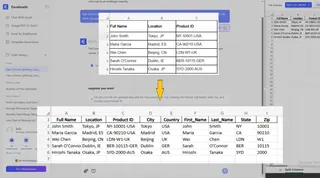
Split the 'Location' column into two new columns: 'City' and 'Country Code', using the comma as a separator.
Separate the full names in Column A into 'First Name' and 'Last Name'.
Take the Product ID (e.g., NY-10001-USA) and split it into 'State', 'Zip Code', and 'Country'.

Step 3: Get Your Result Instantly
Review the live preview of your split columns. Once it looks perfect, download your cleaned .xlsx file or copy the data directly back to your sheet.
Why This Isn’t Just a Tool—It’s a Workflow Revolution
When you stop fighting Excel and start conversing with it, something shifts:
- You move faster. What used to take 15 minutes now takes 15 seconds.
- You work cleaner. The AI handles inconsistencies—extra spaces, mixed delimiters, uneven lengths.
- You stay flexible. Change your mind? Just ask. “Actually, split by dash instead.” Or “Add a third column for the year.”
- You look professional. Deliver clean, structured data without sweating the process.
| Task | Traditional Excel | Excelmatic AI |
|---|---|---|
| Split one column into two | 2–5 minutes (manual steps) | 10 seconds (type once) |
| Handle messy or irregular data | Often fails or requires prep | ✅ Adapts automatically |
| Update when new rows are added | Repeat the entire process | Just say “Update with new data” |
| Sort after splitting | Extra manual steps | Included in the same request |
| Learning curve | Weeks to master formulas | Immediate—if you can type, you can do it |
Frequently Asked Questions
1. Do I need to know Excel formulas to use this?
No. You only need to describe what you want in simple language. The AI handles the logic.
2. Will this modify my original Excel file?
No. Excelmatic works on a copy. Your original file stays untouched on your computer.
3. What if my data uses different separators—like slashes or spaces?
Just say so. For example: “Split by slashes” or “Split whenever there’s a space.” The AI understands patterns.
4. Can I use the results back in Excel?
Yes. Download your cleaned data as a new .xlsx file, or copy and paste the table directly into your workbook.
5. Is this only for splitting text?
Not at all. You can use Excelmatic to clean data, build charts, create pivot tables, merge files, and even write formulas—all through simple instructions.
Your Time Is Worth More Than Data Entry
You weren’t hired to spend your day clicking through Excel menus or debugging #VALUE! errors. You were hired to analyze, decide, and move forward.
With AI, you can finally offload the tedious parts and focus on what matters—the insight, not the process.
Put your "Master Commands" to the test
Got a complex dataset? Don't settle for one column at a time. Upload your file and try a multi-step chain command—like splitting names, locations, and IDs all at once—to see how precisely Excelmatic follows your lead.
✍️ Try a Master CommandFree to start — No credit card required