Key Takeaways:
- The #SPILL! error in Excel disrupts work by blocking dynamic formulas, and manual fixes require technical troubleshooting of merged cells, table layouts, and obstructed ranges
- Excelmatic offers a smarter approach by performing complex lookups, filters, and analysis using simple language commands—eliminating formula writing and #SPILL! errors entirely
- Compared to manual debugging, Excelmatic delivers instant results for tasks like multi-value lookups and data filtering without any risk of spreadsheet errors
- For business professionals who need reliable data analysis quickly, adopting AI tools like Excelmatic means guaranteed results and more time for decision-making instead of technical troubleshooting
The #SPILL! error in Excel is a direct result of the powerful dynamic array functionality introduced in Excel 365. While it may seem frustrating, this error is actually a helpful signal that something—often a cell blockage—is preventing your formula from displaying all its intended results.
Dynamic arrays allow a single formula to return multiple values into neighboring cells automatically. But this power comes with new rules. Rather than seeing #SPILL! as an obstacle, you can view it as an opportunity to refine your spreadsheet’s logic and layout.
In this guide, we'll cover two approaches. First, we'll explain the traditional methods for troubleshooting and fixing the #SPILL! error. Then, we'll introduce a modern, AI-powered alternative that bypasses these errors entirely, letting you achieve the same results with far less effort.
What Is the Spill Error in Excel?
The Excel #SPILL! error indicates that a formula is trying to return multiple values, but something is blocking the output from “spilling” into the necessary range of cells. This concept comes from Excel 365’s dynamic array functionality, where a single formula can automatically populate results across multiple adjacent cells, known as the spill range.
Think of it like trying to pour water into a row of empty glasses: if some of the glasses are already full (i.e., cells contain data), the water can’t flow, and Excel throws a #SPILL! error to let you know. This is a big shift from older Excel versions, which used implicit intersection, returning only a single value from a formula even if it referenced a range. With dynamic arrays, Excel is smarter, but it also requires more awareness of what’s happening in surrounding cells.
Common Causes of the #SPILL! Error
Understanding the root cause helps you fix it quickly. Below are the most common culprits.
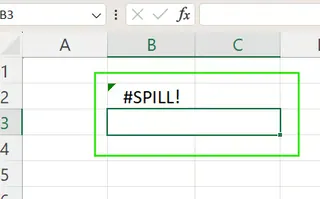
Merged cells
If any cell in the intended spill range is merged, the formula cannot spill. In the example below, the #SPILL! error appears because cells “B3” and “C3” are merged, blocking the formula.
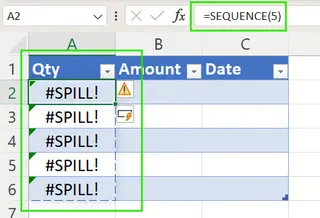
Dynamic arrays inside tables
Dynamic array formulas do not work inside Excel Tables (created with Ctrl + T). Their structured referencing format conflicts with the spilling behavior.
Obstructed spill range
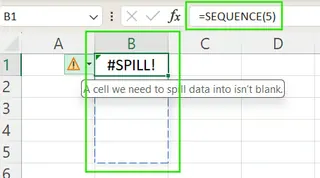
This is the most frequent cause. Something is physically or invisibly blocking the cells where the formula wants to spill. This could be existing data, formulas, or text. In the example below, the #SPILL! error occurs since cell “B4” already contains data.
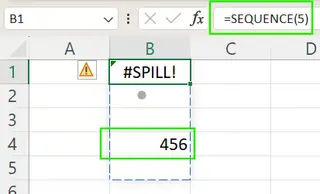
Invisible obstructions like empty strings (""), spaces, or hidden formatting can also be the culprit. Excel will outline the intended spill area with a dotted border and display an error icon you can click for details.
Formula size is unknown or too large
Formulas that generate extremely large arrays, such as =RANDARRAY(1000000,1) or those referencing entire columns like =A:A, can exceed Excel’s row or column limits or run out of memory, triggering a #SPILL! error.
How to Fix a #SPILL! Error: The Manual Approach
Resolving a #SPILL! error manually requires a structured, step-by-step approach.
Step 1: Identify the cause
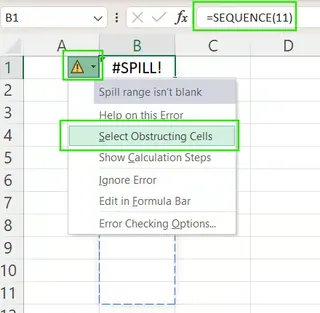
Start by clicking the warning icon next to the #SPILL! cell. If the Select Obstructing Cells option appears, use it to highlight the exact cells blocking the spill.
Step 2: Clear the spill range
If the formula is blocked by other content:
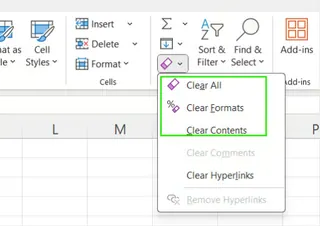
- Select the cells outlined with the dotted spill border.
- Go to the Home tab > Clear > Clear Contents or Clear All.
Step 3: Unmerge cells or move the formula
If merged cells are the issue:
- Select the merged cells and go to Home > Merge & Center > Unmerge Cells.
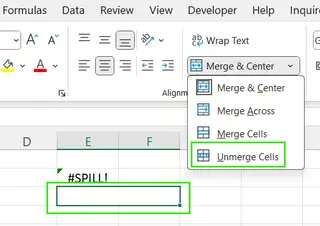
Alternatively, move your formula to an area without merged cells.
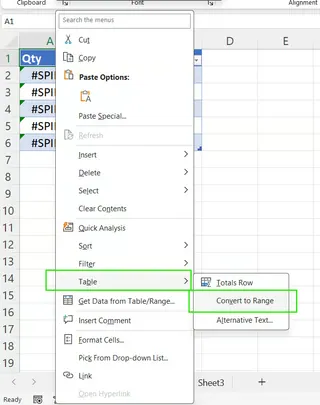
Step 4: Adjust table layouts
Since dynamic arrays don’t work inside Excel Tables:
- Right-click inside the table > Table > Convert to Range.
- Re-enter your formula outside the former table area.
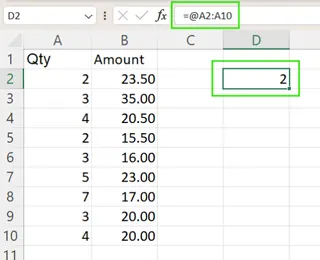
Step 5: Use the @ operator for single values
If you only need a single value from a formula that could spill, use the @ operator. For example, =@A2:A10 returns only the value in cell A2.
The AI Alternative: Bypass #SPILL! Errors with Excelmatic

While knowing how to fix #SPILL! errors is useful, what if you could avoid them altogether? This is where AI tools like Excelmatic change the game.
Excelmatic is an Excel AI Agent that handles complex tasks for you. Instead of writing formulas and debugging errors, you simply upload your file and describe what you need in plain language. Excelmatic does the rest.
Let's revisit the common scenarios that cause #SPILL! errors and see how an AI approach differs.
VLOOKUP() and FILTER() Tasks Without Formulas
A common task is looking up a list of values or filtering a large dataset.
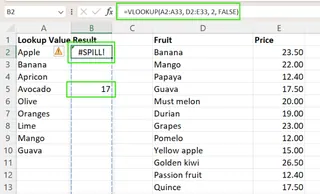
- Manual Method: You write a formula like
=VLOOKUP(A2:A10, ...)or=FILTER(A2:A100, ...). If you forget to clear the space below, you get a#SPILL!error. You then have to diagnose the problem, clear the obstructing cells, and try again.
Excelmatic Method: You upload your workbook and ask:
For each ID in column A, find the corresponding product name from the lookup table.
Or for filtering:
Show me all rows where 'Color' is 'Red' and 'Size' is 'Large'.
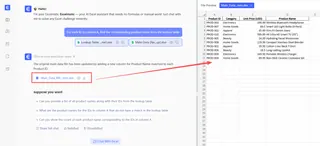
Excelmatic processes your request and directly generates the clean, filtered table of results. There are no formulas to write, no cells to clear, and zero chance of a #SPILL! error. The AI handles the data manipulation and output placement for you.
Manual vs. AI: A Quick Comparison
| Task | Manual Excel Method (and potential #SPILL! issues) | Excelmatic Method (The AI Advantage) |
|---|---|---|
| Filtering Data | Write a FILTER formula. Risk #SPILL! if the output range is blocked by data, merged cells, or is inside a table. |
Ask in plain language: "Filter my data to show only sales from Q1." Excelmatic generates the filtered list instantly. |
| Multiple Lookups | Use VLOOKUP or INDEX/MATCH on a range. Requires debugging #SPILL! errors if the destination cells aren't empty. |
Say: "Look up all these employee IDs and return their department." You get the final results without writing a single formula. |
| Complex Logic | Nest functions like LET, IF, and TEXTJOIN to control output and avoid spilling. This requires advanced formula knowledge. |
Describe the outcome: "For all 'Blue' products, combine their names into a single cell, separated by a comma." Excelmatic understands and executes. |
The core advantage is clear: Excelmatic focuses on your intent, not on formula syntax and spreadsheet layout. It abstracts away the technical complexities, including the entire family of #SPILL! issues.
Best Practices to Prevent Spill Errors
If you are working manually in Excel, these practices can help you avoid #SPILL! errors:
- Leave Room: Always ensure there is enough empty space below and to the right of a dynamic array formula.
- Avoid Tables: Use dynamic array formulas outside of structured Excel Tables, or convert tables to ranges first.
- Use @ for Single Results: If you only need one value, prefix your formula with the
@operator. - Clean Sheets Regularly: Use "Clear All" to remove invisible obstructions like phantom spaces or old formatting.
However, the ultimate best practice for efficiency is to leverage AI. With a tool like Excelmatic, these preventative measures become redundant. The AI manages the data, calculations, and output, freeing you to focus on analysis rather than troubleshooting.
Summary: What to Remember
The #SPILL! error is a feature of modern Excel, designed to let you know when a dynamic formula's output is blocked. Understanding its causes—like merged cells, existing data, or use within tables—is key to fixing it manually. The process involves identifying the blockage, clearing the space, and adjusting your sheet's layout.
But for fast, accurate reporting, a more modern solution exists. AI agentslike Excelmatic allow you to bypass these manual steps entirely. By describing your goal in plain language, you can get the results of complex filters, lookups, and analyses without ever writing a formula or encountering a #SPILL! error.
While manual debugging is a valuable skill, embracing AI tools represents a leap forward in productivity, turning tedious troubleshooting into a simple conversation.
Ready to eliminate #SPILL! errors and complex formulas from your workflow? Try Excelmatic today and complete your data tasks with a simple request.