Key Takeaways:
- Excel lacks automatic spell-check highlighting, making manual review time-consuming, and the built-in tool requires tedious, click-by-click correction
- Excelmatic provides an instant solution by scanning entire files for spelling errors with a single language command—no manual review needed
- Compared to traditional methods including VBA macros, Excelmatic delivers complete, accurate spell-checking across entire workbooks in seconds
- For business professionals who need clean, professional reports and datasets, using AI tools like Excelmatic means faster data cleaning and more time for analysis
Unlike Microsoft Word, Excel does not automatically highlight spelling mistakes as you type. This can lead to embarrassing and costly errors in your reports and analyses. Fortunately, Excel includes a built-in spell check feature to help you spot and correct these mistakes.
In this practical guide, we’ll explore two powerful approaches to ensuring your data is error-free. First, we'll cover the traditional, built-in Excel spell check tool, from basic steps to advanced techniques. Then, we'll introduce a modern, AI-powered alternative that can do the work for you in seconds.
The Traditional Method: Using Excel's Built-in Spell Check
Spell checking in Excel is straightforward once you know where to look. There are two main ways to initiate it: through the Ribbon Menu and with a keyboard shortcut.
To show you these methods, we will be using the Spell Check Tutorial Dataset, which contains customer details and reviews—data types often prone to typos.
Using the Ribbon menu
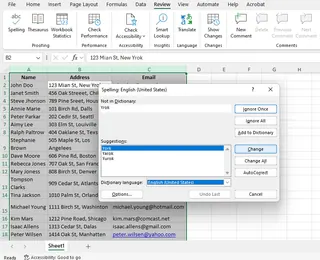
- Select the range: Highlight the cells, column, or columns you want to check. For example, select the Name column, which includes misspelled names like "John Doo" and "Steve Jhonson", or the Address column, which has entries like "123 Mian St, New Yrok".
- Go to the Review tab: The Review tab is in the Excel ribbon at the top.
- Click on Spelling: Click the Spelling button. Excel will begin checking the selected range for spelling errors.
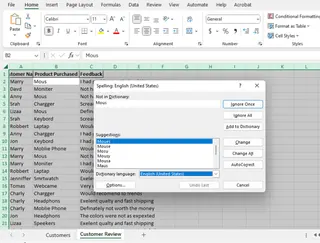
- Correct the mistakes: When Excel detects an error (e.g., "Exmaple"), it will display a dialog box with suggestions. You can choose to Change the word to the suggested correction or Ignore it. We'll cover all the options below.
Using keyboard shortcuts
For a faster workflow, a simple keyboard shortcut gets the job done.
- Select the range: Click on any cell in the range you want to check. You can select just one cell or multiple cells.
- Press F7: Pressing F7 on your keyboard instantly initiates the spell check.
- Review Suggestions: Excel will display a dialog box showing the first error it finds and offer suggestions, such as "Main" for "Mian" or "York" for "Yrok".
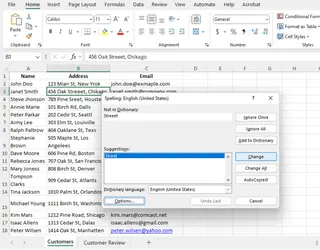
Understanding the Spell Check Dialog Box
When Excel finds a potential mistake, the Spelling Dialog Box gives you several choices:
- Ignore Once: Skips the highlighted word this one time.
- Ignore All: Skips all instances of this word throughout the worksheet.
- Change: Replaces the incorrect word with the selected suggestion.
- Change All: Replaces all instances of the incorrect word in the entire worksheet.
- Add to Dictionary: Adds the word to your custom dictionary. This is useful for technical terms, brand names, or proper nouns that Excel incorrectly flags as errors.
- AutoCorrect: Adds the misspelling and its correction to the AutoCorrect list, so Excel will fix it automatically in the future.
The AI-Powered Method: Instant Spell Check with Excelmatic
While the built-in tool is functional, it can be tedious. You have to manually click through each error, one by one. For large datasets, this is time-consuming and inefficient.
This is where an AI agent like Excelmatic changes the game. Instead of a manual, step-by-step process, you can simply tell the AI what you need in plain language.

With Excelmatic, the process is radically simpler:
- Upload Your File: Drag and drop your Excel file into Excelmatic.
- State Your Request: In the chat box, type a simple command like:
"Find and fix all spelling mistakes in the file.""Correct the spelling in the 'Name' and 'Address' columns.""Review this sheet for typos and suggest corrections."
- Get Instant Results: Excelmatic scans the entire document, identifies all errors, and provides a clean, corrected version or a list of proposed changes for your approval. It handles everything at once, saving you from the repetitive click-by-click review.
Excel vs. Excelmatic: A Quick Comparison
| Feature | Excel's Built-in Spell Check | Excelmatic (AI Agent) |
|---|---|---|
| Process | Manual, one-by-one review via dialog box | Automated, bulk processing via a single command |
| Ease of Use | Requires navigating menus or shortcuts | As easy as sending a text message |
| Speed | Slow for large datasets with many errors | Extremely fast, processes entire files in seconds |
| Context | Dictionary-based; struggles with jargon/names | AI-powered; better at understanding context and proper nouns |
| Multiple Sheets | Requires manually grouping sheets first | Handles entire workbooks with a simple command |
For quick checks on small files, Excel's tool is fine. But for serious data cleaning and efficiency, an AI agent is the clear winner.
Advanced Spell Check Techniques in Excel
If you're sticking with the traditional method, here are a few advanced features to master.
Spell check in multiple sheets
To check spelling across multiple worksheets at once without an AI tool:
- Group worksheets: Hold Ctrl and click on the worksheet tabs you want to include.
- Press F7: With the sheets grouped, press F7 to check all of them for spelling errors.
- Ungroup sheets: After you're done, right-click one of the grouped tabs and select Ungroup Sheets.
Spell checking in the Formula bar
Excel's spell checker doesn't analyze entire formulas, but it can check text within them.
- Select the Text in Formula Bar: Click on the cell, then highlight the text portion inside the formula bar.
- Press F7: Press F7 to run a spell check on only the selected text.
Customizing spell check settings
You can personalize how Excel's spell check works to reduce false positives:
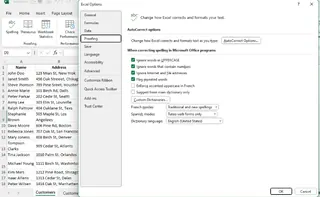
- Go to File > Options > Proofing.
- Adjust settings to:
- Ignore words in uppercase (e.g., "USA").
- Ignore words containing numbers (e.g., "ProductID123").
- Ignore internet addresses and file paths.
- Access Custom Dictionaries to add specialized terms you use frequently.
Automating Spell Check: VBA vs. AI
For repetitive spell-checking tasks, automation is key. Here, again, we see a contrast between the old and new ways.
The VBA Macro Approach
You can use a VBA macro to create a reusable spell check command.
1. Open the VBA Editor: Press Alt + F11.
2. Insert a new module: In the editor, click Insert > Module.
3. Paste the code: Copy and paste this code into the module.
Sub SpellCheckActiveSheet()
    ActiveSheet.CheckSpelling
End Sub
4. Save your work: Save the file as an Excel Macro-Enabled Workbook (.xlsm).
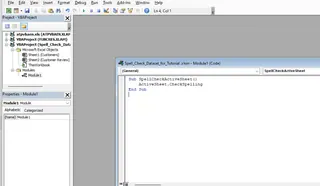
5. Run the macro: Go to the Developer tab, click Macros, select SpellCheckActiveSheet, and click Run.
This works, but VBA can be intimidating for many users and is not supported in Excel Online.
The No-Code AI Alternative
With an AI agent like Excelmatic, there is no code to write or manage. Your automation command is simply the English phrase you type. This approach is faster, requires no technical knowledge, and works on any device with a web browser.
Spell Check Not Working? Try These Fixes
If you're having trouble with Excel's native spell checker, here are a few common issues and solutions:
- Spell Check button is greyed out: The worksheet may be protected. Go to Review > Unprotect Sheet.
- Spell Check is not detecting errors: Check your proofing settings at File > Options > Proofing to ensure they are enabled.
- Text in formulas not checked: Remember to select only the text portion within the formula bar before pressing F7.
Conclusion
While Excel doesn’t underline spelling mistakes in real-time, keeping your data clean is essential. The built-in spell checker is a reliable tool that every user should know how to use. However, the manual, click-by-click process is a relic of the past.
For modern professionals who value speed and efficiency, AI agents like Excelmatic offer a smarter path. By replacing tedious manual tasks with simple, conversational commands, you can ensure accuracy across vast datasets in a fraction of the time. The choice is yours: the familiar manual route or the fast lane of AI-powered automation.
Ready to achieve error-free spreadsheets instantly? Try Excelmatic today and let AI handle the tedious task of spell-checking for you.
How do I add words to the Excel dictionary?
During spell check, when Excel identifies a word as an error, select Add to Dictionary to save it for future recognition.
Why doesn’t Excel underline spelling errors automatically like Word?
Excel doesn’t automatically highlight errors as it’s mainly designed for numerical data. You need to run spell check manually.
Can I use spell check in older versions of Excel?
Yes, the spell check feature is available in all versions of Excel, but its interface may vary slightly.
Can I check spelling in cells that contain formulas?
Yes, but only the text within the formula. Select the text portion in the Formula Bar and press F7 to check its spelling.