Key Takeaways:
- Separating names in Excel traditionally requires mastering Text to Columns, complex formulas, or relying on unpredictable features like Flash Fill
- Excelmatic's AI approach eliminates technical knowledge by allowing you to split names into separate columns using simple language commands
- Compared to manual methods, Excelmatic handles inconsistencies like middle names, suffixes, and extra spaces automatically, ensuring accuracy and saving time
- For business professionals dealing with customer or contact data, adopting AI tools means faster data preparation and more time for meaningful analysis
If you deal with messy spreadsheets containing customer or product details, you know that coercing names into the right number of columns can be a real headache. A cluttered list of full names is hard to analyze, sort, or use in mail merges. Luckily, Excel and modern AI tools provide multiple options for splitting names into columns, helping you create a cleaner, more organized spreadsheet.
I’ve spent a lot of time working with data, and splitting names is a task I've encountered more times than I can count. It's one of those foundational skills that marks a turning point when dealing with large datasets. Properly separating first and last names can transform your spreadsheet from a jumbled mess into a well-structured information hub.
In this article, I’ll show you several methods for separating names in Excel. We'll cover a few classic built-in features and then explore a faster, more intelligent AI-powered approach. You can choose the one that best fits your workflow.
Method 1: Separate Names using Text to Columns
If you have a column where all names follow a consistent pattern (like "First Last" or "Last, First"), the simplest traditional method is to use the Text to Columns feature. This tool is great for quick, one-off data cleaning tasks.
Separate first and last names with a space
Let’s start with a common scenario: a list of names separated by spaces.
- Select the column of names you want to split.
- Go to Data > Data Tools > Text to Columns.
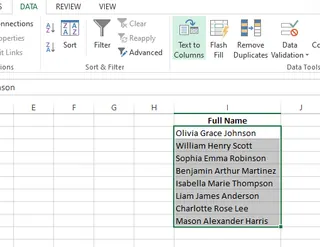
- A three-step wizard will appear. In step one, select Delimited and click Next. This tells Excel your data is separated by a specific character.

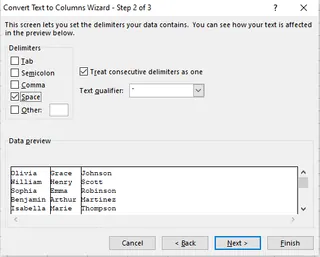
- In step two, select your delimiter. Since our names are separated by spaces, check the Space box. The Data preview box will show you how Excel will split the data. Click Next.
- In the final step, choose a Destination for your new columns. Be careful—if you don't select a new location, Excel will overwrite your original data. Once set, click Finish.
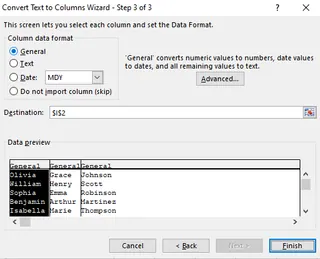
Your full names are now neatly divided into separate columns for First, Middle, and Last Names.

Separate names with commas or other delimiters
This feature works just as well for other delimiters like commas. For a list of names formatted as "Last, First," the process is nearly identical.

Follow the same steps, but in the wizard's second step, choose Comma as your delimiter.
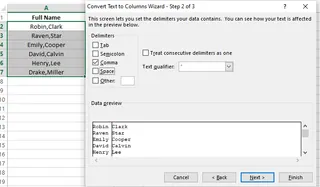
Excel will split the comma-separated names just as easily.

You can even use this for more unique cases, like splitting usernames from email domains. Simply choose Other in the delimiter options and type "@" into the box.
Takeaway: Text to Columns is reliable for uniform data. However, it's a manual, multi-step process. If your data is inconsistent or you need to repeat this task often, it can become tedious.
Method 2: Separate Names with Custom Formulas
For a more dynamic solution that updates automatically when the source data changes, you can use Excel formulas. While powerful, this method requires a good understanding of Excel's text functions.
Separate first and last names
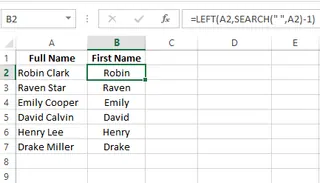
To get the first name, you can combine the LEFT() and SEARCH() functions. The SEARCH() function finds the position of the first space, and LEFT() extracts all characters before it.
=LEFT(A2,SEARCH(" ",A2)-1)
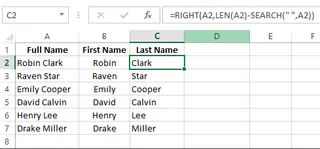
To get the last name, you can use a combination of RIGHT(), LEN(), and SEARCH(). This formula calculates the total length of the string and subtracts the position of the first space to determine how many characters to extract from the right.
=RIGHT(A2,LEN(A2)-SEARCH(" ",A2))
Separate middle names and suffixes
This is where formulas start to get complicated. Splitting a name into three or more parts (first, middle, last) requires much longer, nested formulas.
- Extract the first name:
=LEFT(A2,SEARCH(" ",A2)-1) - Extract the middle name:
=MID(A2, SEARCH(" ", A2) + 1, SEARCH(" ", A2, SEARCH(" ", A2)+1) - SEARCH(" ", A2)-1) - Extract the last name:
=RIGHT(A2,LEN(A2) - SEARCH(" ", A2, SEARCH(" ", A2,1)+1))
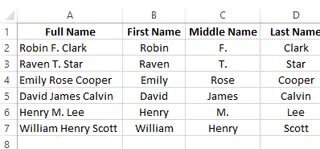
As you can see, the formulas become difficult to write, read, and debug. If some names have middle names and others don't, you'll need to add even more logic with IFERROR functions to avoid errors.
Takeaway: Formulas are powerful and dynamic, but they have a steep learning curve. They are prone to errors and become unwieldy 전시for anything beyond a simple first/last name split.
Method 3: Separate Names Using Flash Fill
Flash Fill is Excel's attempt to automate pattern recognition. It watches your actions and tries to complete the work for you.
To use it:
- Insert a new column next to your full names.
- In the first cell of the new column, manually type the first name from the adjacent cell.
- Move to the cell below. As you start typing the second first name, Excel might detect the pattern and show a grayed-out preview of the rest of the first names.
- If the preview is correct, just press Enter, and Excel will fill the entire column.
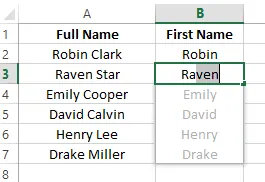
If Flash Fill doesn't activate automatically, you can trigger it manually by going to Data > Flash Fill or by pressing Ctrl + E.
Takeaway: When it works, Flash Fill feels like magic. However, it can be unpredictable. It may fail to recognize more complex patterns or not activate at all, leaving you to figure out what went wrong. It's a great shortcut, but not always reliable.
Method 4: The AI-Powered Way to Separate Names with Excelmatic
What if you could skip the wizards, complex formulas, and guesswork? With an AI Excel Agent like Excelmatic, you can. This approach combines the power of advanced AI with the simplicity of a conversation.

Excelmatic is designed to handle Excel tasks by understanding plain language instructions. Instead of you learning Excel's commands, Excelmatic learns your goal and executes it for you.
Here’s how you would separate names using Excelmatic:
- Upload Your File: Simply upload your Excel spreadsheet to the Excelmatic platform.
- State Your Request: In the chat interface, type what you want to do. For example:
- "Separate the 'Full Name' column into 'First Name' and 'Last Name' columns."
- "From the 'Name' column, create three new columns: 'First', 'Middle', and 'Last'."
- "Split the email addresses in column C. Put the part before the '@' in a 'Username' column and the part after in a 'Domain' column."
- Get Instant Results: Excelmatic processes your request, performs the data-splitting operation, and presents the updated data for you to download.


Why is this a better way?
- No Learning Curve: You don't need to remember which function to use or what steps are in the Text to Columns wizard. Just ask.
- Handles Complexity Effortlessly: Excelmatic's AI is built to understand and handle inconsistencies. Names with or without middle names, suffixes (like "Jr." or "III"), or extra spaces are typically managed automatically without you needing to build complex
IForTRIMlogic. - Speed and Efficiency: It's the fastest method by far. What takes several minutes of clicking or formula-writing is reduced to a single sentence and a few seconds of processing.
- Accuracy: By offloading the logic to a trained AI, you reduce the risk of manual errors, like a typo in a formula or selecting the wrong delimiter.
While traditional methods are still valuable, they represent a manual way of working. Excelmatic represents the future of spreadsheet management—intelligent, conversational, and incredibly efficient.
Final Thoughts
You now have four ways to separate names in Excel.
- Text to Columns is your go-to for quick, simple, one-time splits.
- Formulas offer a dynamic but complex solution for those who need data to update automatically.
- Flash Fill is a handy but sometimes unreliable shortcut for pattern-based tasks.
- Excelmatic provides a smart, fast, and foolproof way to handle any name-splitting scenario by simply describing your goal.
Each method has its place, but for anyone looking to boost their productivity and eliminate the tedious aspects of data cleaning, leveraging an AI tool like Excelmatic is a clear winner. It allows you to focus on the insights from your data, not the mechanics of preparing it.
Ready to clean and separate your data in seconds? Try Excelmatic today and experience the simplicity of AI-powered Excel tasks.