Key Takeaways:
- Sensitivity analysis in Excel is crucial for decision-making, but traditional methods require complex setup with Data Tables and Solver, involving technical skills
- Excelmatic revolutionizes this process by performing sensitivity analysis instantly from simple language instructions—eliminating manual formula setup and navigation
- Compared to Excel's built-in tools, Excelmatic handles both basic and advanced analyses with greater speed and accuracy, including optimization and Monte Carlo simulations
- For business professionals who need to understand variable impacts quickly, adopting AI tools like Excelmatic means faster insights and more confident, data-driven decisions
When designing models in spreadsheets, we often wonder how changing the value of one variable would impact the final result. This process can be performed by running sensitivity analysis in Excel.
If you are a data professional who works in financial modeling or the decision-making process, then it is crucial to know how to perform sensitivity analysis.
In this article, we will dive into sensitivity analysis. We will cover the basics of this useful "what-if" technique, how to perform and interpret the results of basic and advanced sensitivity analysis in Excel, and finally, we will discuss the role of AI and machine learning in enabling more powerful sensitivity analysis, along with best practices and common pitfalls.
What is Sensitivity Analysis in Excel?
The most common approach to sensitivity analysis is to examine how a change in one variable affects the final outcome while holding all other factors constant. This process is repeated for all variables considered. It helps identify the most impactful drivers in a model, allowing businesses to focus on key factors affecting their performance.
Sensitivity analysis helps businesses prioritize critical risks and opportunities by identifying which factors have the greatest impact on performance. Given its nature, sensitivity analysis is common in finance, business, and project management, for example, to calculate how interest rates might change over time or to understand different growth trends.
Moreover, sensitivity analysis is often used in conjunction with scenario analysis, which typically analyzes combinations of variables simultaneously. Both what-if analyses study how the dependent variable will react to certain inputs. However, scenario analysis is for a certain "scenario," while sensitivity analysis is more open-ended, as it offers a range of inputs and values.
The goal of sensitivity analysis is to understand how the dependent variable reacts to a range of input values (called independent variables).
By incorporating this technique into the decision-making process, organizations can proactively adjust strategies and enhance resilience to uncertainty.
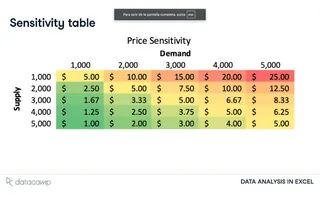
Often, sensitivity analysis is presented as a sensitivity analysis table with conditional formatting, highlighting the highest to lowest values.
Here is an example of price sensitivity for supply and demand. Supply and demand are the independent variables on the axes, and price is the dependent variable, which occupies the values within the table.
In the following sections, we will use similar Excel sensitivity analysis tables.
Getting Started with Sensitivity Analysis in Excel
Let's look at how to perform sensitivity analysis in Excel, following each step of the process.
Traditional Tools and Features in Excel
Excel is a convenient tool for creating mathematical models, including what-if analysis. What-if analysis is essentially about creating formulas to explore questions like sensitivity analysis.
Most recent versions of Excel come with a Data tab that offers numerous tools and possibilities for working with data. This includes the What-If Analysis button in the ribbon. It contains three tools. The Data Table button is specifically designed for creating sensitivity analysis tables.
To perform scenario analysis, simply click the Scenario Manager button.

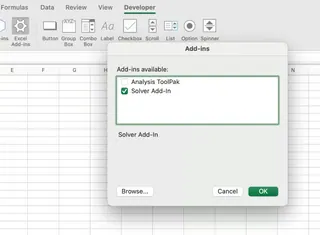
We will also use Solver, an add-in that can be activated from the Developer tab.
Solver is used in what-if analysis to find an optimal (maximum or minimum) value for a formula in one cell (called the objective cell) subject to constraints, or limits, on the values of other formula cells on the worksheet.
Before enabling Solver, you must access the Developer tab, which is not shown by default. To display this tab:
- Go to File > Options
- Select Customize Ribbon from the left-hand panel
- Under "Main Tabs" in the right column, check the box for Developer
Performing Single-Variable Sensitivity Analysis
Now that our tools are ready, let's start by creating a simple single-variable sensitivity analysis in Excel.
Traditional Method: Setting Up Your Model
The initial step in performing sensitivity analysis in Excel is to identify the inputs and outputs on which the model is based.
In this tutorial, we will use sensitivity analysis to study how the net profit of a guitar sales company will change if we alter the values of some input variables, such as the number of guitars sold, the price per guitar, or the production cost.
Below, you can see the table containing the input and output variables.

When using Data Tables for sensitivity analysis, it is important to link the output cell to the input variable so that Excel understands the relationship between the model variables. This process is done through formulas. In our case:
- Revenue is calculated by multiplying the unit price by the number of units sold (
=B2*B4) - Cost of Sales is calculated by multiplying the unit production cost by the number of units sold (
=B3*B4) - Profit is calculated by subtracting the cost of sales from revenue (
=B7-B8)
Traditional Method: Creating a One-Way Data Table
You might wonder how profit would change if we increased or decreased the unit price while keeping the production cost and the number of units sold constant. When we analyze how one output variable changes as we change the values of one input variable, we need a so-called one-way data table.
The GIF below demonstrates how to create a one-way data table in Excel. As you can see, the table automatically recalculates the profit for each unit sold. Naturally, the profit when selling 250 units is the same as in the original parameters (i.e., €50,000).
Smarter Method: Single-Variable Analysis with Excelmatic

Although the Data Table feature is powerful, the setup process requires precise cell references and multiple steps. For more complex or dynamic models, this can become tedious and error-prone.
Excelmatic offers a more intuitive alternative. As an Excel AI Agent, it allows you to perform analyses using natural language.
To accomplish the same goal, you simply:
- Upload your Excel file containing your model to Excelmatic.
- State your requirement in simple language: "Create a sensitivity analysis table to show how Profit (cell B9) changes when Units Sold (cell B4) varies from 150 to 500 in increments of 50."
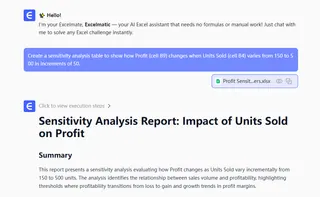
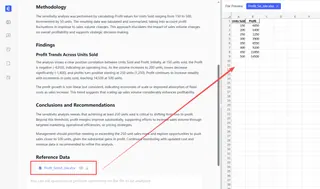
Excelmatic instantly understands your model structure and automatically generates the exact same results as a manually created one-way data table, without requiring you to manually set up the table, link cells, or navigate any menus. The advantage of this approach lies in its speed and simplicity, allowing you to focus on analyzing the results rather than operating the tool.
You might also want to examine how different output variables change with unit sales. In the traditional method, you would need to adjust the Data Table setup.
With Excelmatic, you simply modify your request slightly: "Show how both Profit (B9) and Cost of Sales (B8) change as Units Sold (B4) varies from 150 to 500." The AI handles all the details for you.
Conducting Two-Variable Sensitivity Analysis
Traditional Method: Creating a Two-Way Data Table
Instead of analyzing how one output is affected by one input, you can also create a two-variable table to analyze the impact of two input variables. Let's say you want to know how profit would change if we modified both the number of guitars sold and the price per guitar.
First, you need to create a two-dimensional table where the rows are the range for unit prices and the columns are the range for unit sales. Then, in the top-left corner of the table, select the variable you want to study. Finally, in the input variables table, select the cell references for the independent variables (i.e., the unit price and the number of units sold).
As you can see, once you create the table, you can easily change the output variable in the top-left corner to another variable, and Excel will recalculate all the values.
Smarter Method: Two-Variable Analysis with Excelmatic
Setting up a two-way data table is more complex than a one-way table, requiring proper referencing of inputs and outputs in rows, columns, and the corner cell.
With Excelmatic, this process is also simplified to a single simple instruction. After uploading your file, you can directly ask:
"Generate a two-way sensitivity table showing how Profit changes based on Units Sold (from 150 to 500) and Price per Unit (from €150 to €400)."
Excelmatic builds the entire two-dimensional table for you, populating all calculated values, thereby eliminating potential reference errors from manual setup. If you want to analyze another output, such as "Revenue," simply ask a new question: "Now, show the same table but for Revenue." This conversational workflow makes complex analysis effortless.
Interpreting Excel Sensitivity Analysis Results
Now that you have the data table, the final step is to interpret the results to gain insights into how input changes affect the output.
Analyzing Data Table Output
Based on this sensitivity analysis, we can make informed decisions about profit. Here are some insights:
- If we increase the guitar price to €350, we only need to sell 200 guitars to achieve the current profit of €50,000.
- If we decrease the guitar price to €200, we need to sell 500 units to reach the current profit.
- If we reduce the number of guitars sold to 150, we cannot achieve the current profit unless we increase the guitar price above €400.
The interpretation of the analysis will depend on the specific needs of your company. Asking questions such as how many guitars you can produce, what is the minimum profit level you need to maintain for a healthy company, and what you can do to reduce the guitar production cost is essential to extract meaningful insights from sensitivity analysis.
Traditional Method: Optimization and Sensitivity Analysis with Solver
When you perform sensitivity analysis, you return a range of potential outputs based on changes to your model's input variables. However, you might want to learn more about the inner workings of your model.
Fortunately, Excel comes with a powerful tool called Solver that can help you with this task. As mentioned before, Solver is used in what-if analysis to find an optimal (maximum or minimum) value for a formula subject to constraints, or limits, on the values of other formula cells on the worksheet.
Solver is more than just an upgraded version of Goal Seek. Firstly, Solver allows you to calculate optimal results based on multiple variables and allows you to include constraints in your model. More importantly, Solver also comes with an optional sensitivity feature that lets you see how the optimal solution changes when you alter the coefficients of your model.
To illustrate the power of Solver, let's return to our guitar company. Imagine that the company produces two guitar models (Model A and Model B), each requiring a certain amount of mahogany and cedar wood. Each model has a different price.
The company wants to know how many units of each model to produce to maximize its profit, given the current availability of mahogany and cedar wood.
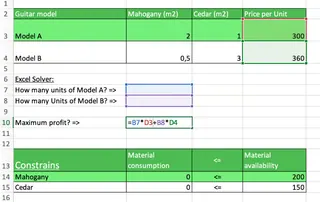
In the GIF below, we show how to use Solver to find the optimal values of units to maximize revenue while using wood availability constraints and ensuring the units are integers.
Once we add all the parameter values, Solver estimates that 48 units of Model A and 9 units of Model B are the best combination to maximize profit (€17,591). We can click Sensitivity before closing the Solver dialog, and Excel will create a new sheet with a sensitivity report.
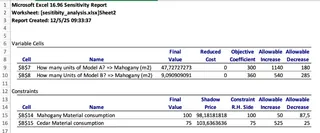
The sensitivity report gives us valuable insights to estimate how profit would change if we altered the input variables. The Shadow Price indicates how much profit would increase if you added one more unit of the constrained resource. In this example, each additional square meter of mahogany increases profit by €98, while cedar increases profit by €103, highlighting that cedar has a greater potential return on investment.
Smarter Method: Advanced Optimization with Excelmatic
Solver's capabilities are powerful, but its interface and setup can be complex and unintuitive for many users. You need to precisely define the objective cell, variable cells, and constraints.
Excelmatic transforms this complex optimization problem into a simple conversation as well. You just describe your goal:
"Maximize Profit (cell G10) by changing the Units of Model A (G4) and Model B (G5), subject to the constraints that the total mahogany used (D14) cannot exceed 2000, the total cedar used (E14) cannot exceed 3000, and the units must be integers. Then, generate a sensitivity report."
Excelmatic parses your request, runs the optimization algorithm, provides the optimal production mix, and generates an easy-to-understand sensitivity report. This not only saves time but also reduces the risk of inaccurate analysis due to misconfigured Solver parameters.
Visualizing Data with Conditional Formatting
Traditional Method
If you have created one-way and two-way sensitivity analysis tables, formatting the results can be a game-changer, helping you quickly spot relevant information and enhance decision-making. Conditional formatting is key to creating important thresholds and compelling heat maps.
Let's return to our two-way table. We can use conditional formatting to create a multi-color heatmap or a two-color scale and set up a custom threshold, as shown in the GIF below.
Smarter Method: One-Click Visualization with Excelmatic
Manually setting conditional formatting rules (especially for complex thresholds) can be time-consuming. With Excelmatic, visualization is also just a simple request. After generating the sensitivity analysis table, you can follow up by saying:
"Apply conditional formatting to this table. Use a green-to-red color scale, where higher profit values are green."
Excelmatic will instantly apply the formatting for you, producing a clear, intuitive heatmap that lets you see at a glance which variable combinations yield the best and worst results.
Integrating AI and Machine Learning
AI-Enhanced Sensitivity Analysis
So far, we have seen how to perform sensitivity analysis manually. However, as model complexity increases, conducting and interpreting the results of sensitivity analysis can become very time-consuming.
This is where AI comes in. AI tools like Excelmatic are a practical application of "AI-enhanced sensitivity analysis." It automates the process of manual calculations, setup, and visualization, allowing you to get answers and insights instantly. You don't need to build complex AI pipelines yourself; Excelmatic provides you with a ready-to-use, powerful analysis engine.
Monte Carlo Simulation
A Monte Carlo simulation is a mathematical technique used to simulate the probability of different outcomes in a process that is difficult to predict due to the intervention of random variables.
You can leverage this powerful technique to enhance your sensitivity analysis, figuring out which variables have the greatest impact on the output. In our guitar example, we could keep the cost price and number of units sold constant and vary the unit price to understand the variation in the estimates. Then, repeat the same process for the remaining two variables, one at a time.
Using Excelmatic, running a Monte Carlo simulation also becomes easier. You can upload your model and request: "Run a Monte Carlo simulation with 10,000 trials on the Profit, assuming the Unit Price follows a normal distribution with a mean of €300 and a standard deviation of €20." The AI handles the complex random sampling and calculations and presents you with the resulting distribution.
Best Practices and Common Pitfalls
While Excel makes sensitivity analysis extremely easy and accessible, there are still some common pitfalls to be aware of.
Designing Robust Models
As you've seen in this tutorial, for sensitivity analysis to work, Excel must know the relationship between the input and output variables. This requires you to use formulas wisely, with clearly defined cell references and ranges. Using AI tools like Excelmatic can help reduce issues caused by manual formula errors, as it directly understands the model logic.
Reducing Errors and Ensuring Accuracy
Even if your sensitivity analysis is well-defined, you still need to carefully validate the results. Manual testing and charts are good ways to visualize results and check for outliers or anomalies in the outputs.
However, it's important to remember that sensitivity analysis might not be applicable to your use case. This analysis is based on some simple assumptions, such as the independence of input variables, the existence of linear relationships, and the static nature of input variables. However, your model might be more complex and may be affected by external factors that sensitivity analysis inherently ignores.
Conclusion
Congratulations on finishing this tutorial. Sensitivity analysis is a powerful what-if analysis that can transform your decision-making process. Whether using Excel's traditional built-in tools or embracing AI-driven solutions like Excelmatic, mastering this skill will significantly enhance your financial and business modeling capabilities.
Traditional methods give you complete control over the underlying mechanics, while the AI approach offers unparalleled speed, ease of use, and reduced manual error. The best choice depends on your specific needs, model complexity, and personal preference.
Ready to perform fast, accurate sensitivity analysis without the complexity? Try Excelmatic today and turn your Excel models into powerful decision-making tools in seconds.
Excel Sensitivity Analysis FAQs
Why is Excel Solver relevant to sensitivity analysis?
Solver is used in what-if analysis to find an optimal (maximum or minimum) value for a formula subject to constraints. It also comes with an optional sensitivity feature that lets you see how the optimal solution changes when the coefficients of your model change.
What are one-way and two-way tables in sensitivity analysis?
A one-way table allows you to perform sensitivity analysis by examining how the output of your model changes as you modify the values of one input variable, while a two-way table allows you to study how the result changes as you modify two input variables.
What is the difference between sensitivity analysis and goal seek?
Goal Seek is a what-if analysis used to find the input value needed to achieve a specific output. In contrast, sensitivity analysis helps understand how changes in input values affect the output.