Key Takeaways:
- Duplicate data in Excel causes inaccurate analysis and reporting, but traditional removal methods require navigating complex menus, writing formulas, or learning advanced tools
- Excelmatic offers the simplest solution by removing duplicates instantly with plain language instructions—no technical knowledge or training needed
- Compared to Excel's built-in tools, Excelmatic provides greater flexibility and safety by keeping your original data intact while delivering cleaned results in seconds
- For business professionals who need accurate data quickly, using AI-powered tools like Excelmatic means more time for analysis and less time on manual data cleaning
Inaccurate data can ruin even the best analysis, and one of the biggest reasons behind inaccurate data is duplicate spreadsheet entries. A single duplicate can skew your results and produce completely wrong conclusions. Whether you're combining lists, managing customer data, or preparing a report, redundant entries can skew your analysis and lead to inaccurate results.
In this guide, we'll walk you through five traditional methods to find and eliminate duplicates. We'll also introduce a sixth, revolutionary AI-powered approach with Excelmatic that can handle the task with a simple instruction, saving you time and effort.
Method 1: Highlight Duplicates with Conditional Formatting
You can use the Conditional Formatting feature to highlight duplicates or unique values and decide whether to remove them.
When to use it: To visually inspect duplicate entries before deciding what to do with them.
Steps:
- Select the range of cells you want to check.
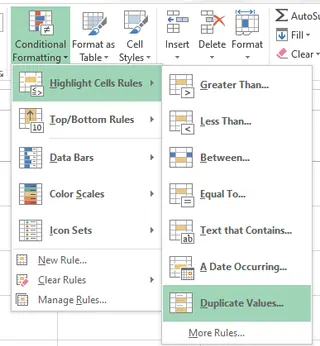
- Go to Home > Conditional Formatting > Highlight Cells Rules > Duplicate Values.
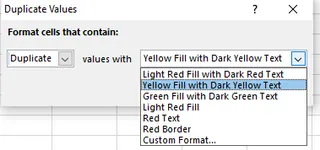
- A dialog box appears. From the drop-down list, select how you want to highlight the duplicates. Here, I chose Yellow Fill with Dark Yellow Text.
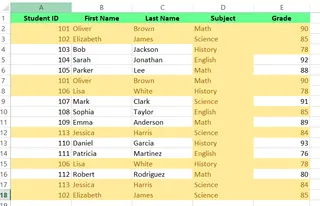
- Click OK and see the duplicate values highlighted.
Pros: Great for visual analysis and review. Non-destructive.
Cons: Doesn't remove the duplicates; it only flags them. Also, it can't highlight duplicate values within the Values area of a PivotTable report.
Method 2: Use the "Remove Duplicates" Feature
Another quick way to remove duplicates is to use the Remove Duplicates feature, a built-in Excel tool that permanently deletes duplicates.
When to use it: For a quick, one-time cleanup where you don't need to keep the original data.
Steps:
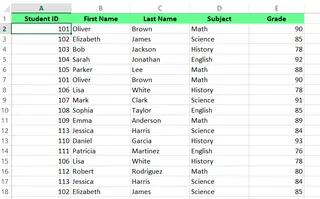
- Select the range of cells or click on a cell, and Excel will automatically identify the range of cells.
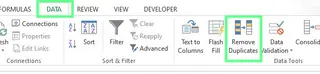
- Go to the Data tab > Data Tools and select Remove Duplicates.
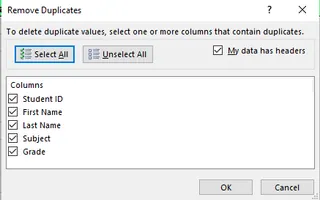
- A dialog box will appear. Select the columns that should be checked for duplicates. If your data includes column headers, check the My data has headers box and click OK.
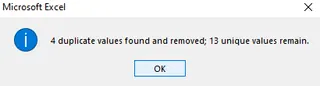
- Excel will display a message showing the number of duplicates removed and the number of unique entries remaining.
- Now you can see all the duplicate rows are removed.
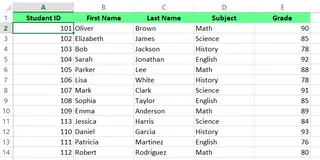
Pros: Extremely fast and easy for simple cases.
Cons: It's a destructive action—the duplicate rows are permanently deleted. Always work on a copy of your data if you might need the original later.
Method 3: Remove Duplicate Values Using the Advanced Filter
You can also use the Advanced Filter function in Excel to extract unique values by filtering out duplicates, keeping the original data while showing unique entries.
When to use it: When you want to keep your original data intact and create a separate list of unique records.
Steps:
- Select a range of cells or a single cell and Advanced Filter will automatically identify the range.
- Go to the Data tab > Sort & Filter and click Advanced.
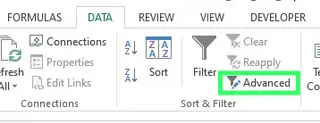
- A dialog box will appear. To copy unique values to a different location, select Copy to another location. In the Copy to field, specify where to display the unique values. Then, select the Unique records only box and click OK.

- Now, all the unique values are copied to our specified range.

Pros: Non-destructive and allows you to create a new, clean dataset.
Cons: The dialog box can be slightly less intuitive than the "Remove Duplicates" button.
Method 4: Remove Duplicates with Formulas
For ultimate flexibility, you can use formulas to create a helper column that flags duplicate entries. This gives you full control over how you define and handle them.
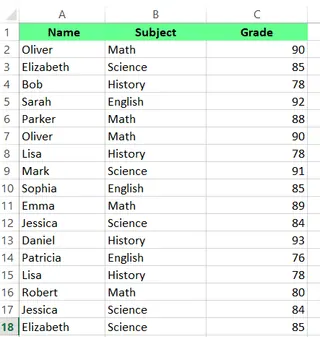
When to use it: When you need custom logic to identify duplicates or want to filter/sort by duplicate status.
Steps:
First, combine all the columns in one cell. Use either the CONCATENATE() function or the & operator:
Using & operator:
=A2&B2&C2Using CONCATENATE():=CONCATENATE(A2,B2,C2)
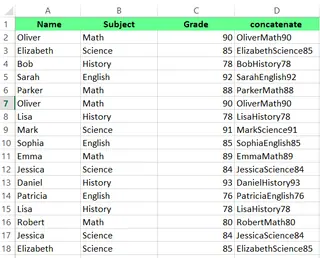
In the next column, use COUNTIF() to calculate the number of times each value appears:
=COUNTIF(D2:D18,D2)Here, count 1 means the value is unique, and count 2 or more indicates a duplicate.
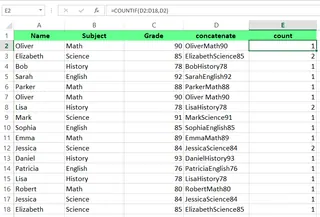
- Go to Data tab > Sort & Filter > select Filter to apply a filter to the count column.
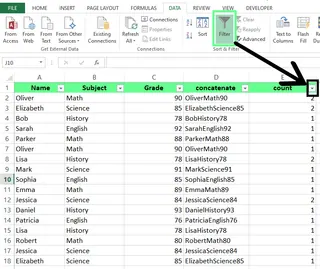
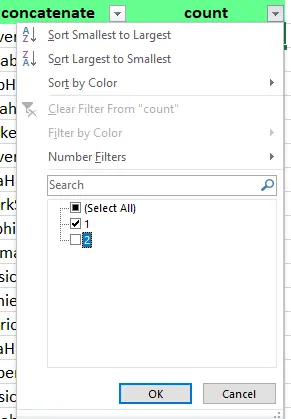
- Open the drop-down menu, select 1 to keep unique values and eliminate duplicates, and hit OK.
- Now you can see all the duplicate values have been removed.
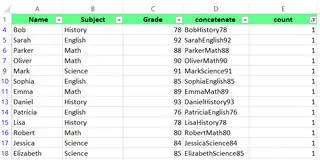
Pros: Highly flexible and customizable. Integrates well with other Excel features like filtering and sorting.
Cons: Requires knowledge of formulas and is more manual to set up.
Method 5: Remove Duplicates Using Power Query
Power Query is an incredibly powerful data transformation tool built into modern versions of Excel. It's ideal for creating repeatable, automated workflows for cleaning data.
When to use it: For large datasets or when you need to perform the same cleanup task regularly.
Steps:
- Select a cell or range of cells.
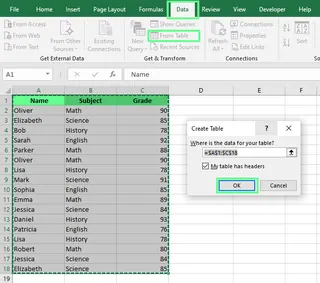
- Go to the Data tab > Get & Transform Data section and click From Table/Range. A dialog box will appear to create a power query table. Then hit OK.
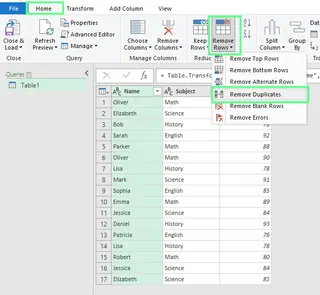
- The Power Query editor window will appear. From there, choose the Remove Duplicates option to select specific columns or the entire table.
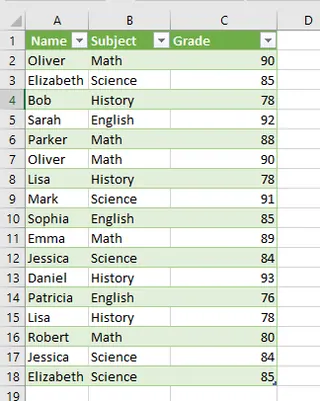
- Once done, click the Close & Load option at the top left corner to load the cleaned data back into Excel.
Pros: Excellent for large datasets and automation. Non-destructive. Each step is recorded and can be refreshed.
Cons: Has a steeper learning curve than other methods.
Method 6: The Effortless AI-Powered Way with Excelmatic

What if you could skip the menus, formulas, and complex interfaces altogether? With the rise of AI, you can now use an Excel AI Agent like Excelmatic to do the work for you. The process is as simple as giving a command in plain language.
When to use it: When you want the fastest, most intuitive way to clean your data, regardless of your Excel skill level.
Steps:
- Upload your file to Excelmatic.
- State your request in the chat box.
That's it. The AI handles the rest.
For example, you could type:
Remove all duplicate rows from this sheet

Or be more specific:
Create a new sheet with only the unique records, based on the 'Email' column.
You can even replicate the function of Conditional Formatting by asking:
In a new column, flag all rows that have a duplicate 'Order ID.
Excelmatic will process your request and provide a downloadable, cleaned file in seconds.

The AI Advantage
- Simplicity: No need to remember which tab or button to click. Just describe what you want in plain language. This is far simpler than navigating the Advanced Filter dialog, writing formulas, or learning the Power Query interface.
- Speed: Go from a messy spreadsheet to a clean one in seconds. The time it takes to find the right menu option is often longer than it takes for the AI to deliver the result.
- Flexibility and Safety: By default, Excelmatic provides the cleaned data in a new file, keeping your original safe. You can easily specify whether you want to create a new sheet, a new file, or even just get a summary.
- Zero Learning Curve: Anyone who can type a sentence can use it. This democratizes data cleaning, removing the barrier for those who aren't Excel power users.
Which Method Should You Choose?
| Method | Best For | Pros | Cons |
|---|---|---|---|
| Conditional Formatting | Visually inspecting duplicates before acting. | Great for review, non-destructive. | Only highlights, doesn't remove. |
| Remove Duplicates | Quick, one-off permanent deletions. | Fast and easy. | Destructive action. |
| Advanced Filter | Creating a new list of unique values safely. | Non-destructive, flexible. | Interface is less intuitive. |
| Formulas | Custom logic and flagging duplicates for filtering. | Highly flexible and powerful. | Manual setup, requires formula knowledge. |
| Power Query | Large datasets and repeatable, automated workflows. | Robust, automated, non-destructive. | Steep learning curve. |
| Excelmatic (AI) | The fastest, most intuitive results for any user. | Effortless, fast, safe, no learning curve. | Requires an internet connection. |
Best Practices for Duplicate Removal
- Keep Backup: Always maintain an untouched backup of your raw data before starting any cleanup.
- Define your Duplicates: Establish clear criteria for what constitutes a duplicate in your specific context.
- Standardize First: Clean and standardize your data before attempting duplicate detection—normalize case, trim spaces, fix date formats.
- Start Simple, Then Refine: Begin with exact matches before moving to more complex matching.
- Validate Your Results: Spot-check your results when using automated tools to catch systematic errors.
Troubleshoot Common Issues
- Duplicates not removed: Data from websites or external sources may contain hidden characters or spaces. Use
=CLEAN(TRIM(A1))to clean the data first. - Case sensitivity: Excel considers uppercase and lowercase text as different values. Use UPPER(), LOWER() or PROPER() functions to standardize text case.
- Data with subtotals or outlines: Remove all subtotals and outlines from your data before removing duplicates.
Final Thoughts
Cleaning duplicate data is a critical step in maintaining data integrity. While Excel's built-in tools are powerful, modern AI solutions like Excelmatic are revolutionizing how we interact with our data, making complex tasks simpler and faster than ever before.
Ready to eliminate duplicates from your Excel files in seconds? Try Excelmatic today and experience the power of AI-driven data cleaning.