Key Takeaways:
- Blank rows in Excel disrupt data analysis and reporting, but traditional removal methods require technical knowledge of formulas, sorting, or VBA coding
- Excelmatic provides the fastest solution by removing blank rows instantly with simple language instructions—no formulas or technical skills needed
- Compared to manual methods, Excelmatic handles both completely blank rows and rows with invisible characters with superior accuracy and speed
- For business professionals who need clean data quickly, using AI tools like Excelmatic means more time for analysis and decision-making rather than data cleaning
Blank rows in Excel often appear when you export data from other systems, when you accidentally leave gaps, or when you combine different sheets. These gaps can disrupt important tasks such as data sorting, filtering, and analysis. They slow you down, and if you're not careful, they can lead to mistakes.
In this article, I'll show you five different ways to remove these blank rows, from a powerful AI-driven approach to classic Excel techniques.
The Fastest Method: Use an AI Excel Agent
Before diving into manual formulas and multi-step processes, let's look at the most modern and efficient solution: using an AI agent like Excelmatic. This approach eliminates the need for formulas, sorting, or code.

Excelmatic is an AI agent that understands plain language. You simply upload your spreadsheet, state your goal, and it handles the rest.
Here's how you'd remove blank rows with Excelmatic:
- Upload your Excel file to the Excelmatic platform.
- Type your request in the chat box, such as: "Remove all completely blank rows."
- Download the cleaned file. Excelmatic processes your request instantly and provides a new file with the blank rows gone.

The primary advantage here is simplicity and speed. You don't need to remember formulas, worry about selecting the right ranges, or risk deleting rows with partial data by mistake. The AI handles the logic for you.
4 Traditional Methods to Delete Blank Rows in Excel
If you prefer to work directly within Excel or want to understand the underlying mechanics, these traditional methods are still very effective. Here’s a step-by-step breakdown.
Method 1: Delete only completely blank rows using COUNTA()
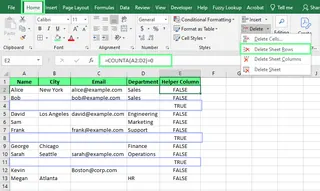
The COUNTA() function counts the number of non-empty cells in a range. We can use it to spot completely blank rows. This is quite helpful when we want to avoid removing rows with partial data.
Here’s how you can use this to delete a row:
- Create a helper column next to the dataset. In the first cell, enter
=COUNTA(A2:C2)=0. (Adjust the rangeA2:C2to match your data's columns). - Drag the formula down to copy it. This will display
TRUEif the entire row is blank andFALSEif it contains any non-blank values. - Apply a filter to your data (Data > Filter) and filter the helper column to show only
TRUEvalues. - Select the visible (blank) rows, right-click, and choose Delete Row.
- Remove the filter and delete the helper column.
Method 2: Use FILTER() for formula-based data cleanup
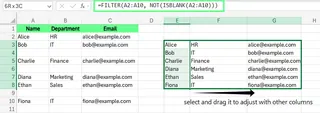
The FILTER() function doesn’t delete rows. It returns a new, blank-free version of your data in a separate range. You can use it to preserve your original data while working with a cleaned-up view. But note that FILTER() is only available in Microsoft 365 and Excel 2021 or newer.
Here I have a dataset with blank rows, and to clean the blank rows, I use the following formula (adjust ranges according to your data):
=FILTER(A2:C10, (A2:A10<>"")+(B2:B10<>"")+(C2:C10<>""))
In this formula:
FILTER(A2:C10, ...)returns data from the rangeA2:C10that meets a condition.(A2:A10<>"")+(B2:B10<>"")+(C2:C10<>"")checks if any cell in a given row is not empty. The+acts as anORcondition, so if any column in a row has data, the row is kept.
This creates a dynamic, clean copy of your data elsewhere on the sheet.
Method 3: Use Sort to push blank rows to the bottom
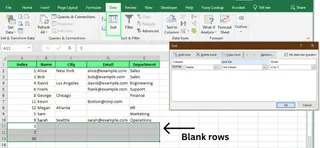
Sorting in Excel reorders data based on the values in one or more columns. When you sort a column, Excel moves all completely blank rows to the bottom of the sheet. That makes it easy to scroll down and delete them in one go.
Here’s how to do it:
- Select your data.
- Go to the Data tab and click Sort.
- In the Sort dialog box, choose any column to sort by, leave the settings as-is, and click OK.
- Excel will sort your data, pushing blank rows to the bottom.
- Scroll down, select those empty rows, right-click, and choose Delete.
To preserve your original order, add an index column with sequential numbers (1, 2, 3...) before sorting. After deleting the blanks, sort again using the index column to restore the original layout, then remove the index column.
Method 4: Use VBA to remove blank rows automatically
VBA (Visual Basic for Applications) automates many Excel tasks. For those comfortable with macros, a simple script can remove all blank rows instantly. This is ideal for repetitive tasks.
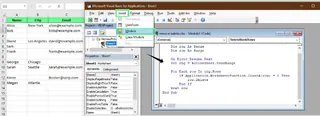
Press
Alt + F11to open the Visual Basic Editor.Click Insert > Module to create a new module.
Paste the following code into the module:
Sub DeleteBlankRows()
    Dim rng As Range
    Dim i As Long

    'Set the range to the used range on the active sheet
    Set rng = ActiveSheet.UsedRange

    'Loop backwards through the rows to avoid skipping rows after deletion
    For i = rng.Rows.Count To 1 Step -1
        If Application.WorksheetFunction.CountA(rng.Rows(i)) = 0 Then
            rng.Rows(i).Delete
        End If
    Next i
End Sub
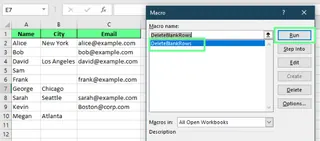
- Close the editor. Press
Alt + F8, selectDeleteBlankRowsfrom the list, and click Run. This will delete all rows that are completely empty.
Comparing the Different Methods
Here's a quick table to help you choose the best method for your situation.
| Method | Best For | Ease of Use | Speed | Skill Required |
|---|---|---|---|---|
| AI Agent (Excelmatic) | The fastest, easiest way for any user, without formulas or code. | ★★★★★ | ★★★★★ | ☆☆☆☆☆ |
| COUNTA() | Precisely targeting completely blank rows with a helper column. | ★★★☆☆ | ★★☆☆☆ | ★★★☆☆ |
| FILTER() Function | Creating a new, clean dataset without altering the original. | ★★★☆☆ | ★★★☆☆ | ★★★☆☆ |
| Sort | A simple, no-formula approach when original order isn't critical. | ★★★★☆ | ★★★☆☆ | ★★☆☆☆ |
| VBA Macro | Automating the task for recurring reports and advanced users. | ★★☆☆☆ | ★★★★★ | ★★★★★ |
Final Thoughts
Before you start deleting, remember that some blank rows might be intentional, like when they’re used to separate sections and make your data easier to read. Always choose the method that best fits your data and goals.
While traditional Excel methods are valuable skills, modern AI tools like Excelmatic are changing the game. They handle tedious data cleaning tasks in seconds, allowing you to focus on more important work like analysis and reporting. By embracing these tools, you can significantly boost your productivity.
Ready to streamline your data cleaning process? Try Excelmatic today and experience how AI can transform your Excel workflow—removing blank rows is just the beginning.
Excel FAQs
Can I use Conditional Formatting to highlight blank rows in Excel?
Yes, you can use Conditional Formatting to identify only the entirely blank rows. Here's how:
- Select the range of rows you want to check.
- Go to Home > Conditional Formatting > New Rule.
- Choose Use a formula to determine which cells to format.
- Enter this formula (adjust the range to match your table):
=COUNTA($A2:$C2)=0 - Set a format (like a fill color) and click OK.
Now, only the completely blank rows will be highlighted.
How to use the COUNTBLANK() function to identify and delete the blank rows in Excel?
COUNTBLANK() can also be used to find completely blank rows. Here’s how:
- Add a helper column and in the first cell enter
=COUNTBLANK(A2:D2) - Copy the formula down.
- Now apply a Filter to the helper column and filter to show only rows where the count equals the total number of columns in your range (e.g., 4).
- Select and delete the filtered rows.
- Delete the helper column if you no longer need it.
Is there a difference between blank rows and rows with invisible characters?
Yes, rows with invisible characters, such as spaces or non-printable characters, aren’t truly blank and may not be removed by these methods. Tools like Power Query or an AI agent are often better at handling this type of "dirty" data.
Can I use Power Query to remove empty rows in Excel?
Yes. To do so:
- Load your range into Power Query (Data > From Table/Range).
- In the Power Query Editor window, go to Home > Remove Rows > Remove Blank Rows.
- Click Close & Load.
This will remove empty rows while leaving other empty cells untouched.