Key Takeaways:
- Generating random numbers in Excel for simulations, testing, or sampling traditionally requires memorizing complex formulas like RANDARRAY
- Excelmatic eliminates the need for formula knowledge by letting you generate random arrays using simple language commands
- Compared to manual formula entry, Excelmatic handles both simple and complex random number generation with greater speed and intuitive interaction
- For business professionals needing quick data simulations without technical hurdles, adopting AI tools means faster results and more time for analysis
Random numbers play a key role in simulations, statistical sampling, and many other data-driven tasks. If you’re working in Excel and need to generate random numbers, you have powerful options at your disposal. The traditional method involves mastering functions like RANDARRAY(), but modern AI tools offer a more intuitive approach.
In this guide, you’ll learn two effective methods for generating random numbers. We'll cover the classic RANDARRAY() function and then introduce a faster, AI-powered solution with Excelmatic, so you can choose the best approach for your workflow.
Method 1: The Traditional Approach with RANDARRAY()
For users comfortable with Excel formulas, the RANDARRAY() function is the go-to tool for creating dynamic arrays of random numbers.
What Is the RANDARRAY() Function in Excel?
The RANDARRAY() function in Excel allows users to generate an array of random numbers that can span multiple rows and columns. This function is especially useful for simulations, sampling, or whenever you need a set of random values in your worksheet. For instance, you could use RANDARRAY() to create stratified random samples for testing an experiment.
Key Features of Excel’s RANDARRAY()
Before diving into usage, it's important to understand the main features of RANDARRAY():
- Generates an array of random numbers.
- Allows specification of the number of rows and columns.
- Supports setting minimum and maximum values.
- Can generate either whole numbers or decimals.
- Updates automatically when the worksheet recalculates.
Syntax of RANDARRAY()
The syntax for the RANDARRAY() function is as follows:
=RANDARRAY([rows], [columns], [min], [max], [whole_number])
[rows]: (Optional) The number of rows to fill.[columns]: (Optional) The number of columns to fill.[min]: (Optional) The minimum value for the random numbers.[max]: (Optional) The maximum value for the random numbers.[whole_number]: (Optional)TRUEfor whole numbers,FALSEfor decimals.
How to Use RANDARRAY() in Excel
Now that we've covered the features and syntax, let's see how to use it. Just follow these steps:
- Select the cell where you want the random numbers to start.
- Enter the
RANDARRAY()formula with your desired parameters. - Press Enter to generate the array.
For example, to generate a 3x2 array of random whole numbers between 1 and 100:
=RANDARRAY(3, 2, 1, 100, TRUE)
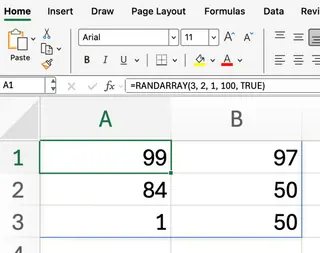
This will fill a 3-row by 2-column range with random integers from 1 to 100.
Customizing Your Random Arrays
You can customize the output of RANDARRAY() by adjusting its arguments. Here are some common scenarios.
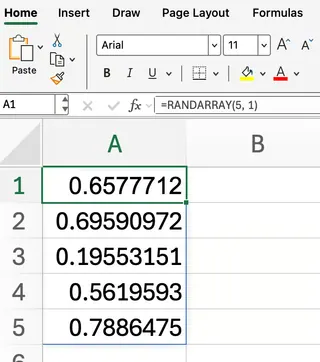
To generate decimals between 0 and 1 in a 5x1 array:
=RANDARRAY(5, 1)
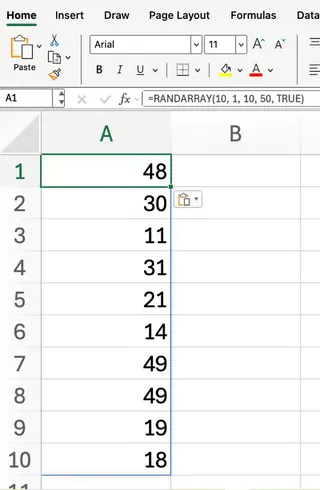
To generate whole numbers between 10 and 50 in a single column with 10 rows:
=RANDARRAY(10, 1, 10, 50, TRUE)
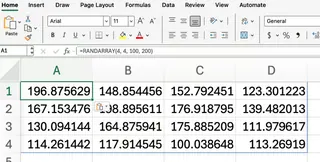
To create a 4x4 grid of random numbers between 100 and 200 (decimals are the default):
=RANDARRAY(4, 4, 100, 200)
While RANDARRAY() is more versatile than older functions like RAND() (a single decimal) and RANDBETWEEN() (a single integer), it still requires you to remember the syntax and argument order.
Method 2: The AI-Powered Approach with Excelmatic

What if you could generate random numbers without memorizing any formulas? That's where Excelmatic comes in. Excelmatic is an AI Excel Agent that understands plain language commands, turning complex tasks into simple conversations.
Instead of writing formulas, you just tell Excelmatic what you need.
How to Generate Random Numbers with Excelmatic
The process is incredibly straightforward:
- Upload Your File: Start by uploading your Excel workbook to Excelmatic.
- State Your Request: In the chat interface, type what you want to do in plain language.
- Get Instant Results: Excelmatic analyzes your request, performs the task, and provides the updated data, chart, or insight instantly.
Let's revisit the previous examples and see how you'd accomplish them with Excelmatic.
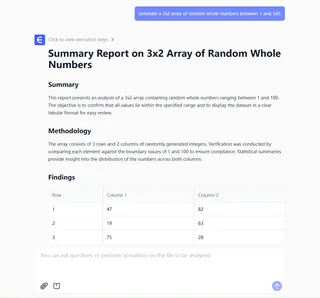
Example 1: 3x2 Array of Integers
RANDARRAY()Formula:=RANDARRAY(3, 2, 1, 100, TRUE)- Excelmatic Prompt:
Generate a 3x2 array of random whole numbers between 1 and 100.
Example 2: A Column of Decimals
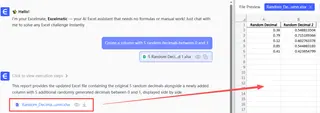
RANDARRAY()Formula:=RANDARRAY(5, 1)- Excelmatic Prompt:
Create a column with 5 random decimals between 0 and 1.
Example 3: A 4x4 Grid of Numbers
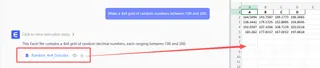
RANDARRAY()Formula:=RANDARRAY(4, 4, 100, 200)- Excelmatic Prompt:
Make a 4x4 grid of random numbers between 100 and 200.
With Excelmatic, you describe the outcome, and the AI handles the execution. There's no need to recall function names, parameter orders, or whether you need TRUE or FALSE.
Comparison: RANDARRAY() vs. Excelmatic
Both methods get the job done, but they cater to different workflows. Here’s a quick comparison:
| Feature | RANDARRAY() Function |
Excelmatic AI Agent |
|---|---|---|
| How it Works | Manual formula entry. | Conversational prompts in plain language. |
| Ease of Use | Requires knowledge of syntax and parameters. | Highly intuitive; no formula knowledge needed. |
| Speed | Fast for simple arrays, but can be slower if you need to look up the syntax. | Extremely fast, especially for complex or multi-step requests. |
| Flexibility | The array is dynamic and recalculates on every sheet change. | Results are static (values don't change), which is often preferable for reports. |
| Learning Curve | Moderate. You need to learn the function and its arguments. | Virtually none. If you can describe what you want, you can use it. |
| Best For | Users who are comfortable with Excel formulas and need dynamically updating values. | Users who want to save time, avoid formulas, and focus on results rather than process. |
Conclusion
The RANDARRAY() function is a powerful native tool for any Excel user's arsenal, offering flexible control over generating random data. However, as AI continues to reshape how we work, tools like Excelmatic present a compelling alternative. By translating plain language into immediate results, Excelmatic makes data generation and analysis in Excel more accessible and efficient than ever.
Whether you prefer the hands-on control of formulas or the speed of an AI assistant, you now have two excellent methods to generate random numbers for your next project. Ready to simplify your Excel workflow? Try Excelmatic today and experience the power of AI-driven data generation.