Key Takeaways:
- Automating Excel with traditional tools like Python's
openpyxlrequires significant programming skills and time investment, creating a barrier for non-technical business professionals. - Excelmatic eliminates this barrier entirely by allowing you to automate tasks through simple language commands—upload a file, describe what you need (clean data, create a chart, add formulas), and get instant results.
- The AI-powered approach handles complex tasks like formatting, calculations, and visualization in seconds, translating business intent into technical execution without code.
- For market, sales, and operations teams who need to automate reports and analysis quickly, Excelmatic offers the fastest, most accessible path from raw data to actionable insights.
Automating tedious Excel tasks can save countless hours, but choosing the right approach is key. For developers, Python libraries like openpyxl offer granular control for building robust data pipelines. However, a new wave of AI-powered tools offers a radically simpler, faster alternative for everyone.
This guide explores both paths. We'll cover the traditional method of using openpyxl to programmatically read, write, and format Excel files. We'll also introduce the modern AI approach with tools like Excelmatic, which allows you to accomplish the same tasks using plain language, no code required.
The Two Paths to Excel Automation
The Programmatic Path (openpyxl): A powerful Python library that gives developers fine-grained control over Excel files. It's ideal for integrating Excel automation into larger applications and complex, repetitive workflows. You write code to control every cell, style, and chart.
The AI-Powered Path (Excelmatic): An intelligent Excel agent where you upload your file(s) and state your needs in natural language. It's designed for speed and accessibility, allowing anyone to perform complex analysis, generate charts, or clean data in seconds.
Let's dive into the programmatic path first.
What Is openpyxl?
openpyxl is an efficient Python library that enables you to read and write Excel files in the modern XML-based formats (.xlsx, .xlsm) introduced in Excel 2007. It excels at data automation, reporting, and formatting workflows, making it especially useful for users who need to work with Excel files programmatically, even without Excel installed.
The library works with several file formats:
.xlsx- Excel workbook.xlsm- Excel workbook with macros.xltx- Excel template.xltm- Excel template with macros
One major advantage of openpyxl is that it doesn't require Excel to be installed on your computer. This makes it ideal for server environments and automated data processing pipelines.
Installing and Importing openpyxl
Installing openpyxl is straightforward using pip:
pip install openpyxl
For enhanced security when working with files from untrusted sources, you can also install the optional defusedxml package:
pip install defusedxml
To use openpyxl in your Python scripts, import the necessary classes:
from openpyxl import Workbook, load_workbook
Key Concepts and Terminology
To use openpyxl effectively, you need to understand the basic Excel structure:
- Workbook: The Excel file itself, containing one or more worksheets.
- Worksheet: Individual tabs/sheets within a workbook.
- Cell: Individual data points in a worksheet, identified by column letter and row number (e.g., "A1").
- Row: Horizontal line of cells, identified by numbers (1, 2, 3...).
- Column: Vertical line of cells, identified by letters (A, B, C...).
In openpyxl, you can reference cells using either:
- Excel style references:
sheet[“A1”] - Row-column indexing:
sheet.cell(row=1, column=1)(Note:openpyxluses 1-based indexing, not 0-based)
Reading Excel Files
The Programmatic Way: Using openpyxl
Here's a practical example showing how to read data from an Excel file with Python:
from openpyxl import load_workbook

# Load the workbook - use read_only=True for large files
wb = load_workbook('sample.xlsx', read_only=False, data_only=False)
# data_only=True reads values instead of formulas

# Get active sheet
sheet = wb.active

# Iterate through rows
for row in sheet.iter_rows(min_row=1, max_row=5, values_only=True):
    print(row)  # Returns a tuple of values
This code loads a workbook, selects the active sheet, and prints the first five rows. It's efficient for processing data within a script.
The AI-Powered Way: Using Excelmatic

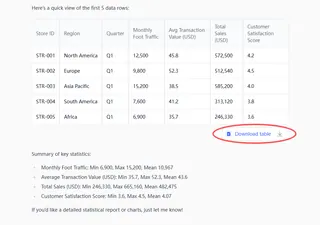
With an AI tool like Excelmatic, the process is conversational and requires no setup.
- Upload your
sample.xlsxfile. - Ask your question in plain language commands: "Show me the first 5 rows of data" or "Summarize the key statistics for this sheet."
Excelmatic instantly displays the data or insights you requested, making it ideal for quick exploration and analysis without writing a single line of code.
Writing and Modifying Excel Files
The Programmatic Way: Using openpyxl
Creating and modifying Excel files is equally straightforward with openpyxl.
from openpyxl import Workbook

# Create a new workbook
wb = Workbook()
sheet = wb.active
sheet.title = "Data"

# Add data
data = [
    ["Alice", 25, "New York"],
    ["Bob", 30, "San Francisco"],
    ["Charlie", 35, "Chicago"]
]
sheet.append(["Name", "Age", "City"]) # Add header

for row_data in data:
    sheet.append(row_data)

# Save the workbook
wb.save("new_workbook.xlsx")
This script creates a new file, adds a header, appends three rows of data, and saves it. Modifying existing files follows a similar pattern of loading, changing, and saving.
The AI-Powered Way: Using Excelmatic
To achieve the same result with Excelmatic, you describe the final state you want.
- Upload your spreadsheet (or start with a blank one).
- Ask: "Create a new sheet named 'Data'. Add a header row with 'Name', 'Age', and 'City'. Then, add the following data:" and you can paste or describe the data.
For modifications, it's even simpler. After uploading existing_file.xlsx, you could say: "Change the value in cell B5 to 42" or "Add a new column 'Status' and fill it with 'Complete'." The tool processes your request and provides the modified file for download.
Formatting and Styling
Applying professional formatting can make your reports much more readable.
The Programmatic Way: Using openpyxl
openpyxl offers extensive options for cell formatting, but the code can become verbose.
from openpyxl import Workbook
from openpyxl.styles import Font, Alignment, Border, Side, PatternFill, NamedStyle

wb = Workbook()
sheet = wb.active

# Create a header style
header_style = NamedStyle(name="header_style")
header_style.font = Font(bold=True, size=12, color="FFFFFF")
header_style.fill = PatternFill(fill_type="solid", start_color="366092")
header_style.alignment = Alignment(horizontal="center", vertical="center")

# Apply the style to header row
headers = ["ID", "Product", "Category", "Price"]
for col_idx, header in enumerate(headers, start=1):
    cell = sheet.cell(row=1, column=col_idx, value=header)
    cell.style = header_style

wb.save("styled_workbook.xlsx")
As you can see, defining styles requires instantiating multiple objects for fonts, fills, and alignment.
The AI-Powered Way: Using Excelmatic
Styling with AI is as easy as describing what you see.
- Upload your spreadsheet.
- Ask: "Format the header row with a dark blue background and bold, white text."
Similarly, for conditional formatting, you'd say: "In the 'Price' column, highlight all values over 1000 in green." The AI interprets your intent and applies the correct Excel rules, saving you from navigating complex menus or writing styling code.
Advanced Features: Formulas and Charts
This is where the difference between the two approaches becomes most stark.
Adding Formulas
With openpyxl: You can write formulas as strings into cells. However, openpyxl does not evaluate them; it simply places the formula text in the cell.
from openpyxl import Workbook

wb = Workbook()
sheet = wb.active

sheet["A1"] = 10
sheet["A2"] = 20
sheet["B1"] = "=SUM(A1:A2)" # Writes the formula

wb.save("formulas.xlsx")
# To see '30' in cell B1, you must open the file in Excel.
With Excelmatic: The AI agent can both add and calculate formulas.
- Upload your file.
- Ask: "In cell B1, calculate the sum of A1 and A2."
Excelmatic returns a file where cell B1 contains not only the formula =SUM(A1:A2) but also the calculated value, 30.
Creating Charts
With openpyxl: Creating a chart is a multi-step process involving defining chart types, data references, categories, and titles in code.
from openpyxl import Workbook
from openpyxl.chart import BarChart, Reference

wb = Workbook()
sheet = wb.active

# Add data
sales_data = [
    ("Month", "Sales"),
    ("Jan", 30),
    ("Feb", 45),
    ("Mar", 37),
]
for row in sales_data:
    sheet.append(row)

# Create a bar chart
bar_chart = BarChart()
bar_chart.title = "Monthly Sales"
data = Reference(sheet, min_col=2, min_row=1, max_row=4)
categories = Reference(sheet, min_col=1, min_row=2, max_row=4)
bar_chart.add_data(data, titles_from_data=True)
bar_chart.set_categories(categories)

# Add the chart to the worksheet
sheet.add_chart(bar_chart, "D1")

wb.save("charts.xlsx")
With Excelmatic: This complex task becomes a one-sentence request.
- Upload your file with sales data.
- Ask: "Create a bar chart showing monthly sales."
The AI analyzes your data, correctly identifies the axes, generates a properly labeled chart, and places it in the sheet. The entire process takes seconds.
Sheet, Row, and Column Management
The Programmatic Way: Using openpyxl
openpyxl gives you precise functions for manipulating the structure of your workbook.
from openpyxl import Workbook

wb = Workbook()
sheet = wb.active
# ... add some data ...

# Insert a row at position 2
sheet.insert_rows(2)

# Insert a column at position 2
sheet.insert_cols(2)

# Freeze the header row
sheet.freeze_panes = "A2"

wb.save("modified_structure.xlsx")
The AI-Powered Way: Using Excelmatic
These structural changes are handled with simple commands. After uploading your file, you can just ask:
- "Insert a blank row after row 1."
- "Delete column C."
- "Freeze the first row so it's always visible."
The AI performs the operations and provides the updated file, abstracting away the need for specific function calls and index management.
Which Approach Is Right for You?
Both openpyxl and AI tools like Excelmatic are powerful, but they serve different needs.
Choose openpyxl if:
- You are a Python developer building a fully automated, server-side data pipeline.
- You need to integrate Excel manipulation deeply within a larger Python application.
- You require absolute, line-by-line control over the file generation process.
Choose an AI tool like Excelmatic if:
- You are a business analyst, manager, or student who needs to get answers from data quickly.
- You want to perform data cleaning, analysis, or visualization without writing code.
- Your tasks are often exploratory or vary from day to day.
- You value speed and ease of use over programmatic control.
Conclusion
openpyxl remains an essential library for any Python developer working with Excel files. It provides a robust, programmatic interface for automating complex and repetitive spreadsheet tasks.
However, the landscape of data interaction is changing. AI agents like Excelmatic are democratizing data analysis, making it possible for anyone to manipulate spreadsheets, generate insights, and create reports with the simplicity of a conversation. By understanding both approaches, you can choose the most efficient tool for your specific task.
Ready to automate your Excel work without writing a single line of code? Try Excelmatic today and transform your spreadsheets with simple language commands.
openpyxl FAQs
What file types does openpyxl support?
openpyxl supports several Excel formats, including .xlsx, .xlsm, .xltx, and xltm. It does not support the older .xls format.
Can openpyxl read and evaluate Excel formulas?
openpyxl can read and write formulas, but it does not evaluate them. To see formula results, you must open the file in an application that has a calculation engine, like Microsoft Excel. In contrast, AI tools like Excelmatic can often calculate the results for you.
Do I need Microsoft Excel installed to use openpyxl?
No, openpyxl works entirely in Python and does not require Excel to be installed on your machine.
When should I use openpyxl vs. an AI tool like Excelmatic?
Use openpyxl for deep, programmatic automation within a Python environment. Use an AI tool like Excelmatic for fast, interactive analysis, one-off tasks, and generating reports without writing code.
Can I insert images into Excel with openpyxl?
Yes, but you must have the Pillow library installed (pip install pillow), and the image file must exist on disk when calling add_image().