The NPER() function is a crucial financial tool in Excel that helps users answer a key question: "How long will it take?" Whether you're calculating the months until a loan is paid off or determining the years until your retirement savings reach your goal, this function can deliver the answer.
As part of Excel's financial function family, NPER() is invaluable for loan planning, investment analysis, and long-term financial decision-making. However, mastering its syntax and avoiding common errors requires a bit of a learning curve.
In this article, we'll break down how NPER() works and explore its practical applications. We'll also introduce a modern AI-powered alternative, Excelmatic, which can solve the same problems using plain language, offering a faster and more intuitive path to your answers.
Two Paths to the Same Answer
When you need to find the number of payment periods for a loan or investment, you have two primary methods in the modern spreadsheet world.
Method 1: The Traditional NPER() Formula
The NPER() function in Excel calculates the total number of payment periods needed to reach a financial goal. For example, to determine how many monthly payments are needed to pay off a $10,000 loan with $250 monthly payments at 5% annual interest, you would use this formula:
=NPER(5%/12, -250, 10000)
The result is approximately 44 months (3.7 years) to pay off the loan completely. This method is powerful but requires you to know the function, its parameters, and the correct sign conventions.
Method 2: The Excelmatic AI Approach

With an AI agent like Excelmatic, you skip the formula altogether. You simply upload your spreadsheet with the loan details and ask a question in plain language:
How many months will it take to pay off a $10,000 loan if I pay $250 a month at 5% annual interest?
Excelmatic processes your request, performs the calculation, and gives you the same answer—44 months—without you ever typing a formula. This approach is faster, more intuitive, and eliminates the risk of formula errors.
Understanding the Traditional Method: The NPER() Function
NPER() stands for "Number of Periods." True to its name, this function calculates the number of periods required for an investment or loan to reach a target value, given a fixed interest rate and consistent payments.
The general syntax of the NPER() function is:
=NPER(rate, pmt, pv, [fv], [type])
Each parameter plays a specific role:
rate: The interest rate per period.pmt: The payment made each period (must be constant).pv: The present value (loan amount or initial investment).fv(optional): The desired future value (defaults to 0 if omitted).type(optional): Specifies whether payments are due at the end (0) or beginning (1) of each period.
When to Calculate the Number of Periods
The two main uses for this calculation are understanding loan repayments and investment growth. Let's see how both the traditional formula and the AI approach handle these scenarios.
Loan Repayment Calculation
Imagine you want to determine how many months are required to pay off a $25,000 car loan with a $500 monthly payment at an annual interest rate of 4.5%.
Using the NPER() Formula
The Excel formula would be:
=NPER(4.5%/12, -500, 25000)
When we run this in Excel, we see a result of approximately 55 months.
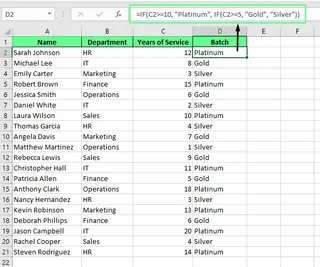
Note that the monthly payment (-500) is entered as a negative value because it represents money flowing out. The interest rate is divided by 12 to convert the annual rate to a monthly rate.
Using Excelmatic
- Upload your file containing the loan data (or just the parameters).
- Ask your question in the chat:
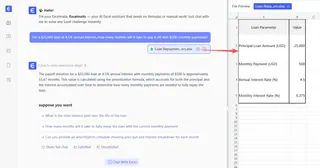
For a $25,000 loan at 4.5% annual interest, how many months will it take to pay it off with $500 monthly payments?
- Excelmatic instantly returns the answer: 55 months. It handles the rate conversion and cash flow signs automatically.
Investment Growth Calculation
NPER() is equally valuable for investment planning. Let's say an investor wants to grow $10,000 to $50,000 at an annual interest rate of 5% while contributing $1,000 quarterly.
Using the NPER() Formula
They would use:
=NPER(5%/4, -1000, -10000, 50000)
Note: In the original article, the pv was positive, but for investments where both the initial value and payments are outflows, it's more conventional for both to be negative.
In Excel, we would see:
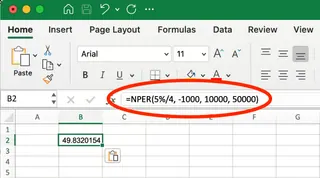
This formula calculates approximately 29 quarters (7.25 years). The quarterly payment (-1000) and present value (-10000) are negative because they are cash outflows. The interest rate is divided by 4 to match the quarterly schedule.
Using Excelmatic
- Provide your investment data to Excelmatic.
- Ask your question:
How many quarters will it take for my investment to grow from $10,000 to $50,000 if I contribute $1,000 quarterly and earn 5% annual interest?
- Excelmatic delivers the answer: 29 quarters. No need to worry about negative signs or rate adjustments.
Common Errors and How to Avoid Them
When working with the NPER() function, you might encounter errors. Here’s how an AI tool helps you bypass them completely.
#NUM! Error
This error appears in Excel when the loan can never be paid off with the given parameters (e.g., the payment is less than the interest). For example, =NPER(12%/12, -50, 10000) returns #NUM! because the $50 payment doesn't even cover the $100 monthly interest.
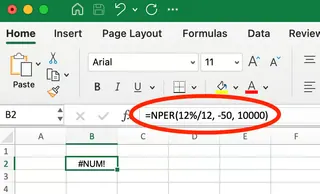
The Excelmatic Advantage: Instead of showing a cryptic error, Excelmatic would provide a clear, understandable explanation, such as, "The loan balance will continue to grow because the monthly payment of $50 is less than the monthly interest of $100."
#VALUE! Error & Incorrect Signs
A #VALUE! error occurs with non-numeric inputs. More subtly, using the wrong signs (positive/negative) for payments and values will produce a negative or incorrect NPER() result.
The Excelmatic Advantage: Excelmatic understands natural language, so you don't need to worry about sign conventions. It interprets "loan amount" and "payment" contextually, applying the correct financial logic behind the scenes and preventing these common user errors.
Advanced Scenarios: Simplified with AI
Adjusting for Different Payment Intervals
Manually adjusting for monthly, quarterly, or semi-annual payments requires you to divide the annual rate and scale the payments accordingly. It's easy to make a mistake.
For a $20,000 loan at 6% annual interest with $1,200 quarterly payments, the manual formula is:
=NPER(6%/4, -1200, 20000)
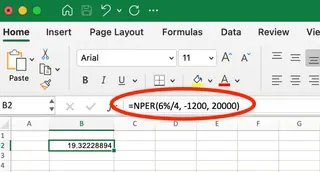
The Excelmatic Advantage: Simply state the terms clearly.
Calculate the number of quarters to pay off a $20,000 loan at 6% annual interest with $1,200 quarterly payments.
Excelmatic handles all the conversions for you.
Getting Whole Number Periods
NPER() often returns a decimal (e.g., 57.7 months). In practice, you need to make a full final payment. The traditional solution is to nest NPER() inside ROUNDUP():
=ROUNDUP(NPER(6%/12, -400, 20000), 0)
This correctly returns 58 payments.
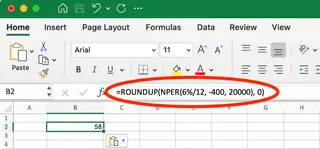
The Excelmatic Advantage: Excelmatic provides practical answers. You can ask, "How many full payments are needed?" and it will give you the rounded-up integer, 58, along with context about the final, smaller payment.
"What-If" Scenarios with Other Financial Functions
Combining NPER() with PV(), FV(), and RATE() is powerful for analysis but creates complex, nested formulas.
Traditional "What-If" Analysis: To see how increasing a mortgage payment from $1,500 to $2,000 affects a 30-year, $279,422 loan, you'd use:
=NPER(5%/12, -2000, 279422.43)
This shows the term shortens from 30 years to 17.5 years.
The Excelmatic Advantage: This is where AI truly shines. You can have a conversation:
- User: "How long to pay off a $279,422 loan at 5% with $1,500 monthly payments?"
- Excelmatic: "It will take 360 months (30 years)."
- User: "What if I increase the payment to $2,000?"
- Excelmatic: "By increasing your payment to $2,000, you would pay off the loan in 210 months (17.5 years), saving you 12.5 years."
This conversational analysis is far more intuitive and powerful for decision-making than building nested formulas.
Conclusion
The NPER() function remains a valuable tool in Excel's financial library for anyone who wants to manually calculate the time dimension of their finances. It provides a clear, formula-based way to answer, "How long will it take?"
However, for those who prioritize speed, accuracy, and ease of use, AI tools like Excelmatic represent a significant leap forward. By translating natural language questions into complex financial calculations, they remove the friction of formula syntax, error handling, and manual adjustments. This allows you to focus on the financial decision itself, not the mechanics of the calculation.
Whether you're a seasoned analyst building complex models or a business owner making a quick loan decision, understanding both the traditional formula and the modern AI approach gives you a complete toolkit for making informed financial choices.
Stop calculating timelines manually. Start planning with confidence. Try Excelmatic today to get instant answers to your "how long" questions and make faster, smarter financial decisions.
NPER() Excel FAQs
What does the NPER() function do in Excel?
NPER() calculates the number of periods (e.g., months, years) required to pay off a loan or reach an investment goal, given a fixed interest rate and regular payment amount.
What information do I need to use the NPER() function?
At a minimum, you need the interest rate per period (rate), the payment amount per period (pmt), and the present value (pv).
When should I use the NPER() formula vs. an AI tool like Excelmatic?
Use the NPER() formula when you want to build manual financial models and have full control over the formula structure. Use an AI tool like Excelmatic when you want fast, accurate answers without writing formulas, or when performing conversational "what-if" analysis.
What's the difference between NPER() and PMT() functions?
PMT() calculates the required payment amount ("how much"), while NPER() calculates the number of payment periods ("how long"). They are complementary financial functions.
Can NPER() handle variable interest rates?
No, NPER() assumes a constant interest rate. For scenarios with changing rates, you must perform separate calculations for each period. An advanced AI tool might be able to handle this more dynamically.
Why does my NPER() calculation return a decimal?
NPER() returns the exact mathematical number of periods. For practical planning where you need a whole number of payments, use the ROUNDUP() function or ask an AI tool for the "total number of full payments."
Should loan values be positive or negative in NPER()?
For loan calculations, the present value (loan amount you receive) should be positive, and the payment (money you pay out) should be negative. AI tools like Excelmatic manage this cash flow logic for you.