Key Takeaways:
- Building complex nested IF statements in Excel is a common but frustrating hurdle for business users, leading to time wasted on syntax errors, debugging, and formula maintenance.
- Excelmatic bypasses this complexity entirely by allowing you to describe your multi-condition logic in simple language, instantly translating your business rules into accurate results without writing a single formula.
- Whether it's categorizing data, validating entries, or combining logic with lookups, the AI-driven approach delivers error-free outcomes faster, letting you focus on analysis rather than implementation.
- For professionals who need reliable results over technical prowess, adopting Excelmatic is the most efficient path to mastering complex conditional logic in spreadsheets.
Handling multiple conditions in a single formula is a common challenge in Excel. I’ve used complex formulas for everything from analyzing sales reports to categorizing client data and even creating dashboards. The traditional way involves crafting a single, efficient formula that does it all, avoiding the clutter of extra columns or multiple steps.
But let's be honest: when I was just getting started, advanced formulas like nested IF() were difficult to understand and even harder to debug. If you’re in the same boat, you know the frustration of a misplaced parenthesis or a cryptic #N/A error.
Today, there are two powerful ways to tackle this problem: the classic formula-based approach and a new, smarter method using AI. In this guide, we'll explore both, showing you how to master conditional logic, whether you prefer writing intricate formulas or simply describing your goal in plain language.
The Traditional Method: What is Nested IF() in Excel?
A simple IF() statement is great for checking one condition. But when you have to check more than one, you can combine—or "nest"—several IF() statements. This creates a chain of logic that allows you to run several tests one after another and get different results for each.
Here’s the basic syntax:
=IF(condition1, value_if_true, IF(condition2, value_if_true, value_if_false))
You can use nested IF() statements to handle complex decision-making logic in one place. For example, let’s say you’re calculating grades based on score ranges. With a nested IF(), you can write a formula like this:
=IF(A1>=90, "A", IF(A1>=80, "B", IF(A1>=70, "C", "F")))
This formula checks if a score in cell A1 is greater than or equal to 90, 80, or 70, and assigns the corresponding grade. It's powerful, but as you add more conditions, it quickly becomes unwieldy.
Applying Conditional Logic: Manual vs. AI
You can use conditional logic to check each condition sequentially and return a value. Let me show you how it works with both the classic formula approach and a modern AI-powered solution.
Example 1: Data Categorization
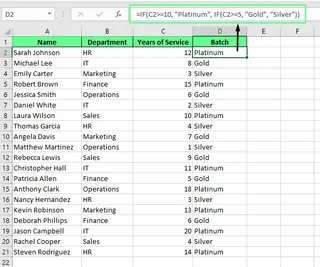
Say I want to assign a batch to each employee according to their years of service in the company.
| Years of service | Batch |
|---|---|
| ≥ 10 years | Platinum |
| 5–9 years | Gold |
| < 5 years | Silver |
The Formula Approach: Nested IF()
Here’s the traditional formula I’d use:
=IF(C2>=10, "Platinum", IF(C2>=5, "Gold", "Silver"))
Now, let's understand how it works:
IF(C2>=10, "Platinum", ...)checks if the value in cell C2 is 10 or more. If true, it returns "Platinum." If not, it moves to the next condition.- Then,
IF(C2>=5, "Gold", "Silver")checks if the value in C2 is 5 or more. If true, it returns "Gold." - If neither condition is met, it defaults to "Silver."
The AI-Powered Approach: Excelmatic

Instead of writing and debugging a formula, you can use an Excel AI Agent like Excelmatic. You simply upload your spreadsheet and state your request in plain English.
For this task, you would just tell Excelmatic:
Create a new column named 'Batch'. If 'Years of Service' in column C is 10 or more, set it to 'Platinum'. If it's between 5 and 9, set it to 'Gold'. Otherwise, set it to 'Silver'.

Excelmatic handles the logic and generates the new column for you instantly. No formulas to remember, no syntax to get wrong.
Example 2: Data Validation
Suppose I want to ensure the values in Column A are between 10 and 50.
The Formula Approach: Data Validation Rule
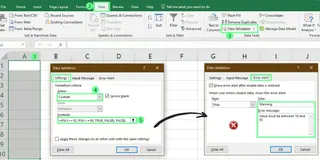
Select the range for validation, such as
A1:A10.Go to the Data tab and click Data Validation.
Choose Custom from the Allow drop-down list.
Enter the following formula in the Source field:
=IF(A1>=10, IF(A1<=50, TRUE, FALSE), FALSE)
This formula sets a rule for future entries. You can also add a custom error message to guide users.
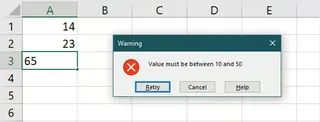
Now, if you enter a value outside the range, an error message will pop up.
The AI-Powered Approach: Excelmatic
Excelmatic excels at cleaning and identifying data that already exists. If your sheet is full of data, you could ask:
Identify all rows where the value in Column A is not between 10 and 50.
Or, even better, have it create a new helper column to flag the issues:
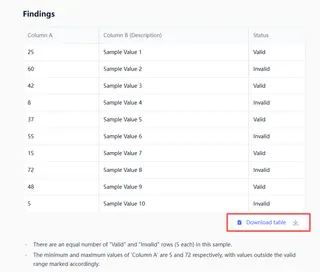
Create a new column named 'Status'. If the value in Column A is between 10 and 50, write 'Valid'. Otherwise, write 'Invalid'.
This approach instantly cleans or flags your entire dataset without you needing to figure out the correct validation formula.
Example 3: Conditional Formatting
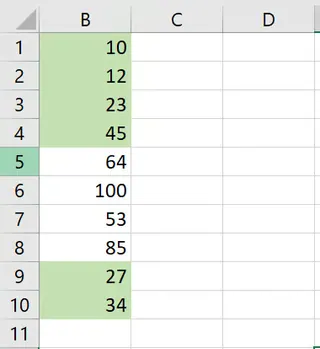
Now, let’s highlight rows where the values in Column B are between 10 and 50.
The Formula Approach: Conditional Formatting Rule
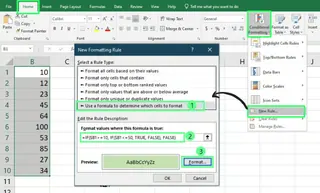
Select the range you want to format, such as
B1:B10.Go to Home > Conditional Formatting > New Rule.
Choose Use a formula to determine which cells to format and enter the formula:
=IF($B1>=10, IF($B1<=50, TRUE, FALSE), FALSE)
Click Format and choose a fill color. Click OK to apply the rule.
Now, you can see all the rows that meet the criteria are highlighted.
The AI-Powered Approach: Excelmatic
Similar to data validation, direct formatting is an Excel UI task. However, Excelmatic can do the heavy lifting of identifying what to format. You could ask:
Create a new column named 'Highlight'. If the value in Column B is between 10 and 50, write 'Yes'. Otherwise, write 'No'.
With this new column, you can easily filter for all the "Yes" rows and apply any formatting you want in seconds. The AI handles the complex logic, and you handle the simple click.
The Challenge of Combining Formulas
Nested IF() functions become truly complex when combined with other functions like VLOOKUP() or SUMIF(). This is where the difference between the manual and AI approaches becomes stark.
IF() with VLOOKUP()
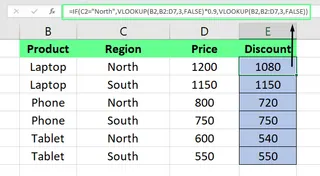
Scenario: You have a price list that varies by region. If the region is North, you want to apply a 10% discount—otherwise, you’ll show the standard price.
The Formula Approach:
=IF(C2="North",VLOOKUP(B2,B2:D7,3,FALSE)*0.9,VLOOKUP(B2,B2:D7,3,FALSE))
This formula is repetitive and prone to error. You have to write the VLOOKUP twice.
The AI-Powered Approach (Excelmatic):
For each row, find the price using the product name in column B. If the region in column C is 'North', apply a 10% discount to the price. Otherwise, use the standard price. Put the result in a new column named 'Final Price'.
No VLOOKUP, no IF, no repetition. Just a clear instruction.
IF() with SUMIF()
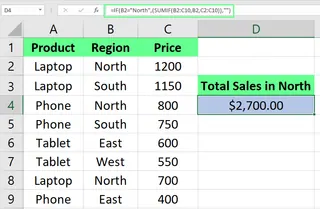
Scenario: Calculate the total sales for the North region.
The Formula Approach:
=IF(B2="North",(SUMIF(B2:C10,B2,C2:C10)),"")
This formula has to be placed carefully and doesn't produce a clean, single result. A better SUMIF alone would work, but the logic can get confusing.
The AI-Powered Approach (Excelmatic):
Calculate the total sales for the 'North' region.
That's it. Excelmatic understands the context and delivers the answer directly.
Common Pitfalls of Manual Formulas
It was tricky when I started combining multiple functions. Here are a few lessons I learned the hard way—and why an AI approach is so appealing.
- Keeping track of parentheses: This is where most mistakes happen. One missing parenthesis can break the entire formula. AI tools manage syntax for you.
- Handling errors: A formula returning an ugly error because of one missing value is frustrating. You have to wrap your formula in
IFERROR(). An AI agent can be told to "ignore errors" or "treat blank cells as 0." - Using named ranges: Without named ranges, long formulas become a mess of cell references like
B2:D7. With an AI, you just refer to columns by their headers, like "Product Name" or "Region."
Alternatives to Nested IF()
To be thorough, let’s look at other formula-based options.
IFS() function
If you’re using Excel 2016 or later, the IFS() function is a cleaner alternative for handling multiple conditions without nesting.
Syntax: =IFS(logical_test1, value_if_true1, [logical_test2, value_if_true2])
Example:
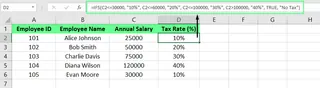
=IFS(C2<=30000, "10%", C2<=60000, "20%", C2<=100000, "30%", C2>100000, "40%")
This is more readable than a nested IF(), but it's still a formula you have to learn and type correctly. If no conditions are met, it returns a #N/A error unless you add a catch-all condition at the end like TRUE, "No Tax".
Other alternatives like CHOOSE() or SWITCH() exist, but they all require you to learn specific syntax for specific scenarios. In contrast, an AI tool like Excelmatic provides one universal interface—plain English—for all of them.
Final Thoughts
When I started using nested IF() statements, I was amazed at how much time I saved. But the game has changed. While mastering formulas is a valuable skill, the true goal is to get accurate results quickly and efficiently.
The key to modern Excel productivity is choosing the right tool for the job. For simple, one-off conditions, a quick IF() statement is fine. But for complex, multi-layered logic, debugging nested formulas is a time-sink.
This is where AI tools like Excelmatic shine. By allowing you to describe your goal in plain language, they eliminate the steep learning curve of advanced functions and remove the frustrating syntax errors. You can focus on what you want to achieve, not how to code it in Excel's language. Once you start using these tools creatively, you’ll see how much more powerful and less intimidating your data analysis can be.
Stop wrestling with parentheses and syntax. Start getting answers instantly. Try Excelmatic today and transform the way you handle complex conditions in your data.
Nested IF() FAQs
What is a nested IF() statement in Excel?
A nested IF statement in Excel is a formula that allows multiple conditions to be evaluated within a single statement, providing different outcomes based on the logic applied.
How do I write a nested IF() statement in Excel?
To write a nested IF statement, start with an initial IF function, then include additional IF functions within the TRUE or FALSE arguments to evaluate further conditions.
What is the easiest way to handle multiple conditions in Excel?
For formulas, the IFS() function (in Excel 2016+) is easier to read than traditional nested IF(). For ultimate simplicity, AI-powered tools like Excelmatic allow you to state your conditions in plain English without writing any formulas.
Can nested IF() statements be combined with other Excel functions?
Yes, nested IF statements can be combined with other functions like VLOOKUP or SUMIF to enhance functionality, though this often creates very complex and hard-to-read formulas.
What are some common pitfalls of using nested IF() statements?
Common pitfalls include creating overly complex formulas that are difficult to read and debug, missing parentheses, and hitting Excel's nesting limit (64 levels).