Key Takeaways
- Finding the most frequent value is essential for business insights like identifying top-selling products or common customer responses, but Excel's MODE() function requires formula knowledge and has limitations
- Excelmatic eliminates the need for formulas by letting you find modes using simple language commands, making it accessible to non-technical business users
- Unlike traditional methods, Excelmatic automatically handles complex scenarios like multiple modes and error cases without requiring advanced formula knowledge
- For business professionals in marketing, sales, and operations, adopting AI tools like Excelmatic means faster analysis and more time for strategic decision-making
Whether you're summarizing survey responses, tracking popular product quantities, or analyzing repeated entries in any dataset, finding the most frequent number is a common data analysis task. This value, known as the mode, is often more relevant than an average or a median when you're looking for patterns.
Traditionally, Excel users rely on the MODE() function. It's a classic tool, but it comes with its own quirks, like handling errors and ties. Today, however, there's a smarter, faster way. AI-powered tools like Excelmatic can do the heavy lifting for you, turning complex tasks into simple questions.
In this guide, we’ll show you how to use the traditional MODE() function effectively and compare it with the modern AI approach, so you can choose the best method for your needs.
The Traditional Method: What Is the MODE() Function in Excel?
Let's start with the basics. The MODE() function in Excel is your go-to tool for finding the most frequently occurring number in a range of values. Whenever you’re faced with a list and want to quickly figure out which number pops up the most, MODE() offers a simple formula-based solution.
This function is valuable when you need to summarize data, spot trends, or check for repeated entries. The basic syntax is:
=MODE(number1, [number2], ...)
Here, number1, [number2], … represent numbers or cell ranges where you want to find the mode. It’s important to note that MODE() only works with numbers; it automatically skips text and empty cells.
How to Use MODE() with Real Data in Excel
Now that you understand the function, let’s put it into practice. We'll look at a few common scenarios and then see how an AI tool like Excelmatic simplifies the process.
Example 1: Finding the most common test score
Suppose you have student test scores in cells B2 to B11:
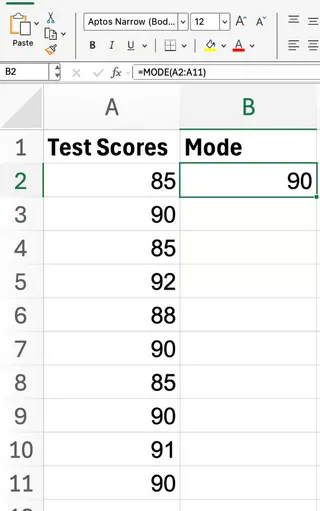
To find the most common score, you would enter this formula:
=MODE(B2:B11)
The result will be 85 or 90. Because both values appear multiple times, MODE() only returns the first one it finds in the range. To see every mode, you need a different function.
The Excelmatic Way: Just Ask

Instead of writing formulas, you can get the same answer with Excelmatic by simply asking a question. After uploading your spreadsheet, your prompt would be:
What is the most common test score?
Excelmatic analyzes the data and instantly gives you the answer. If there's a tie (like 85 and 90), it can list all modes for you, saving you the extra step of using a more complex formula.

Example 2: Using MODE() with non-contiguous ranges
What if your data isn’t in a single block? MODE() allows you to reference multiple ranges. For example:
=MODE(A1:A5, C1:C5)
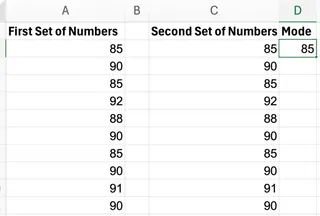
Excel will search across both ranges for the most frequent number. With Excelmatic, this is even simpler. It automatically considers all the data you provide, or you can specify columns by name:
Find the most frequent number in the 'Region 1' and 'Region 2' columns.

Example 3: What happens with no repeat values?
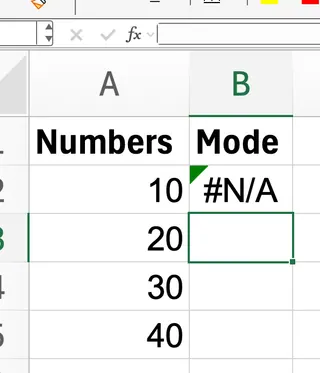
If every value in your range is unique, the MODE() function returns an #N/A error, which can look messy and be confusing.
Suppose A2:A5 contains 10, 20, 30, 40. The formula =MODE(A2:A5) would result in:
The Excelmatic Way: Clear, Human-Readable Answers
Excelmatic avoids confusing error codes. If you ask it to find the mode in a dataset with no repeating numbers, it will give you a clear, straightforward answer, such as:
There is no mode, as all values are unique.
This is far more user-friendly than the dreaded #N/A.
Summary of Scenarios
This table breaks down how to handle common scenarios using both the traditional formula and a simple Excelmatic prompt.
| Example | Data (range) | Formula | Result | Excelmatic Prompt |
|---|---|---|---|---|
| Basic mode calculation | 2, 4, 2, 7, 8, 2 (A1:A6) | =MODE(A1:A6) |
2 | "What is the most frequent number?" |
| Tie between two modes | 85, 90, 85, 92, 88, 90... | =MODE(B2:B11) |
85 or 90 | "What are the most common scores?" |
| Non-contiguous ranges | A1:A5 and C1:C5 | =MODE(A1:A5, C1:C5) |
Varies | "Find the mode in columns A and C." |
| No repeated values | 10, 20, 30, 40 (C1:C4) | =MODE(C1:C4) |
#N/A | "What is the mode?" (Returns "No mode found") |
| Handling the #N/A error | 10, 20, 30, 40 (C1:C4) | =IFERROR(MODE(C1:C4), "No mode") |
No mode | Handled automatically. |
| Non-numeric data included | 5, "N/A", 7, 5 (A1:A4) | =MODE(A1:A4) |
5 | Handled automatically. |
| Multiple modes (advanced) | 1, 2, 2, 3, 3 (A1:A5) | =MODE.MULT(A1:A5) |
2 and 3 | "Find all modes in the data." |
Common Issues: The Formula Approach vs. The AI Approach
Let's compare how each method handles common challenges.
Handling Errors
With formulas, if you get a #N/A error, you need to wrap MODE() with IFERROR() to make your spreadsheet look clean:
=IFERROR(MODE(A1:A10), "No mode")
Excelmatic eliminates this extra step. It interprets the result and provides a clean, descriptive output without you having to write a more complex formula.
Dealing with Multiple Modes
The MODE() function has a major limitation: it only returns one mode. If your data has more than one, you won't know without investigating further. For this, Excel has a more advanced function, MODE.MULT(), which returns an array of all modes. However, using it correctly requires knowledge of array formulas, which can be tricky.
This is where an AI agent shines. You can simply ask Excelmatic:
Are there multiple modes? Show me all of them.
It will analyze the dataset and list all the most frequent values, no complex formulas required.
MODE() vs. AI Tools like Excelmatic: Which Is Better?
Both methods get the job done, but they are suited for different users and situations.
- The
MODE()Function is a fundamental Excel tool. It's great for users who are comfortable with formulas and want granular control within the spreadsheet grid. Learning it is a good way to understand Excel's statistical capabilities. - Excelmatic is a modern solution for users who prioritize speed, simplicity, and insight. It's ideal for those who want answers without getting bogged down in formula syntax or error handling. By using plain English, it makes data analysis accessible to everyone, regardless of their Excel expertise.
Here’s a quick comparison:
| Feature | Excel MODE() Function |
Excelmatic (AI Agent) |
|---|---|---|
| How it Works | Manual formula entry: =MODE(B2:B11) |
Natural language prompt: "Find the most common score" |
| Ease of Use | Requires knowledge of syntax and function names. | Intuitive; no formulas to remember. |
| Handling Errors | Returns #N/A error, requiring IFERROR for clean output. |
Provides clear, human-readable answers like "No mode found." |
| Multiple Modes | Requires a separate, more complex array formula (MODE.MULT). |
Can identify and list all modes with a single, simple prompt. |
| Speed | Fast for experienced users, but involves research for beginners. | Instant answers for all user levels. |
| Insights | Provides only the numerical result. | Can offer additional context and insights about the data. |
Conclusion
The MODE() function is a useful and simple tool for finding the most common number in a list. It's a cornerstone of statistical analysis in Excel. However, as we've seen, it has limitations, especially when dealing with errors or multiple modes.
For a more efficient and user-friendly experience, AI-powered tools like Excelmatic offer a powerful alternative. By allowing you to ask questions in plain language, they handle the complexity behind the scenes, delivering fast, accurate, and easy-to-understand answers.
Ready to transform how you analyze data patterns in Excel?Try Excelmatic today and experience the power of conversational data analysis. Simply upload your file, describe what you need in simple language, and get instant insights about your most frequent values - no formulas to memorize, no errors to troubleshoot, just clear answers to your business questions.
FAQ
What if there are multiple modes?
Using a formula, MODE() only returns the first mode it finds. You must use the more complex MODE.MULT() array formula to see all of them. With an AI tool like Excelmatic, you can simply ask, "What are all the modes?" to get a complete list.
Does MODE() work with text?
No, the MODE() function only considers numbers and ignores text. AI tools can often analyze text to find the most frequent word or phrase if asked.
What happens if there’s no mode?
If all values are unique, MODE() returns an #N/A error. You can use IFERROR() to display a custom message. Excelmatic handles this gracefully, telling you in plain English that no mode was found.