Key Takeaways
- Business users spend too much time on manual data tasks like merging columns, wrestling with complex formulas and menus, which pulls them away from analysis and decision-making.
- Excelmatic is an AI agent that understands plain language instructions, allowing you to perform tasks like merging columns instantly without writing a single formula.
- Excelmatic prioritizes speed, simplicity, and intelligence. It eliminates the cognitive load of traditional methods, making advanced Excel operations accessible to users of all skill levels.
- For non-technical business professionals, Excelmatic is the most efficient way to handle data merging and countless other spreadsheet tasks, transforming spreadsheet work from a chore into a strategic advantage.
Merging columns saves time and avoids mistakes. It’s a simple trick that makes managing data less frustrating. But while traditional methods involve memorizing formulas or clicking through menus, new AI tools are changing the game entirely.
In this guide, I’ll show you the different ways to merge Excel columns, from the classic formulas to the revolutionary AI-powered approach, so you can choose the best method for your needs.
The Quick Manual Answer: The Ampersand (&)
For a quick manual fix, you can merge two columns in Excel using the ampersand (&) symbol. This operator concatenates (links) text from different cells. You can also add a space or other characters between the text strings.
=A2 & " " & B2
Here, the & combines the text from cells A2 and B2, and the " " adds a space between them. When you hit Enter, the contents of both cells are combined into one.
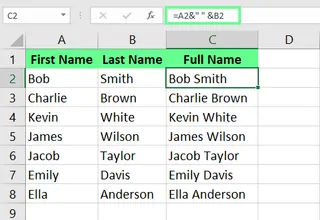
This method is fast for simple tasks, but what if your request is more complex, or you simply don't want to deal with formulas?
The Smartest Way: Merge Columns Instantly with an AI Agent

Instead of memorizing formulas or navigating complex menus, imagine just telling Excel what you want. That's the power of an AI agent like Excelmatic. It understands plain language commands to perform tasks instantly.
With Excelmatic, the process is incredibly simple:
- Upload your file: Drag and drop your Excel workbook into Excelmatic.
- State your need: Type your request in the chat box. For example: "Merge the first name in column A and the last name in column B into a new column called 'Full Name', separated by a space."
- Get instant results: Excelmatic processes your request and delivers the perfectly merged column in seconds, without you writing a single formula.

This AI-driven approach is a game-changer because it’s:
- Effortless: No need to remember the syntax for
CONCAT,TEXTJOIN, or the&operator. - Intelligent: It understands context. You can ask for more complex merges, like "Combine first name and the initial of the last name," and it will figure it out.
- Efficient: It saves you the time and mental energy spent on debugging formulas or following multi-step processes like Power Query.
While traditional methods are still useful, the AI approach represents the future of spreadsheet productivity.
Traditional Ways to Merge Columns in Excel
For those who prefer a hands-on approach or need to work offline, here are the classic methods for merging columns.
Using the CONCAT() function
The CONCAT() function is an explicit way to concatenate the arguments you pass to it.
For example, entering the following formula in cell C2 combines data from both columns:
=CONCAT(A2, " ", B2)
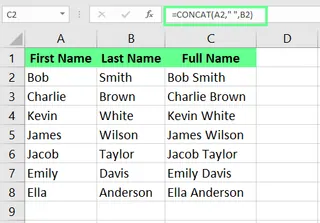
Essentially, CONCAT() achieves the same result as the ampersand.
Note: If you’re using an older version of Excel (before 2016), you’ll have the CONCATENATE() function instead of CONCAT(). It works the same way.
Using the TEXTJOIN() function
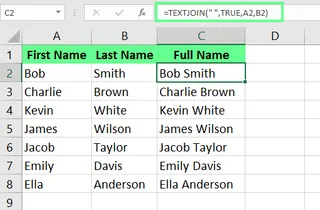
The TEXTJOIN() function is great for merging text from multiple columns with a specific delimiter. For example, in cell C2, enter the following formula:
=TEXTJOIN(" ", TRUE, A2, B2)
In this formula, the space " " is the delimiter, and the TRUE argument ensures that any blank cells are ignored. Once you press Enter, the names are merged with a space between them.
Using Flash Fill
Flash Fill is a convenient built-in option that automatically detects patterns and applies them to the rest of the column.
Here’s how it works: In cell C2, manually type the full name as you want it to appear. Then, in cell C3, as you start typing the next name, Excel should suggest filling the rest of the cells in the same format. Press Enter, and the entire column is filled.

If the preview doesn't appear, you can enable it in File > Options > Advanced > Editing options by checking Automatically Flash Fill. You can also trigger it manually from the Data tab or by pressing Ctrl + E.
Using Power Query
For large datasets, Power Query is a robust tool. It handles big data without slowing down your workbook and automatically updates if the source data changes.
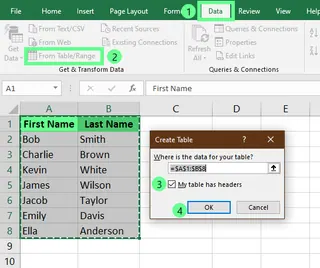
- Click anywhere on your dataset, go to the Data tab, and click From Table/Range.
- In the Create Table dialog, confirm your range and click OK.
- In the Power Query Editor, hold Ctrl and click to select both columns.
- Go to the Add Column tab and click Merge Columns.
- In the dialog box, select a Space separator, name your new column Full Name, and click OK.

Finally, go to the Home tab and click Close & Load to export the merged data back to your worksheet.
Using Notepad as an Intermediary
Surprisingly, Notepad can help merge data, especially if you need to strip out hidden formatting. This method only works if the columns are adjacent.
- Select the data in the columns you want to merge (Ctrl + Shift + Down Arrow is useful here).
- Copy the data and paste it into a blank Notepad file. The columns will be separated by a Tab character.
- Open the Replace dialog (Ctrl + H). In the Find what field, press the Tab key. In the Replace with field, enter your desired separator (like a space). Click Replace All.
- Copy the modified text from Notepad and paste it back into Excel.

This is a niche method, but it's useful for cleaning data that has complex or problematic formatting.
Using Add-ins
Excel add-ins like the Ultimate Suite can simplify merging tasks with a user-friendly interface.
Once installed, select the cells you want to merge and navigate to the add-in's tab in the ribbon (e.g., Ablebits Data > Merge Cells > Merge Columns into One).
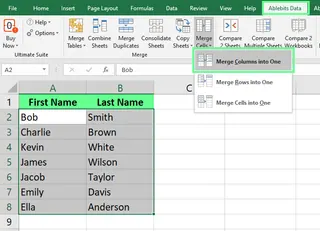
A dialog box will appear, allowing you to choose your delimiter and where to place the results without writing any formulas.

Using the Merge & Center Tool
This tool is different. It combines multiple cells into one larger cell but only keeps the data from the top-left cell. It's primarily used for creating headers or titles that span multiple columns.
To use it, type your title in the leftmost cell, select it and the adjacent cells you want to merge, and click Merge & Center on the Home tab.

A Quick Overview of All the Methods
Let’s quickly compare the methods to see where each stands out.
| Method | Pros | Cons |
|---|---|---|
| Excelmatic (AI) | Extremely simple (plain English), no formulas, fast, handles complex logic | Requires internet access, may be a subscription service |
| & symbol | Real-time update, simple for basic merges | Limited advanced features, can get messy with many columns |
| CONCAT() | Flexible – handles multiple columns | Requires modern Excel (2016+), still a formula |
| TEXTJOIN() | Allows you to include a delimiter easily | Gives an error if the cell limit exceeds 32,767 characters |
| Flash Fill | Saves time, no formulas needed | Doesn’t dynamically update if source data changes |
| Power Query | Handles large datasets efficiently, is repeatable | Requires some prior knowledge, can be slow for simple tasks |
| Notepad | Simple and offline, strips formatting | Time-consuming and manual |
| Add-ins | Feature-rich and efficient | May involve extra cost and installation |
| Merge and Center | Easy and quick for headers | Deletes data in all but the top-left cell |
Tips and Best Practices
Here are a few tips for merging cells in Excel that will make your work much easier:
- Preserve Formatting: Excel formulas don’t maintain cell formatting. To ensure your data looks consistent, use tools like Power Query, an Add-in, or an AI tool that can handle formatting.
- Handle Large Datasets: When working with large datasets, use Power Query or an AI agent like Excelmatic. They are designed to handle vast amounts of data efficiently without crashing.
- Use the Correct Delimiters: Always choose the right delimiter when you merge data, whether it’s a space, a comma, or something else.
- Convert Formulas to Values: When you’re done merging with formulas, it's good practice to convert them into static values. Just copy the cells and use Paste Special > Values. This locks in the results and improves performance.
Conclusion
We’ve covered everything from classic formulas to AI-powered solutions for merging columns in Excel. While mastering traditional methods is a valuable skill, leveraging modern AI tools like Excelmatic is the key to unlocking next-level productivity and focusing on analysis rather than manual data manipulation. Choose the method that best fits your workflow and start managing your data more efficiently today.
Ready to transform how you merge columns in Excel? Try Excelmatic today and experience the power of conversational data manipulation. Simply upload your file, describe what you need in simple language, and get perfectly merged columns instantly - no formulas to memorize, no complex menus to navigate, just clean, structured data ready for analysis.
How can I preserve cell formatting when merging Excel columns?
Formulas do not keep formatting. Use Power Query, specialized add-ins, or AI tools designed to handle formatting. The Merge & Center tool also preserves the formatting of the top-left cell.
Can I merge cells in a table in Excel?
You can’t directly merge cells in an Excel table, but here’s a quick workaround:
- Click anywhere in the table to bring up the Table Design tab.
- Select Convert to Range under the Tools section.
- Merge the cells as needed using your preferred method.
- (Optional) Recreate the table by selecting the range and clicking Insert > Table.
Can I merge cells with different data types (e.g., numbers and text)?
Yes, Excel allows you to merge cells with different data types. When you do, the resulting data is converted to text. Functions like CONCAT() and the & operator handle this automatically.