Key takeaways:
- The Problem: Consolidating multiple workbooks or sheets manually is slow, prone to "human error," and impossible to scale.
- The Old Way: You either use manual Copy-Paste (unreliable), VLOOKUP/XLOOKUP (complex), or Power Query (steep learning curve).
- The AI Way: With Excelmatic, you describe your goal in plain language—like “Combine all monthly sales files into one and remove duplicates”—and the AI executes it instantly.
When "Consolidating Reports" Consumes Your Entire Afternoon
It’s a classic end-of-month nightmare. You have 12 different files from 12 different departments, and you need them in one master sheet.
“Sales_Jan.xlsx” “Sales_Feb.xlsx” “Sales_March.xlsx”
You start the cycle: Open file -> Select all -> Copy -> Switch window -> Paste. Repeat. But then you notice: February has an extra column. March uses "Product_ID" instead of "SKU." Now you’re not just merging; you’re debugging.
For two files, it’s a chore. For twenty? It’s a recipe for burnout and data errors.
The Traditional Ways (And Why They Fail)
1. The "Copy-Paste" Grind
How it works: The brute force method. You manually move data from one sheet to another.
Why it fails: It is entirely static. If the source data changes, you have to do it all over again. It’s also extremely easy to accidentally skip a row or paste data into the wrong column.
2. Power Query: The Technical Wall
How it works: Data -> Get Data -> From File -> From Folder -> Combine.
Why it fails: While powerful, Power Query feels like programming. If your column headers don't match exactly, or if there's a slight formatting change, the whole "query" breaks. Most users don't have the hours required to master its complex interface.
3. VLOOKUP & XLOOKUP: The Formula Trap
Why it fails: Using formulas to merge data from different sheets requires perfect "key" columns and absolute cell references. One wrong click leads to a sea of #N/A or #REF! errors that are a nightmare to troubleshoot.
The New Way: Just Say It. Watch It Merge.
What if you could treat your Excel files like a conversation?
With Excelmatic, the AI acts as your data architect. You don't need to align columns or write formulas; you just give the order.
Step 1: Upload Your Multiple Files
Drag and drop all the Excel or CSV files you want to combine. The AI automatically scans the headers and data types across all files.

Step 2: Ask in Plain Language
Instead of configuring "Joins" or "Appends," simply type what you want to happen. The AI understands context and intent.
Merge all these files into one sheet. If the column names are slightly different (like 'Name' and 'Customer Name'), combine them into a single 'Client' column.
Combine the 'Inventory' and 'Pricing' sheets using the 'SKU' column as the link.
Consolidate all 12 monthly reports, remove any empty rows, and sort the final list by 'Total Profit'.

Step 3: Get Your Unified Data Instantly
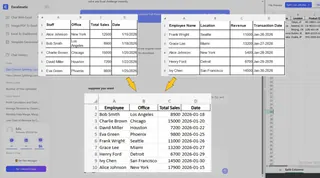
Review the merged result in the live preview. The AI handles the heavy lifting of aligning mismatched columns and cleaning up inconsistencies. Download your clean, consolidated .xlsx file and you’re done.
Why This Changes Everything
| Task | Traditional Excel | Excelmatic AI |
|---|---|---|
| Merge 10+ files | 30–60 minutes | Under 30 seconds |
| Mismatched Headers | Manual renaming required | AI auto-matches by meaning |
| Deduplication | Extra steps/formulas | Included in the prompt |
| Skill Level | Advanced/Expert | Beginner (Plain language) |
Frequently Asked Questions
1. Can I merge files with different column orders?
Yes. The AI identifies columns by their meaning, not their position. It will align "Price" in File A with "Unit_Cost" in File B if you tell it to.
2. Does it work with CSV and Excel files at the same time?
Absolutely. You can mix and match file formats in the same upload.
3. What happens if I have millions of rows?
Excelmatic is built for scale. It handles large datasets much faster than local Excel, which often freezes during heavy merge operations.
4. Can I "Join" tables like in a database?
Yes. Just ask the AI to "Join Table A and Table B based on the Email column," and it will perform a professional-grade data join without you needing to know SQL or VLOOKUP.
5. Is this only for merging text?
Not at all. You can use Excelmatic to clean data, build charts, create pivot tables, split text, and even write formulas—all through simple instructions.
Your Value is in the Analysis, Not the Consolidation
You weren't hired to be a human "copy-paste" machine. Your job is to find insights within the data, not spend your day fighting the files themselves.
By using AI to handle the tedious merging process, you reclaim your time for the work that actually moves the needle.
Ready to become a "Merge Master"?
Stop wrestling with multiple windows. Upload your messy files now and see how Excelmatic turns chaos into a perfectly structured master sheet in seconds.
🚀 Merge Your Files NowFree to start — No credit card required