Key takeaways:
- Traditional Excel mastery requires learning numerous disparate features like PivotTables, VLOOKUP, and macros, which is a time-consuming and often frustrating process.
- Excel AI tools like Excelmatic replace this steep learning curve with a simple conversational interface, allowing you to perform complex data analysis and cleaning with natural language.
- By using an AI agent, you can automate tasks like data summarization, chart creation, and report generation in minutes, freeing you from manual formula writing and repetitive clicking.
The Endless Quest for Excel Mastery
Every professional has been there. You're handed a messy spreadsheet and told to "pull some insights." You start by Googling "how to combine names in Excel," then "how to summarize sales by month," and soon you're falling down a rabbit hole of tutorials on VLOOKUP, PivotTables, and Conditional Formatting.
The business world runs on Excel, and being "good at Excel" is a badge of honor. But what does that really mean? It often translates to a patchwork of skills acquired over years:
- Memorizing dozens of keyboard shortcuts.
- Learning the arcane syntax of functions like
INDEX(MATCH()). - Mastering the drag-and-drop ritual of PivotTable fields.
- Figuring out how to clean inconsistent data with Flash Fill or complex formulas.
- Maybe even dipping your toes into the intimidating world of VBA macros for automation.
The problem is, this journey is endless, fragmented, and inefficient. You spend more time learning the tool than thinking about the data. What if you could skip the decades of accumulated tricks and just get the answers you need?
The Traditional Path: A Mountain of Manual Steps
Let's say you're a sales operations manager, and you get a raw data export of all transactions for the last year. Your goal is to create a summary report showing performance by region and product, highlighting top performers and visualizing trends.
The traditional path to "mastering" this task in Excel involves a combination of distinct, manual skills.
1. Data Cleaning and Preparation
Your raw data is likely a mess. Names might be in different formats ("John Smith" vs. "smith, john"), dates could be text, and there might be blank rows.
- Flash Fill (
Ctrl+E): You might use Flash Fill to extract first names from a full name column. You type the first one or two examples, and hope Excel correctly identifies the pattern for the next 1,000 rows. - Data Validation: To ensure future data is clean, you might set up dropdown lists for "Region" or "Product Category" to prevent typos. This involves navigating to
Data > Data Validationand manually entering the list items.
The Limitation: These tools are powerful but brittle. Flash Fill can easily misinterpret a pattern with slightly different data. Data Validation only works for future entries, it doesn't fix existing problems.
2. Analysis and Summarization
Once the data is clean, you need to aggregate it.
- Formulas (
SUMIFS,COUNTIFS): You could build a separate summary table and write complexSUMIFSformulas to calculate total sales for each combination of product category and time period. This requires precise syntax and careful management of cell references ($A$2:$A$5000). - PivotTables: A more efficient method is to create a PivotTable. You'd go to
Insert > PivotTable, then drag "Product Category" to the Rows area, "Years" to the Columns area, and "Total Sales Value" to the Values area.
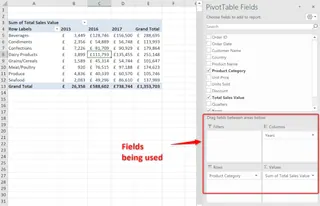
The Limitation: A PivotTable is fantastic for a single view, but it's not dynamic. If your manager asks, "Great, now can you show me the top 3 products within each category?" you have to go back to the PivotTable Fields pane and start re-configuring everything. Complex formulas are even worse—a small change in criteria might require rewriting the entire formula.
3. Visualization and Reporting
Numbers in a table are hard to digest. You need charts.
- Chart Tools: You select your summarized data and go to
Insert > Chart, choosing a bar or line chart. Then you spend time on theChart Designtab, adding axis titles, a legend, and data labels to make it readable. - Conditional Formatting: To make key data points stand out in your table, you might use Conditional Formatting to highlight all sales figures above a certain threshold in green, or below a target in red.
The Limitation: Creating a good chart is an art. It takes time to format it correctly. Conditional Formatting is great, but applying multiple rules or rules based on formulas can quickly become confusing to manage.
This entire process—cleaning, summarizing, and visualizing—can take hours. It's filled with repetitive clicking, is prone to human error, and is difficult for a colleague to pick up and modify. This isn't mastery; it's manual labor.
The New Solution: Mastering Excel with AI (via Excelmatic)
Instead of learning a dozen different features, what if you could achieve the same outcome by simply describing it in plain language? This is the promise of Excel AI agents like Excelmatic.

Excelmatic acts as your personal data analyst. You upload your file, and then you have a conversation with the AI to get the results you need. It handles the cleaning, formula writing, PivotTable creation, and charting for you.
Let's revisit the same sales report task, but this time with Excelmatic.
Step 1: Upload Your Raw Data
First, you just drag and drop your messy Excel or CSV file into Excelmatic. No pre-cleaning required. The AI will scan the data and understand its structure.

Step 2: Ask for What You Want in Plain Language
Instead of clicking through menus, you just type your requests into the chat.
Here are a few prompts you could use to accomplish the entire task:
- For Data Cleaning: "I have a 'Full Name' column. Create a new column with just the first name."
- For Summarization: "Create a pivot table that shows the total sales for each region and product category."
- For Deeper Analysis: "Now, in that summary, add a column showing the percentage of total sales for each region."
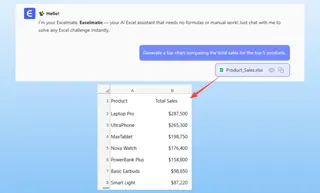
- For Visualization: "Generate a bar chart comparing the total sales for the top 5 products."
- For Conditional Analysis: "From the original data, show me all transactions where sales were over $10,000 in the 'East' region."
Step 3: Iterate and Refine with Follow-up Questions
This is where the magic happens. The traditional workflow is rigid. The AI workflow is a flexible conversation.
After Excelmatic generates the first PivotTable, your manager's ad-hoc question is no longer a problem.
User: Create a pivot table summarizing sales by region and sales rep.
Excelmatic: Done. I've created a pivot table with 'Region' in the rows, 'Sales Rep' nested under it, and the sum of 'Sales Amount' in the values. Would you like to sort the reps by their sales performance?
User: Yes, sort them from highest to lowest within each region. And only show me the top 3 reps for each region.
Excelmatic: I've updated the table to show only the top 3 sales reps per region, sorted by their total sales. I've also added a visual flag to highlight them. Do you want this as a new table or should I create a chart?
User: Create a stacked bar chart for each region, showing the sales contribution of its top 3 reps.
Excelmatic: Understood. Here are the stacked bar charts, one for each region, visualizing the performance of your top reps. You can download the new Excel file containing these charts and the summary table.
In seconds, you've accomplished a task that would have involved complex filtering, sorting, and chart re-creation in traditional Excel.
Step 4: Export Your Results
Once you're happy, you can download a new, clean Excel file containing the AI-generated tables, formulas, and charts. You can also copy the formulas or PivotTable configurations directly into your existing workbooks.
Traditional Path vs. Excelmatic: A Quick Comparison
| Aspect | Traditional Excel "Mastery" | Excelmatic AI Approach |
|---|---|---|
| Effort | Learn & master 10+ distinct features (Formulas, Pivots, Charts, etc.) | Describe your goal in plain language. |
| Time | Hours of manual cleaning, formula writing, and formatting. | Minutes of conversational requests. |
| Flexibility | Rigid. New questions require re-doing the work. | Highly flexible. Refine and iterate with follow-up questions. |
| Learning Curve | Steep and continuous. Years to become a true "guru." | Minimal. If you can ask a question, you can use it. |
| Error Rate | High. A single typo in a formula can break everything. | Low. The AI handles the syntax and logic, ensuring consistency. |
FAQ
1. Do I need to know any Excel formulas to use Excelmatic? No. You only need to be able to describe the business outcome you want. Excelmatic will generate the necessary formulas or PivotTables for you. Basic Excel knowledge helps for context, but it's not a prerequisite for getting powerful analysis done.
2. Can Excelmatic automate tasks like macros do? In many ways, yes. A lot of what people use simple macros for—like cleaning data, formatting a report, or creating a summary—can be done in a single step with an AI prompt. For highly complex, multi-step automation involving custom logic, VBA is still the ultimate tool, but Excelmatic handles the vast majority of day-to-day repetitive tasks.
3. Is it safe to upload my company's data to Excelmatic? Excelmatic is designed with data security in mind, using industry-standard encryption and privacy protocols. Your data is used only to process your requests and is not shared or used for training other models. For specific compliance needs, always refer to the official privacy policy.
4. What about UI tasks like "Freezing Panes" or "Protecting a Sheet"? Excelmatic focuses on the heavy lifting of data analysis, transformation, and visualization. It generates the data and reports for you. Final cosmetic touches like freezing panes or protecting cells are simple, one-click actions you can apply in Excel after you've downloaded the AI-generated file.
5. Can Excelmatic handle very messy and unstructured data?
Yes, this is one of its strengths. You can ask it to "remove duplicate rows," "split the 'Address' column into 'City' and 'State'," or "convert all dates in this column to MM/DD/YYYY format." It's far more intuitive than trying to chain together multiple TRIM, LEFT, RIGHT, and FIND functions.
Take Action: Stop Chasing Tricks, Start Getting Answers
The pursuit of Excel mastery shouldn't be about memorizing an encyclopedia of functions and shortcuts. It should be about your ability to quickly and accurately turn raw data into valuable business insights.
The traditional path forces you to become a technician. The AI-powered path allows you to remain a strategist.
Instead of spending another hour watching a tutorial on a function you'll forget next week, why not try a new approach?
Try Excelmatic for free today. Upload one of the spreadsheets currently sitting on your desktop and ask it the question you've been struggling to answer. You might just find that you've "mastered" Excel in a matter of minutes.