Key takeaways:
- Mastering essential but complex Excel skills like VLOOKUP, Pivot Tables, and conditional formatting is a major pain point for professionals, consuming hours and leading to frequent errors.
- Excel AI tools like Excelmatic eliminate the steep learning curve by allowing you to perform complex data analysis, create charts, and build reports using simple, natural language instructions.
- By using Excelmatic, you can reduce report generation time from hours to minutes, ensure accuracy by removing manual formula entry, and flexibly adapt your analysis to answer ad-hoc questions on the fly.
Problem Background & Pain Points
In today's data-driven job market, "Excel proficiency" is listed on almost every job description, from finance and marketing to project management and HR. Employers aren't just looking for someone who can enter data into a grid; they need professionals who can transform raw numbers into actionable insights. This means creating summary reports, analyzing trends, and visualizing performance.
Imagine you're a Sales Manager named Alex. At the end of every month, you're tasked with creating a performance report. You have a massive CSV file with thousands of rows of raw transaction data: Date, Sales Rep ID, Product, Units Sold, and Revenue. You also have a separate spreadsheet that maps Sales Rep ID to their name and region.
To create your report, you need to:
- Clean the data, because some product names have extra spaces.
- Combine the sales data with the sales rep's region information.
- Calculate total revenue for each region and each sales rep.
- Identify the top-performing products for the month.
- Create charts to visualize regional performance and a summary table for the executive team.
Doing this manually is a recipe for a long, frustrating afternoon. You're wrestling with formulas, checking for errors, and praying you don't accidentally break a cell reference. And just when you think you're done, your boss asks, "Great, now can you show me this but only for the last quarter and compare it to the previous quarter?" You're back to square one.
Traditional Excel Solution: Steps and Limitations
For a professional like Alex, the traditional path involves mastering a specific set of "power" functions and features in Excel. This is the toolkit employers expect, but it comes with a steep learning curve and significant drawbacks.
Here's a breakdown of the typical manual workflow:
Data Cleaning with
TRIM: The first step is often to clean up messy data imported from other systems. You'd create a new column and use theTRIMfunction (=TRIM(A2)) to remove leading or trailing spaces from text fields like product names or categories. You then have to copy this formula down for thousands of rows and replace the old column with the new, clean values.Combining Data with
VLOOKUPorINDEX/MATCH: To bring the sales rep's region into your main sales data sheet, you would use a lookup function.VLOOKUPis the classic choice, though it's notoriously finicky. The formula might look something like=VLOOKUP(B2, 'SalesReps'!A:B, 2, FALSE). This searches for theSales Rep IDfrom your sales sheet in the reps sheet and returns their region. One misplaced comma or an unsorted lookup table, and you're met with a dreaded#N/A!error.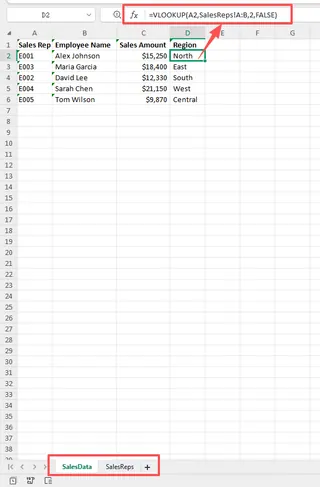
Summarizing Data with Pivot Tables or
SUMIFS: To calculate total revenue by region, you have two main options. You could use a Pivot Table, which requires dragging and dropping fields into the correctRows,Columns, andValuesareas. Or, you could build a summary table manually using theSUMIFSfunction to add up values that meet multiple criteria (e.g., a specific region and a specific month). A singleSUMIFSformula can become long and difficult to debug.Visualizing with Charts: Once your summary table is ready, you'd select the data and insert a chart. This sounds simple, but creating a professional-looking, easy-to-read chart involves numerous steps: selecting the right chart type (bar, line, pie), adjusting axes, adding data labels, writing a clear title, and formatting colors.
The Limitations of the Manual Method
While these skills are valuable, relying on them exclusively creates several problems:
- Time-Consuming & Repetitive: The process described above can take hours, and it has to be repeated every week or month.
- High Risk of Errors: A simple typo in a formula or selecting the wrong data range can lead to incorrect results that go unnoticed, potentially leading to bad business decisions.
- Inflexible: When your manager asks for a slightly different view of the data, you often have to rebuild your formulas or reconfigure your Pivot Table from scratch. Answering ad-hoc questions is slow and painful.
- Difficult to Maintain: Handing off a complex spreadsheet to a colleague is a nightmare. They have to spend hours deciphering your formulas and figuring out how to update the report without breaking it.
- Steep Learning Curve: Mastering functions like
INDEX/MATCHor the nuances of Pivot Tables requires significant training and practice, which many busy professionals don't have time for.
The New Solution: Using Excel AI (with Excelmatic)
Instead of forcing you to become a formula expert, an Excel AI Agent like Excelmatic allows you to be a business expert. You focus on what you want to know, and the AI handles the how. It transforms the entire workflow from a manual, click-intensive process into a simple, intuitive conversation.

Step 1: Upload Your Data
First, you simply upload your raw data files directly to Excelmatic. You can upload multiple files at once, like your sales_transactions.csv and your sales_reps.xlsx. Excelmatic keeps your original files untouched, creating a secure and private workspace for analysis.

Step 2: Describe Your Goal in Plain Language
This is where the magic happens. Instead of writing formulas, you just type your request in the chatbox. To replicate the entire reporting process from our example, Alex could use the following prompts:
- To clean the data: "In the sales_transactions file, trim whitespace from the 'Product' column."
- To merge the files: "Merge the sales_transactions file with the sales_reps file using the 'Sales Rep ID' column."
- To summarize the data: "Create a pivot table showing the total Revenue for each Region and Sales Rep."
- To find top performers: "Based on the pivot table, add a new column that ranks the sales reps within each region by their revenue."
- To create a chart: "Generate a bar chart that compares the total revenue for each region."
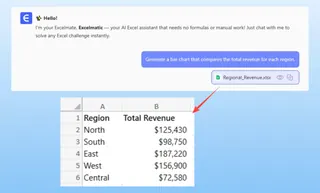
Step 3: Review and Iterate with Follow-Up Questions
Excelmatic will instantly generate the result—be it a cleaned table, a pivot table, or a chart. But the real power lies in iteration. When your boss comes back with that follow-up question, you don't have to start over. You just continue the conversation.
Here's a sample dialogue that demonstrates this power:
User: I've uploaded my sales and reps files. First, merge them using the 'Sales Rep ID'. Then, create a pivot table showing total revenue by region and by month for 2024.
Excelmatic: Done. I have merged the two files and created a pivot table summarizing the 2024 revenue by region and month. The regions are rows and the months are columns.
User: Perfect. Now, can you create a stacked bar chart from this pivot table to show the monthly revenue composition for each region?
Excelmatic: Of course. Here is a stacked bar chart visualizing the monthly revenue breakdown for each region.
User: This looks great. Actually, can we filter out the 'West' region and only focus on 'North', 'South', and 'East'? Also, highlight any month where a region's total revenue exceeded $50,000.
Excelmatic: No problem. I have updated the pivot table and the chart to exclude the 'West' region. I've also applied conditional formatting to highlight all monthly revenue cells greater than $50,000 in green.
Step 4: Export Your Results
Once you're satisfied, you can download the results as a new, clean Excel file. This file can contain the final data tables, the configured Pivot Table, and the generated charts, all ready to be shared with your team or pasted into a presentation. You can also just copy the formula or VBA code that Excelmatic generated and use it in your own workbooks.
Traditional vs. Excelmatic: A Quick Comparison
| Aspect | Traditional Excel | Excelmatic (Excel AI) |
|---|---|---|
| Time Required | 1-3 hours for a complex report | 5-10 minutes |
| Skills Needed | VLOOKUP, SUMIFS, Pivot Tables, Charting |
Ability to describe business needs in language skills |
| Error Rate | High (typos, wrong ranges, logic errors) | Very low (AI handles formula generation) |
| Flexibility | Low (changes require rework) | High (iterate with simple follow-up questions) |
| Onboarding | Difficult (requires deep Excel knowledge) | Easy (if you can chat, you can analyze) |
FAQ
1. Do I still need to learn Excel formulas if I use Excelmatic? You don't need to be a formula expert anymore. Excelmatic handles the complex syntax. However, having a basic understanding of Excel concepts helps you ask better questions and understand the results. The AI empowers you to focus on analytical thinking rather than memorization.
2. Will Excelmatic modify my original Excel file? No. Excelmatic works on a copy of your data in a secure cloud environment. Your original files are never altered, ensuring your source data remains safe and intact.
3. What if my data is messy and not well-structured? Excelmatic is designed to handle common data quality issues. You can ask it to perform data cleaning tasks like removing duplicates, filling in missing values, standardizing formats, or trimming extra spaces—all with simple text commands.
4. Can I use the formulas and charts generated by Excelmatic in my own Excel sheets? Absolutely. You can copy the generated formulas, Pivot Table configurations, or even VBA scripts and paste them directly into your own workbooks. This is a great way to learn or to automate tasks within your existing files.
5. Is it safe to upload sensitive company data to Excelmatic? Data security is a top priority. Excelmatic uses industry-standard encryption for data in transit and at rest. For specific details on data handling and privacy policies, it's always best to consult the official website.
6. Is Excelmatic only for advanced users? Not at all. Excelmatic is perfect for beginners who find traditional Excel intimidating. It allows them to perform powerful analysis without knowing any formulas. At the same time, it's a massive time-saver for advanced users who can now automate their tedious and repetitive tasks.
Take Action: Upgrade Your Excel Workflow Today
Stop letting Excel be a bottleneck. The hours you spend wrestling with formulas, debugging Pivot Tables, and manually updating reports are hours you could be spending on strategic thinking and making data-driven decisions.
Continuing with the old way isn't just slow—it's a competitive disadvantage. By embracing an Excel AI agent, you can deliver more accurate reports, respond to business questions in minutes instead of hours, and finally feel in control of your data.
Ready to see for yourself? Try Excelmatic for free today. Upload one of the spreadsheets you're currently working on and try one of the prompts from this article. Experience the future of data analysis firsthand.