Key takeaways:
- Traditional Excel, even with modern dynamic arrays, requires users to learn and nest complex functions like
SORT,FILTER, andUNIQUE, which is time-consuming and error-prone. - Excel AI agents like Excelmatic replace this complexity. You can simply describe the desired outcome in plain English, like "filter for 'sandwich' and sort by price," and the AI handles the formula creation.
- Using Excelmatic drastically reduces the learning curve, eliminates common errors like
#SPILL!, and allows for flexible, conversational data analysis that is impossible with static formulas.
Problem Background & Pain Points
Imagine you're an analyst managing a product inventory or sales ledger. Your manager asks for a quick report: "Show me all sales for our 'Sandwich' category, sorted from most to least expensive. And while you're at it, give me a clean, alphabetized list of all our unique product categories for a presentation."
If you're an Excel user, your mind immediately starts racing. "Okay, first I need to filter the main data table... that's the FILTER function. Then I need to sort the results... so I have to wrap the FILTER function inside a SORT function. Which column is the price? The fourth one? Or the fifth? I need to get that index number right. For the unique categories, I'll use the UNIQUE function, and then wrap that in a SORT function."
This is the daily reality for millions of Excel users. Even with the revolutionary introduction of dynamic arrays, which eliminated the clunky CTRL+SHIFT+ENTER formulas of the past, you're still left playing the role of a programmer. You have to translate a simple business request into a precise, and often complex, nested formula. One misplaced comma or incorrect range, and you're staring at a dreaded #SPILL!, #N/A, or #VALUE! error, wasting precious time debugging.
The Traditional Solution: Dynamic Array Formulas & Their Limits
For those using modern versions of Excel (Microsoft 365, Excel 2021), dynamic array functions are a massive improvement. Functions like FILTER, SORT, and UNIQUE are built to handle results that span multiple cells. You type the formula in one cell, press Enter, and the results automatically "spill" into the neighboring cells.
How It Works: Nesting Functions
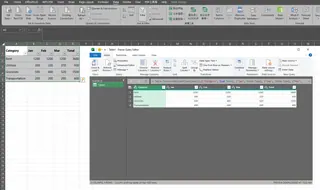
To solve our manager's request to list all "sandwich" items, you would construct a formula like the one shown in the example:
=SORT(FILTER(A2:D12, B2:B12="sandwich"))
This formula tells Excel to:
FILTER(A2:D12, B2:B12="sandwich"): Look at the data inA2:D12and return only the rows where the value in columnBis "sandwich".SORT(...): Take the array of data returned by theFILTERfunction and sort it. In this specific example, theSORTfunction is used without the optional [sort_index] and [sort_order] arguments. Based on the result shown in the image, it sorts the filtered results in ascending order based on the first column (Item Name), which is the default behavior.
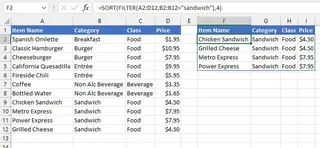
To get the unique list of categories, you'd use another nested formula:
=SORT(UNIQUE(B3:B8))
The Limitations of the "Modern" Manual Method
While powerful, this approach is far from perfect. It still presents significant challenges:
- High Learning Curve: You need to be an Excel power user. You must not only know that these functions exist but also understand their syntax, arguments, and how to nest them correctly.
- Rigid and Inflexible: What if your manager comes back and says, "Great, now can you also exclude the 'Cost' column and only show me items under $8?" You can't just "tweak" your request. You have to deconstruct and rewrite the entire formula, perhaps even nesting another
FILTERfunction. - Prone to Errors: The infamous
#SPILL!error appears if there's any data in the cells where the formula needs to spill its results. Forgetting a comma or using the wrong column index can lead to incorrect results that are hard to spot. - Difficult to Understand: A formula like
=FILTER(FILTER(Menu,Menu[Price]<5),{1,0,1})is cryptic. A colleague taking over your spreadsheet would have to spend significant time deciphering your logic, making collaboration difficult.
You're spending more time thinking like Excel than thinking about the business insights you're trying to uncover.
The New Solution: Using an Excel AI Agent (Excelmatic)
What if you could skip the formula-building process entirely? What if you could simply state your request in plain language, just as you would to a human assistant? This is exactly what Excel AI agents like Excelmatic are designed to do.

Excelmatic acts as a "translator" between your business questions and Excel's technical execution. You upload your data, chat with the AI, and it generates the results—tables, formulas, pivot tables, and charts—for you.
Step-by-Step: Solving the Same Problem with Excelmatic
Let's tackle the same manager request using Excelmatic.
1. Upload Your Data File
First, you drag and drop your Excel or CSV file directly into the Excelmatic interface. The AI instantly reads your headers and data structure.

2. Describe Your Request in Natural Language
Instead of writing a formula, you simply type your request into the chat box. You can ask for both things at once or one by one.
Here are some example prompts you could use:
- "Show me all items from the 'sandwich' category and sort them by price from highest to lowest."
- "Create a new list with all the unique product categories, sorted alphabetically."
- "Count the number of unique teams in the 'Team Name' column."
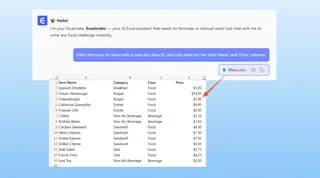
- "Filter the menu for items with a price less than $5, and only show me the 'Item Name' and 'Price' columns."
3. Review and Iterate on the Results
Excelmatic processes your request and immediately presents the result, often as a clean data table. But the real power lies in the conversational follow-up. You can continue the dialogue to refine your analysis.
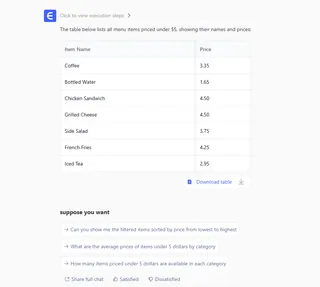
This iterative process is impossible with static formulas. With Excelmatic, you can explore your data freely, asking new questions as they come to mind.
4. Export Your Results
Once you're satisfied, you have several options:
- Download a new Excel file containing the generated tables, charts, or pivot tables.
- Copy the generated data to paste into your existing workbook.
- Ask for the formula itself. Excelmatic can provide the exact dynamic array formula (
=SORT(FILTER(...))) it used, which you can then copy and use in your own spreadsheets.
A Sample Conversation with Excelmatic
Here’s how that interaction might look:
User: I've uploaded my menu sales data. Can you filter it to show only items in the "sandwich" category and then sort them by price, highest first?
Excelmatic: Done. I have filtered your data for the "sandwich" category and sorted the results by the 'Price' column in descending order. The new table is ready. Would you like to visualize this with a chart?
User: No thanks. Now, using the original data again, can you create a separate list of all unique categories and sort them alphabetically?
Excelmatic: Certainly. I have generated a unique, alphabetized list of categories. This can be used as a source for a data validation dropdown list in Excel.
Traditional Formulas vs. Excelmatic: A Quick Comparison
| Feature | Traditional Dynamic Arrays | Excelmatic (AI Agent) |
|---|---|---|
| Time to Result | 5-15 minutes (includes writing & debugging) | < 1 minute |
| Required Skill | Advanced (knowledge of SORT, FILTER, etc.) |
Basic (ability to describe your goal) |
| Flexibility | Low (changes require rewriting formulas) | High (refine results with follow-up questions) |
| Error Handling | Manual (user must debug #SPILL!, etc.) |
Automated (AI handles logic, avoiding errors) |
| Readability | Low (cryptic formulas) | High (conversation history is self-documenting) |
FAQ
Q: Do I need to know dynamic array functions like FILTER or SORT to use Excelmatic? A: Not at all. The entire purpose of Excelmatic is to abstract away the complexity of formulas. You only need to describe the outcome you want in plain language.
Q: Is my data safe when I upload it to Excelmatic? A: Data privacy and security are top priorities. Excelmatic processes your data securely and does not store it long-term without your permission. For specific details, always refer to the official privacy policy on the website.
Q: Can Excelmatic generate the actual dynamic array formulas for me to use in my own sheet? A: Yes. You can ask Excelmatic to provide the formula it used to generate a result. This is a great way to learn how advanced formulas work or to implement them directly in your own workbooks.
Q: What if my data is messy or not perfectly structured? A: Excelmatic includes data cleaning capabilities. You can ask it to perform tasks like "remove duplicate rows," "fill in the blank cells in the 'Region' column with the value from the cell above," or "split the 'Full Name' column into 'First Name' and 'Last Name'."
Q: How does Excelmatic handle errors like #SPILL!? A: Since Excelmatic generates the output directly in a controlled environment, it effectively prevents these errors from happening on your end. It calculates the required space and presents a clean table, bypassing the common frustrations of manual formula entry.
Q: Is Excelmatic suitable for complete Excel beginners? A: Absolutely. It's one of the fastest ways for beginners to perform powerful data analysis without spending months learning complex functions. It empowers them to get insights from day one.
Take Action: Upgrade Your Excel Workflow Today
Every minute you spend wrestling with a complex formula, debugging a #SPILL! error, or trying to remember the correct syntax for VLOOKUP is a minute you're not spending on strategic analysis. The opportunity cost of sticking to manual methods is high—it's measured in wasted hours, potential errors in reports, and the inability to respond quickly to new questions.
By embracing an Excel AI agent, you transform your workflow from one of tedious execution to one of strategic inquiry. You can focus on what to ask your data, not how to ask it.
Ready to see the difference? Try Excelmatic for free. Upload one of the spreadsheets you're working on right now and try asking a question from this article. You might be surprised at how much time you get back.