Key Takeaways:
- Traditional Excel automation tools require navigating complex menus and learning specific functions, creating a steep learning curve for business users
- Excelmatic eliminates the tool-learning process by letting you automate tasks using simple language commands
- Compared to traditional add-ins, Excelmatic provides intuitive, conversational interaction that adapts to your specific needs without predefined buttons
- For business professionals, adopting AI agents means faster automation and more time for strategic work rather than technical setup
Excel users frequently encounter tasks that require multiple steps, repetitive operations, or workarounds for limitations in Excel's standard functionality. Data merging, batch formatting, advanced lookups, and complex data manipulation often consume significant time and introduce opportunities for errors.
For years, traditional add-ins have addressed these productivity challenges by providing specialized tools that streamline common Excel operations. However, a new generation of AI-powered tools, like Excelmatic, is revolutionizing this space by offering a conversational, instruction-based approach to automation.
This guide will compare these two powerful but fundamentally different solutions. While traditional add-ins automate many complex tasks through a feature-rich interface, Excelmatic transforms the experience by understanding what you need and executing it for you.
The Traditional Approach: What Is Kutools?
Kutools for Excel is a comprehensive add-in designed to expand Microsoft Excel's native features. The software provides over 300 additional tools and functions that aim to simplify complex Excel operations into single-click solutions.
Developed by ExtendOffice with its initial release in 2008, Kutools has gained popularity among Windows-based Excel users worldwide. The software addresses common Excel limitations by providing a new ribbon tab filled with enhanced functionality for data manipulation, worksheet management, and advanced calculations.
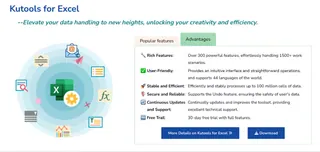
Kutools for Excel overview.
The AI-Powered Alternative: What Is Excelmatic?

Excelmatic represents the next wave of Excel productivity tools: an AI Agent. Instead of a toolbar with hundreds of buttons, Excelmatic provides a simple, conversational interface. Users upload one or more Excel files and then state their needs in plain language.
Excelmatic handles the rest, whether it's data analysis, chart generation, formula creation, or data cleaning. It interprets your request and executes the task, delivering instant answers, charts, and AI-driven insights. This approach eliminates the need to search for the right button or learn a new interface, focusing instead on your desired outcome.
Installation and Setup: A Tale of Two Systems
How you get started with these tools highlights their core differences.
Kutools: The Classic Installation
Installing and configuring Kutools for Excel requires a traditional software setup process.
System requirements and compatibility: Kutools for Excel supports Windows operating systems and integrates with Office 365 and Excel 2007-2024. Note: Kutools is not compatible with macOS.
Step-by-step installation guide:
- Download the installer from the official ExtendOffice website.
- Close all Excel applications.
- Run the installer as an administrator.
- Follow the installation wizard, accept the license agreement, and choose an installation directory.
- Complete the installation and restart Excel.
After installation, Kutools appears as a new ribbon tab. You can then configure its settings and customize the Quick Access Toolbar to pin your most-used features.
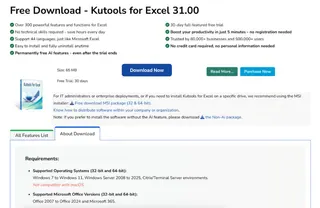
Excelmatic: The Modern, Zero-Install Approach
Excelmatic, as an AI agent, is typically web-based. This means:
- No Installation: There's no software to download or install. You access it through your web browser.
- Cross-Platform Compatibility: It works on any operating system with a modern browser, including Windows, macOS, and Linux.
- Instant Access: Simply log in, upload your file(s), and start making requests.
This zero-install model is a significant advantage for users on unsupported systems like macOS or in corporate environments where software installation is restricted.
Feature Showdown: Solving Common Excel Problems
Let's compare how each tool tackles common, time-consuming Excel tasks.
1. Merging Worksheets and Workbooks
The Kutools Way: Kutools offers dedicated tools like Combine Worksheets and Merge Workbooks. These features open a wizard where you select the files or sheets to merge, specify how to handle headers, and choose the destination. It's a structured, step-by-step process that automates the manual copy-and-paste routine.
The Excelmatic Way: With Excelmatic, you upload all the relevant files and simply ask. For example:
Merge the data from these three monthly report files into a single master sheet. Match the columns by their headers and add a new column to indicate the source file for each row.
Excelmatic interprets the request and performs the consolidation, often faster and with more flexibility than a rigid wizard.
2. Batch Editing and Data Cleaning
The Kutools Way: Kutools provides a suite of specific tools for batch operations: Rename Multiple Sheets, Convert Data Formats, and Batch Delete Operations (e.g., remove empty rows). Each tool is designed for one specific task, which you apply across multiple sheets or ranges.
The Excelmatic Way: Excelmatic handles these as data cleaning instructions. You describe the end state you want:
In this file, remove all blank rows. Then, convert the 'Order Date' column from text to a standard date format. Finally, trim all leading and trailing spaces from the 'Customer Name' column.
You can chain multiple cleaning steps into a single request, making complex data preparation incredibly efficient.
3. Advanced Data Lookups and Management
The Kutools Way:
The Super Lookup feature in Kutools overcomes the limitations of VLOOKUP(), allowing for right-to-left searches and returning multiple matches. The Duplicate Remover provides a powerful interface for finding and deleting duplicates based on multiple columns.
The Excelmatic Way: This is where AI shines. You don't need a special lookup function; you just describe the relationship you want to find:
For each product ID in Sheet1, find the corresponding price and stock level from the 'Inventory' sheet and add them as new columns.
For duplicates, you can ask:
Identify all rows with a duplicate email address and show me them. Then, remove the duplicates, keeping only the most recent entry based on the 'Signup Date' column.
4. AI Assistance and Formula Generation
The Kutools Way: Kutools recently introduced AI Aide, a feature that can generate formulas from plain language descriptions and assist with VBA scripting. It's an AI feature integrated into a traditional tool.
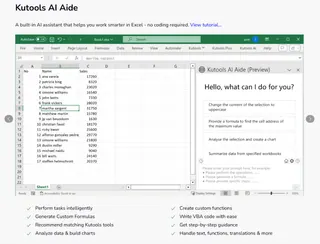
The Excelmatic Way: Excelmatic is the AI assistant. Its entire interface is built on this principle. Instead of just generating a formula for you to copy, Excelmatic can perform the analysis directly. You can ask "What is the total sales for each region?" and it will provide the answer, along with the option to see the underlying data or create a chart.
5. Visualization and Reporting
The Kutools Way: Kutools offers Advanced Chart Tools for quick formatting and creating specialized chart types, helping to standardize the look and feel of reports.
The Excelmatic Way: Visualization is a conversational command.
Create a line chart showing the sales trend for the 'North' region over the last 12 months.
Excelmatic generates the chart instantly, allowing you to refine it with follow-up requests like "Change it to a bar chart" or "Add data labels to each bar."
Performance and Security
Kutools for Excel
Kutools optimizes performance by running operations locally on your machine. This is a major plus for data security, as your data never leaves your computer unless you use the AI Aide feature, which may send data to external services. It also cleverly manages memory for large datasets and preserves Excel's native undo functionality.
Excelmatic
As a cloud-based tool, Excelmatic processes data on its servers. This enables it to handle extremely large datasets and complex computations without slowing down your local computer. Reputable AI services use robust encryption and data privacy protocols, but it's a different security model than local processing. Users should always be aware of their organization's data policies when using cloud-based tools.
Conclusion: Which Tool Is Right for You?
Both Kutools for Excel and AI agents like Excelmatic offer massive productivity gains, but they cater to different user preferences and workflows.
Choose Kutools if:
- You prefer a traditional, button-driven interface inside Excel.
- Your organization's policy requires all data to be processed locally.
- You are a Windows user and enjoy exploring a vast toolbox with over 300 specific, pre-defined functions.
- You prefer a one-time purchase over a recurring subscription.
Choose Excelmatic if:
- You value speed and ease of use, preferring to state your goal in plain language rather than searching for a tool.
- You work across different platforms, including macOS, or cannot install software on your work computer.
- You are comfortable with a secure, cloud-based workflow for enhanced processing power.
- You want an intelligent partner that not only executes tasks but also helps you analyze data and generate insights on the fly.
Ready to experience the future of Excel automation? Try Excelmatic today and discover how simple language commands can transform your workflow. Upload your file, describe what you need, and let Excelmatic handle the rest - no installation, no complex menus, just instant results that save you time and boost your productivity.
The investment in an enhanced Excel tool, whether a traditional add-in or a modern AI agent, often pays for itself within months through reclaimed time and reduced errors. The best way to decide is to try them. Start with the Kutools 30-day trial and explore an AI agent like Excelmatic to see which workflow accelerates your productivity the most.
Does Kutools work with Excel's built-in features like PivotTables?
Yes, Kutools enhances rather than replaces Excel's native functionality and works seamlessly with built-in features like PivotTables and standard formulas.
What is the main difference between Kutools and an AI agent like Excelmatic?
Kutools is a toolbar add-in with over 300 specific buttons and tools for you to find and click. Excelmatic is a conversational AI where you state your goal in plain language, and the AI performs the task for you without needing you to find a specific tool.
Is Kutools for Excel compatible with Mac computers?
No, Kutools for Excel is designed exclusively for Windows operating systems and is not compatible with macOS. AI agents like Excelmatic are typically web-based and work on any OS, including Mac.
How much does Kutools for Excel cost?
A single-user license costs US$49 and includes perpetual access, free updates, and technical support for 2 years.
Is my data secure when using these tools?
With Kutools, most operations happen locally on your computer, which is highly secure. With cloud-based AI agents like Excelmatic, data is processed on external servers; ensure the provider has strong security and encryption protocols. Always check your company's data policy.
Can I try these tools before purchasing?
Yes, Kutools offers a 30-day free trial with full functionality. Most AI agents also offer a free trial or a free tier to let you test their capabilities.