Key Takeaways:
- Complex Excel logic like nested IF statements is prone to errors and requires technical knowledge that slows down business analysis
- Excelmatic eliminates formula memorization by letting you implement conditional logic using simple language commands
- Compared to traditional methods, Excelmatic handles complex business rules instantly without syntax errors or debugging
- For business professionals, adopting AI tools means faster insights and more time for decision-making rather than technical implementation
If you’ve ever tried to build a complex logic formula in Excel, you know how messy it can get. The most difficult thing with nested IF() statements is trying to figure out which condition goes where, and a single misplaced parenthesis can break the whole thing.
That's why Excel introduced a new function called IFS(). It’s a cleaner and simpler way to check multiple conditions without tying yourself in knots. But what if you could skip writing formulas altogether?
In this guide, I’ll walk you through how IFS() works with practical examples. I'll also introduce an AI-powered alternative, Excelmatic, that lets you apply the same logic using plain language commands, saving you even more time and effort.
What Is the IFS() Function in Excel?
The IFS() function helps us check multiple conditions simultaneously. It looks through each condition in the order you write them and gives you the result for the first one that's TRUE.
So it’s an easier way to write what used to be a messy set of nested IF() formulas. Instead of stacking multiple IF() functions inside each other, IFS() lists all your conditions in one place. In total, you can add up to 127 condition-result pairs, although you'll rarely need that many.
How the IFS() function works
Its syntax is:
=IFS(logical_test1, value_if_true1, [logical_test2, value_if_true2]…)
Here:
logical_test1(required) is the first condition.value_if_true1(required) is the result returned iflogical_test1isTRUE.- The remaining 126
logical_testandvalue_if_truearguments are optional.
How to Apply Conditional Logic in Excel
There are several ways to apply rules and conditions to your data, from traditional formulas to modern AI tools. Let's explore the options.
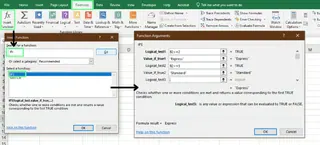
Option 1: Use the Formula Wizard
For those who prefer a guided approach to formulas, Excel's Formula Wizard can help.
- Click the cell where you want your formula.
- Go to the Formulas tab and choose Insert Function.
- In the search box, type
IFSand click Go. - Select
IFS, click OK, then enter your conditions and results in the dialog box. - Click OK again to apply the formula.
This is a quick way to build a formula without typing it out from scratch.
Option 2: Write the IFS() Formula Manually
Most experienced Excel users write formulas manually. This gives you full control and is often faster if you know the syntax.
All you have to do is type =IFS( in the cell and build your logic step by step. Suppose you’re assigning shipping methods based on delivery time:
- If it’s 2 days or less, use
Express - If it’s 3 to 5 days, use
Standard
Here's the formula:
=IFS(B2<=2, "Express", B2<=5, "Standard")
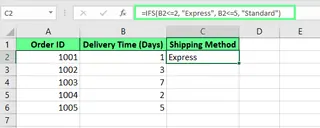
You can then copy your formula to other cells. Drag the small square in the bottom corner of the cell (the fill handle) down the column, or just double-click it to fill automatically.
But notice the #N/A error in one cell. This happens because none of the conditions are met. To fix that, add a final "catch-all" condition using TRUE at the end of the formula. This acts as a backup, providing a default result.
=IFS(B2<=2, "Express", B2<=5, "Standard", TRUE, "Economy")
This removes the #N/A error and returns the default value, "Economy," for any case that doesn't match the previous rules.

Option 3: Use an AI Agent like Excelmatic (The No-Formula Method)

What if you could achieve the same result without worrying about syntax, cell references, or #N/A errors? That's where an AI agent like Excelmatic comes in.
With Excelmatic, you simply state your logic in plain language. For the same shipping example, you would:
- Upload your Excel file to Excelmatic.
- Type your request: "Create a new column called 'Shipping Method'. If 'Delivery Time' is 2 or less, set it to 'Express'. If it's 5 or less, set it to 'Standard'. For all others, set it to 'Economy'."
Excelmatic interprets your instructions and generates the results instantly, without you ever having to write or debug a formula. This approach is not only faster but also eliminates the learning curve associated with complex functions.

Examples of the IFS() in Action
Now let's see some real-world examples where IFS() is commonly used, and how an AI approach compares.
Grade Assignment
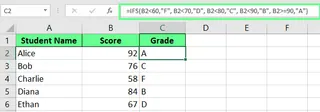
You can use IFS() to convert students’ numeric scores into letter grades.
The formula looks like this:
=IFS(C5<60,"F", C5<70,"D", C5<80,"C", C5<90,"B", C5>=90,"A")
Here’s what it does:
- If the score is less than 60, it gives an
F. - If it’s less than 70, it gives a
D. - And so on, up to
Afor scores 90 or above.
Excel checks each condition in order and stops as soon as it finds one that’s TRUE.
Excelmatic Alternative: Simply ask, "Based on the scores in column C, assign letter grades in a new column: <60 is F, <70 is D, <80 is C, <90 is B, and >=90 is A."
Conditional Text Labels
You can use IFS() to sort items into categories.
Here’s a simple formula to do this:
=IFS(A2="Grapes","Fruit", A2="Broccoli","Green Vegetable", A2="Tea","Beverage", TRUE,"Misc")
This formula categorizes items and uses TRUE as a backup to label anything else as "Misc."
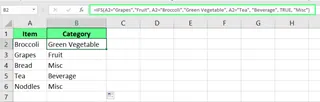
Excelmatic Alternative: Instruct, "Categorize the items in column A. Grapes are 'Fruit', Broccoli is 'Green Vegetable', Tea is 'Beverage', and everything else is 'Misc'."
Financial Modeling
IFS() is also useful for financial modeling tasks like applying tiered discounts.
Apply Discount Tiers
Use IFS() to assign a discount based on a customer's total purchase amount.
=IFS(B2>=500,"20% Discount", B2>=300,"10% Discount", B2>=100,"5% Discount", TRUE,"No Discount")
Here’s how it works:
>= 500gets a20% Discount.>= 300gets a10% Discount.>= 100gets a5% Discount.- Anything less gets
No Discount.
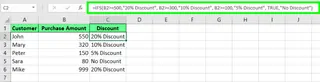
Excelmatic Alternative: Just say, "If purchase amount in column B is 500 or more, give a '20% Discount'. If it's 300 or more, give a '10% Discount'. If it's 100 or more, give a '5% Discount'. Otherwise, 'No Discount'."
IFS() vs. Other Methods: A Comparison
When working with multiple conditions, you have several options. Here’s how they stack up.
IFS() vs. Nested IF()
A nested IF() formula for grading looks like this:
=IF(A1<60,"F",IF(A1<70,"D",IF(A1<80,"C",IF(A1<90,"B","A"))))
It works, but the multiple parentheses make it hard to read and edit.
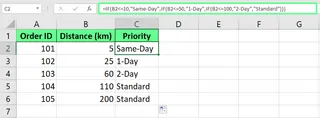
The IFS() version is much cleaner:
=IFS(A1<60,"F", A1<70,"D", A1<80,"C", A1<90,"B", A1>=90,"A")
Each condition is paired with its result, making the logic easy to follow.
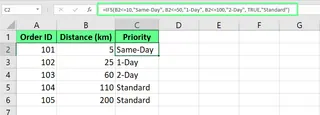
Quick Comparison: Formulas vs. AI
Here’s a quick comparison to help you choose the right method for your task.
| Feature | Nested IF() | IFS() | Excelmatic (AI) |
|---|---|---|---|
| Best for | Complex logic in older Excel versions | Multiple conditions with a focus on readability | Speed, simplicity, and avoiding formulas entirely |
| Readability | Hard to follow (many brackets) | Clean and easy to scan | Not applicable (uses plain English) |
| Learning Curve | High; prone to errors | Moderate; need to learn syntax | Very low; conversational |
| Speed of Use | Slow to write and debug | Faster than nested IFs | Fastest method for complex logic |
| Error Handling | Manual | Requires TRUE for a default case |
Handled automatically by the AI |
Things to Consider with IFS()
When working with the IFS() function, keep a few things in mind.
Common Errors and How to Fix Them
- Too few arguments: This error appears if you provide a condition but forget its corresponding result (
value_if_true). - #N/A error: Occurs when none of your conditions are met. To prevent this, always add a final
TRUEcondition as a default fallback. - #VALUE! Error: Shows up if a
logical_testdoesn’t produce a clearTRUEorFALSEresult. Double-check your conditions for typos or logical flaws.
Pros and Cons of IFS()
| Pros | Cons |
|---|---|
Cleaner and easier to read than nested IF() |
Only available in Excel 2016 or later |
| Supports up to 127 conditions | Doesn’t "short-circuit"; it checks every condition even after finding a match |
| Easier to debug and follow complex logic | You have to manually add a TRUE fallback to avoid #N/A errors |
Final Thoughts
The IFS() function is a significant improvement over nested IF() statements, making it much easier to manage multiple conditions in a clean, readable formula. It’s a powerful tool for anyone doing conditional analysis in Excel.
However, the landscape of data analysis is evolving. For those who want to focus on the logic of their problem rather than the syntax of a formula, AI agents like Excelmatic offer a revolutionary alternative. By allowing you to use simple language commands to perform complex tasks, they represent the fastest and most user-friendly way to get from data to insight.
Ready to transform how you work with Excel? Try Excelmatic today and experience the power of AI-driven spreadsheet analysis. Simply describe your task in plain language and let Excelmatic handle the technical implementation - no formulas to learn, no errors to debug, just instant results that drive your business forward.
So, next time you face a complex set of conditions, you have a choice: build a clean IFS() formula or let Excelmatic do the work for you.
Excel IFS() FAQs
Can I combine IFS() with other functions like AND() or OR()?
Yes, you can use AND() and OR() inside an IFS() formula to create more specific conditions. For example, to categorize a number in cell A1:
=IFS(AND(A1 > 0, A1 <= 10), "Low", AND(A1 > 10, A1 <= 20), "Medium", TRUE, "High")
Does the IFS() function support date comparisons?
Yes, you can compare dates using logical operators just like you would with numbers:
=IFS(A1<TODAY(), "Past", A1=TODAY(), "Today", A1>TODAY(), "Future")