Key Takeaways:
- Creating and managing hyperlinks in Excel requires complex menu navigation and formula syntax, slowing down business workflows that rely on connected data
- Excelmatic eliminates technical complexity by letting you create, edit, and remove hyperlinks using simple language commands instead of manual processes
- Compared to traditional methods, Excelmatic handles bulk operations and dynamic linking scenarios effortlessly, processing hundreds of links in seconds
- For business professionals dealing with reports and dashboards, adopting Excelmatic means faster data connectivity and more time for analysis rather than technical implementation
In Excel, hyperlinks are not only useful for referencing external websites; they also offer an intuitive way to navigate between sheets and link information, creating truly interactive spreadsheets. While traditional methods for creating and managing links are effective, the emergence of AI tools now provides a much faster, more intelligent approach.
In this guide, we'll explore the complete landscape of creating and managing hyperlinks in Excel. We'll cover the main traditional methods—the Insert menu and the HYPERLINK() function—and compare them with the streamlined, AI-powered solution offered by Excelmatic.
For this tutorial, we will use a simple spreadsheet with a subset of articles published on a blog. It contains two sheets: the first with information about the articles, and the second with basic information about the authors.
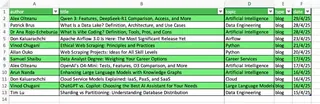
How to Insert a Hyperlink in Excel: The Traditional Way
The fastest manual way to create a hyperlink in Excel is to go to Insert > Link. This opens a dialog box with several options to create hyperlinks, including:
- Webpage or file
- Place in This Document
- Email Address
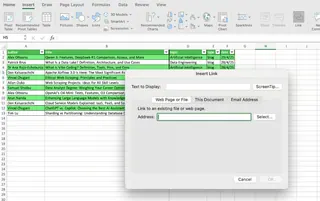
How to insert a webpage or file hyperlink
To create a webpage or file hyperlink, just add the URL or the file location on your computer in the Address box.
For example, let’s create a link to the first article in our sample. We can create the hyperlink directly in the cell with the article's title (B2) or in a separate column. When we add the URL, the Text to display field will automatically populate with the cell's current text. Once you click OK, the text will be formatted as a hyperlink.
If you create the hyperlink in a blank cell, Text to display will show the URL by default, but you are free to change this to more descriptive text.
Finally, to display helpful information when you rest the pointer on the link, you can use the ScreenTip button.
The process to link to a file is the same. Just choose the local file you want to insert, and Excel will create the hyperlink with the full path.
Below you can find a hyperlink with the location of an HTML file containing the article.
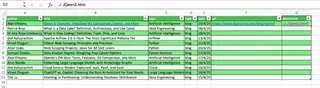
Note that a hyperlink referencing a local path on your computer will not work for other users you share the workbook with unless the file is on a shared drive accessible to everyone.
How to link to a specific location in your worksheet
Excel also allows you to create hyperlinks to internal locations within your workbook. To do this, choose Place in This Document, and then specify the sheet and cell reference (e.g., Authors!A5) you want to link to.
You can also create Defined Names for a cell or range and use the name instead of the cell reference, which makes your links more robust.
How to link email addresses
It’s very common to have a column containing emails. Excel allows you to create mailto: hyperlinks that automatically launch the user's default email program and create a new message with the provided address and, optionally, a subject.
Let’s see how it works with a fictional email address.
The AI-Powered Way: Instant Hyperlinks with Excelmatic

While the manual method is fine for a few links, it becomes incredibly tedious when you need to add dozens or hundreds. This is where an AI Excel Agent like Excelmatic shines.
Instead of a multi-step process for each link, you can simply upload your file and give Excelmatic a simple language instruction.
For example, to create links for all our articles at once, you would just ask:
In the 'Articles' sheet, use the URLs from column C to create hyperlinks on the article titles in column B.
Excelmatic instantly processes the entire column, converting each title into a clickable link pointing to its corresponding URL. This approach saves time, eliminates repetitive clicking, and reduces the chance of manual error.
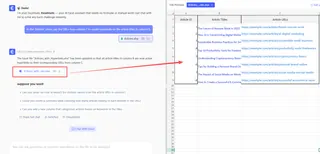
Managing and Formatting Existing Hyperlinks in Excel
Once you create your hyperlinks, Excel provides you with different tools to manage and format them.
Editing a hyperlink
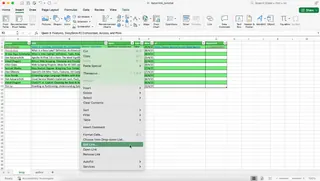
To edit an existing hyperlink, right-click the hyperlink and select Edit Hyperlink to update the address or display text.
Removing a hyperlink
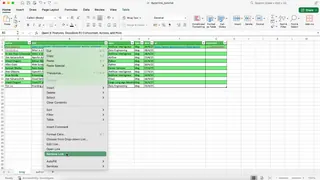
To remove a single hyperlink, right-click it and choose Remove Hyperlink.
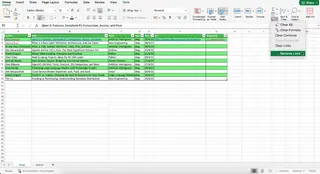
To remove multiple hyperlinks at once, select the cells of interest and go to Home > Clear > Remove Hyperlinks.
The Excelmatic Method: Effortless Bulk Removal
Need to strip hyperlinks from an entire dataset? The manual 'select and clear' method works, but with a large or non-contiguous range, it can be cumbersome. With Excelmatic, the task is trivial.
Just ask:
Remove all hyperlinks from column B in the 'Articles' sheet.
In one step, all hyperlinks in the specified range are removed, while the text remains intact.
Formatting hyperlinks
Excel uses a default style for hyperlinks, but you are free to use other styles. Go to Home > Cell Styles, right-click the Hyperlink style, and select Modify to adjust font color, underline settings, or other formatting options.
Building Links with the HYPERLINK() Function
For more dynamic scenarios, you may want to create hyperlinks using the HYPERLINK() function. This function helps you programmatically create new hyperlinks or convert existing text into clickable links.
The syntax of the HYPERLINK() function is:
=HYPERLINK(link_location, [friendly_name])
link_locationis the URL or path to the link destination.friendly_nameis the optional text to display in the cell.
For dynamic internal linking, you can use the # symbol before the sheet and cell reference. You can also link to another workbook by providing its full path in the link_location argument.
Below are several examples of how to use this function:
HYPERLINK() Function vs. Excelmatic: The Modern Alternative
The HYPERLINK() function is the traditional powerhouse for creating dynamic or bulk hyperlinks. It offers great flexibility but requires you to understand and correctly write its syntax. This method has a learning curve, and you need to remember the function's structure and how to correctly reference cells or concatenate text.
The AI-Powered Alternative: No Formulas Needed
Excelmatic completely bypasses the need to write formulas. You describe the desired outcome, and the AI handles the logic. To create dynamic internal links without a formula, you would simply state your goal:
For each row in the 'Articles' sheet, create a link in column D that says 'View Author' and links to the author's information in the 'Authors' sheet, matching by the 'Author' name.
Excelmatic interprets this request, finds the corresponding cells, and creates all the internal links automatically. It combines the power of a dynamic function with the simplicity of a conversation, making it a far more intuitive and efficient solution.
Other Interesting Things You Can Do with Hyperlinks
Converting existing text into clickable hyperlinks
Excel automatically detects URLs starting with http://, www., or mailto:. However, if you have a column of URLs as plain text, you can activate them by double-clicking in each cell and pressing Enter. For a large list, this is impractical.
The HYPERLINK() function is a better manual solution, as we saw previously. But the fastest way is with Excelmatic. Just ask:
In column C, convert all text URLs into clickable hyperlinks.
Workarounds for embedding links in partial text
Excel does not natively allow hyperlinking only part of the text within a cell. However, there are some tricks you can use to give the impression that only part of the text is a link.
For example, you can apply the hyperlink to the entire cell, then select the text you don’t want to appear linked, remove its underline, and change the font color to black. Alternatively, you can place the text and the hyperlink in adjacent cells for a similar visual effect.
Conclusion
Hyperlinks are a fundamental tool for making your spreadsheets more connected and interactive. Whether you're referencing external documents or building a dynamic navigation system within your workbook, knowing how to create and manage them is an essential skill.
While traditional methods like the Insert menu and the HYPERLINK() function give you full control, they can be time-consuming for repetitive tasks. As we've seen, modern AI agents like Excelmatic offer a revolutionary alternative. By using simple, plain language commands, you can perform bulk operations—from creating hundreds of links to removing them—in a fraction of the time. This allows you to focus on your data and insights, not on the repetitive clicks and formulas.
Ready to revolutionize how you manage Excel hyperlinks? Try Excelmatic today and experience instant link creation and management with just a simple command.