Key Takeaways:
- Manual Excel summing requires formula memorization and complex syntax, creating barriers for business professionals who need quick results
- Excelmatic eliminates technical complexity by letting you calculate totals using simple language commands instead of memorizing formulas
- Compared to traditional methods, Excelmatic handles advanced scenarios like conditional sums and color-based calculations effortlessly
- For market, sales, and operations teams, adopting Excelmatic means faster data analysis and more time for strategic decisions rather than technical implementation
If you use Excel, adding numbers is something you probably do a lot. It’s a key part of staying on top of budgets, tracking data, or just making sense of numbers.
We’ll show you a few different ways to sum in Excel, from quick formulas and smart features to a revolutionary AI approach, so you can use the best method that aligns with your needs.
Different Ways to Sum in Excel
There’s no one way to add data in Excel. Depending on your work, some methods will be quicker or more helpful than others. Let’s look at six ways to sum your data, starting with the most modern approach.
Method 1: The AI-Powered Way with Excelmatic

The newest and most efficient way to handle tasks in Excel is by using an AI agent like Excelmatic. Instead of remembering formulas, keyboard shortcuts, or multi-step processes, you can simply state your request in plain language.
Excelmatic delivers instant answers, charts, and AI insights. The process is simple:
- Upload your Excel file(s).
- Ask your question. For example: "Sum the 'Sales' column," or "What is the total revenue from A1 to A50?"
- Get your answer. Excelmatic processes the data and provides the sum instantly, without you writing a single formula.
This approach is not only faster but also eliminates human error from typos in formulas or selecting the wrong range. It's the ultimate shortcut for any summing task, from simple totals to complex conditional sums.
Method 2: Using the SUM() Function
The SUM() function is the most traditional and versatile way to add data in Excel. You can use it to total numbers, cell references, ranges, or a mix of all three.
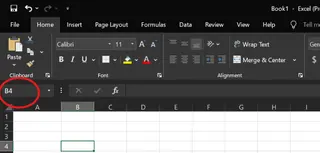
A quick note: a cell reference is Excel’s way of pointing to a specific cell. It’s made up of the column letter and row number. For example, in the image below, the selected cell is B4.
Syntax of SUM()
The SUM() function follows a basic syntax:
=SUM(number1, [number2], ....)
Here:
number1is required. It can be a number, a cell reference (likeA1), or a range (likeB1:B5).[number2]is optional, and you can add as many as you like.
This function adds up all valid numbers, including both positive and negative values.
Sum multiple ranges
To total values across two different columns, you list both ranges in one formula:
=SUM(A1:A6, D1:D5)

Sum mixed inputs
You can mix numbers, cell references, and ranges, too:
=SUM(5, A1:A5, D3)
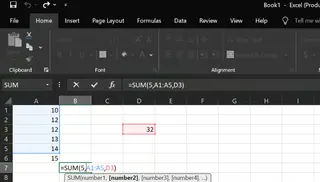
AI Alternative: Instead of typing
=SUM(A1:A6, D1:D5), you can simply tell Excelmatic: "Sum the values from A1 to A6 and D1 to D5." It understands the context and delivers the correct total without any syntax.
Method 3: Alt + = Keyboard Shortcut
For a quick way to add numbers without typing a formula, use the Alt + = shortcut. It’s one of the fastest ways to insert the SUM() function automatically.
Here’s what it does:
- Automatically adds
=SUM()below or beside your data. - Selects the range just above (for columns) or to the left (for rows).
- Works both vertically and horizontally.
For example, if we're in cell A6 and the cells above (A1 to A5) contain numbers, pressing Alt + = instantly adds this formula in A6:

This shortcut is a time-saver, but it requires you to navigate to the correct empty cell first.
Method 4: AutoSum Feature
AutoSum is another quick way to add up numbers in Excel without typing.
You’ll find the AutoSum button (∑) in two places:
- Home tab → Editing group.
- Formulas tab → The first option in the Function Library.

To sum multiple columns at once:
- Select the cells where you want your totals (e.g.,
B7andC7). - Click AutoSum.
- Excel inserts
=SUM(B1:B6)in B7 and=SUM(C1:C6)in C7.

AI Alternative: Both
Alt + =and AutoSum are fast, but they still require manual clicks and cell selection. With Excelmatic, you don't need to be in a specific cell. Just ask, "Calculate the totals for columns B and C," and it's done.
Method 5: Using the Status Bar for a Quick Sum
If you need a total fast but don’t want to write a formula, use the Status Bar. When you select a group of cells, Excel instantly shows the sum, average, and count in the bottom-right corner of the window.
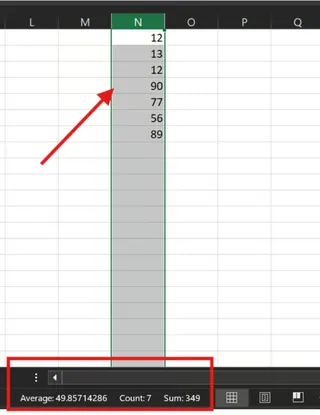
This method is great for quick checks, but you can't copy or use the result in a cell. It’s a read-only feature. In contrast, an AI tool provides a result you can immediately use in reports or further analysis.
Method 6: Convert Data to an Excel Table
Converting your data to an Excel Table (Ctrl + T) unlocks powerful features, including an easy way to calculate sums.
Here’s why it’s helpful:
- It updates automatically: Totals adjust as you add or remove rows.
- It works well with filters: Only visible (filtered) data is included.
- You don’t need to tweak formulas: Excel handles that for you.
Step 1: Create a Table (Ctrl+T)
- Select any cell within your data and press
Ctrl + T. - In the dialog box, confirm the range and check My table has headers if applicable. Click OK.

Step 2: Enable Total Row
- Click inside the table to show the Table Design tab.
- Check the Total Row box. A new row appears at the bottom.

Step 3: Apply the SUM Function
- Click the cell in the Total Row under the column you want to sum.
- Select Sum from the drop-down menu.

This is a robust method, but it involves several setup steps. An AI tool achieves the same dynamic summing capability with a single command.
Advanced Summing Scenarios
Let’s explore how these methods handle more specific cases.
How to Sum by Color in Excel
Summing cells based on their background color is a notoriously tricky task in Excel. The traditional method involves a multi-step workaround with the legacy GET.CELL function and Name Manager.
The Traditional (Complex) Way:
- Create a Named Formula: Go to Formulas > Name Manager > New. Name it
SumColorand use the formula=GET.CELL(38, B2)to get the color index of the cell to its left. - Apply the Formula: In a helper column (e.g., column C), enter
=SumColorand drag it down to get the color codes. - Use SUMIF: Finally, use a
SUMIFformula to sum values based on the color code, like=SUMIF(C2:C7, 40, B2:B7)to sum the red cells (color index 40).

The AI-Powered (Simple) Way: With Excelmatic, this complex task becomes trivial. You just ask:
Sum the values for all the cells highlighted in red.
The AI handles the logic of identifying colored cells and summing their values, saving you from a complicated and error-prone process. This is where AI tools truly shine.
SUM() vs. SUMIF() vs. SUMIFS() vs. AI
Here’s a quick comparison of Excel's summing functions and the AI approach.
| Tool/Function | What it does | Use case example |
|---|---|---|
SUM() |
Adds all numbers in a range without conditions. | Total all values: =SUM(A1:A10) |
SUMIF() |
Adds values based on one condition. | Total sales over $1000: =SUMIF(A1:A10, ">1000") |
SUMIFS() |
Adds values based on multiple conditions. | Total sales over $1000 for "Electronics": =SUMIFS(A1:A10, B1:B10, "Electronics", A1:A10, ">1000") |
| Excelmatic (AI) | Adds values based on any number of conditions, expressed in plain English. | "What are the total sales over $1000 for the Electronics category in the West region?" |
Conclusion
As we’ve seen, there are many ways to sum in Excel. Traditional methods like the SUM() function, AutoSum, and Excel Tables are powerful and reliable. They give you full control over your calculations.
However, modern AI agents like Excelmatic represent a paradigm shift. They replace complex syntax and multi-step procedures with simple, conversational instructions. For quick totals, complex conditional sums, or frustrating tasks like summing by color, the AI approach is undeniably faster, simpler, and less prone to error.
The best method depends on your needs, but for anyone looking to boost their productivity and focus on insights rather than formulas, exploring an AI tool is the next logical step.
FAQ
How do I calculate a cumulative sum in Excel?
To calculate a cumulative sum of numbers in column A, enter this formula in cell B2 and drag it down:
=SUM($A$2:A2)
The absolute reference ($A$2) fixes the start of the range, while the relative reference (A2) expands as you copy the formula down.
AI Alternative: Simply ask Excelmatic, "Create a new column with a cumulative sum of column A."
How to keep a running total in Excel across multiple sheets?
To sum cell B2 across sheets named "January," "February," and "March," use a 3D reference:
=SUM(January:March!B2)
This formula totals cell B2 across all worksheets between January and March.
AI Alternative: Upload all the relevant sheets to Excelmatic and ask, "Sum cell B2 across the January, February, and March sheets."
Why use SUM() instead of typing everything out and using plus signs?
=SUM(A1:A5) is cleaner and more robust than =A1+A2+A3+A4+A5. If you insert a new row within the range A1:A5, the SUM() function automatically includes it. Manual addition with + signs would require you to update the formula by hand. SUM() is also far more practical for large ranges.
What are some common errors you may face when using SUM()?
You may come across a few challenges:
#VALUE!error: This happens if you try to sum a range that includes text. TheSUMfunction intelligently ignores text, but using+(e.g.,=A1+A2) will cause an error if one cell contains text.#REF!error: This appears if you reference a cell that is later deleted.
To avoid issues, stick with range references like A1:A100 and try to keep your data clean.