Key Takeaways:
- Excel sorting requires navigating complex menus and remembering specific steps for different data types, slowing down business analysis workflows
- Excelmatic eliminates menu navigation by letting you sort data using simple language commands instead of memorizing technical procedures
- Compared to traditional methods, Excelmatic handles advanced scenarios like multi-column sorting and custom sequences effortlessly in a single step
- For business professionals, adopting Excelmatic means faster data organization and more time for insights rather than technical implementation
Whether you're managing financial records, tracking inventory, or analyzing survey responses, sorting allows you to arrange your data in a logical order for better readability and decision-making. It's a fundamental skill for any Excel user.
In this guide, we will walk you through various sorting techniques, from simple one-click sorting to advanced custom lists. But we'll also explore a modern alternative: using an AI agent to do the work for you. We'll compare the traditional, manual steps with the speed and simplicity of using an AI tool like Excelmatic, so you can choose the best method for your needs.
How to Sort By a Condition in Excel
Excel provides powerful sorting options that allow you to organize data based on different conditions, such as dates or cell colors. Let's look at the classic way and the new AI-powered way.
How to sort by date in Excel
The Traditional Method:
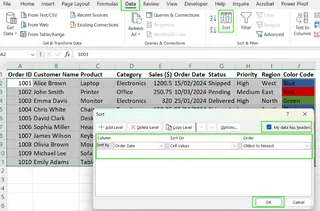
If you want to sort a column by date chronologically, you need to navigate through Excel's data tools.
- Select the data range containing the dates.
- Go to the Data tab and click Sort.
- In the Sort window, choose the column with dates under Column.
- Under Sort On, select Cell Values.
- Choose Oldest to Newest or Newest to Oldest under Order.
- Click OK to apply the sorting.
The AI-Powered Way: Sorting with Excelmatic

With an AI agent like Excelmatic, you can skip the menus and dialog boxes. Simply upload your file and state your request in simple language.
- Your Prompt: "Sort this table by the date column from oldest to newest."
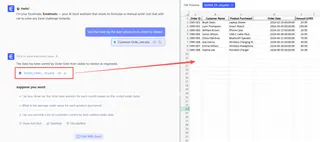
Excelmatic instantly understands your command, identifies the date column, and reorders your entire dataset correctly, saving you several clicks and menu navigation.
How to sort by color in Excel
The Traditional Method:
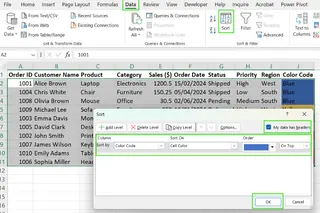
To bring attention to specific rows, you might use cell colors. Sorting by these colors helps group them together.
- Select the data range that includes colored cells.
- Open the Sort tool from the Data tab.
- In the Sort window, select the column that contains the color formatting.
- Under Sort On, choose Cell Color.
- Select the color you want to sort by and choose On Top or On Bottom under Order.
- Click OK to apply the sorting.
The AI-Powered Way: Sorting with Excelmatic
Again, a simple sentence is all you need. Excelmatic can interpret formatting-based requests.
- Your Prompt: "Sort the data to bring all the green cells in the 'Status' column to the top."
This conversational approach is not only faster but also more intuitive than navigating dropdowns to find the right color and position.
How to sort by column in Excel
Sorting by a single column's values is one of the most common tasks in Excel.
The Traditional Method:
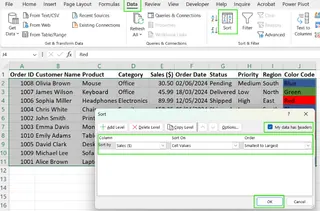
- Highlight the dataset you want to sort.
- Click on the Data tab and select Sort.
- In the Sort window, choose the column you want to sort by.
- Under Sort On, choose Cell Values.
- Choose Ascending (A-Z) for text or Smallest to Largest for numbers.
- Click OK to sort the selected column.
How to sort by alphabetical order in Excel
For quick alphabetical sorting, Excel offers dedicated buttons.
The Traditional Method:
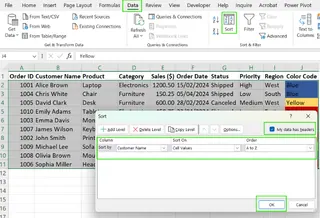
- Click anywhere inside the column you want to sort.
- Navigate to the Data tab.
- Click Sort A to Z (for ascending order) or Sort Z to A (for descending order).
- Excel will automatically expand the selection to keep your rows intact.
How to sort by number in Excel
Similar to alphabetical sorting, you can sort numbers from smallest to largest or vice versa.
The Traditional Method:
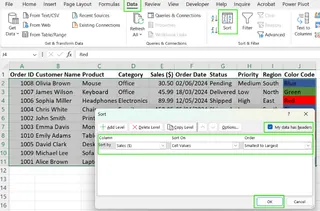
- Select the column that contains numerical values.
- Go to the Data tab.
- Click the Sort A to Z icon for smallest to largest, or the Sort Z to A icon for largest to smallest.
The AI-Powered Way (for all single-column sorting):
Whether it's text, numbers, or a generic column sort, the process with Excelmatic is identical and effortless.
- For alphabetical sort: "Sort the table by 'Customer Name' in alphabetical order."
- For numerical sort: "Arrange the data by 'Sales' from largest to smallest."
The key advantage here is clarity and consistency. You don't need to remember which icon means what; you just state your goal.
How to Sort by Multiple Columns in Excel
Often, you need to sort data by more than one criterion, like sorting employees by Department first, and then by Last Name.
The Traditional Method:
This requires adding "levels" to the sort dialog box.
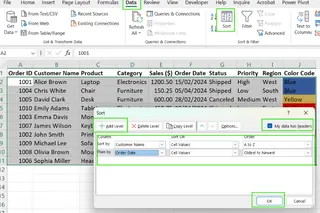
- Select your entire dataset, including the headers.
- Go to the Data tab and click Sort.
- In the Sort window, choose the primary column to sort by (e.g., "Department"). Set the order (e.g., A to Z).
- Click Add Level to create a secondary sorting rule.
- Choose the secondary column (e.g., "Last Name") and its sorting order.
- Repeat for any additional levels.
- Click OK to apply the multi-level sorting.
The AI-Powered Way: Sorting with Excelmatic
This is where AI tools truly shine. Instead of building rules level by level, you can describe the entire logic in one go.
- Your Prompt: "Sort the data first by 'Department' from A to Z, and then by 'Last Name' from A to Z."
Excelmatic parses the entire command and applies the hierarchical sort correctly in a single step. This is significantly faster and less error-prone than manually adding and configuring multiple levels.
Custom Sorting Techniques in Excel
Sometimes, you need to sort by visual cues like font color or conditional formatting icons.
Sorting by font color
The Traditional Method:
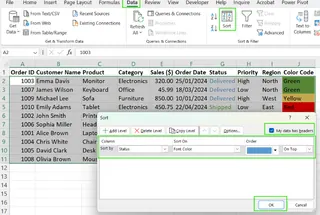
- Select your data range.
- Go to the Data tab and click Sort.
- In the Sort window, choose the column where font colors differ. Under Sort On, select Font Color.
- Under Order, select which font color should appear first.
- Click OK.
Sorting by icon
The Traditional Method:
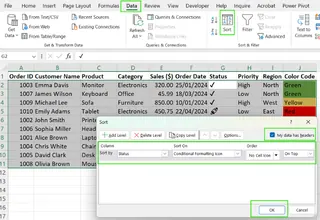
- Select the data containing icons from Conditional Formatting.
- Click the Data tab and choose Sort.
- In the Sort window, choose the column with icons. Under Sort On, select Cell Icon.
- Under Order, choose which icon should appear first.
- Click OK.
The AI-Powered Way (for all custom visual sorting):
Excelmatic can also handle these visual sorting tasks with simple instructions.
- For font color: "Sort this table to move all rows with red text in the 'Profit' column to the top."
- For icons: "Sort by the 'Task Status' column, putting the checkmark icon first, then the warning icon."
The AI understands the context of visual formatting, turning a multi-step configuration into a single, clear command.
Other Interesting Excel Sorting Problems
Let's tackle some unique sorting challenges and see how the two approaches compare.
How to sort birthdays by month in Excel
Sorting a list of birthdays by month (e.g., all January birthdays together, then February, etc.), regardless of the year, requires a workaround in traditional Excel.
The Traditional Method:
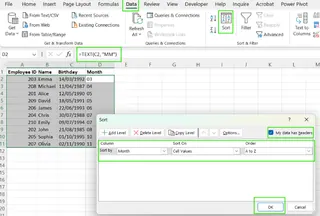
- Assume your "Birthday" column is in column A.
- In an empty column, add a helper formula to extract the month number:
=TEXT(A2, "MM") - Drag this formula down for all your data.
- Now, sort your entire table based on this new "Month" helper column from smallest to largest.
The AI-Powered Way: Sorting with Excelmatic
This is a perfect example of AI's power. It can handle the logic without needing a helper column.
- Your Prompt: "Sort my list of employees by their birth month, ignoring the day and year."
Excelmatic performs the month extraction and sorting in the background, giving you the final result directly. This saves you from altering your spreadsheet with temporary formulas and columns.
How to sort in Excel and keep rows together
A common mistake for beginners is sorting a single column and scrambling the data. The key is to ensure Excel sorts the entire row.
The Traditional Method:
- Always select the entire dataset before sorting, or...
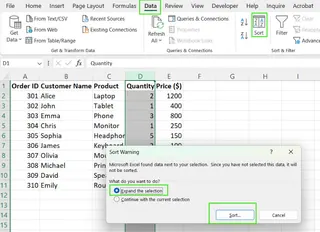
- Click in one column and use the Sort buttons. Excel will show a "Sort Warning" dialog.
- Ensure Expand the selection is chosen and click Sort. This keeps related data in each row together.
The AI-Powered Way: A Non-Issue
With Excelmatic, this problem doesn't exist. The AI is designed to work with structured data, so it automatically understands that your table rows must be kept intact. When you ask it to sort by a column, it intelligently applies the sort to the entire dataset, eliminating the risk of data misalignment.
Sorting horizontally (left to right)
Sometimes your data is laid out in columns instead of rows, and you need to sort it horizontally.
The Traditional Method:
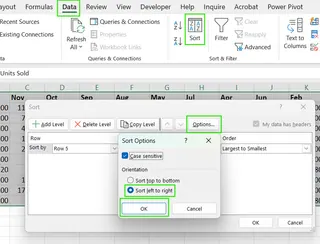
- Select the range of columns you want to sort.
- Click the Data tab, then Sort.
- In the Sort window, click Options.
- Under Orientation, choose Sort left to right and click OK.
- Now, back in the Sort window, select the row number you want to sort by.
- Choose the order and click OK.
The AI-Powered Way: Sorting with Excelmatic
The hidden "Options" menu can be hard to find. With AI, you just describe what you see.
- Your Prompt: "Sort the columns from left to right based on the values in row 1."
This command is far more direct than navigating the traditional interface for horizontal sorting.
How to Apply a Custom Sort in Excel
What if you need to sort by a non-alphabetic, non-numeric order, like "High", "Medium", "Low"? This requires a custom list.
The Traditional Method:
- Select your dataset.
- Go to the Data tab and click Sort.
- Choose the column to sort (e.g., "Priority").
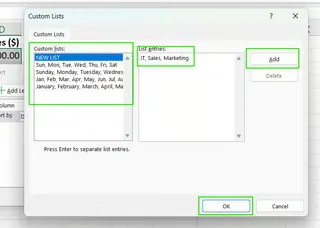
- Under Order, click the dropdown and select Custom List....
- In the Custom Lists window, select NEW LIST and type your order in the List entries box (e.g.,
High,Medium,Low, pressing Enter after each). - Click Add, then OK.
- Click OK again to apply the sort.
The AI-Powered Way: Sorting with Excelmatic
Creating and managing custom lists can be tedious. With an AI agent, you can define the order on the fly as part of your request.
- Your Prompt: "Sort the data by the 'Priority' column in the following order: High, Medium, Low."
Excelmatic understands the custom sequence from your sentence and applies it directly, without you ever having to open the custom list manager.
Excel’s SORT() function
For a more dynamic approach, Excel has a SORT() function. This formula-based method creates a new, sorted table that updates automatically when the source data changes.
The syntax is: =SORT(array, [sort_index], [sort_order], [by_col])
array: The range to sort.sort_index: The column number to sort by.sort_order:1for ascending,-1for descending.by_col:FALSEfor vertical (default),TRUEfor horizontal.
For example, to sort a table (A2:D11) by "Sales ($)" (the 4th column) in descending order, you would use:
=SORT(A2:D11, 4, -1)
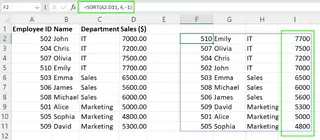
This function is excellent for dashboards and reports where data is constantly changing. However, for one-time sorting tasks, using the Data tab tools or an AI agent is often more direct.
Conclusion
Sorting is a cornerstone of data management in Excel. Mastering the traditional methods—from the simple A-Z sort to multi-level and custom lists—gives you precise control over your data. These skills are invaluable and provide a solid foundation.
However, the landscape of data interaction is changing. AI agents like Excelmatic offer a compelling alternative that prioritizes speed, simplicity, and natural language. By simply describing the outcome you want, you can bypass complex menus, avoid common errors like misaligned rows, and perform advanced sorting without helper columns or formulas.
Ready to revolutionize how you organize Excel data? Try Excelmatic today and experience instant sorting with just a simple command.
FAQ
What is sorting in Excel?
Sorting in Excel organizes your data in a specific order, such as alphabetically, numerically, by date, or based on a custom sequence.
How do I sort a column without affecting other data?
Always ensure your entire dataset is selected, or let Excel "Expand the selection" when prompted. AI tools like Excelmatic do this automatically, preserving row integrity by default.
Can I sort by more than one column at a time?
Yes. In traditional Excel, use the Sort dialog box to "Add Level" for each criterion. With an AI tool, you can state all criteria in a single sentence.
Can I sort with an AI tool in Excel?
Yes! AI agents like Excelmatic allow you to sort data by giving commands in plain English. You can handle simple, multi-level, and even custom sorting just by typing your request.
Does Excel have a formula to sort data automatically?
Yes, the SORT() function dynamically creates a sorted copy of your data range that updates automatically when the original data changes.