Key takeaways:
- Traditional Excel sorting becomes complex and time-consuming when dealing with multi-level criteria (e.g., sort by region, then by sales rep) or custom orders (e.g., T-shirt sizes 'S, M, L, XL').
- With an Excel AI agent like Excelmatic, you can replace confusing dialog boxes and manual steps by simply describing your sorting needs in plain language.
- Using Excelmatic dramatically reduces the time spent on data organization, minimizes human error, and provides the flexibility to handle complex, ad-hoc sorting requests in seconds.
The Daily Grind: Why Sorting in Excel Isn't Always a Simple Click
Sorting data is a fundamental task for anyone using Excel. Whether you're an analyst organizing sales figures, an HR manager reviewing employee lists, or a marketer tracking campaign performance, putting your data in a logical order is the first step toward making sense of it.
At first, it seems easy. You have a list of cities, and you click the "A-Z" button. Done. But what happens when your boss asks you to organize the sales report? "First, sort it by region. Then, within each region, I want to see the sales reps sorted by their total sales, from highest to lowest. Oh, and can you also sort the new leads by their status—'Hot', 'Warm', 'Cold'—in that specific order?"
Suddenly, that one-click task explodes into a frustrating puzzle. You're diving into multi-level sort dialog boxes, creating custom lists, and double-checking that you didn't accidentally sort the headers along with your data. This is where the "simple" act of sorting becomes a tedious, error-prone chore that eats away at your productive time.
The Traditional Way: Navigating Excel's Sort Dialog Box
To handle anything beyond a basic A-Z sort, Excel users typically rely on the Sort dialog box found under the Data tab. While powerful, it's a manual process that requires careful setup.
Let's look at a common scenario: sorting an employee list first by their first name alphabetically, and then by their age from youngest to oldest.
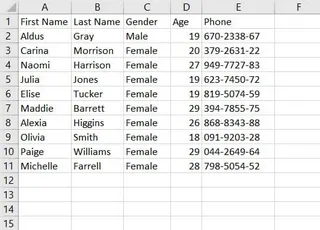
The Multi-Level Sort Process
- Select your data range (e.g.,
A1:E11). - Go to the Data tab and click the main Sort button.
- In the dialog box, set up the first level of your sort:
- Sort by:
First Name - Sort On:
Cell Values - Order:
A to Z
- Sort by:
- Click the Add Level button to create a second rule.
- Set up the second level:
- Then by:
Age - Sort On:
Cell Values - Order:
Smallest to Largest
- Then by:
- Click OK.

The result is a correctly sorted list. But what if you wanted to sort by age first, then name? You'd have to go back and change the order of the levels. The priority matters, and it's easy to get it wrong.
The Custom Sort Challenge
What about non-alphabetical or non-numerical orders, like sorting education levels from highest to lowest (Doctoral, Master, Bachelor)? Excel's A-Z sort would incorrectly place Doctoral after Bachelor. To fix this, you must create a Custom List.
This involves navigating to the Sort dialog box, choosing "Custom List..." from the Order dropdown, and manually typing your desired order (Doctoral, Master, Bachelor, Lower secondary).
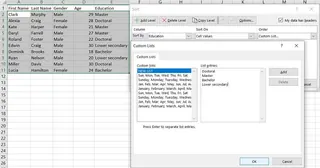
Limitations of the Traditional Method
While these tools work, they are fraught with limitations:
- Time-Consuming & Repetitive: Every new sort request requires you to go through the same multi-step dialog box configuration.
- High Risk of Error: Simple mistakes like forgetting to "Expand the selection," having hidden rows in your data, or dealing with numbers formatted as text can lead to incorrect sorting that you might not even notice.
- Inflexible: Custom lists are static. If a new category appears in your data (e.g., a "Post-doctoral" education level), your existing custom list won't account for it, and you'll have to manually update it.
- High Learning Curve: Remembering the counter-intuitive logic for multi-level sorting (especially the "sort last level first" trick with the A-Z icons) is not user-friendly for most people.
The AI-Powered Solution: Sorting Data with Excelmatic
Instead of clicking through menus and manually defining rules, what if you could just tell Excel what you want? This is exactly what an Excel AI agent like Excelmatic enables. You can skip the tedious setup and get perfectly sorted data by simply describing your requirements in plain language.
A New Approach: Just Ask for What You Want
Excelmatic acts as your personal data assistant. You upload your spreadsheet, and then you start a conversation. You don't need to know which buttons to click or how to build a custom list. You just need to know what you want the final result to look like.

Step-by-Step: Sorting with Natural Language
Let's revisit our previous challenges and see how they are solved in Excelmatic.
- Upload Your Data File
Simply drag and drop your Excel (
.xlsx) or CSV file into the Excelmatic interface. The AI will instantly read your data and show you a preview.

Describe Your Sort Request in a Single Sentence Instead of using dialog boxes, you type your request into the chat. Here are some examples based on the scenarios we discussed:
- Simple Sort:
Sort the table by "City" in alphabetical order. - Multi-Level Sort:
Sort the data first by "First Name" from A-Z, and then by "Age" from smallest to largest. - Custom Sort:
Sort the "Education Level" column in this specific order: Doctoral, Master, Bachelor, Lower secondary. - Row-based Sort:
Sort the columns from left to right based on the values in Row 2, from largest to smallest.
- Simple Sort:
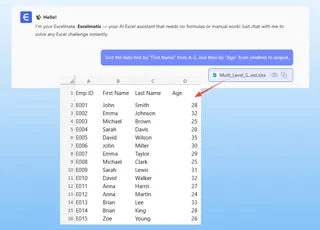
- Review and Refine Instantly
Excelmatic processes your request and immediately presents the sorted data. The best part? It's a conversation. If the result isn't quite right, you can easily refine it.
- "Actually, can you reverse the age sort to be from largest to smallest?"
- "Great. Now, filter out everyone younger than 30."
- "Add a new column that calculates a bonus of 5% of their salary."
This conversational iteration is impossible with traditional Excel tools and allows for rapid, flexible data exploration.
- Export Your Results Once you're satisfied, you can download the newly sorted and manipulated data as a clean Excel file with a single click.
A Sample Conversation with Excelmatic
Here’s how a complex sorting task becomes effortless:
User: I've uploaded my employee data. Please sort it by 'Education Level' using the custom order: Doctoral, Master, Bachelor, Lower secondary. Within each education level, sort the employees by 'Last Name' alphabetically.
Excelmatic: Done. I have sorted the data first by 'Education Level' according to your custom order, and then sub-sorted by 'Last Name' from A to Z. The updated table is ready for you to view. Would you like me to highlight all employees with a 'Doctoral' degree?
User: Yes, highlight them in yellow. And then sort the entire table again by 'Department' alphabetically.
Excelmatic: I have highlighted the specified rows and re-sorted the entire dataset by the 'Department' column. You can now download the new Excel file.
Traditional Sort vs. Excelmatic: A Quick Comparison
| Feature | Traditional Excel | Excelmatic (Excel AI) |
|---|---|---|
| Speed | Minutes to configure for complex sorts | Seconds to type a sentence |
| Complexity | High (multi-level dialogs, custom lists) | Low (natural language) |
| Flexibility | Rigid; requires re-doing steps for changes | High; easily refined through conversation |
| Error Rate | Prone to user error (wrong selection, hidden rows) | Low; AI handles data integrity checks |
| Learning Curve | Moderate to high | Virtually none; just describe your goal |
FAQ
Do I need to be an Excel expert to use Excelmatic for sorting? Not at all. If you can describe what you want in a sentence, you can use Excelmatic. There are no formulas or complex dialog boxes to learn.
Can Excelmatic handle sorting by multiple columns? Yes. You can specify as many levels as you need in a single prompt. For example: "Sort by Country, then by State, then by City."
What about custom sorting orders like "High," "Medium," "Low"?
Absolutely. Just include the order in your request: Sort the data by 'Priority' in the order: High, Medium, Low. The AI will understand and apply it correctly.
Will Excelmatic modify my original Excel file? No. Excelmatic works on a copy of your data in a secure environment. Your original file remains untouched on your computer.
Is my data safe when I upload it to Excelmatic? Yes, Excelmatic is built with data security as a top priority. Your data is encrypted and is not used for training models. For detailed information, always refer to the official privacy policy on the website.
What if my data is messy, with hidden rows or numbers stored as text? Unlike traditional Excel, which might fail silently, Excelmatic's AI can often identify these inconsistencies. It may either fix them automatically or ask you for clarification, leading to a more accurate outcome.
Stop Wasting Time on Manual Sorting: Upgrade Your Workflow with Excelmatic
Your time is too valuable to be spent fighting with sort dialog boxes. Every minute you spend manually organizing data is a minute you're not spending on analysis, strategy, and making impactful decisions.
By embracing an AI-powered approach with Excelmatic, you can transform data sorting from a tedious chore into an effortless, conversational task. You'll not only save hours each week but also improve the accuracy of your work and gain the flexibility to answer complex data questions on the fly.
Ready to see it in action? Try Excelmatic for free today. Upload one of your own spreadsheets and use one of the prompts from this article. You'll be amazed at how quickly you can get your data perfectly organized.