Key takeaways:
- Traditional Excel sorting is either manual and repetitive (the 'Sort' button) or requires learning complex dynamic array functions like
SORTandSORTBYfor automated, multi-level sorting. - Excel AI tools like Excelmatic eliminate this complexity, allowing you to perform sophisticated, multi-level sorting by simply describing your requirements in plain English.
- Using Excelmatic not only saves significant time and prevents formula errors but also offers incredible flexibility to change sorting criteria on the fly, just by having a conversation with the AI.
Problem background & pain points
Almost every Excel user, from HR managers tracking employee data to sales analysts reviewing performance, needs to sort data. You might have a simple list of names you want to alphabetize, or a complex sales report you need to organize by region, then by salesperson, and finally by sales amount.
The most common approach is the Sort button under the 'Data' tab. It works for a one-time sort, but it's a static, manual process. The moment you add a new employee or update a sales figure, your list is out of order again. You have to repeat the entire sorting process, clicking through dialog boxes and hoping you don't accidentally sort one column without the others, which can corrupt your entire dataset.
For those who want a more dynamic solution, Excel offers powerful functions. But this introduces a new set of challenges. Suddenly, you're no longer just organizing data; you're writing code. This is where the real headaches begin for many users.
The Traditional Excel Solution: Steps and Limitations
To overcome the limitations of manual sorting, Microsoft introduced dynamic array functions like SORT and SORTBY. These functions create a new, sorted version of your data that automatically updates when the source data changes. While powerful, they come with a steep learning curve.
Let's consider a typical employee dataset with columns for Name, Age, and Department.
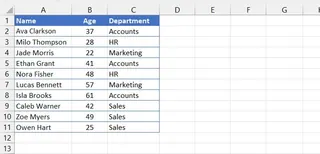
Using the SORT Function for Simple Sorting
The SORT function is designed for basic sorting tasks based on a single column.
Syntax: =SORT(array, [sort_index], [sort_order], [by_col])
To sort this table by Age in descending order (oldest to youngest), you would write:
=SORT(A2:C11, 2, -1)
A2:C11is the data range.2tells Excel to sort by the second column (Age).-1specifies a descending sort order.
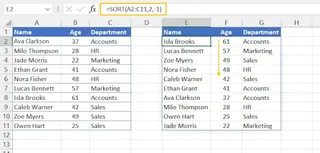
This works, but what if you need to sort by multiple criteria? That's where SORTBY comes in.
Using the SORTBY Function for Multi-Level Sorting
The SORTBY function allows you to sort your data based on multiple columns or conditions, a common business requirement.
Syntax: =SORTBY(array, by_array1, [sort_order1], [by_array2], [sort_order2], ...)
Imagine your manager asks you to sort the employee list first by Department (alphabetically) and then, within each department, by Age (oldest to youngest). You would need to construct this formula:
=SORTBY(A2:C11, C2:C11, 1, B2:B11, -1)
A2:C11is the data you want to return.C2:C11, 1is the first sorting level: the Department column, in ascending order (1).B2:B11, -1is the second sorting level: the Age column, in descending order (-1).
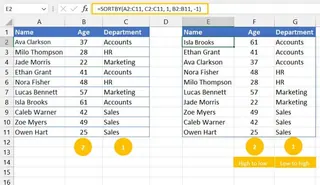
The Limitations of the Formula-Based Approach
While these functions are a huge step up from manual sorting, they are far from user-friendly:
- High Learning Curve: You must memorize the syntax, understand what
1and-1mean, and know the difference betweensort_index(a number) andby_array(a range). - Formulas are Brittle: The
SORTfunction relies on column index numbers. If you insert a new column betweenNameandAge, your formula=SORT(..., 2, ...)will now sort by the new, incorrect column. The formula breaks without any obvious warning. - Difficult to Debug: A long
SORTBYformula with multiple criteria is hard to read and even harder to troubleshoot if it returns an error or an unexpected result. - Inflexible to New Requests: If your manager comes back and says, "Great, now can you sort by Department descending, and then by Name alphabetically?" you have to go back, dissect your complex formula, and carefully change the arguments. This isn't agile.
For most business professionals, time is better spent analyzing data, not wrestling with formula syntax.
The New Solution: Using an Excel AI Agent (Excelmatic)
This is where Excel AI agents like Excelmatic change the game. Instead of you translating your business logic into Excel's rigid formula language, the AI translates your plain language request into the correct result. The entire process becomes a simple conversation.

You can solve the exact same sorting problems above without writing a single formula.
Step-by-Step: Sorting Data with Excelmatic
1. Upload Your Data File
Simply drag and drop your Excel or CSV file (like the employee list) into Excelmatic. The AI will instantly read and display your data, ready for your instructions.

2. Describe How You Want to Sort
Forget about syntax, index numbers, or cell ranges. Just type what you want in the chat box.
Here are some example prompts you could use for the employee data:
- For a simple sort: "Sort the table by Age in descending order."
- For a multi-level sort: "Sort the data by Department alphabetically, then by Age from oldest to youngest."
- For sorting by a hidden column: "Show me just the employee names, but sort them by age from youngest to oldest."
- For combining with other actions: "Give me a unique list of all departments, sorted alphabetically."
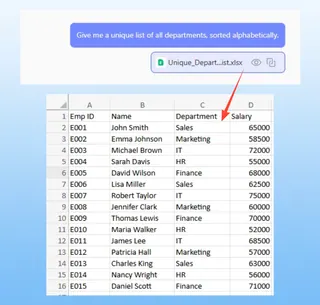
3. Review and Refine the Result
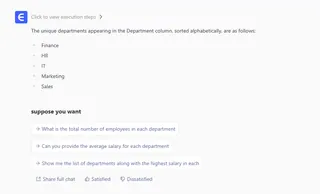
Excelmatic will immediately process your request and present the newly sorted table. The best part is that this is a conversation. You can easily refine the result with follow-up requests.
- "Great. Now only show me employees from the 'Sales' department."
- "Can you add a new column that shows their 'Years to Retirement', assuming retirement at 65?"
- "Highlight all employees older than 50."
This iterative, conversational analysis is impossible with static formulas.
4. Export Your Sorted Data
Once you're happy with the result, you can download the newly sorted data as a new Excel file with a single click. Your original file remains untouched.
Dialogue Example
Here’s what the multi-level sorting task looks like in Excelmatic:
User: I've uploaded my employee list. Can you sort it by Department in alphabetical order, and within each department, sort by Age from oldest to youngest?
Excelmatic: Of course. I have sorted the table by the 'Department' column (A-Z) and then by the 'Age' column (descending). The sorted data is now displayed below. Is there anything else you'd like to do with this table?
User: This is perfect. Can you export this as a new Excel file for me?
Excelmatic: Done. Your file sorted_employees.xlsx is ready for download.
No formulas, no debugging, just a simple request and a direct result.
Traditional Formulas vs. Excelmatic: A Quick Comparison
| Feature | Traditional SORTBY Formula |
Excelmatic AI |
|---|---|---|
| Time to Implement | 5-15 minutes (to write, test, debug) | < 30 seconds |
| Required Skill | Expert-level Excel formula knowledge | Ability to describe a goal in language skills |
| Flexibility | Low. Requires complete formula rewrite for changes. | High. Adjust with simple follow-up questions. |
| Error Rate | High. Prone to syntax errors, incorrect ranges, or broken index numbers. | Very Low. The AI handles the technical implementation. |
FAQ
1. Do I need to know the SORT or SORTBY functions to use Excelmatic?
Not at all. Excelmatic is designed for users of all skill levels. You only need to describe your sorting goal in plain language, and the AI will handle the rest.
2. Can Excelmatic handle complex multi-level sorting? Yes, absolutely. You can specify as many sorting levels as you need in a single sentence. For example: "Sort by Country, then by State, then by City, and finally by Sales descending."
3. Is my data safe when I upload it to Excelmatic? Yes. Excelmatic is built with data security as a top priority. Your data is encrypted in transit and at rest, and is not used for training models. Always refer to the official privacy policy for detailed information.
4. Does Excelmatic modify my original Excel file? No. Your original file is never altered. Excelmatic works on a secure copy of your data, and you can download the results as a new file.
5. What if my data isn't perfectly clean or my column headers are unclear?
While clear headers (Department, Age) are always best, Excelmatic's AI is quite good at understanding context even with less-than-perfect data. It can often infer the correct columns based on your request and the data within them.
6. Can I ask Excelmatic to generate the formula for me?
Yes. In many cases, you can ask, "Generate the Excel formula to perform this sort," and Excelmatic will provide the SORT or SORTBY formula that you can copy and paste into your own spreadsheet. This makes it a great learning tool as well.
Take Action: Upgrade Your Excel Workflow with Excelmatic
Sorting data is a fundamental part of working in Excel, but it shouldn't be a frustrating or time-consuming one. Continuing to rely on manual sorting or wrestling with brittle, complex formulas is a hidden cost that drains your productivity.
By embracing an Excel AI agent, you can transform sorting from a technical chore into a simple instruction. You save time, reduce errors, and gain the agility to respond to new data requests in seconds, not minutes.
Ready to stop wrestling with formulas? Try Excelmatic for free today and see how quickly you can organize your next dataset. Simply upload a file and try one of the prompts from this article.