Key takeaways:
- Manually reordering columns in Excel using methods like "Cut and Insert" or "Shift + Drag" is time-consuming and carries a high risk of accidentally overwriting or corrupting your data.
- An Excel AI agent like Excelmatic eliminates these manual steps. You can rearrange your entire table layout simply by describing the desired column order in plain language.
- Using Excelmatic for data organization not only saves significant time but also prevents common errors, allowing you to move from tedious data prep to meaningful analysis in seconds.
The Frustrating Reality of a Messy Spreadsheet
You've just exported a crucial dataset—maybe it's a monthly sales report, an employee roster, or a customer contact list. The data is all there, but the layout is a complete disaster. The "Email" column is stuck between "First Name" and "Last Name," the "Hire Date" is buried at the very end, and critical financial figures are scattered randomly.
Before you can even think about creating a pivot table, building a chart, or performing any analysis, you have to play the role of a "data janitor." You embark on a tedious journey of cutting, copying, and inserting columns, one by one, to bring order to the chaos.
This process is not just boring; it's fraught with peril. One wrong move—a simple Ctrl+V instead of "Insert Cut Cells"—and you've just overwritten an entire column of essential data. What should be a simple preparatory step quickly becomes a source of frustration and a major time sink. There has to be a better way.
Traditional Excel Solutions: The Manual Grind
For years, seasoned Excel users have relied on a few standard tricks to rearrange columns and rows. While functional, each comes with its own set of limitations. Let's review the common methods using a typical employee data table.
Method 1: The Classic "Cut and Insert Cut Cells"
This is the most well-known technique. If you want to move the "Date of Hire" column to be next to the employee's name, the steps are:
- Select the entire column you want to move by clicking its header (e.g., column 'D').
- Cut the column by right-clicking and selecting "Cut" or using the shortcut
Ctrl+X. - Select the destination column header where you want to insert the cut data (e.g., click column 'C' to place it before 'C').
- Right-click on the destination header and, crucially, select "Insert Cut Cells."
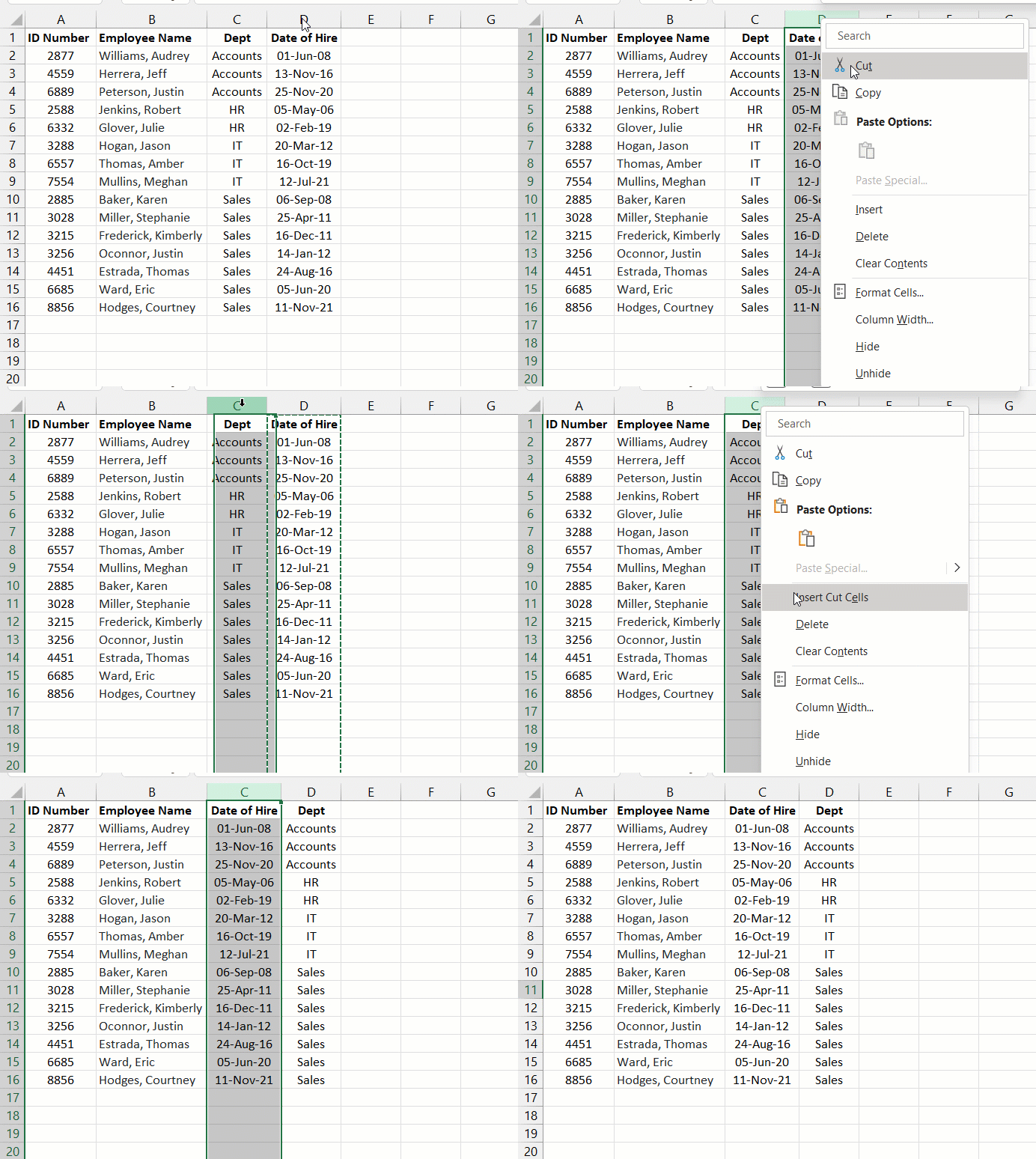
The Problem: While it works, this method is incredibly repetitive. If you need to move five or six columns, you're repeating this four-step process five or six times. It's slow and requires your full attention to avoid mistakes.
Method 2: The "Shift + Drag and Drop" Trick
A slightly faster method for power users involves the Shift key:
- Select the column you want to move.
- Hold down the
Shiftkey. - Move your cursor to the edge of the selected column until it turns into a four-directional arrow icon.
- Click and drag the column to its new position. A green line will indicate where it will be inserted.
- Release the mouse button, then the
Shiftkey.
The Problem: This method has a critical flaw. If you forget to hold down the Shift key, Excel won't insert the column. Instead, it will overwrite the data in the destination column, potentially leading to irreversible data loss. It's a high-stakes shortcut that punishes a simple mistake.
The Limitations of Manual Reordering
Whether you cut and paste or drag and drop, the fundamental issues remain:
- Time-Consuming: Manually rearranging a report with 15+ columns can easily take 10-15 minutes of tedious, non-value-added work.
- Error-Prone: The risk of overwriting data is constant. One slip of the mouse or keyboard can corrupt your dataset, forcing you to start over or rely on a backup.
- Poor Scalability: These methods are manageable for one or two columns but become a nightmare for complex layouts or wide tables.
- Lack of Intuition: Commands like "Insert Cut Cells" aren't immediately obvious to new users, and the
Shiftkey trick is an unwritten rule you just have to know.
This manual data shuffling is a classic example of low-value work that stands in the way of the actual analysis you need to perform.
The Excel AI Solution: Reorder Columns with Excelmatic
Instead of manually manipulating cells, what if you could just describe your ideal layout in plain language? This is exactly what Excel AI agents like Excelmatic are designed for. You provide the instructions, and the AI does the heavy lifting.

Excelmatic acts as your personal data assistant. You upload your file, and then, through a simple chat interface, you tell it how to clean, analyze, and visualize your data. Rearranging columns becomes as easy as sending a text message.
Step-by-Step: Reordering Data in Seconds
Let's take that same messy employee roster and organize it using Excelmatic.
1. Upload Your Excel File
Drag and drop your Excel (.xlsx) or .csv file directly into the Excelmatic chat window. The AI will instantly read and understand your data structure.

2. Describe Your Desired Column Order in Plain Language
There are no tricks or special commands to learn. Just type what you want. Here are a few examples of prompts you could use:
- "Rearrange the columns in this order: First Name, Last Name, Department, Date of Hire, Salary."
- "Move the 'Salary' column to the very end of the table."
- "Put the 'Department' column immediately after the 'Last Name' column."
- "Bring the 'First Name' and 'Last Name' columns to the front."
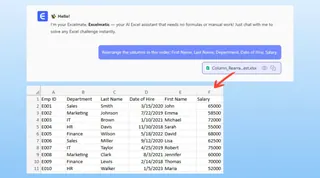
3. Review and Iterate Instantly
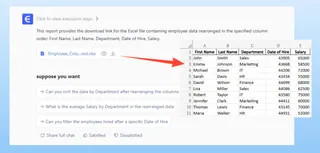
Excelmatic will process your request and present the newly arranged table in seconds. The best part? It's a conversation. If you change your mind, you can just ask for another adjustment.
4. Download Your Perfectly Organized File
Once the layout is exactly how you want it, you can download the cleaned-up data as a new Excel file with a single click. You've gone from a messy export to a perfectly structured table in under a minute.
A Sample Conversation with Excelmatic
Imagine this simple, powerful interaction:
User: I've uploaded my employee data. The columns are all jumbled. Can you please reorder them to be: Employee ID, First Name, Last Name, Department, Date of Hire, and then Salary.
Excelmatic: Done. I have reordered the columns as you requested. The new layout is ready for you to view. Is there anything else you'd like to adjust?
User: Great. Now, could you also sort the entire table by 'Date of Hire', starting with the most recent employees?
Excelmatic: Absolutely. I have sorted the data by 'Date of Hire' in descending order. You can download the updated Excel file now.
In this short exchange, you've accomplished two tasks—reordering columns and sorting data—that would have taken several minutes and multiple clicks in traditional Excel, all without any risk of error.
Traditional Method vs. Excelmatic: A Quick Comparison
| Aspect | Traditional Excel (Cut/Paste) | Excelmatic (AI Agent) |
|---|---|---|
| Time to Reorder 5 Columns | 3-5 minutes | ~20 seconds |
| Risk of Error | High (overwriting data is easy) | Zero (AI handles the operation) |
| Effort | Repetitive clicking, dragging, attention | One simple sentence |
| Flexibility | Rigid; changes require re-doing steps | Conversational; easy to iterate |
| Learning Curve | Requires knowing specific tricks | Requires only knowing what you want |
FAQ
Do I need to be an Excel expert to use Excelmatic for this? Not at all. If you can describe what you want in a sentence, you can use Excelmatic. There are no formulas or hidden menus to learn.
Will Excelmatic modify my original Excel file? No. Excelmatic works on a copy of your data in a secure environment. Your original file remains untouched on your computer.
What if my column headers are inconsistent, like 'hire_date' or 'First-Name'? Excelmatic's AI is trained to understand common variations in column names. It can typically identify the correct columns even if the naming isn't perfect.
Can I also reorder rows with Excelmatic? Yes. While you typically reorder rows by sorting, you can simply ask: "Sort the rows alphabetically by Last Name" or "Sort by Salary from highest to lowest."
Is it safe to upload sensitive company data to Excelmatic? Excelmatic is built with data security as a priority. All data is encrypted in transit and at rest. For specific details, always refer to the official privacy policy and terms of service on the website.
Can Excelmatic do more than just reorder columns? Absolutely. Reordering columns is just a simple data cleaning task. Excelmatic is a full-featured analysis tool that can generate formulas, create complex pivot tables, build charts, and write summary reports based on your natural language requests.
Take Action: Upgrade Your Excel Workflow Today
Every minute you spend on manual, repetitive tasks like reordering columns is a minute you're not spending on analysis and decision-making. The traditional methods are not just slow; they are a liability, constantly threatening the integrity of your data.
By embracing an Excel AI agent, you can eliminate this friction entirely. Reclaim your time and focus on what truly matters.
Ready to see the difference? Try Excelmatic for free today. Upload one of your messy spreadsheets and use one of the prompts from this article. Experience firsthand how a simple conversation can transform your data preparation process forever.