Key Takeaways:
- Hidden spaces in Excel can break formulas, ruin reports, and cause data analysis errors that cost businesses time and accuracy
- Excelmatic eliminates the complexity of formulas by letting you clean data using simple language commands instead of memorizing TRIM, SUBSTITUTE, and CLEAN functions
- Compared to traditional methods, Excelmatic handles all space types including non-breaking spaces and special characters in a single step
- For business professionals, adopting Excelmatic means faster data cleaning and more time for analysis rather than technical troubleshooting
I once got a spreadsheet with 500+ entries that looked fine initially but wouldn’t calculate totals correctly. I didn’t know why, but later, it turned out that hidden spaces were causing all sorts of trouble. If you handle data in Excel, you may have encountered similar situations. These spaces often come when you import data from other sources.
In this guide, I'll show you different methods to remove unwanted spaces in Excel. You'll get step-by-step instructions for traditional formulas and tools, but we'll also explore a modern, AI-powered way to solve this problem in a fraction of the time.
Understanding Spaces in Excel
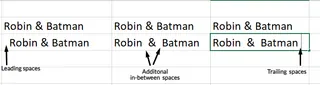
Before we remove spaces, let’s understand the types of spaces that may be lurking in your data:
- Leading spaces: Spaces at the start of a cell.
- Trailing spaces: Spaces at the end of a cell.
- Extra spaces between words: More than one space between words.
- Non-breaking spaces: Special spaces that look normal but behave differently.
These spaces can slip into your data from importing files, manual entry mistakes, inconsistent formatting, or even copying and pasting from other sources.
Different Ways to Remove Spaces in Excel
Though spaces may seem minor, they can cause big problems. Formulas might not work, comparisons may fail, and calculations could turn out wrong. Before jumping into solutions, I’d recommend the following:
- Back up your data: Always make a copy of your data before making changes. This ensures you can recover the original data if something goes wrong.
- Check formatting: Ensure consistent formatting in your cells, such as text case and number formats, for cleaner and more reliable results.
Now, let’s explore the best methods to remove spaces in Excel, starting with the most efficient.
Method 1: The AI-Powered Way with Excelmatic

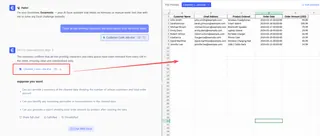
Before diving into manual formulas and multi-step processes, let's look at the fastest and most intuitive solution: using an AI Excel Agent like Excelmatic. Instead of you needing to remember which function to use (TRIM, SUBSTITUTE, CLEAN?), you can simply tell the AI what you want to do in plain language.
Excelmatic is an AI agent that handles all sorts of Excel tasks, including data cleaning. The process is incredibly simple:
- Upload your Excel file to Excelmatic.
- State your request in the chat box. For example:
- "In column A, remove all leading and trailing spaces."
- "Clean up all the extra spaces between words in the 'Product Name' column."
- "Remove all spaces completely from the 'SKU' column."
- "Clean all non-printing characters and extra spaces from the entire sheet."
- Excelmatic does the rest. It analyzes your request, applies the correct logic (equivalent to using
TRIM,SUBSTITUTE, andCLEANall at once), and provides the cleaned data instantly.
Why is this a better approach?
- No Formulas to Memorize: You don't need to recall specific function syntax or how to nest them.
- Handles All Space Types: It can deal with leading, trailing, extra, and even tricky non-breaking spaces in one go.
- Incredibly Fast: It eliminates the need for helper columns, copying, and pasting values.
- Intuitive: It works the way you think, by describing the outcome you want.
While the following traditional methods are powerful and good to know, the AI approach represents a major leap in efficiency, especially for those who value their time.
Method 2: Use the TRIM() function to remove extra spaces
The TRIM() function is the most common tool for this job. It removes all leading and trailing spaces and reduces multiple spaces between words to a single space.
- Create a helper column next to your data.
- In the first cell of the helper column, enter the formula:
=TRIM(A2). - Press Enter and drag the formula down to apply it to all rows.
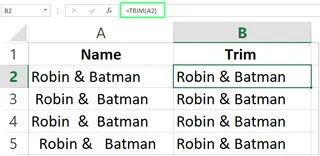
Comparison: While TRIM() is a go-to function, it requires creating a helper column and doesn't remove non-breaking spaces. An AI tool like Excelmatic handles all of this in one step without altering your original sheet structure.
Method 3: Use the SUBSTITUTE() function
The SUBSTITUTE() function is more aggressive. It replaces a specific text string with another. To remove all spaces, including the single space between words, you can replace them with an empty string. This is useful for cleaning data like product codes or phone numbers.
Its basic syntax is:
=SUBSTITUTE(text, old_text, new_text, [instance_num])
Here’s how to apply it to remove all spaces:
- Create a helper column.
- Enter the formula:
=SUBSTITUTE(A2," ",""). - Press Enter and drag it down to apply it to all rows.

Method 4: Data cleanup with Find & Replace
For a quick fix without formulas, Excel’s Find & Replace tool is a good option, especially for reducing multiple spaces between words.
- Select your data range.
- Press Ctrl+H to open the Find & Replace dialog.
- In the Find what field, enter two spaces (" ").
- In the Replace with field, enter a single space (" ").
- Click Replace All.

You may need to repeat this step until Excel shows the message, "We couldn't find anything to replace." Note that this method is manual and doesn't effectively remove all leading or trailing spaces.
Method 5: Use the CLEAN() function to remove non-printing characters
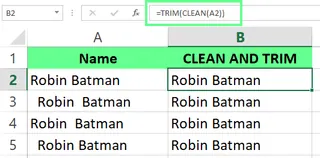
Data imported from other systems can contain non-printable characters (like line breaks) that are invisible but cause errors. The CLEAN() function removes these. For best results, combine it with TRIM() to clean up both non-printing characters and extra spaces simultaneously.
- Enter the formula:
=TRIM(CLEAN(A2))in a helper column. - Press Enter and drag the formula down.
Method 6: Use Excel Add-Ins for faster results
Third-party add-ins like Ablebits Ultimate Suite for Excel offer dedicated tools for data cleaning. Its Trim Spaces tool can remove leading/trailing spaces, extra blanks, line breaks, and non-breaking spaces with a few clicks.
- Select the range of cells to clean.
- Open the Ablebits Data tab and click Trim Spaces.
- From the options pane, select what you want to remove and click Trim.
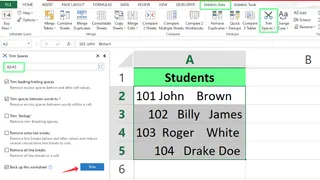
Comparison: While add-ins are more powerful than built-in functions, they often require installation, licensing, and navigating through menus. A conversational AI tool like Excelmatic provides a more streamlined, command-based interface without needing any installation.
Specific Solutions for Common Space Removal Scenarios in Excel
If you prefer using formulas, here’s how to tackle specific scenarios. Remember, all of these can also be handled by simply describing your goal to an AI agent like Excelmatic.
Remove extra spaces
Use the TRIM() function to clean them up while keeping one space between words.
=TRIM(A2)

Remove leading spaces
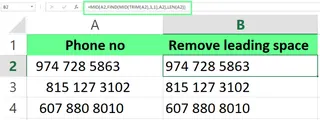
If you want to remove only leading spaces while keeping extra spaces between words, TRIM() is too aggressive. Use this advanced formula instead:
=MID(A2,FIND(MID(TRIM(A2),1,1),A2),LEN(A2))
This complex formula works by finding the first non-space character and extracting the text from that point onward.
Remove trailing spaces
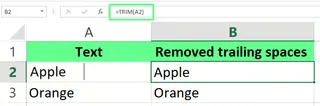
Trailing spaces are invisible and notorious for causing lookup errors (VLOOKUP, MATCH). The TRIM() function is the perfect tool for this.
=TRIM(A2)
Remove spaces before numbers
When you use TRIM() on a cell containing a number with leading spaces, Excel converts the output to text. You can spot this because the number will be left-aligned, and SUM() will return 0.
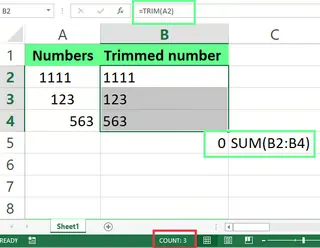
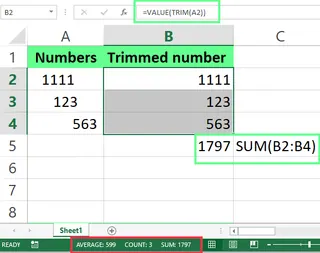
To fix this, wrap the TRIM() function with the VALUE() function to convert the text back to a number.
=VALUE(TRIM(A2))
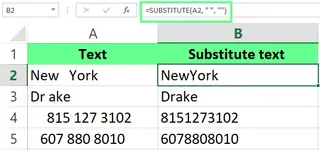
Remove spaces from a string
To remove all spaces entirely, including those between words, use the SUBSTITUTE() function.
=SUBSTITUTE(A2, " ", "")
Remove special characters and unnecessary spaces
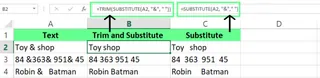
You can nest SUBSTITUTE() inside TRIM() to remove a specific character and clean up spaces in one formula. For example, to remove the "&" symbol and extra spaces:
=TRIM(SUBSTITUTE(A2, "&", ""))
Common Problems and Solutions
Sometimes, even the standard functions don't work as expected. Here's how to handle the tricky cases.
Non-breaking spaces that TRIM() doesn’t handle
The TRIM() function only removes the standard space (character code 32). It does not work on non-breaking spaces (character code 160), which often appear in data copied from web pages. To fix this, first replace the non-breaking space with a standard one, then trim.
=TRIM(SUBSTITUTE(A1, CHAR(160), " "))
Note: An intelligent AI tool like Excelmatic is often pre-programmed to recognize and remove non-breaking spaces automatically, saving you from this troubleshooting step.
Hidden characters or pasted data problems
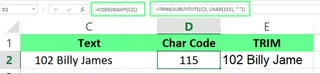
Other hidden characters like tabs or line breaks can cause issues. Use the CODE() function to identify them.
- First character:
=CODE(LEFT(A1,1)) - Last character:
=CODE(RIGHT(A1,1))
Once you know the character's code, you can remove it with SUBSTITUTE(). For example, if you find a character with code 115, you can remove it with:
=SUBSTITUTE(C2, CHAR(115), "")
Final Thoughts
In this guide, we've covered a range of methods for cleaning unwanted spaces in Excel. Traditional tools like TRIM(), SUBSTITUTE(), and Find & Replace are effective and important to understand.
However, for modern, fast-paced work, an AI-powered solution like Excelmatic offers a clear advantage. It replaces complex formulas and manual steps with simple, conversational commands, allowing you to focus on analyzing your data rather than just cleaning it.
Ready to eliminate Excel data cleaning headaches? Try Excelmatic today and experience instant space removal with just a simple command.
FAQ
Can I use Power Query to remove spaces in Excel?
Yes, here’s how you can do so:
- Select your data and load it into Power Query.
- In the Power Query Editor, select the column you want to clean.
- Use the Transform tab and select Trim to remove leading and trailing spaces.
- Use Replace Values to remove extra spaces between words or specific characters. Once cleaned, you can load the data back into Excel.
How do I remove dashes and extra spaces from a cell in Excel?
You can nest the TRIM() and SUBSTITUTE() functions: =TRIM(SUBSTITUTE(A1, "-", "")). This first removes the dash and then trims any extra spaces.
Can I remove spaces from a text string using Flash Fill in Excel?
Yes, Flash Fill can remove spaces if you provide a clear pattern. For example, if "John Doe" is in A2, type "JohnDoe" in B2. Then select cell B3 and press Ctrl + E to trigger Flash Fill, which will apply the pattern to the rest of the column.
Can I remove spaces and convert text to uppercase at the same time?
Yes, combine the SUBSTITUTE() and UPPER() functions: =UPPER(SUBSTITUTE(A2, " ", "")). This removes all spaces and converts the result to uppercase.