Key takeaways:
- Manually removing duplicate rows in Excel using built-in tools is a multi-step process that is time-consuming and carries the risk of permanently deleting important data by mistake.
- An Excel AI agent like Excelmatic automates this entire data cleaning task, allowing you to remove duplicates simply by describing your request in plain language, with no complex dialog boxes or formulas.
- Using Excelmatic not only saves significant time but also improves accuracy by providing a non-destructive workflow, allowing you to review, iterate, and perform follow-up analysis on your clean data before exporting.
The Problem: The Hidden Dangers of Duplicate Data
Imagine this: you've just consolidated customer lists from three different sales reps into a single master spreadsheet. You're about to launch a major email campaign, but a quick glance reveals a problem. The same names and companies appear multiple times.
This isn't just a minor annoyance. Duplicate data can seriously compromise your work:
- Inaccurate Reporting: Your sales figures, customer counts, and inventory levels become inflated, leading to flawed business decisions.
- Wasted Resources: You might send the same marketing materials to a single customer multiple times, wasting money and potentially irritating them.
- Operational Errors: In logistics or HR, duplicate entries can lead to shipping the same order twice or incorrect payroll calculations.
The core challenge isn't just finding a repeated name in one column; it's identifying and removing entire rows that are 100% identical—true duplicates that add no value and create noise in your dataset. Cleaning this up is critical, but the traditional way of doing it in Excel is often a tedious and risky chore.
Traditional Excel Solutions: Steps and Limitations
For years, Excel users have relied on a few built-in tools to tackle duplicates. While functional, each comes with its own set of frustrations. The most common method is the "Remove Duplicates" feature.
Let's say we have a contact list like this, where some rows are complete duplicates:
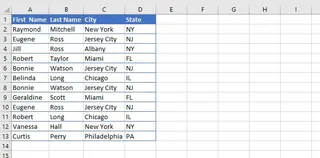
Here’s a summary of the manual approach:
- Select your entire data range or a single cell within it.
- Navigate to the Data tab in the ribbon.
- Click the Remove Duplicates icon.
- A dialog box appears. You must carefully check the boxes for all columns you want to consider when defining a duplicate. To find fully identical rows, you need to select every column.
- Ensure the "My data has headers" box is checked if your table has them.
- Click OK. Excel will then report how many duplicates were found and removed.
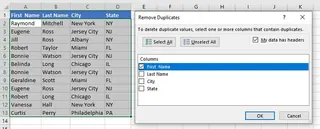
While this seems straightforward, this traditional method has several significant limitations:
- It's Destructive: The "Remove Duplicates" command permanently deletes rows from your worksheet. If you make a mistake—like forgetting to select a crucial column—and don't have a backup, your original data is gone for good.
- It's Prone to Human Error: The process relies on you correctly configuring the dialog box every single time. Accidentally unchecking one column can lead to the deletion of valid, non-duplicate records.
- It's Not Easily Repeatable: If you receive an updated version of the same file next week, you have to go through the entire manual process again. There's no easy way to "save" your de-duplication settings.
- It Lacks an Audit Trail: A month later, you might not remember which columns you used to define a "duplicate." There's no log of your actions.
- Advanced Alternatives are Complex: More robust methods like using Power Query offer repeatable steps, but they come with a steep learning curve. You have to learn a whole new interface just to perform what should be a simple task.
The New Approach: Using an Excel AI Agent (Excelmatic)
Instead of clicking through menus and worrying about permanent data loss, what if you could just tell Excel what you want to do? That's the power of an Excel AI agent like Excelmatic. It transforms tedious, manual tasks into a simple conversation.

With Excelmatic, you upload your file and use natural language to instruct the AI. It handles the analysis, performs the action, and gives you the clean result without ever touching your original file.
Step-by-Step: Removing Duplicates with Excelmatic
Let's solve the same problem using an AI-powered workflow. The process is radically simpler.
1. Upload Your Data File
First, open Excelmatic and drag-and-drop your Excel or CSV file directly into the chat interface. The AI will instantly read your data and display a preview. It's helpful if your columns have clear headers (e.g., "First Name," "City," "State").

2. Ask in Plain Language
Now, instead of searching for the right button in Excel's ribbon, you simply type your request in the chat box. Here are a few examples of prompts you could use:
Remove all duplicate rows from this sheet.I have a contact list. Please clean it up and show me only the unique records.Find and remove any rows that are complete duplicates based on all columns.Create a new table containing only the unique entries.
3. Review and Iterate
Excelmatic will process your request in seconds and present the cleaned data in a new table, telling you exactly how many duplicate rows were removed.
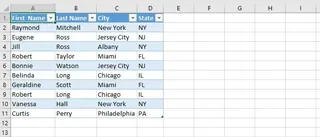
The best part? Your original data is untouched. This is a non-destructive workflow. You can now continue the conversation to perform further analysis on your newly cleaned data. For example, you could ask:
From this clean list, sort the results by Last Name alphabetically.Now, count how many unique contacts are from "FL".Create a pivot table summarizing the number of unique contacts by state.
This conversational approach allows you to fluidly move from cleaning to analysis without ever leaving the interface.
4. Export the Result
Once you're satisfied with the result, you can download the cleaned data as a new, perfectly formatted Excel file with a single click.
Example Conversation with Excelmatic
Here’s how a typical interaction might look:
User: I've uploaded a customer list that I think has a lot of duplicate entries. Can you please remove the duplicates for me?
Excelmatic: Certainly. I have processed your file and found 2 duplicate rows. I have removed them, leaving 7 unique records. The cleaned data is displayed below for your review. Would you like to download this as a new Excel file?
User: This looks great. Before I download, can you also count how many of these unique customers are in "Jersey City"?
Excelmatic: Of course. Based on the cleaned data, there are 2 unique customers located in "Jersey City". I have created a small summary table. You can now download the Excel file containing both the full cleaned list and this summary.
Traditional Method vs. Excelmatic: A Quick Comparison
| Feature | Traditional "Remove Duplicates" | Excelmatic (Excel AI) |
|---|---|---|
| Time to Complete | 5-10 minutes (with manual checks) | Under 1 minute |
| Process | Manual, multi-step dialog box | Conversational, single prompt |
| Data Safety | Destructive. Permanently deletes data. | Non-destructive. Original file is safe. |
| Error Risk | High. Easy to misconfigure settings. | Low. AI understands intent from context. |
| Flexibility | Rigid. Must restart for any changes. | Highly flexible. Iterate with follow-up questions. |
| Skill Level | Basic Excel knowledge required | Just need to describe your goal in language skills |
FAQ
Q: Does Excelmatic modify my original Excel file?
A: No, absolutely not. Excelmatic operates on a copy of your data in a secure environment. Your original file remains untouched on your computer. This non-destructive process is one of its key advantages over Excel's built-in tool.
Q: Is it safe to upload my company's data to Excelmatic?
A: Yes. Excelmatic is built with data security as a top priority. All data is encrypted in transit and at rest, and we adhere to strict privacy policies. Your data is used only to fulfill your requests and is not shared or used for any other purpose.
Q: Can I use Excelmatic to remove duplicates based on specific columns only?
A: Yes, you can be more specific in your prompt. For example, you could ask, "Remove duplicate rows based only on the 'Email Address' column" or "Find unique entries by 'First Name' and 'Last Name' together." The AI is designed to understand these more nuanced requests.
Q: How is this better than just using the "Remove Duplicates" button in Excel?
A: It's better in four key ways: it's safer (non-destructive), faster (no menus or clicks), smarter (you can perform follow-up analysis in the same conversation), and provides an audit trail (your chat history serves as a log of the actions taken).
Q: What if my data is messy in other ways, not just duplicates?
A: Excelmatic is a comprehensive data analysis tool. You can ask it to perform a wide range of cleaning and formatting tasks, such as splitting columns, merging text, standardizing date formats, and filling in missing values.
Take Action: Upgrade Your Excel Workflow with Excelmatic
Stop spending valuable time on risky, repetitive data cleaning tasks. The manual process of removing duplicates is a relic of the past. By embracing an Excel AI agent, you can reclaim your time, eliminate errors, and focus on what truly matters: deriving insights from your data.
Ready to experience the future of spreadsheet work?
Try Excelmatic for free today. Upload that messy spreadsheet you've been putting off cleaning, and let the AI handle it in seconds. Start with a simple prompt like, "Remove all duplicate rows," and see the magic for yourself.