Key takeaways:
- Manually removing blank rows in Excel using 'Go To Special' or 'Filter' is a repetitive, multi-step process that is slow and prone to errors, especially with large datasets.
- Excel AI tools like Excelmatic replace these cumbersome manual workflows with a single, intuitive natural language command, such as "remove all empty rows from my sheet."
- By using Excelmatic for data cleaning, you not only reclaim hours of your time but also ensure greater accuracy by precisely targeting and eliminating only the unwanted blank rows, safeguarding your valuable data.
The Problem: Why Blank Rows in Excel Are More Than Just an Annoyance
You've just exported a large dataset from your company's CRM or accounting software. You open the Excel file, ready to build a report, only to find it's littered with empty rows. They're scattered randomly, breaking up your data and making the spreadsheet a mess to navigate.
This isn't just a visual problem. These blank rows can cause serious issues:
- Broken Formulas and Functions: A simple
SUMorAVERAGEfunction might stop calculating correctly if it hits a blank row, as Excel might interpret it as the end of the data range. - Inaccurate Pivot Tables: When you create a Pivot Table, Excel often auto-selects the data range. Blank rows can confuse this detection, leading to an incomplete or incorrect source for your analysis.
- Failed Sorting and Filtering: Sorting data can become unpredictable, and filtering might not work as expected, hiding data you need to see.
- ** unprofessional Reports:** A clean, contiguous dataset is the foundation of any professional report or dashboard. Blank rows make your work look sloppy and untrustworthy.
The core pain point is clear: before you can even begin your actual analysis, you're forced to perform a tedious and risky data cleaning chore.
The Traditional Excel Solution: Steps and Limitations
For years, Excel users have relied on a handful of "tricks" to remove blank rows. While they can get the job done, they are far from perfect. Let's look at the most common method and its inherent flaws.
Method: Using "Go To Special"
This is perhaps the most widely taught manual method for finding and deleting blank rows.
- Select Your Data: First, you highlight the column range where you expect the blank rows to be.
- Open Go To Special: You navigate to the Home tab, click on Find & Select, and then choose Go To Special... (or press
Ctrl + GthenAlt + S). - Select Blanks: In the dialog box, you select the Blanks option and click OK. Excel will highlight all the empty cells within your selected range.
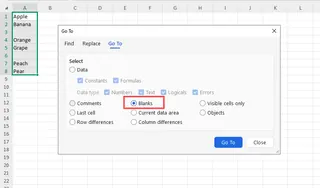
- Delete Rows: With the blank cells selected, you go back to the Home tab, click the Delete dropdown, and choose Delete Sheet Rows.
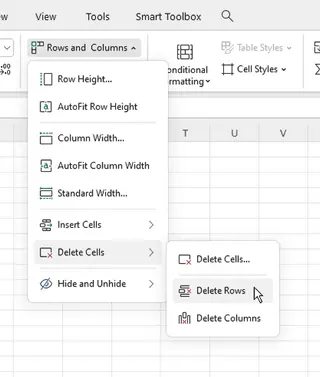
The Limitations of Manual Methods
While this seems straightforward, it's fraught with risk and inefficiency, especially in a real-world business context.
- It's Dangerously Imprecise: The "Go To Special" method selects all blank cells. If a row contains important data but has one blank cell, it will be selected. If you then choose "Delete Sheet Rows", you could accidentally delete critical information without realizing it.
- It's Time-Consuming: For a simple task, the process involves at least 5-7 clicks and menu navigations. Now, imagine you have to do this every day for your daily sales report. The minutes quickly add up to hours.
- It's Not Scalable: This method is manageable for a few hundred rows. For a file with 50,000 rows, Excel can become slow or unresponsive during the selection and deletion process.
- It's a Repetitive Chore: Data cleaning is rarely a one-time task. The next time you get a new data export, you have to repeat the entire process from scratch. There's no easy way to "save" this workflow.
Other methods, like sorting to group blanks or using filters, have similar drawbacks. They require careful manual setup and carry the same risks of mis-clicking and deleting the wrong data.
The New Solution with Excel AI: Introducing Excelmatic
What if you could skip all those clicks, menus, and risks? What if you could just tell Excel what you want to do? That's exactly what Excel AI agents like Excelmatic are designed for.

Excelmatic is an AI assistant that you can have a conversation with. You upload your spreadsheet, and then use plain language to ask it to perform analysis, create formulas, build charts, or, in this case, clean your data.
Step-by-Step: Removing Blank Rows with Excelmatic
Let's solve the same problem using an AI-powered approach. The process is radically simpler.
1. Upload Your Data File
First, drag and drop your Excel or CSV file directly into the Excelmatic chat interface. The AI will instantly read and understand the structure of your data, including headers and data types. Your original file remains untouched and safe on your computer.

2. Describe Your Goal in Plain Language
Instead of navigating menus, you simply type your request into the chat box. For removing blank rows, you could say:
- "Remove all empty rows."
- "Find and delete any rows where all cells are blank."
- "Clean this data by removing any rows that are completely empty."
- "Please delete all blank rows from the sheet."
You can also be more specific if your needs are more complex:
- "Remove rows where both 'Order ID' and 'Customer Name' are blank."
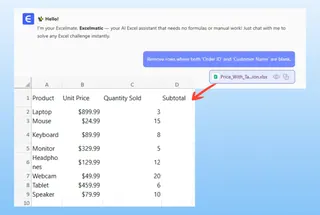
3. Review and Confirm
Excelmatic will process your request and show you a preview of the result. It will confirm what it has done, giving you a chance to verify the action before finalizing it. This conversational approach eliminates guesswork and prevents errors.
4. Download Your Cleaned File
Once you're satisfied, you can download the cleaned data as a new Excel file with a single click. The entire process, which could have taken several minutes of careful manual work, is now completed in seconds.
Dialogue Example: Data Cleaning in Action
Here’s what a typical conversation with Excelmatic looks like for this task:
User: I've uploaded my monthly sales export. It's a mess, full of blank rows. Can you clean it up for me?
Excelmatic: Of course. I've analyzed your file and found 213 completely blank rows scattered throughout the dataset. I can remove them for you. Would you like me to proceed?
User: Yes, please remove them. Also, can you check if there are any rows where the 'Sale Amount' is missing? If so, remove those too.
Excelmatic: Done. I have removed the 213 blank rows and an additional 18 rows where the 'Sale Amount' column was empty. Your cleaned dataset is ready. You can download the new Excel file now.
Traditional Method vs. Excelmatic: A Quick Comparison
| Feature | Traditional Excel (Go To Special) | Excelmatic (AI Agent) |
|---|---|---|
| Time to Complete | 2-5 minutes (or more for large files) | ~15 seconds |
| Number of Steps | 5-7 clicks and menu navigations | 1-2 natural language commands |
| Risk of Error | High (risk of deleting partially blank rows) | Very Low (AI confirms actions, non-destructive) |
| Required Skill | Knowledge of Excel's hidden features | Ability to describe a problem in English |
| Repeatability | Fully manual, must be repeated every time | Effortless, just re-upload and ask again |
FAQ
Q: Is it safe to upload my sensitive company data to Excelmatic? A: Data privacy and security are top priorities. Excelmatic uses secure protocols for data transfer and processing. For specific details on data handling and privacy, it's always best to consult the official privacy policy on the website.
Q: Does Excelmatic modify my original Excel file? A: No. Your original file is never altered. Excelmatic works on a copy of your data in a secure environment. You then download the transformed data as a new file, ensuring your source data remains intact.
Q: What if a row is only partially blank? Will Excelmatic delete it? A: By default, a general command like "remove empty rows" will target only fully blank rows to be safe. However, you can be more specific. For example, you can ask, "Remove all rows where the 'Order Date' column is blank," giving you precise control over the cleaning process.
Q: Can Excelmatic handle other data cleaning tasks besides removing blank rows? A: Absolutely. Excelmatic is a versatile data analysis tool. You can ask it to remove duplicates, standardize text formats (e.g., change "usa" to "USA"), split columns, merge tables, and much more—all with natural language.
Q: Do I need to be an Excel expert to use Excelmatic? A: Not at all. Excelmatic is designed to empower all users, from beginners to experts. If you can describe your business problem, you can use Excelmatic to solve it, without needing to remember complex formulas or hidden menu options.
Take Action: Upgrade Your Excel Workflow Today
Think about the last time you had to clean a messy spreadsheet. How much time did you spend on tedious, repetitive tasks like deleting blank rows? That's time you could have spent on strategic analysis, generating insights, and making decisions.
Continuing with manual methods means accepting a workflow that is slow, risky, and drains your productivity. By embracing an Excel AI agent, you transform data preparation from a chore into a simple conversation.
Ready to see the difference for yourself? Try Excelmatic for free. Upload that messy spreadsheet you've been putting off, and simply ask it to "remove all the blank rows." You'll be amazed at how much time you get back.