Key takeaways:
- Manually creating multiplication formulas (
=A1*B1), dragging them down for thousands of rows, and using complex functions likeSUMPRODUCTis time-consuming and prone to costly errors. - Excel AI tools like Excelmatic replace manual formula writing. You can simply ask in plain English, "Calculate the total cost for each item by multiplying price by quantity," and the AI generates the results instantly.
- Using Excelmatic for multiplication tasks eliminates formula errors, handles large datasets effortlessly, and allows for complex calculations like
SUMPRODUCTwithout needing to remember the syntax, dramatically improving your efficiency.
Problem Background & Pain Points
Whether you're a sales manager calculating monthly revenue, an operations specialist tracking inventory costs, or a project manager estimating expenses, multiplication is one of the most fundamental operations you'll perform in Excel.
Imagine you have a sales report with thousands of rows. The sheet contains columns for Product, Unit Price, and Quantity Sold. Your immediate task is to calculate the total revenue for each product line. Then, you need the grand total revenue for all products sold. Simple enough, right?
In theory, yes. But in practice, this "simple" task quickly becomes a tedious and error-prone process:
- The Manual Drag: You type
=B2*C2into the first cell of your new 'Revenue' column. Then comes the ritual of grabbing the tiny fill handle and dragging it down... and down... and down. For a sheet with 20,000 rows, this is not just slow; it's an opportunity for your mouse to slip or Excel to freeze. - The "Helper Column" Mess: To get the grand total revenue, you first have to create that 'Revenue' column. Now your clean dataset has an extra column that you might not need for your final report, cluttering your worksheet.
- The Constant Problem: What if you need to add a 5% sales tax to every transaction? You might be tempted to write
=B2*C2*1.05. But when the tax rate changes next quarter, you're faced with the nightmare of finding and replacing this hardcoded value in every single cell. - The Formula Fear: Advanced users might know to use
SUMPRODUCTto avoid a helper column. But let's be honest—remembering the syntaxSUMPRODUCT(array1, [array2], ...)and ensuring your ranges are perfectly matched is a common source of the dreaded#VALUE!error.
These small frictions add up, turning a five-minute analysis into a 30-minute ordeal of formula writing, dragging, and double-checking. There has to be a better way.
Traditional Excel Solution: Steps and Limitations
In a traditional Excel workflow, there are two primary methods for multiplication: the simple asterisk (*) operator for direct calculations and the PRODUCT or SUMPRODUCT functions for more complex scenarios.
Let's break down the manual process for our sales report example.
The Manual Steps
Your data looks something like this, and you need to calculate the Total Revenue for each row and then the grand total.
| Product | Unit Price | Quantity Sold |
|---|---|---|
| Apples | $2.50 | 150 |
| Oranges | $3.00 | 200 |
| Bananas | $1.20 | 500 |
- Row-by-Row Multiplication: In cell D2, you would create a new 'Total Revenue' column and type the formula:
=B2*C2
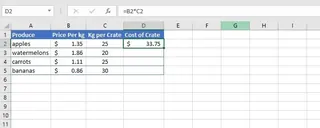
Fill Down the Formula: You'd then click on the small square (the fill handle) at the bottom-right of cell D2 and drag it down to cover all the rows with data. This copies the relative formula to calculate revenue for oranges, bananas, and so on.
Multiplying by a Constant (e.g., Sales Tax): If you needed to add an 8% sales tax, you could use an absolute cell reference to make future updates easier. You'd place
8%in a cell, sayF1, and modify your formula:=D2*(1+$F$1)The dollar signs$lock the reference to cell F1, so it doesn't change when you drag the formula down. Forgetting them is a very common mistake.Calculating the Grand Total (The SUMPRODUCT function): To find the total cost for all crates purchased, you can use the
SUMPRODUCTfunction. This function multiplies the corresponding items in the arrays and returns the sum of those products.
For the table below, to calculate the total cost of all purchased crates, the formula would be:
=SUMPRODUCT(D2:D5, E2:E5)
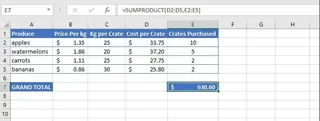
This single formula calculates:
($33.75 × 10) + ($37.20 × 5) + ($27.75 × 2) + ($25.80 × 2) = $621.90
The Limitations of the Manual Approach
While these methods work, they are far from efficient and come with significant drawbacks:
- High Risk of Errors: A slight mismatch in the ranges for
SUMPRODUCT(e.g.,B2:B4andC2:C5) will result in a#VALUE!error. Forgetting the$for an absolute reference can lead to completely wrong calculations that are hard to spot. - Time-Consuming and Tedious: The process of formula creation, dragging, and creating helper columns is manual labor that doesn't scale well with large datasets.
- Lack of Flexibility: What if your manager suddenly asks, "What's the total revenue for fruits that cost more than $2.00?" The existing formulas can't answer that. You'd need to start over with filters or build a more complex
SUMIFSor a conditionalSUMPRODUCT, requiring even more Excel expertise. - Steep Learning Curve: Functions like
SUMPRODUCTand array formulas are powerful but not intuitive for the average Excel user, leading them to stick with slower, more manual methods.
The New Solution: Using an Excel AI Agent (Excelmatic)
Instead of you telling Excel how to do the math step-by-step, what if you could just tell it what math you want done? That's the promise of an Excel AI Agent like Excelmatic. You upload your file and use plain language to get your calculations done in seconds.

Here’s how you'd solve the exact same sales revenue problem using Excelmatic.
Step 1: Upload Your Data File
First, simply drag and drop your Excel or CSV file containing the sales data directly into the Excelmatic web interface. The AI will read your data and display a preview.

Step 2: Describe Your Calculation in Natural Language
Now, instead of clicking on cells and typing formulas, you just type your request into the chat box.
Here are a few examples of what you could ask:
To create the 'Total Revenue' column:
Add a new column named 'Total Revenue' by multiplying the 'Unit Price' column by the 'Quantity Sold' column.
To get the grand total directly (like SUMPRODUCT):
Calculate the grand total revenue by multiplying 'Unit Price' by 'Quantity Sold' for all rows and then summing up the results.
To calculate a price including tax:
For each row, multiply 'Unit Price' by 'Quantity Sold' and then increase the result by 8% to get the final price. Call the new column 'Price with Tax'.
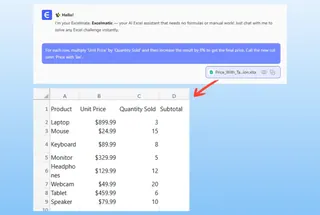
Step 3: Review and Iterate on the Results
Excelmatic will process your request instantly and show you the result—either an updated table with the new column or a single value representing the grand total.
The best part is that this is a conversation. You can easily ask follow-up questions to refine your analysis:
- "Great. Now, can you sort the table by the highest 'Total Revenue'?"
- "What's the total revenue just for 'Oranges'?"
- "Filter this table to only show sales over $500."
This conversational approach makes ad-hoc analysis incredibly fast, eliminating the need to constantly build and rebuild formulas or pivot tables.
Step 4: Export Your Results
Once you're satisfied, you can download the fully updated workbook as a new Excel file, with all the calculations and new columns perfectly in place. Or, you can simply copy the final number for your presentation or report.
Dialogue Example
Here’s what a typical conversation with Excelmatic might look like:
User: I've uploaded my sales data. It has 'Unit Price' and 'Quantity Sold' columns. Can you calculate the total revenue for each row?
Excelmatic: Done. I've added a new column named 'Total Revenue' which is the product of 'Unit Price' and 'Quantity Sold' for each row. The table is updated and ready for you to view.
User: Perfect. Now, what's the grand total of all sales?
Excelmatic: The grand total of the 'Total Revenue' column is $1,575.00.
User: Can you also calculate a 5% commission for each sale and put it in a new 'Commission' column?
Excelmatic: Of course. I've added a 'Commission' column by calculating 5% of the 'Total Revenue' for each row. Would you like to export this updated table?
Traditional Excel vs. Excelmatic: A Quick Comparison
| Feature | Traditional Excel | Excelmatic (AI) |
|---|---|---|
| Time to Complete | Minutes to hours (depending on data size) | Seconds to minutes |
| Effort Required | Manual formula writing, dragging, checking | Type a simple sentence |
| Accuracy | High risk of formula errors (#VALUE!, wrong range) |
AI handles logic, significantly lower error rate |
| Flexibility | Rigid; new questions require new formulas | Highly flexible; just ask a follow-up question |
| Learning Curve | Requires learning PRODUCT, SUMPRODUCT, absolute refs |
Requires knowing how to describe your goal in language skills |
FAQ
Q: Do I need to know any Excel formulas to use Excelmatic?
A: No, not at all! The entire purpose of Excelmatic is to translate your plain-language instructions into the correct results. You describe the "what," and the AI handles the "how."
Q: Will Excelmatic modify my original Excel file?
A: No. Excelmatic works on a copy of your data in a secure cloud environment. Your original file remains untouched on your computer.
Q: What if my column names are messy, like "Unit_Price_$" instead of "Unit Price"?
A: The AI is generally very good at understanding context and can often figure out what you mean. For best results, clear column headers are recommended. You can also explicitly tell it, "multiply 'Unit_Price_$' by 'Qty'" to be precise.
Q: Can Excelmatic handle more complex calculations, like SUMPRODUCT with conditions?
A: Absolutely. You can simply ask, "What is the total revenue for the 'North' region where the 'Quantity Sold' is greater than 100?" The AI will perform the filtering and calculation in one step.
Q: Is it safe to upload my company's sensitive sales data?
A: Excelmatic is built with data security in mind. Data is encrypted, and user data is not used for training models. For detailed information, always refer to the official privacy policy and security documentation on the website.
Take Action: Upgrade Your Excel Workflow Today
Every minute you spend dragging formulas, debugging #VALUE! errors, or building temporary helper columns is a minute you're not spending on actual analysis and decision-making. The manual methods of multiplication in Excel are a relic of a pre-AI era.
By embracing an Excel AI agent, you can transform tedious data preparation into a fast, simple conversation. You'll not only save hours of work but also reduce the risk of costly errors and gain the flexibility to answer complex business questions on the fly.
Stop wrestling with formulas. Let AI do the math for you.
Try Excelmatic for free today and upload the very sheet you're working on now. Use one of the prompts from this article and see how quickly you can get your results.