Key Takeaways:
- Excel multiplication formulas like
*,PRODUCT(), andSUMPRODUCT()are essential but require technical knowledge that slows down business analysis - Excelmatic eliminates formula complexity by letting you perform any multiplication task using simple language commands
- Compared to manual methods, Excelmatic handles advanced scenarios like matrix multiplication and percentage calculations effortlessly
- For business professionals, adopting Excelmatic means faster calculations and more time for data-driven decisions rather than technical implementation
In this guide, I’ll show you different ways to multiply numbers in Excel. We’ll start with the basics using the * symbol, then move on to multiplying entire columns and rows, and even using built-in functions like PRODUCT() and SUMPRODUCT(). By the end, you’ll understand how to multiply efficiently in Excel, regardless of the data you’re working with.
But what if you could skip the formulas altogether? We'll also compare these traditional methods with a modern AI-powered approach using Excelmatic, showing you how to get the same results with simple, language-based commands.
The Quick Answer: How to Multiply in Excel
To multiply in Excel using a formula, type an equals sign = followed by the numbers separated by an asterisk *.
For example, to multiply 4 by 5, your formula would be:
=4*5
The AI-Powered Way: Just Ask

With an AI tool like Excelmatic, you don't even need to type a formula. Simply upload your spreadsheet and ask:
What is 4 times 5?
Excelmatic will instantly give you the answer, saving you the step of clicking into a cell and typing a formula.
How to Multiply Cells in Excel
Apart from basic numbers, we can multiply cells for quicker calculations. Whether it's two cells or more, the process stays the same — the only difference is we use cell references instead of fixed numbers here.
How to multiply two cells in Excel
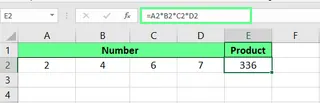
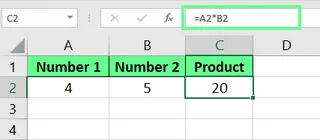
Let's say cells A2 and B2 contain numbers. In cell C2, enter =A2*B2 and press Enter. If you change the value in any of the first two cells, the result in C2 will automatically update.
How to multiply multiple cells in Excel
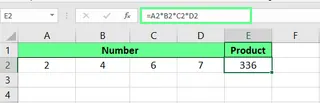
To multiply more than two cells, simply extend the formula:
=A2*B2*C2*D2
The AI-Powered Way: Describe the Task
Instead of typing cell references, you can tell Excelmatic what to do. After uploading your file, you could ask:
Multiply the value in cell A2 by the value in cell B2.
Or for multiple cells:
In a new column, show the result of multiplying column A, column B, column C, and column D for each row.
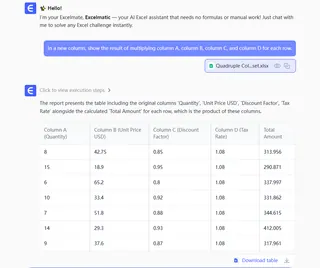
This approach is more intuitive and less prone to typos, especially with complex formulas.
How to Multiply Columns and Rows in Excel
We can also multiply entire columns and rows in Excel. Let’s see how.
How to multiply columns in Excel
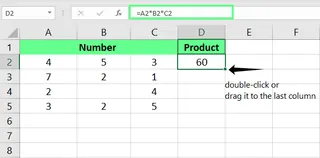
To multiply multiple columns, you can enter a formula in the first cell of your result column. For example, in cell D2:
=A2*B2*C2
Once you hit Enter, drag the small green square (the fill handle) at the corner of the cell down to apply the formula to the rest of the column.
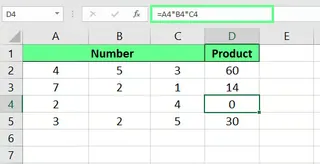
If any cell is empty but referenced in a formula, Excel treats it as 0, causing the formula to return 0.
How to multiply columns by a number in Excel
To multiply an entire column by a single number (a constant), you need to use an absolute reference ($). For instance, to multiply the column from A2 to A5 by the number in cell B2, the formula is:
=A2*$B$2
The $ symbol "locks" the reference to cell B2, so when you drag the formula down, it always multiplies by the value in B2.
Pro Tip: You don’t have to type $ manually. Click on the cell reference in the formula (e.g., B2) and press the F4 key to add the dollar signs automatically.

The AI-Powered Way: No Formulas, No Dragging, No Absolute References
This is where an AI tool like Excelmatic truly shines. Forget about dragging fill handles or remembering the $ symbol. Just state your goal.
- For multiplying columns: "Create a new column named 'Total' that is the product of 'Quantity' and 'Price'."
- For multiplying by a constant: "Multiply all values in column A by the value in cell B2."
Excelmatic understands the context and performs the calculation for the entire column instantly, without you needing to know about absolute vs. relative references.
How to multiply rows in Excel
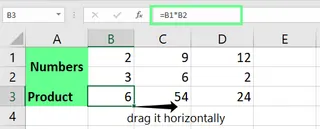
Multiplying rows works just like columns, but horizontally. To multiply row 1 by row 2, enter this formula in a new cell and drag it across the row:
=B1*B2
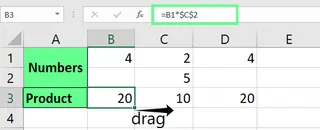
To multiply a row by a constant, use an absolute reference again. For example, to multiply row 1 by the value in cell C2:
=B1*$C$2
Then, drag the formula horizontally to apply it to the entire row.
With Excelmatic, the command is just as simple: "For each column from B to F, multiply the value in row 1 by the value in row 2."
How to Multiply Using Functions in Excel
Excel also has built-in functions to handle multiplication, which are especially useful for large datasets.
Using Excel's PRODUCT() function
The PRODUCT() function multiplies all the numbers given as arguments. The syntax is:
=PRODUCT(number1, [number2], ...)
Arguments can be numbers, cell references, or ranges. To multiply all values in cells A2 to A5, you would use:
=PRODUCT(A2:A5)
To multiply that result by another number, say 5, you can include it in the formula:
=PRODUCT(A2:A5, 5)
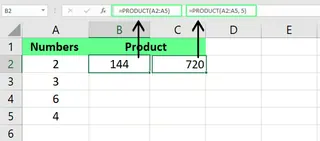
A key benefit of PRODUCT() is that it ignores empty cells and text, preventing your result from becoming zero unexpectedly.
Using Excel's SUMPRODUCT() function
The SUMPRODUCT() function is a powerhouse: it multiplies corresponding components in the given arrays (or ranges) and returns the sum of those products. Its syntax is:
=SUMPRODUCT(array1, [array2], [array3], ...)
For example, to calculate total sales by multiplying the quantity sold (column B) by the price for each item (column C), you can use this single formula:
=SUMPRODUCT(B2:B6, C2:C6)
This is much more efficient than the manual method: (B2*C2)+(B3*C3)+(B4*C4)+....
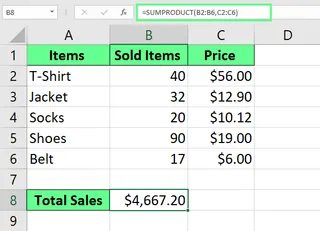
The AI-Powered Way: Describe the Outcome, Not the Function
Remembering the difference between PRODUCT and SUMPRODUCT can be tricky. With Excelmatic, you just describe the final result you want.
- For
PRODUCT: "What is the result of multiplying all the numbers in column A together?" - For
SUMPRODUCT: "Calculate the total revenue by multiplying the 'Quantity Sold' column by the 'Unit Price' column for each row and then summing the results."
Excelmatic selects the right function or method behind the scenes, so you can focus on the "what" instead of the "how."
Other Things That Might Come Up
Finally, let's take a look at a couple of other useful multiplication scenarios.
Multiplying by percentages in Excel
To calculate a percentage of a number, you can either use the % sign directly or its decimal equivalent.
Direct multiplication with percentages
To find 40% of 20, you can enter:
=20*40%
The % sign tells Excel to treat 40 as a percentage (0.4).
Using decimals instead of percentages
Alternatively, you can use the decimal form of the percentage. Since 40% is 0.4, the formula is:
=20*0.4
You can easily use a cell reference instead of a hardcoded number.
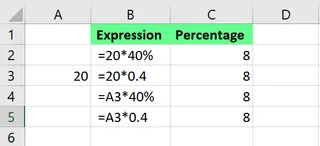
With Excelmatic, just ask: "What is 40% of the value in cell A3?" or "Calculate a 20% commission for each sale in the 'Sales' column."
Matrix multiplication in Excel using array formulas
Excel can even perform matrix multiplication using the MMULT() function. The syntax is:
=MMULT(array1, array2)
Important: The number of columns in the first matrix must equal the number of rows in the second matrix.
For example, to multiply a 2×3 matrix (in B2:D3) by a 3×2 matrix (in C5:D7), the result will be a 2×2 matrix.
- First, select a 2×2 range where you want the result.
- Type the formula:
=MMULT(B2:D3, C5:D7) - Press Ctrl + Shift + Enter to enter it as an array formula.
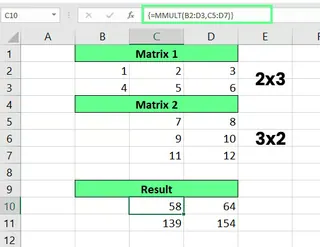
The AI-Powered Way: Skip the Complexity
Array formulas are powerful but notoriously tricky. The Ctrl+Shift+Enter combination is easy to forget, and errors are common. Excelmatic simplifies this advanced task dramatically. Just ask:
Perform a matrix multiplication of the range B2:D3 and C5:D7.
Excelmatic handles the complex array calculation and delivers the result without any special keystrokes.
Final Thoughts
We’ve covered multiple ways to multiply in Excel, from the simple * operator to advanced functions like PRODUCT(), SUMPRODUCT(), and MMULT(). Mastering these techniques is a great way to improve your spreadsheet skills.
At the same time, the landscape of data analysis is evolving. AI-powered tools like Excelmatic offer a faster, more intuitive alternative. By allowing you to use plain language to describe your goals, they handle the complexity of formulas, syntax, and functions for you. This frees you up to focus on what the data is telling you, rather than how to perform the calculation.
Ready to transform how you calculate in Excel? Try Excelmatic today and discover how AI-powered multiplication can accelerate your business analysis and decision-making.
How to Multiply in Excel FAQs
How do I multiply by pi in Excel?
In Excel, use the PI() function. To multiply the value in cell A1 by pi, the formula is =A1*PI(). With an AI tool, you can simply ask, "Multiply the value in A1 by pi."
How can I quickly multiply all the values in a column by a number without formulas?
The traditional way is to use Paste Special:
- Type the number you want to multiply by in a blank cell and copy it (Ctrl+C).
- Select the column of numbers you want to multiply.
- Right-click, choose Paste Special, select Multiply under the "Operation" section, and click OK.
The AI way is even faster: upload your file to Excelmatic and ask, "Multiply all values in column B by 5."
How can I multiply and round the result in one formula?
Combine the multiplication with the ROUND() function. To multiply A2 by B2 and round to two decimal places, use =ROUND(A2*B2, 2). Alternatively, ask Excelmatic: "Multiply A2 by B2 and round the result to 2 decimal places."
How do I display an error if a cell is empty instead of returning 0?
Use an IF() formula to check for empty cells:
=IF(OR(A2="", B2=""), "Error: Missing Value", A2*B2)
This formula checks if either A2 or B2 is empty. If so, it displays an error message; otherwise, it performs the multiplication. With Excelmatic, you can set this condition in your request: "Multiply A2 by B2, but if either cell is empty, return an error."